[How To] Update BIOS on a BitLocker Enabled system
Answer
Before updating the BIOS on a system with BitLocker Drive Encryption enabled, if BitLocker protection is not suspended beforehand, the system may fail security validation on the next restart after the update, prompting you to enter your BitLocker recovery key to continue booting. This article explains how to properly suspend and resume BitLocker protection before and after a BIOS update to avoid this situation.
This article applies to all MSI notebooks
Before you start: Locate and save your BitLocker recovery key
Sign in to your Microsoft account and follow the official Microsoft guide to find and save your system's BitLocker recovery key.
Note:
1. Failing to save your recovery key in advance may result in data loss or require a full operating system reinstallation.
2. BitLocker is a Microsoft encryption security feature. MSI does not store and cannot provide your recovery key, and cannot bypass Microsoft's BitLocker recovery process.
Step 1: Suspend BitLocker Protection
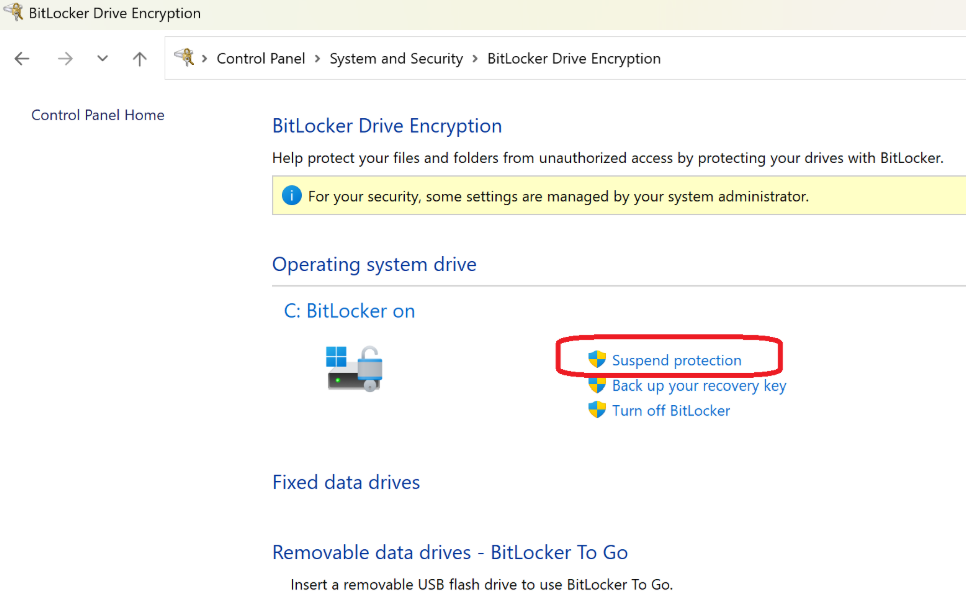
Open Control Panel > System and Security > BitLocker Drive Encryption > Suspend protection > click Yes.
Once suspended, BitLocker protection will be temporarily disabled. The drive remains encrypted; only the boot-time verification process is paused, and existing data is not affected.
Step 2: Perform the BIOS Update
Refer to [How to] Update BIOS and EC to complete the update.
Do not interrupt power during the update. The system will restart automatically once the update is complete.
Step 3: Resume BitLocker Protection
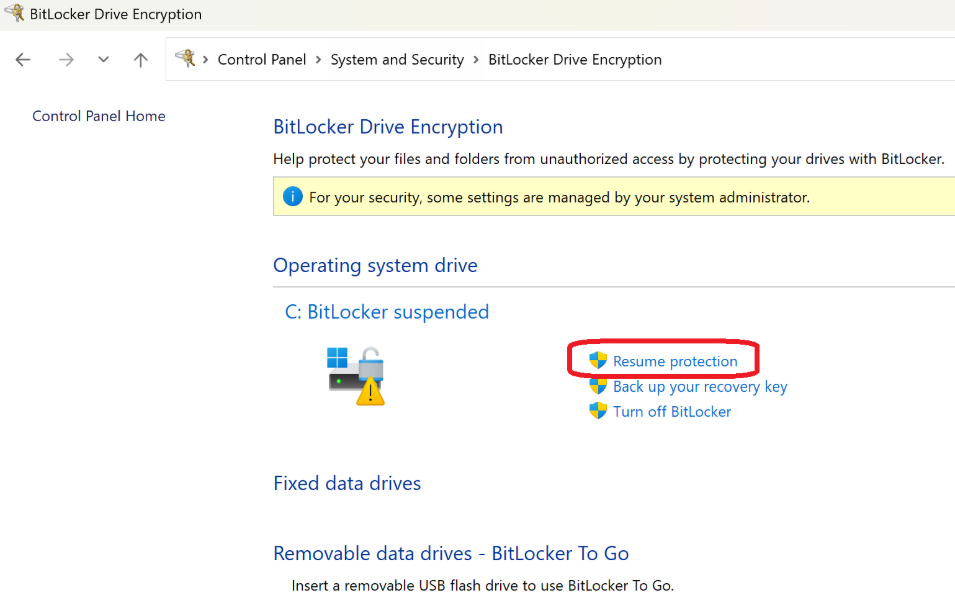
After the system restarts, open Control Panel > System and Security > BitLocker Drive Encryption > Resume protection.
FAQ
Q: What should I do if I forget to suspend BitLocker before updating the BIOS?
A: The system will prompt you to enter your BitLocker recovery key at startup. Follow the on-screen instructions to enter the key you saved earlier to continue booting. Afterward, we recommend confirming your BitLocker protection status using the steps above.
Q: What should I do if I can't find my BitLocker recovery key?
A: Sign in with the Microsoft account used on your system and check the official Microsoft guide. MSI is unable to provide or look up this key on your behalf.