[Troubleshooting] External Controller Does Not Perform Certain Actions Correctly in Specific Games on MSI Claw
Answer
When playing certain games (such as Minecraft or Diablo IV) on MSI Claw with an external controller connected, you may be unable to rotate the camera, move, or select options. This issue is caused by a conflict when the system detects multiple controllers. Follow the steps below to temporarily disable or enable the embedded controller.
This article applies to all MSI handheld gaming devices.
Method 1: Quick Settings
Disable the Embedded Controller
- Open Quick Settings > Settings > select the function you want to replace > choose “Embedded Controller” > click “Apply.”
(For more information, refer to MSI Center M Quick Guide) - Click “Embedded Controller” and set it to “Off.”
Enable the Embedded Controller
Open Quick Settings > click “Embedded Controller” and set it to “On.”

Method 2: Device Manager
Disable the Embedded Controller
- Open “Device Manager” > “Xbox 360 Peripherals,” then expand the category and locate “Xbox 360 Controller for Windows.”
- Press and hold “Xbox 360 Controller for Windows” > select “Disable device,” and then restart the system.
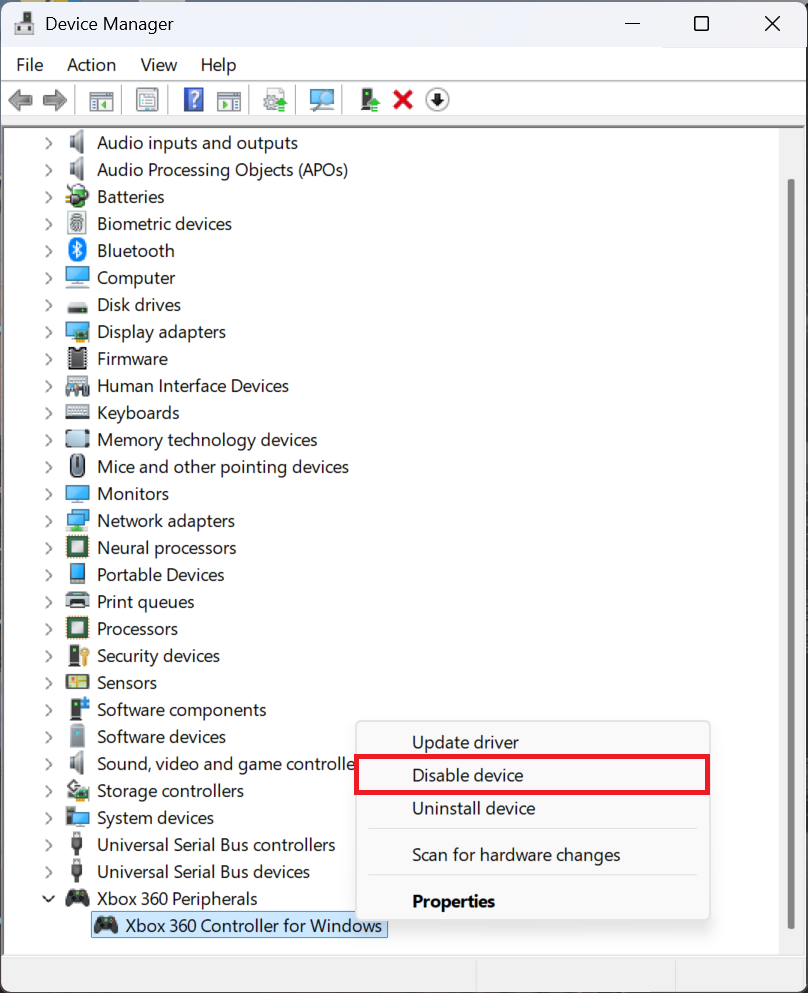
Enable the Embedded Controller
- Repeat the steps above to open “Device Manager.”
- Press and hold “Xbox 360 Controller for Windows,” select “Enable device,” and then restart the system again to restore functionality.
FAQ
Q: Why does the external controller not work properly?
A: This issue is caused by a signal conflict between the embedded controller and the external controller. In certain games, the system may prioritize input from the built-in controller, preventing some actions from the external device, such as camera control, from being received correctly.
Q: Why is a restart required after disabling or enabling the device in Device Manager?
A: Restarting allows the operating system to reinitialize the hardware driver status. Without a restart, the system may not apply the changes immediately, and the controller may still fail to switch or operate correctly.
Q: Where can I confirm whether the controller has been disabled correctly?
A: You can verify this under the “Xbox 360 Peripherals” category in “Device Manager.”
Q: Do I need to keep the embedded controller disabled all the time?
A: No. We recommend disabling it only before connecting an external controller and playing a specific game. After finishing the game, remember to enable the device again before using the handheld’s built-in controls.
Models
- Claw A1M
- Claw 8 EX AI+ CG3EM
- Claw A8 BZ2EM
- Claw 7 AI+ A2VM
- Claw 8 AI+ A2VM