[Game Master] How to Achieve Stable and High-Speed Steam Downloads
Answer
To ensure the best downloading experience on Steam, here are some tips to optimize Steam download speed.
Keep Steam and System Up-To-Date
Steam regularly updates its client to improve performance and fix bugs. Ensuring your system is updated can help avoid download interruptions.
Open Steam and click on Steam > Check for Steam Client Updates.
Update Windows 11 by going to Settings > Windows Update, then press Check for updates.
Restart Steam and your PC after updates are installed.
Adjust Steam Download Priority
If Steam downloads are interrupted or slowed down, adjusting the download priority can help.
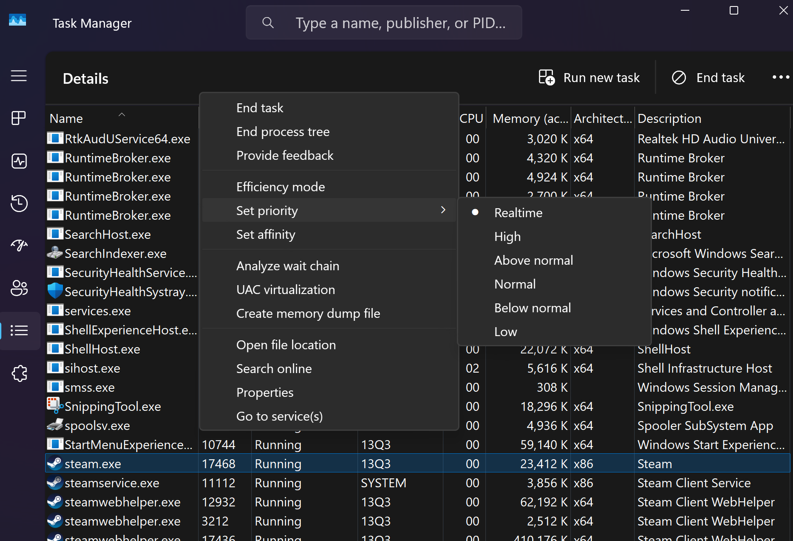
Open Task Manager by pressing Ctrl + Shift + Esc.
Go to the Details tab.
Find steam.exe, right-click, and select Set Priority > High.
Close Task Manager and monitor your download speed in Steam
Change Steam Download Region
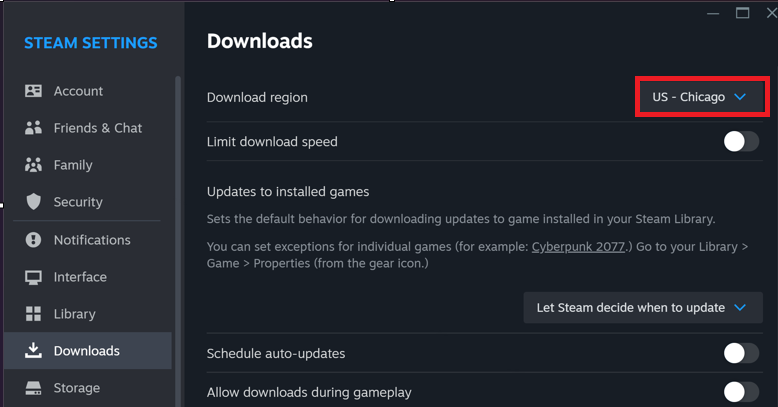
Steam automatically assigns a download server based on your location, However, Steam server sometimes might overload in some regions, changing it can help if the current server is overloaded.
Open Steam and go to Settings > Downloads.
Under Download Region, select a nearby server different from the default.
Restart Steam and check if the download speed improves.