[How To] Customize the VRAM Allocation in AMD Software
Answer
VRAM (Video Memory) is the memory space used by the GPU to store image data.The MSI Claw A8 BZ2EM is equipped with an AMD processor and integrated graphics architecture. Users can utilize AMD Software to adjust the amount of system memory reserved for the GPU as VRAM, adapting to the requirements of different games and applications.
This article applies to the MSI Claw A8 BZ2EM
Please follow the steps below to allocate video memory size for the Claw A8 BZ2EM:
1.Launch AMD Software by entering "AMD Software" in Windows search bar.
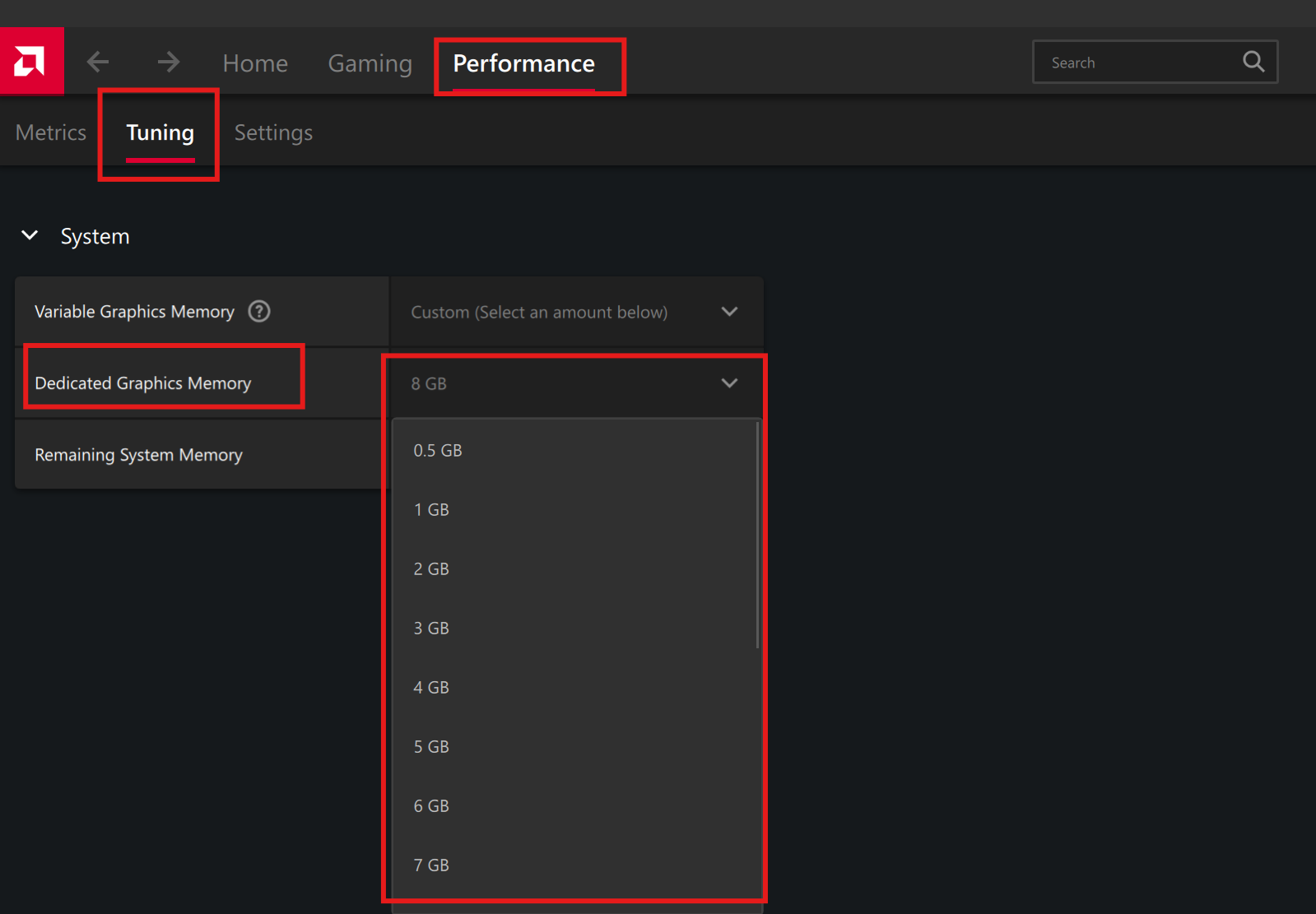
2.Select Performance > Tuning.
3.Under the System tab, use the drop-down menu of Dedicated Graphics Memory to select the customized VRAM allocation (default capacity is 8 GB).
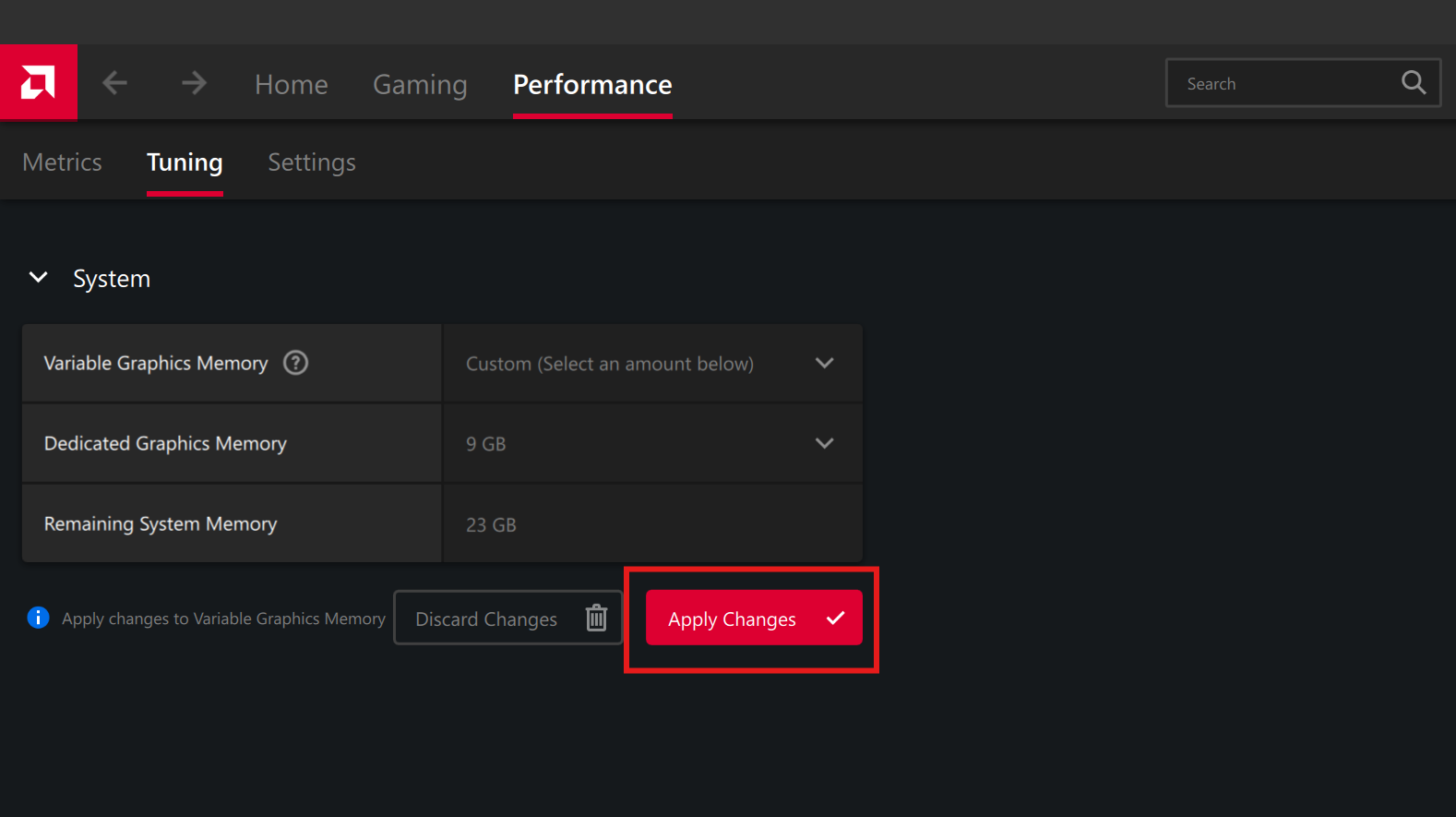
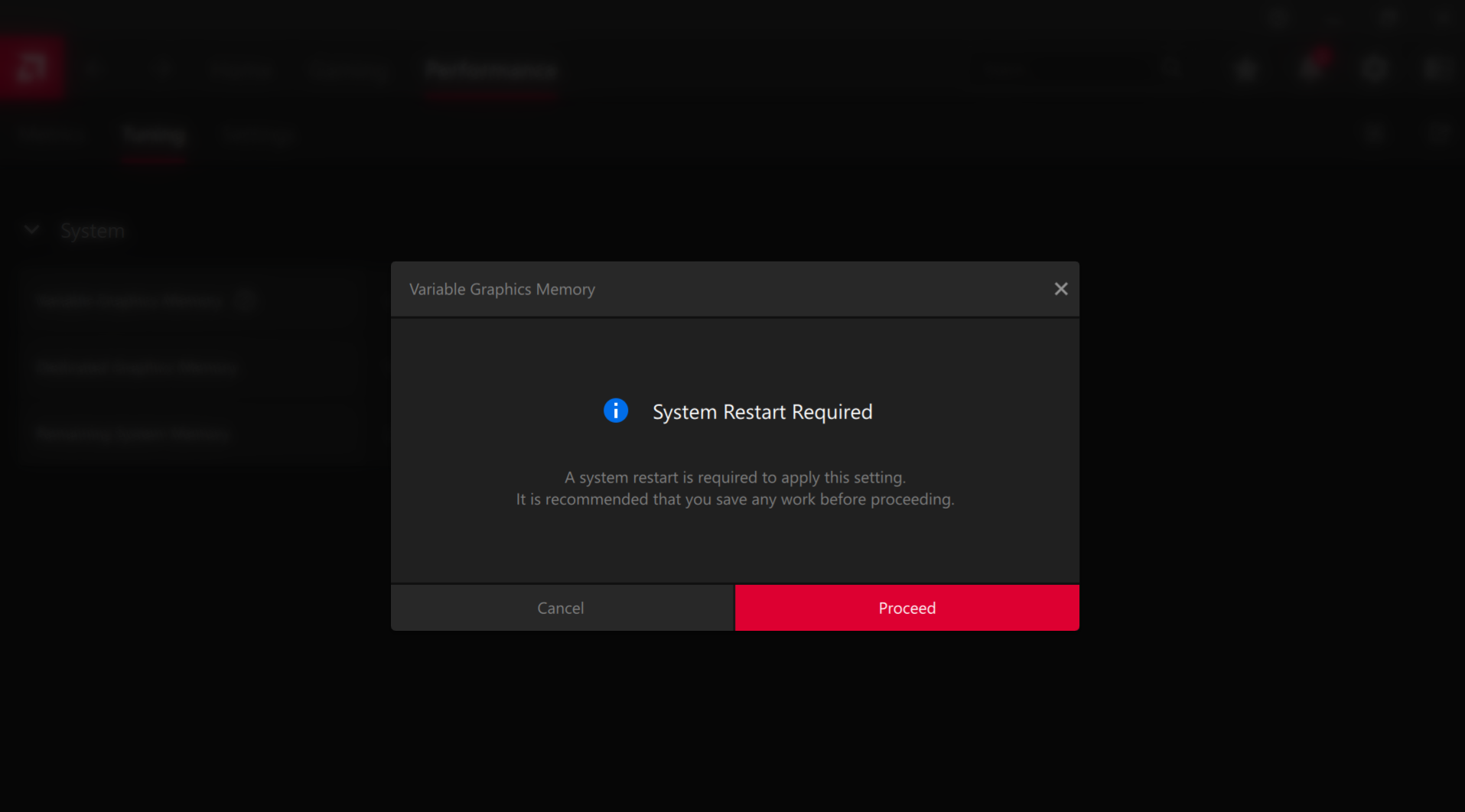
4.Click on Apply Changes and click on proceed to reboot the system.
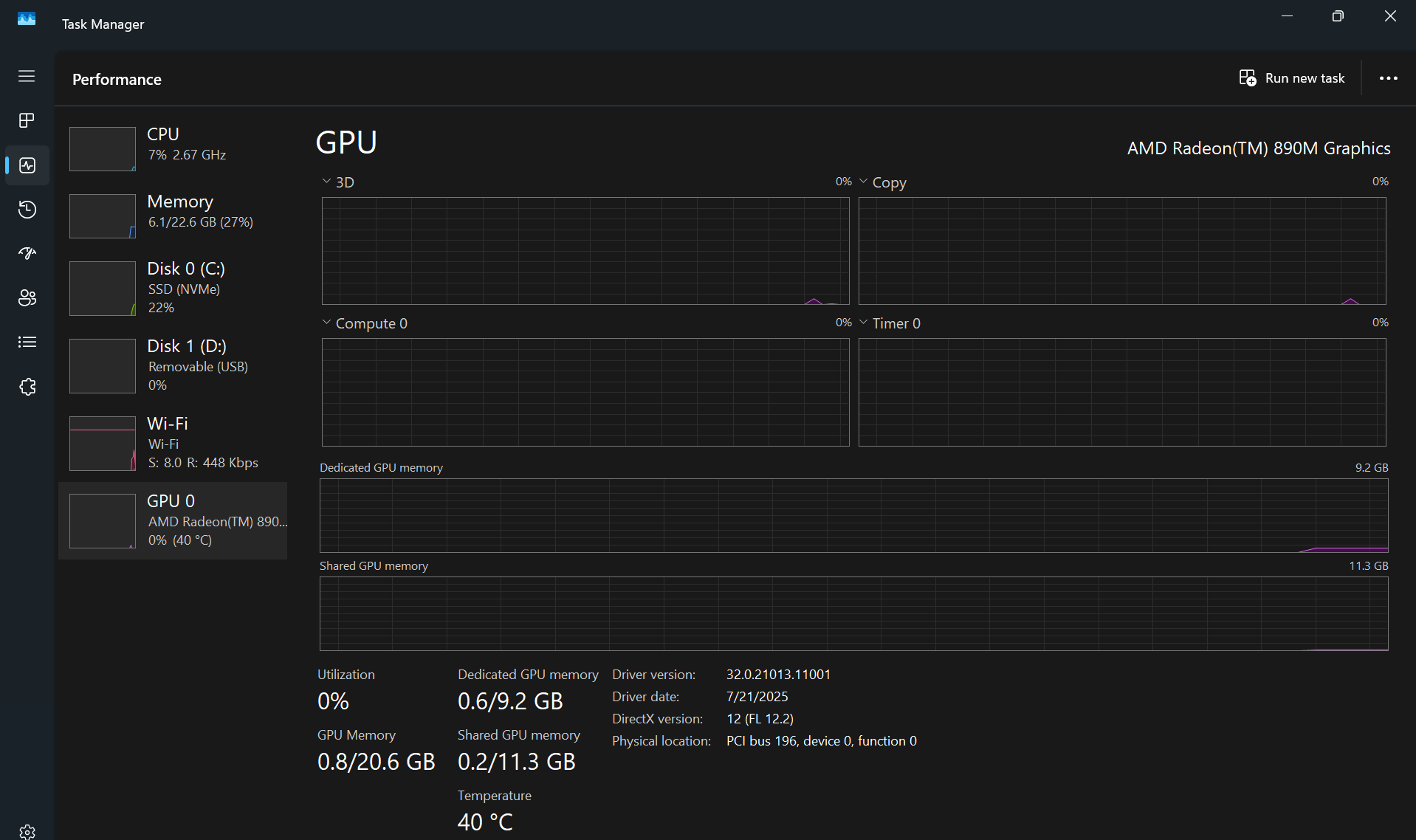
5.To check the customized result, right-click on the Windows button and select Task Manager, go to the second icon "Performance" and select GPU 0; the new VRAM allocation will be shown in Dedicated GPU memory.
*Note:
1.Save all unfinished works before customizing the VRAM size; if any instability or error occurs after the modification, revert it back to the default value (8 GB);
2.The reserved VRAM comes from system RAM — when increasing it, make sure sufficient system memory is available
Models
- Claw A8 BZ2EM