[How To] Resolve the “BIOS Firmware Update Required” Prompt When Running Call of Duty Series Games on AMD Laptops
Answer
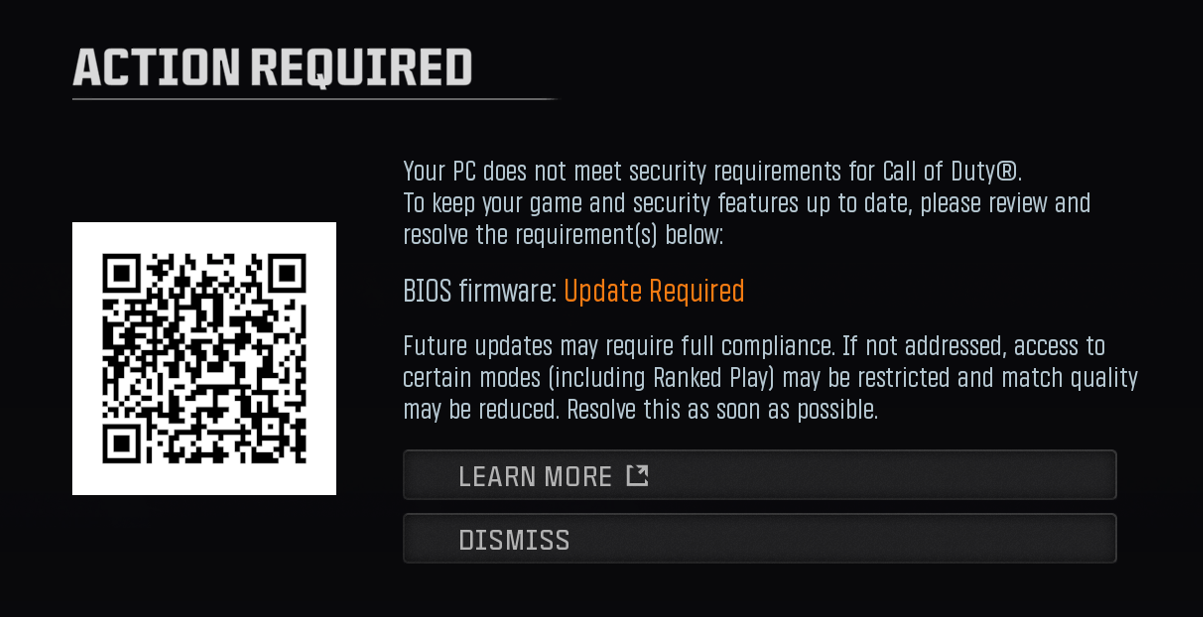
On certain MSI notebooks equipped with AMD processors, a “BIOS Firmware Update Required” error prompt may appear when launching a Call of Duty game, even if the system already meets the game's security requirements.
This issue may be related to anomalies in how Activision's RICOCHET anti-cheat system recognizes TPM (Trusted Platform Module) information, which can cause the prompt to appear on certain systems that already meet the game's security requirements.
If your system has been confirmed to meet Call of Duty's security requirements but the prompt still appears, please refer to the corresponding solutions provided in this article.
Error Message
Before You Begin: Confirm the System Meets Call of Duty's Security Requirements
1.Refer to Check if the System Meets the Security Requirements for Call of Duty to confirm that the notebook's hardware and system meet the game's security requirements.
2.Use the Call of Duty Secure Attestation Wizard Tool provided by Activision through the link above to further verify the system's security attestation results.
Note: If the “BIOS Firmware Update Required” prompt still appears after confirming that the system meets the above requirements, refer to the corresponding solution below.
Why This Happens
This issue involves how Activision's RICOCHET anti-cheat system evaluates TPM information and requires further investigation and improvements by Activision.
For MSI notebooks listed in the Models section at the end of this article, this issue can be resolved by switching the system's security processor mode. For other MSI notebooks equipped with AMD processors, users are advised to contact Activision Support for further investigation.
Adjust the AMD fTPM Switch Setting
The following BIOS configuration workaround applies only to the MSI notebook models listed in the Models section at the end of this article.
Important: This is a non-standard configuration. It is recommended to keep the system at its default settings when not playing Call of Duty games to avoid potential issues. If BitLocker or Device Encryption is enabled, back up the recovery key before making any BIOS configuration changes.
Step 1: Confirm the Current TPM Status
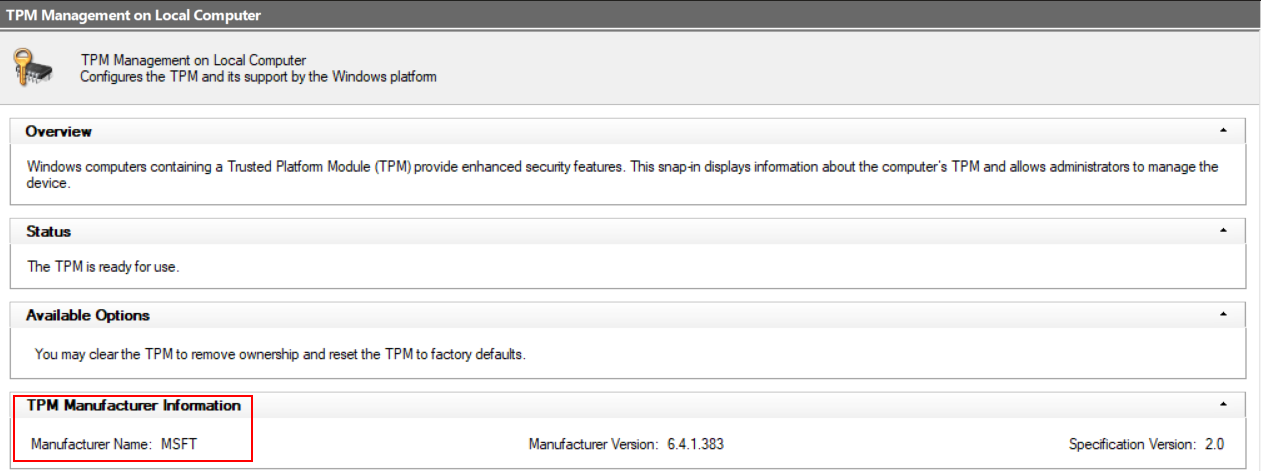
1. Type “tpm.msc” into the Windows search bar and open it.
2. Check the manufacturer name shown in the lower-right corner. If it shows “MSFT”, proceed to the BIOS adjustment in Step 2.
Step 2: Enter BIOS and Change the AMD fTPM Switch Setting
1. Restart the notebook and repeatedly press the “Delete” key during startup to enter BIOS.
2. Once in BIOS, press “Left Alt” + “F2” + “Right Ctrl” + “Right Shift” simultaneously to access the hidden BIOS menu.
3. Navigate to “Advanced” > “AMD fTPM Configuration”.
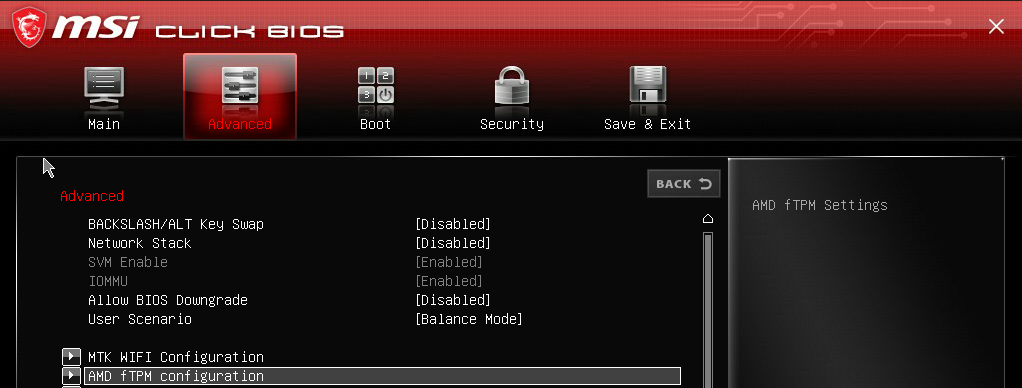
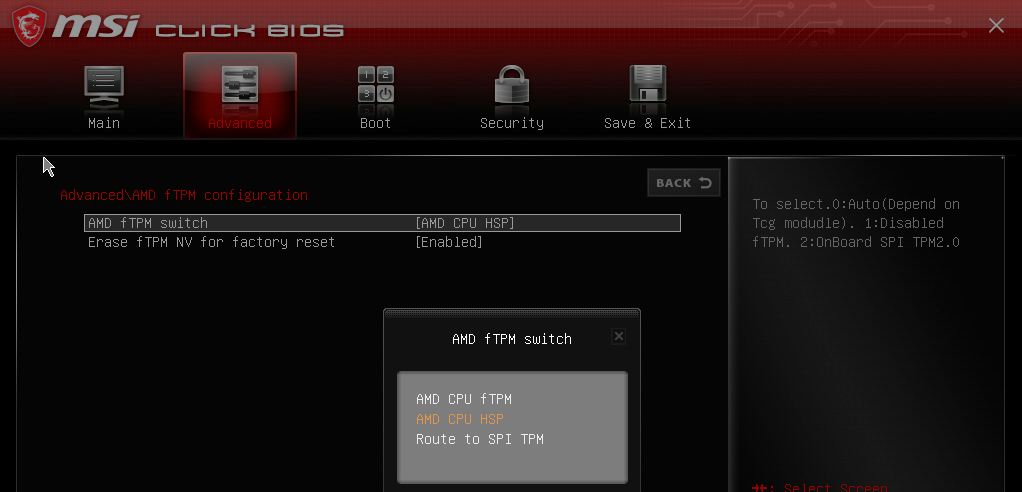
4. Change “AMD fTPM Switch” from “AMD CPU HSP” to “AMD CPU fTPM”.
5. Press “F10” and select “Save & Exit”. The system will restart.
Step 3: Verify Whether the Issue Is Resolved
1. After restarting into Windows, launch the Call of Duty game again.
2. Check whether the “BIOS Firmware Update Required” prompt no longer appears and confirm that the game runs normally.
FAQ
Q: Why does the “BIOS Firmware Update Required” prompt appear even though the system already meets Call of Duty's security requirements?
A: This prompt is related to how Activision's RICOCHET anti-cheat system performs security attestation using TPM information. On certain AMD hardware platforms, the prompt may still appear due to anomalies in how the game's anti-cheat system recognizes TPM information, even when the system already meets the game's security requirements. It is recommended to first confirm that the system meets the game's security requirements, then refer to the corresponding solution provided in this article.
Q: Why does changing AMD fTPM Switch from AMD CPU HSP to AMD CPU fTPM resolve this issue?
A: This setting determines which security processor mode the AMD processor's firmware TPM (fTPM) uses to report TPM information to Windows and the game's anti-cheat system. Switching to AMD CPU fTPM changes how this information is reported, which can work around the recognition anomaly that occurs in AMD CPU HSP mode on certain models. Please note that this BIOS configuration workaround applies only to the models listed in the Models section at the end of this article.