[Troubleshooting] Touch Keyboard Intermittently Fails to Appear in Windows 11
Answer
The on-screen touch keyboard can occasionally fail to appear when tapping a text field with no physical keyboard or mouse connected with Windows 11.
This can still occur intermittently even after installing Microsoft's latest cumulative update (hotfix) intended to address this behavior, and typically requires tapping the text field multiple times before the touch keyboard finally appears.
This is a known Windows 11 behavior at the operating system level, not specific to any particular device manufacturer.
Refer to this article if the touch keyboard does not open on the first tap, or if you need to tap repeatedly before it shows up.
This article applies to all MSI laptops with touchpanel.
Recommended Setting: Set the Touch Keyboard to Always Display
1. Open Windows “Settings”.
2. Go to “Time & language”.
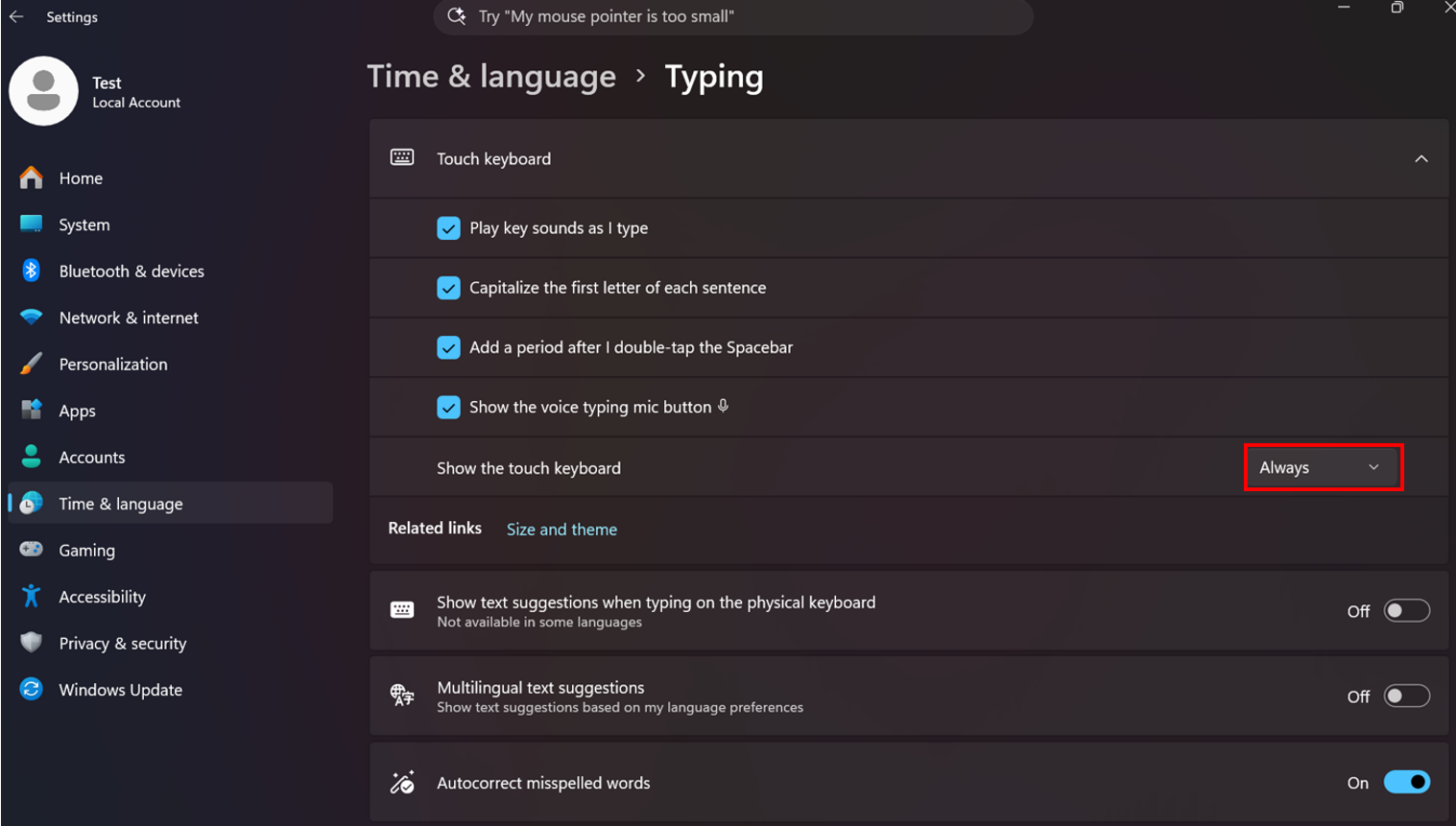
3. Select “Typing”, then expand “Touch keyboard”.
4. Under “Show the touch keyboard”, review the available options:
- “Always” — the touch keyboard opens automatically whenever a text field is tapped, regardless of whether a keyboard is attached.
- “When no keyboard attached” — default setting; the touch keyboard only opens automatically if the system does not detect a physical keyboard.
- “Never” — the touch keyboard does not open automatically and must be opened manually.
5. Select “Always” instead of the default “When no keyboard attached”.
Note: This setting is a workaround that has been found to reduce how often the touch keyboard fails to appear on the first tap. Because this is a known, intermittent Windows 11 behavior.
Common Questions (Q&A)
What exactly happens when this issue occurs?
When tapping a text input field, the touch keyboard sometimes does not open on the first tap. Tapping the field again, sometimes multiple times, is usually required before the keyboard appears.