[How To] Completely Uninstall Drivers and Applications in Windows
Answer
In Windows 11, different types of programs have different correct removal methods. If you need to remove drivers, applications, or general desktop software on an MSI laptop, please first confirm which type of item you want to remove.
Scope of this article:
- Driver / Device (such as touchpad, network card, graphics card): remove through Device Manager
- Microsoft Store / UWP software: remove through Windows Settings
- Other software (such as traditional desktop programs, driver bundled installers): remove through Windows Settings or Control Panel
This article applies to all MSI laptop products.
Uninstallation Methods
1. How to uninstall a driver or device
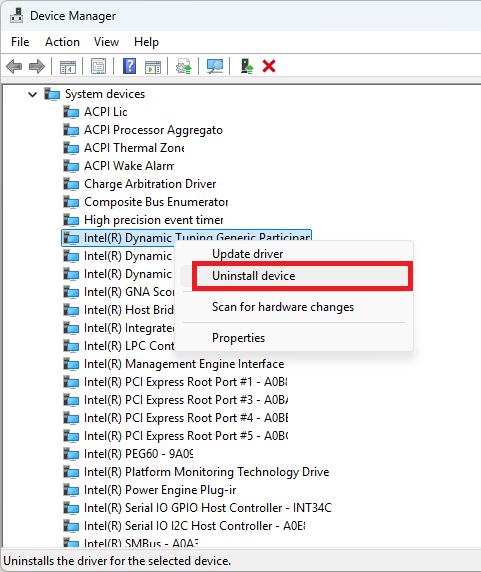
- Right-click Start > Device Manager > locate the device category you want to remove and expand it
- Right-click the device you want to remove > Uninstall device
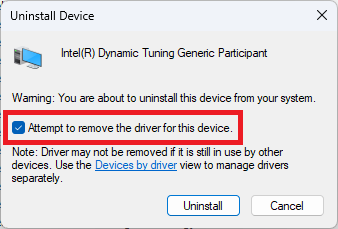
- If the option Attempt to remove the driver for this device for this device appears, check it and then click Uninstall.
- Restart the computer and go to Device Manager to confirm whether it has been completely uninstalled.
2. How to uninstall a Microsoft Store / UWP App
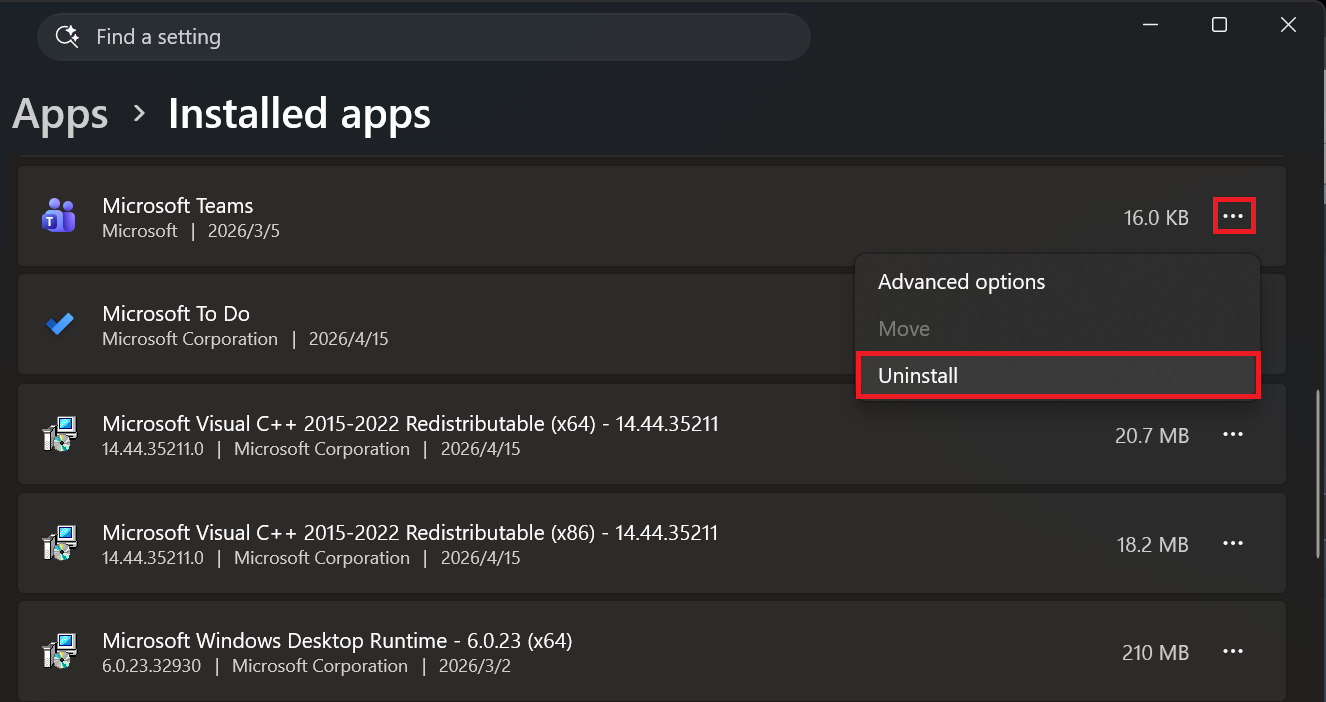
- Go to Settings > Apps > Installed apps
- Search for the Microsoft Store software you want to uninstall.
- Click More options on the right side > Uninstall
3. How to uninstall general software
- Go to Settings > Apps > Installed apps
- Search for the Microsoft Store software you want to uninstall.
- Click More options on the right side > Uninstall
If the software cannot be removed through the method above, please refer to the following steps to uninstall it through Control Panel.
- Type Control Panel in the Windows search bar and open it
- Click Programs > Programs and Features > right-click the program you want to uninstall and uninstall it
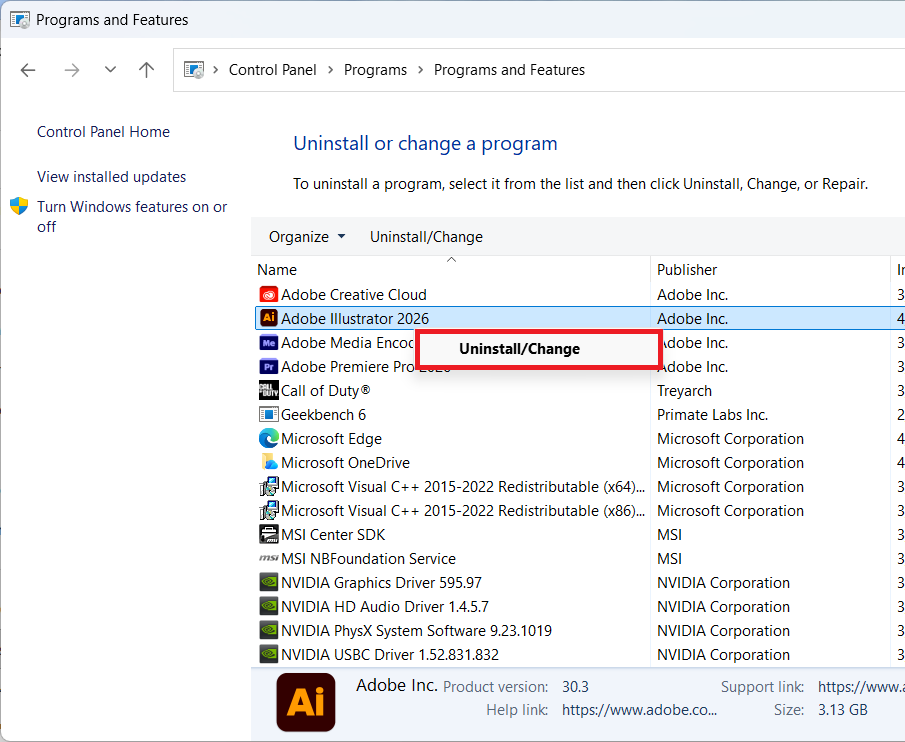
- Follow the on-screen instructions to complete the uninstallation
FAQ
Q: Why are not all programs removed from the same place?
A: Because Windows uses different management methods for different types of programs. Device drivers belong to hardware-level management and are usually handled through Device Manager; Microsoft Store apps belong to application-level management and are usually managed through Settings; general desktop programs may appear in Settings or Control Panel.
Q: When should I check "Delete the driver software for this device"?
A: You can check this option when you want to remove the driver package together with the device, instead of only removing the device itself. This is usually applicable when the driver is abnormal, needs to be fully reinstalled, or when you want to prevent the system from using the same driver version again.
Q: What should I do if the problem still remains after uninstalling?
A: If the problem is still not resolved after uninstalling, it is recommended to restart the system and then install the latest driver or software provided on the MSI official website. If it is a driver-related issue, you can also first check whether there are still residual devices or abnormal driver versions remaining in Device Manager.