[How to] Use MSI True Color to Adjust Display Modes
Answer
This article only applies to laptops that support the MSI True Color feature.
MSI True Color is a display color management software built into MSI laptops, allowing users to quickly switch to the optimal display effect according to different usage scenarios (gaming, design, movies, eye protection, etc.), without requiring any professional color calibration knowledge.To check whether your model supports MSI True Color, visit the product page or the Support download page of the official MSI website.
Basic View Mode and Advanced View Mode
The True Color settings offer two modes of operation: Basic View Mode and Advanced View Mode. Basic View Mode provides seven quick-switch modes — Gamer, Anti-Blue, sRGB, Display P3 (select models only), Adobe RGB (select models only), Office, and Movie — making it convenient for general users to quickly apply settings based on their usage scenario. Advanced View Mode allows users to customize display parameters and use the True Color tools for more detailed adjustments. Simply click the down arrow on the program window to switch between Basic and Advanced View Modes.
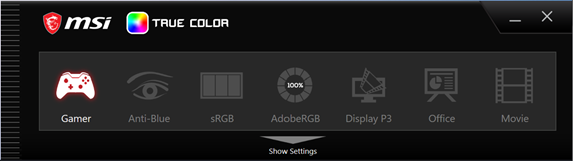
View Mode Descriptions and Use Cases
1. Gamer
The Gamer view mode allows you to customize display parameters suited for gaming. After changing any settings in the Gamer mode, you can use the “Save As” function to save them as a custom profile, making it convenient to apply the settings at any time or share them with other users. Users can adjust Brightness, Contrast, Gamma, and Red, Green, Blue color parameters in the Gamer mode, and can also use the “Adjust Color Temperature” function to optimize the screen’s color temperature performance.
2. Anti-Blue
The Anti-Blue view mode reduces the intensity of blue light emitted by the screen, providing more comfort during extended use. Any changes made in the Anti-Blue mode are automatically saved to the Anti-Blue profile. Users can adjust the blue light intensity and brightness separately for different usage scenarios, including Multimedia, Browsing, Office, and Reading. You can also enable the “Anti-Blue Schedule” function to automatically turn Anti-Blue on and off at set times, without needing to switch manually each time.
3. sRGB
The sRGB view mode provides more accurate color reproduction for web images. Any changes made in the sRGB mode are automatically saved to the sRGB profile. Users can adjust the brightness in sRGB mode, and can also use the “Adjust Color Temperature” function to optimize the screen’s color temperature performance.
4. Display P3 (Select Models Only)
The Display P3 view mode allows you to view content in a wide-gamut cinema mode, delivering more vivid and saturated color performance, ideal for viewing cinema-grade or professional visual content. Any changes made in the Display P3 mode are automatically applied without needing to be manually saved. Users can adjust the Brightness and Gamma values in Display P3 mode.
Note: Display P3 mode does not support saving, exporting, or importing profiles.
5. Adobe RGB (Select Models Only)
The Adobe RGB view mode provides more accurate color display for images created using the Adobe RGB color space. After changing any settings in the Adobe RGB mode, you can use the “Save As” function to save them as a custom profile, making it convenient to apply the settings at any time or share them with other users. Users can adjust Brightness, Contrast, Gamma, and Red, Green, Blue color parameters in Adobe RGB mode, and can also set the Color Temperature (Warm / Neutral / Cool) and fine-tune it further using the “Adjust Color Temperature” function.
6. Office
The Office view mode is suited for general productivity applications used in everyday work settings. Any changes made in the Office mode are automatically saved to the Office profile. Users can adjust the brightness in Office mode, and can also use the “Adjust Color Temperature” function to optimize the screen’s color temperature performance.
7. Movie
The Movie view mode enhances the color experience when watching videos. Any changes made in the Movie mode are automatically saved to the Movie profile. Users can adjust the brightness in Movie mode, and can also use the “Adjust Color Temperature” function to optimize the screen’s color temperature performance.
The Gamer and Adobe RGB modes both support profile management
The steps are as follows:
1. Save Profile (Save As): After adjusting the parameters, click the “Profiles” drop-down menu, select “Save As”, enter a name, and confirm to save.
2. Export Profile (Export): Click “Export”, select a save location, and confirm. This allows you to share the profile with other users.
3. Import Profile (Import): Click “Import”, locate the target file in the dialog window, and confirm. The imported profile name will appear in the drop-down menu.
4. Delete Profile (Delete): Select the profile you wish to delete from the drop-down menu, then click “Delete” to confirm removal.
Note: Profiles for each mode will only appear in the drop-down menu of the corresponding mode. Display P3 mode does not support the profile feature; parameter changes are applied automatically.
In addition, on the settings page of the Gamer or Adobe RGB mode, clicking the “Reset” button will restore Brightness, Contrast, Gamma, and Red, Green, Blue color parameters to their factory default values.
FAQ
Q: How do I confirm whether my laptop supports True Color?
A: You can go to the product page for your model on the MSI official website and check whether the product overview mentions True Color, or go to the Support download page for your model and check whether a True Color application is listed under drivers and utilities. If either location has relevant content, your model supports this feature.
Q: How do I launch MSI True Color? What are the quick launch methods?
A: You can press Fn + Z to directly launch the full True Color application for all parameter adjustments, or press Fn + A to open the mini view mode utility, which only allows quick mode switching without detailed parameter adjustments.
Q: Why doesn’t my True Color have a “Display P3” or “Adobe RGB” mode?
A: These two modes are only available on select models equipped with corresponding wide-gamut panel specifications. If your model does not support this, these options will not appear in the True Color interface.
Q: Can the Anti-Blue mode be set to turn on and off automatically?
A: Yes. In the Anti-Blue mode settings page, locate the “Anti-Blue Schedule” section, check “Enable Anti-Blue Schedule”, then set the “Turn on Anti-Blue at” (start time) and “Turn off Anti-Blue at” (end time) respectively. The system will then automatically switch according to the scheduled times, without requiring manual operation each time.
Q: What should I do if I encounter an issue while installing or using MSI True Color?
A: Please refer to the solutions listed in the following document:
[Troubleshooting] MSI True Color
If the above answers do not resolve your issue, please
Contact Us