[How To] Power Plan Setting in Windows 11
Answer
This article applies to MSI notebooks with Windows 11 operating systems.
Windows 11 provides various power management features that allow you to adjust settings such as screen timeout, sleep, hibernate, power button actions, lid close actions, Energy Saver, and power mode according to your needs. These settings help balance system performance, battery life, and overall user experience.
This article explains how to configure common power management options through Windows 11 『Settings』 and 『Control Panel』, helping you customize your notebook's power behavior based on your usage requirements.
How to Configure Sleep Mode
Sleep mode allows your notebook to quickly resume operation and is suitable when you leave your computer unattended for a short period of time.
Steps
1.Open Settings.
2.Select System → Power & battery.
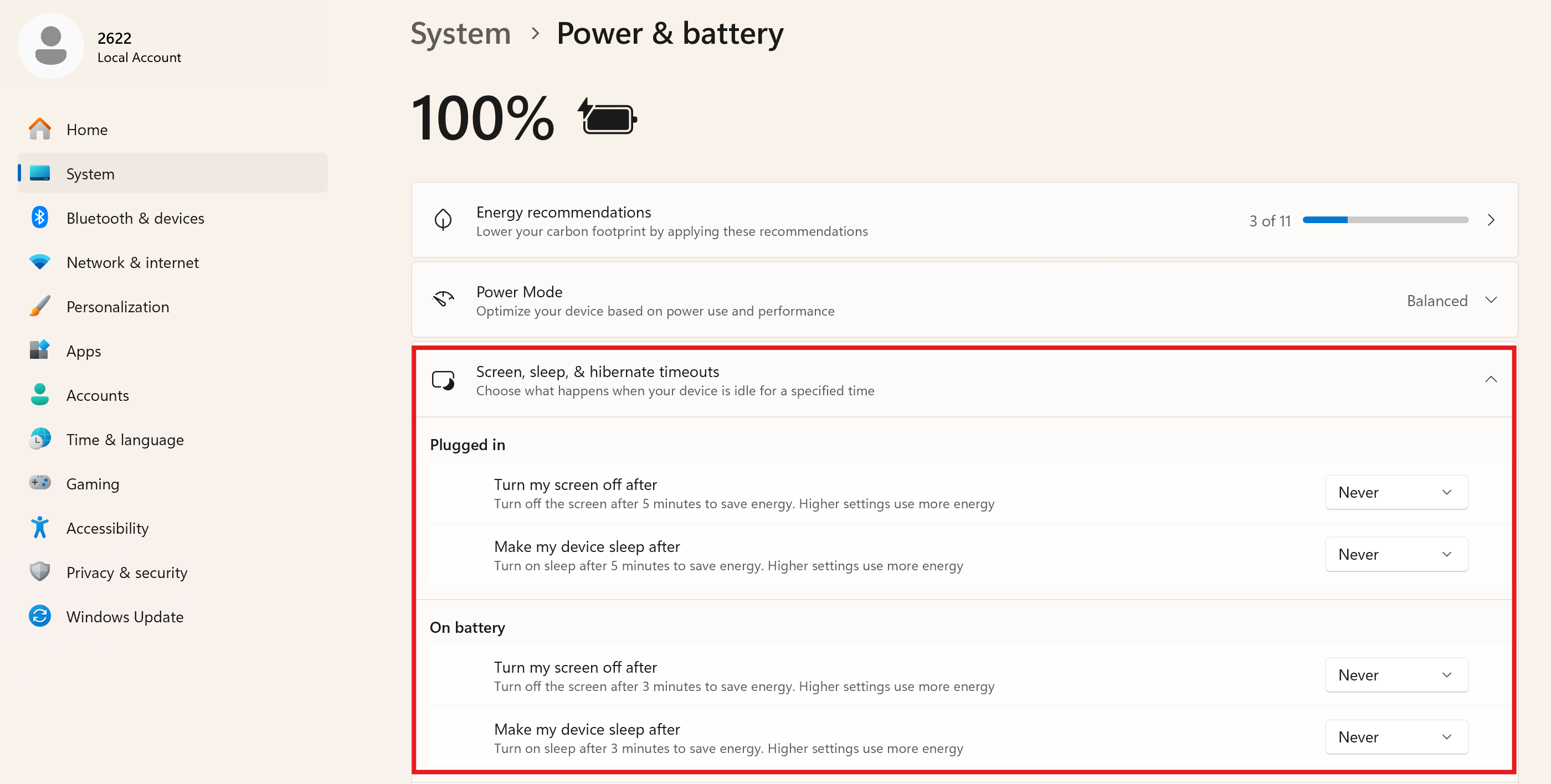
3.Expand Screen, sleep & hibernate timeouts.
4.Configure the following settings according to your needs:
a.Turn off my screen after
b.Put my device to sleep after
How to set up Hibernate Mode
Hibernate saves your current work session to the SSD or hard drive and completely powers off the computer. It consumes less power than Sleep mode, making it suitable when you will not be using your notebook for an extended period.
Steps
Step 1: Verify That Hibernate Is Enabled
1.Type 'cmd' in the Windows Search box.
2.Right-click Command Prompt, then select Run as administrator.
3.Enter the following command and press Enter:powercfg /hibernate on
If Hibernate is already enabled, proceed to the next step.
Step 2: Configure the Automatic Hibernate Timeout (If Supported)
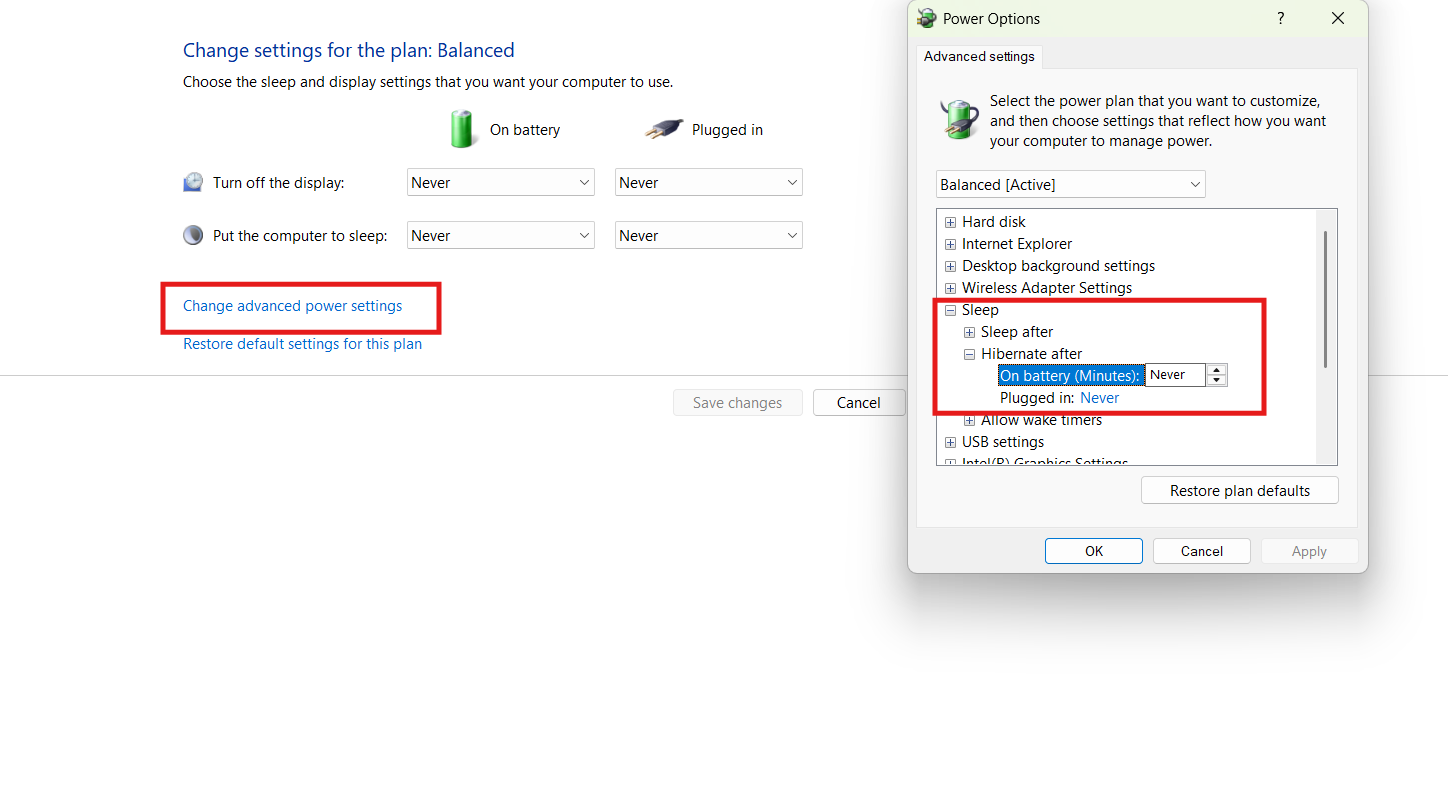
1.Open 'Control Panel'.
2.Select 'Hardware and Sound' → 'Power Options'.
3.Click 'Change plan settings' next to the currently selected power plan.
4.Click 'Change advanced power settings'.
5.Expand 'Sleep'.
6.If the 'Hibernate after' option is available, configure the desired timeout value.
7.Click 'Apply' → 'OK'.
Note: Some Windows 11 notebooks that support Modern Standby (S0) do not provide the Hibernate after option. This is by design and is normal Windows power management behavior.
Step 3: Add Hibernate to the Power Menu
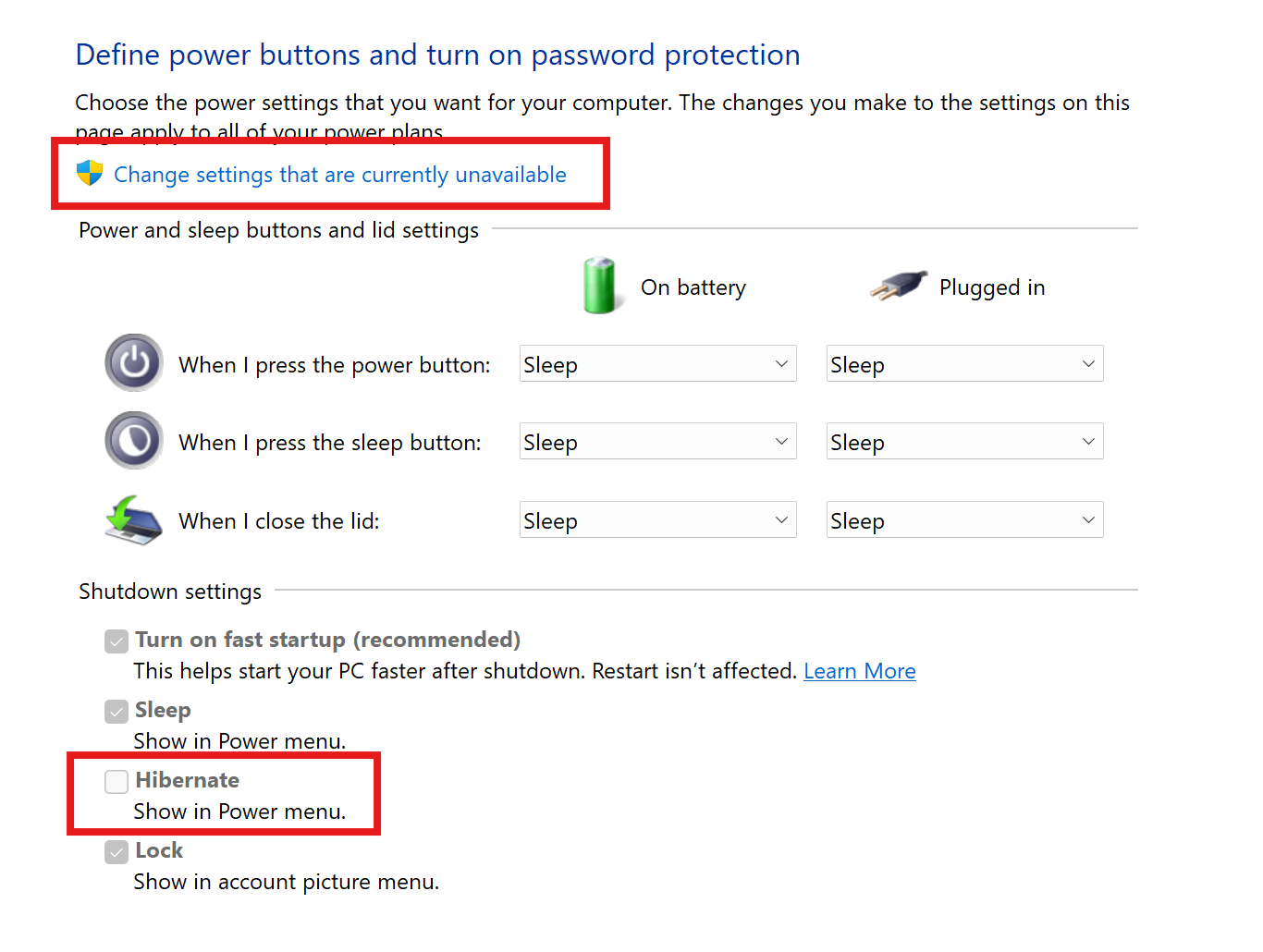
1.Open 'Control Panel' → 'Hardware and Sound' → 'Power Options'.
2.Click 'Choose what the power buttons do'.
3.Click 'Change settings that are currently unavailable'.
4.Under 'Shutdown settings', select 'Hibernate'.
5.Click 'Save changes'.
After the configuration is complete, you can select Hibernate from Start → Power.
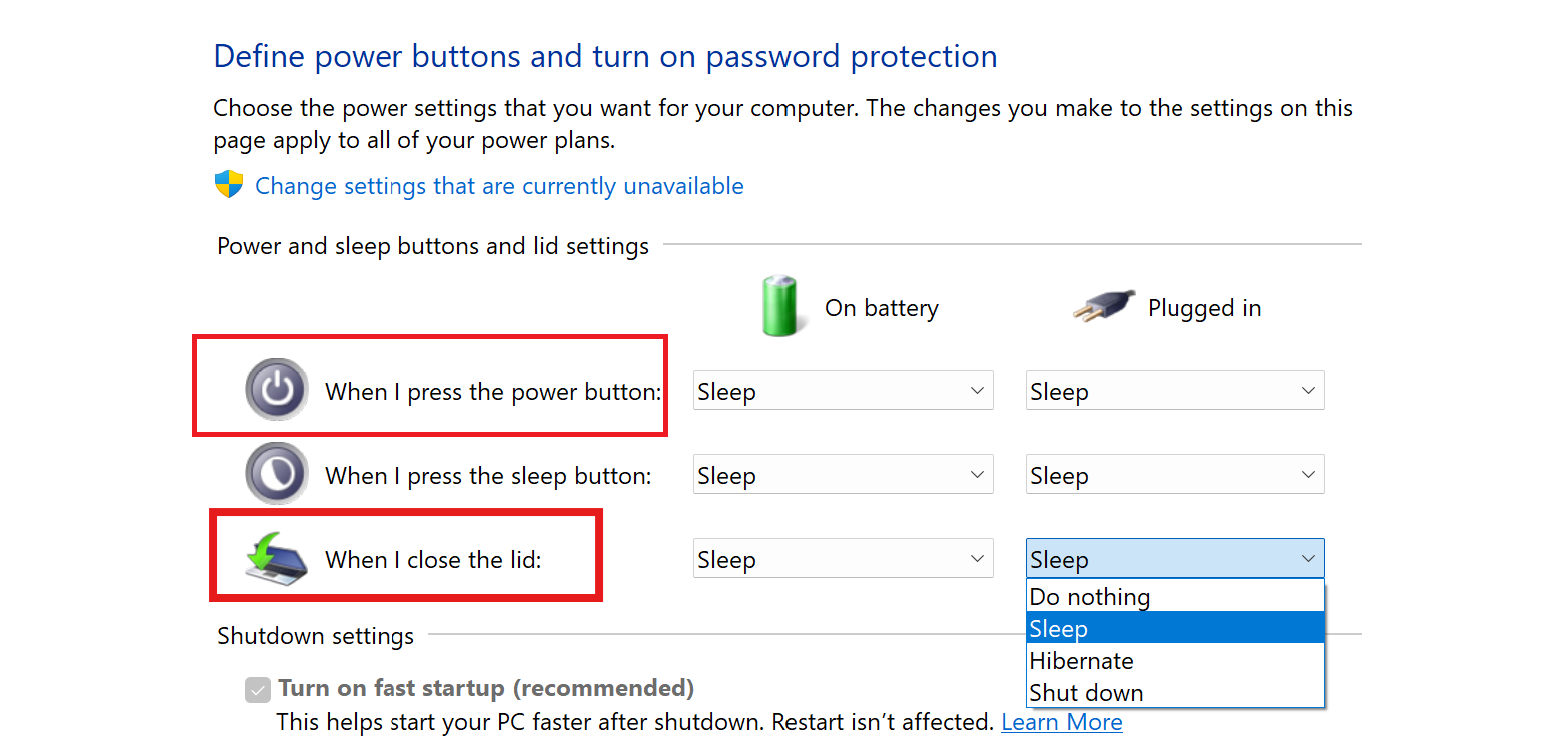
How to Configure Power Button and Lid Close Actions
Windows 11 allows you to customize the actions performed when pressing the power button or closing the notebook lid.
Note:On some Windows 11 versions, these settings are available under Settings > System > Power & battery. If the options are not available, use Power Options in Control Panel to configure the settings.
Steps
1.Open Settings.
2.Select System → Power & battery.
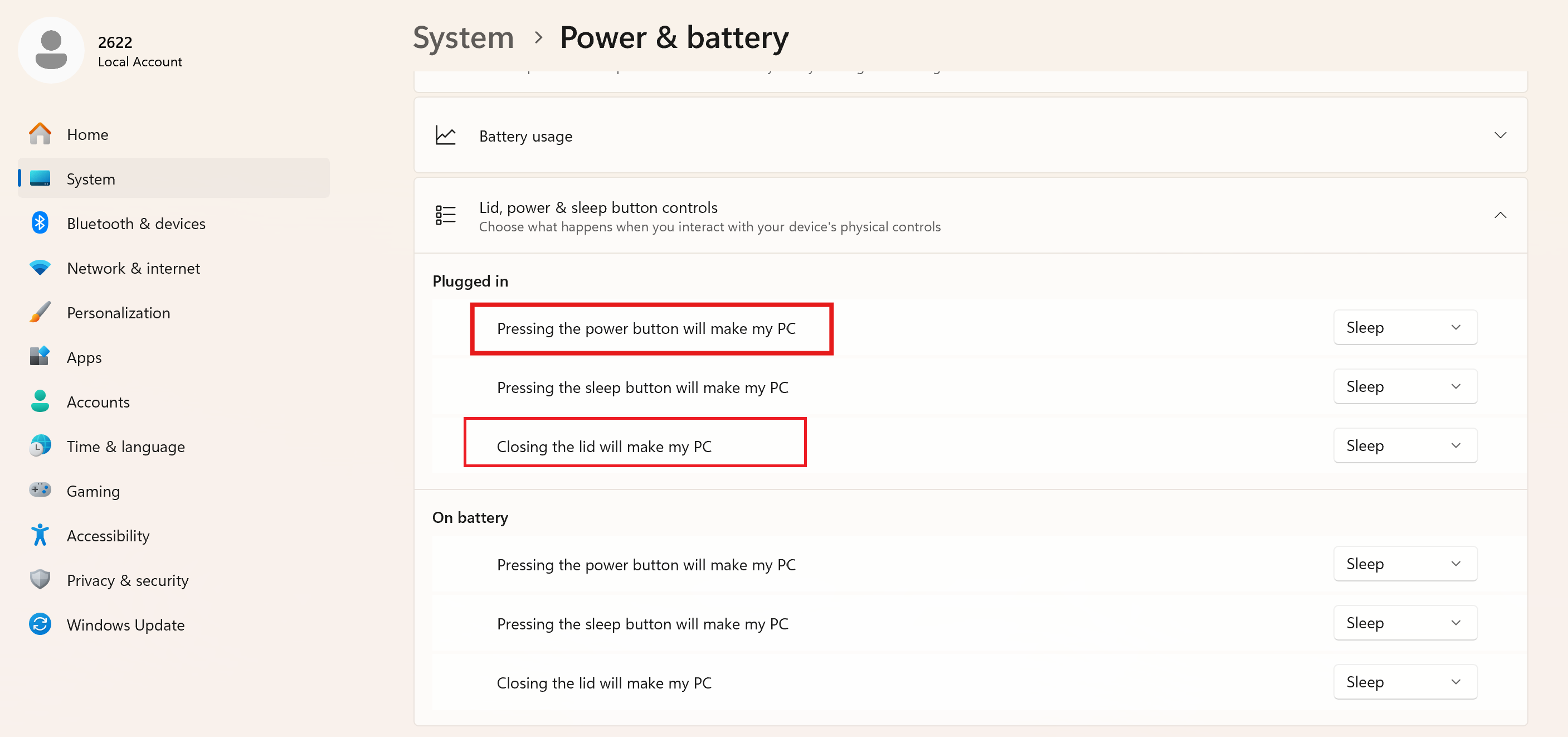
3.If the Lid, power & sleep button controls option is available, open this setting page.
4.Configure the following options according to your needs:
a.When I press the power button
b.When I close the lid
If these settings are not available, follow the steps below:
1.Open Control Panel → Hardware and Sound → Power Options.
2.Click Choose what the power buttons do or Choose what closing the lid does from the left panel.
3.Under When I press the power button or When I close the lid, select the desired action:
a.Do nothing
b.Sleep
c.Hibernate
d.Shut down
e.Turn off the display
4.Click Save changes.
How to enable and adjust Power Saving Mode (Energy Saver)
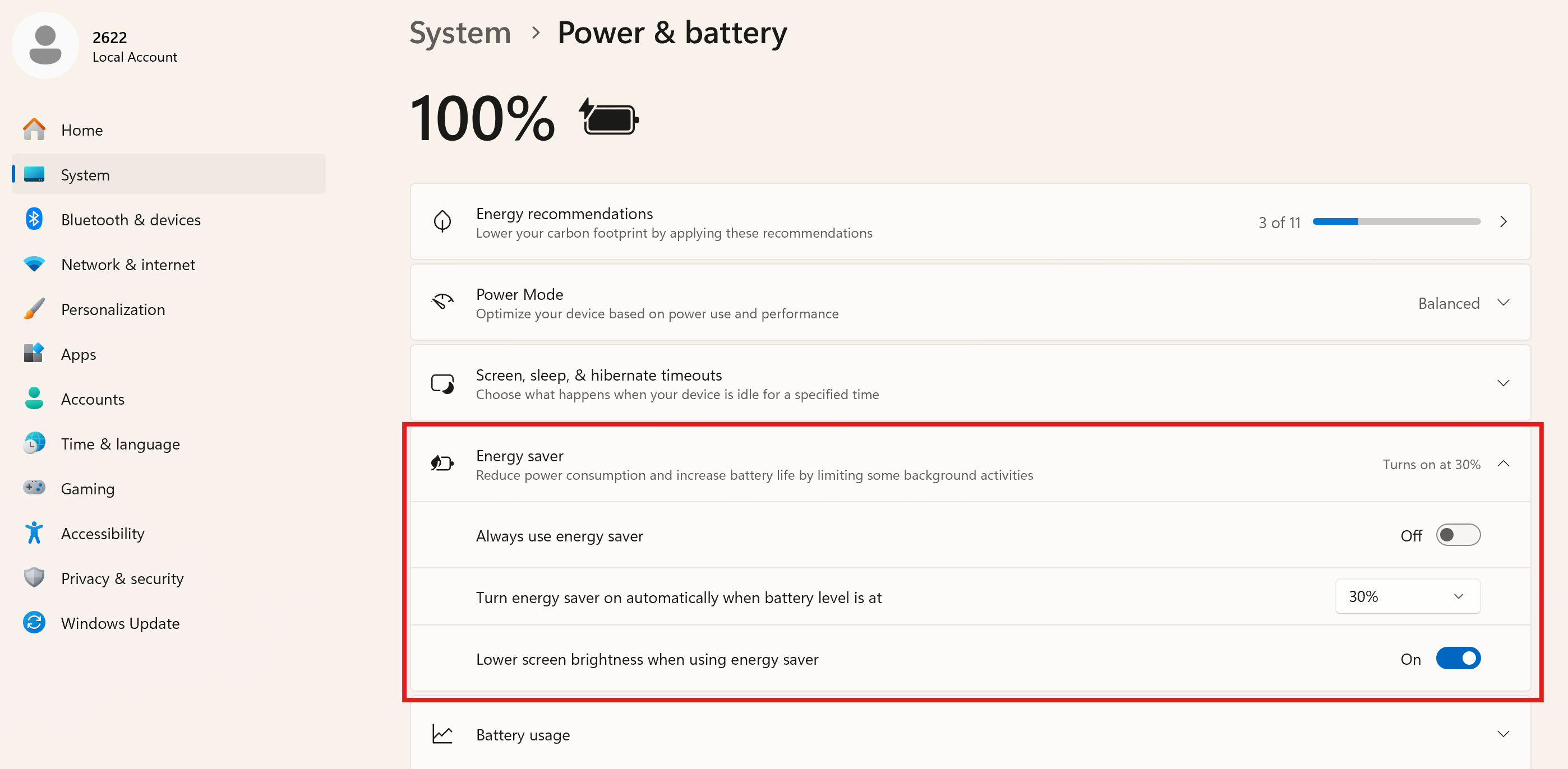
Energy Saver limits background activity and reduces overall system power draw to extend battery runtime.
Steps
1.Open: Settings → System → Power & battery.
2.Locate the Energy Saver section.
3.Choose an option based on your needs:
a.Turn on now
b.Automatically turn on when battery falls below a specified percentage
4.Toggle on Lower screen brightness while using Energy Saver if desired.
How to modify Advanced Power Settings
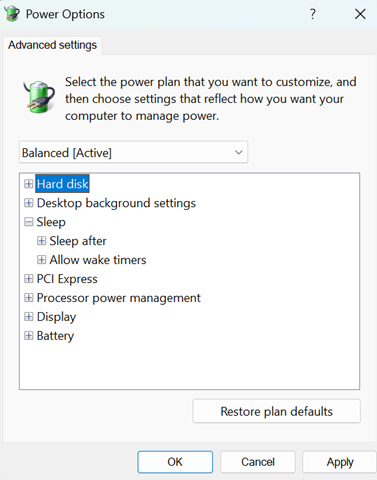
Advanced Power Settings offer granular control over power consumption behavior for all hardware components.
Steps
1.Open: Control Panel → Hardware and Sound → Power Options.
2.Click Change plan settings.
3.Select Change advanced power settings.
4.Adjust configurations for the following categories as needed:
a.Hard disk
b.Desktop background settings
c.Sleep
d.PCI Express
e.Processor power management
f.Display
g.Battery
5.Once finished, click Apply → OK
How to Change Power Mode
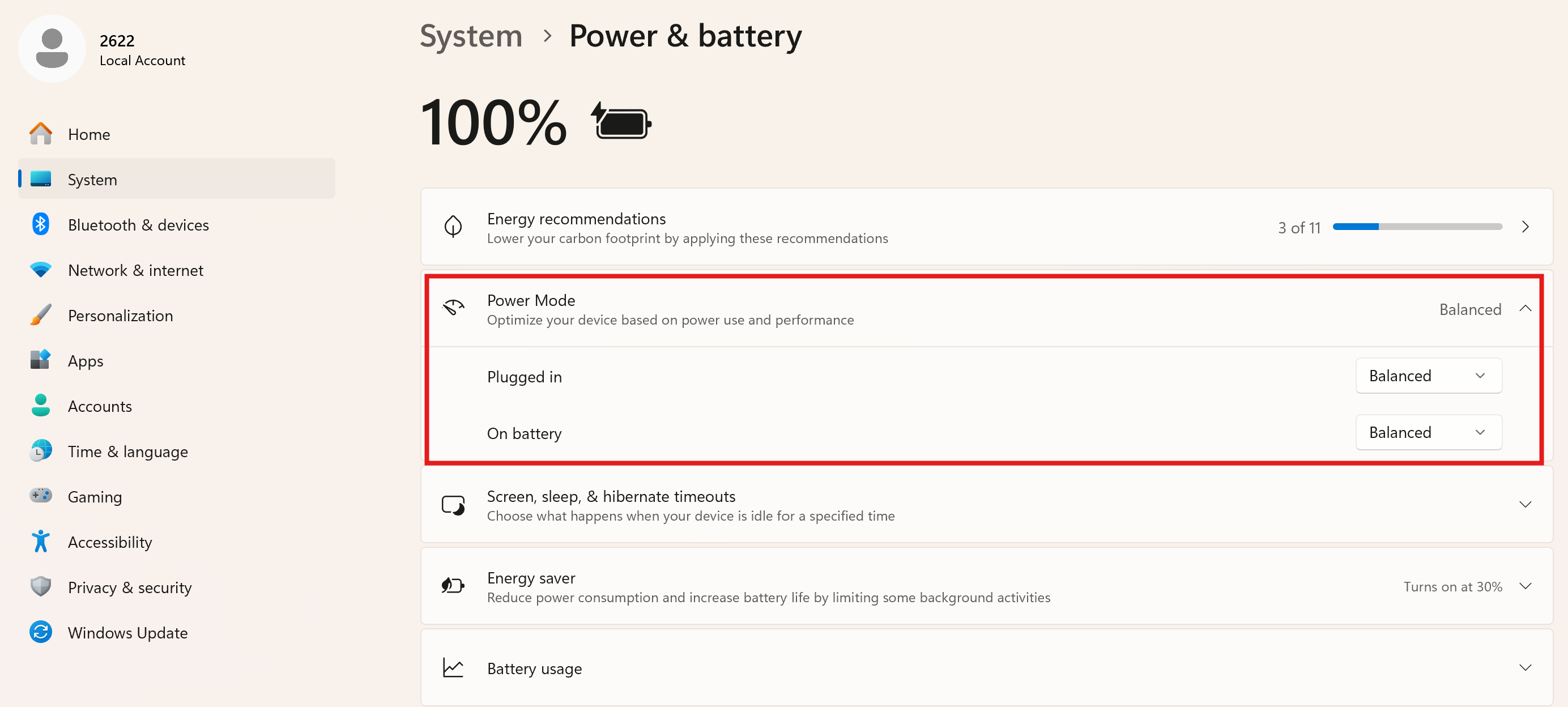
Windows 11 allows you to adjust system performance and power consumption according to your needs.
Steps
1.Open Settings.
2.Select System → Power & battery.
3.Under Power mode, select one of the following options:
a.Best power efficiency
b.Balanced
c.Best performance (supported on some models)
FAQ
Q: What is the difference between Sleep Mode and Hibernate Mode?
A: Sleep mode keeps your current work state in memory, allowing the system to resume operation quickly.
Hibernate mode saves your current work state to the SSD or hard drive. It consumes less power but takes longer to resume.
Q: Why does my laptop automatically enter Sleep when I close the lid?
A: This is because the system is set to enter Sleep mode by default when the lid is closed. You can change this setting through Power Options.
Q: When should I use Energy Saver mode?
A: Energy Saver mode is recommended when using battery power, working on the go, or when you want to extend battery life.
Q: Who should adjust the advanced power settings?
A: Users with the following requirements may adjust the advanced power settings:
1)Extend battery life.
2)Achieve maximum performance.
3)Avoid power-saving limitations when using external devices or wireless networks.
4)Customize Sleep and Hibernate behavior.
If the above answers do not resolve your issue, please
Contact Us