[How to] Turn On or Off Fast Startup in Windows 10/11
Answer
Fast Startup is a feature in Windows designed to reduce system boot time. When this feature is enabled and the system is shut down, Windows does not completely power off the system. Instead, it saves the system kernel and driver state into a hibernation file on the hard drive. During the next boot, the system loads this file directly, significantly reducing the time needed to reach the desktop.
This FAQ applies to all MSI notebooks.
Please follow the steps below to configure Fast Startup:
Step 1
Open Control Panel → Power Options
Step 2
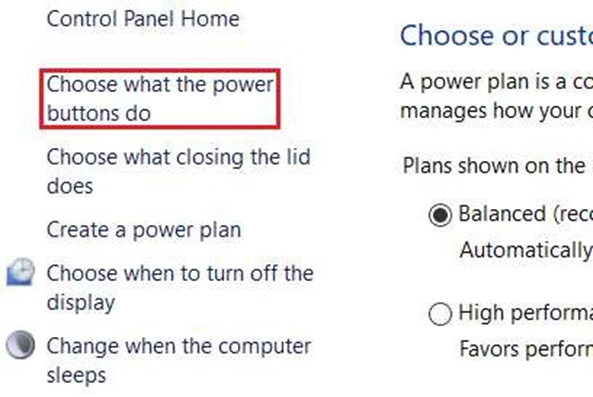
In the Power Options window, click “Choose what the power buttons do” on the left panel
Step 3
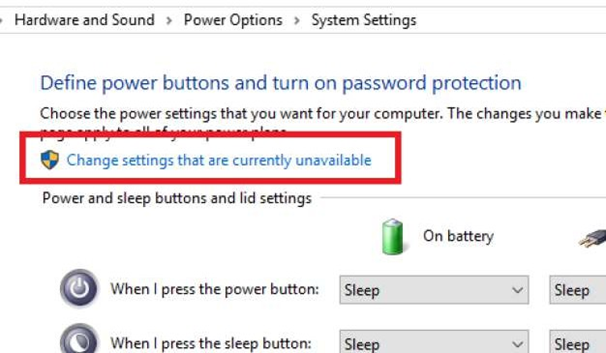
In the settings page, you will see that the options under “Shutdown settings” are greyed out.
Click “Change settings that are currently unavailable” (with the shield icon) to gain administrator privileges
Step 4
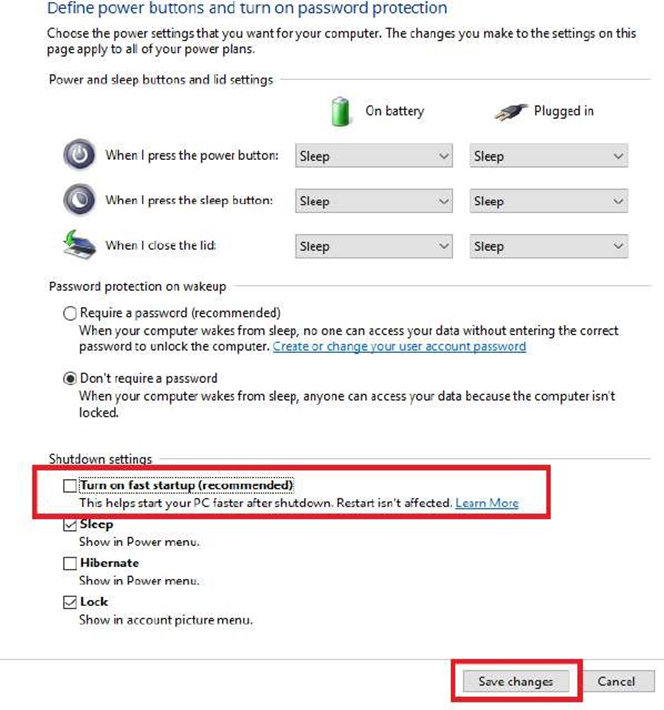
You can now enable or disable “Turn on fast startup (recommended)”
Click “Save changes” and restart the system to apply the setting
FAQ
Q: Why would I need to disable Fast Startup?
A: Fast Startup is essentially an advanced form of hibernation rather than a full shutdown. If you are upgrading hardware (such as memory) or troubleshooting issues like system crashes (BSOD), disabling this feature ensures the system fully clears previous states and reloads a clean hardware environment on the next boot.
Q: When should I enable or disable Fast Startup?
A: If your system is working normally and you want faster boot times, it is recommended to keep Fast Startup enabled. However, if the system has been running for a long time and starts to behave abnormally or slowly, you can disable it for troubleshooting.
If the above answers do not resolve your issue, please
Contact Us