[Troubleshooting] Cannot setup display connection when using Virtual Reality (VR) device
Answer
This article helps resolve display connection issues with a Virtual Reality (VR) headset on MSI notebooks that use NVIDIA Optimus or Microsoft Hybrid Graphics technology, where the system automatically switches between integrated and discrete graphics. Refer to this article if the VR headset shows no video output, the display connection cannot be established, or the VR software reports that no compatible graphics card was detected after connecting the headset via HDMI or DisplayPort.
This article applies to MSI notebooks configured with NVIDIA Optimus or Microsoft Hybrid Graphics technology.
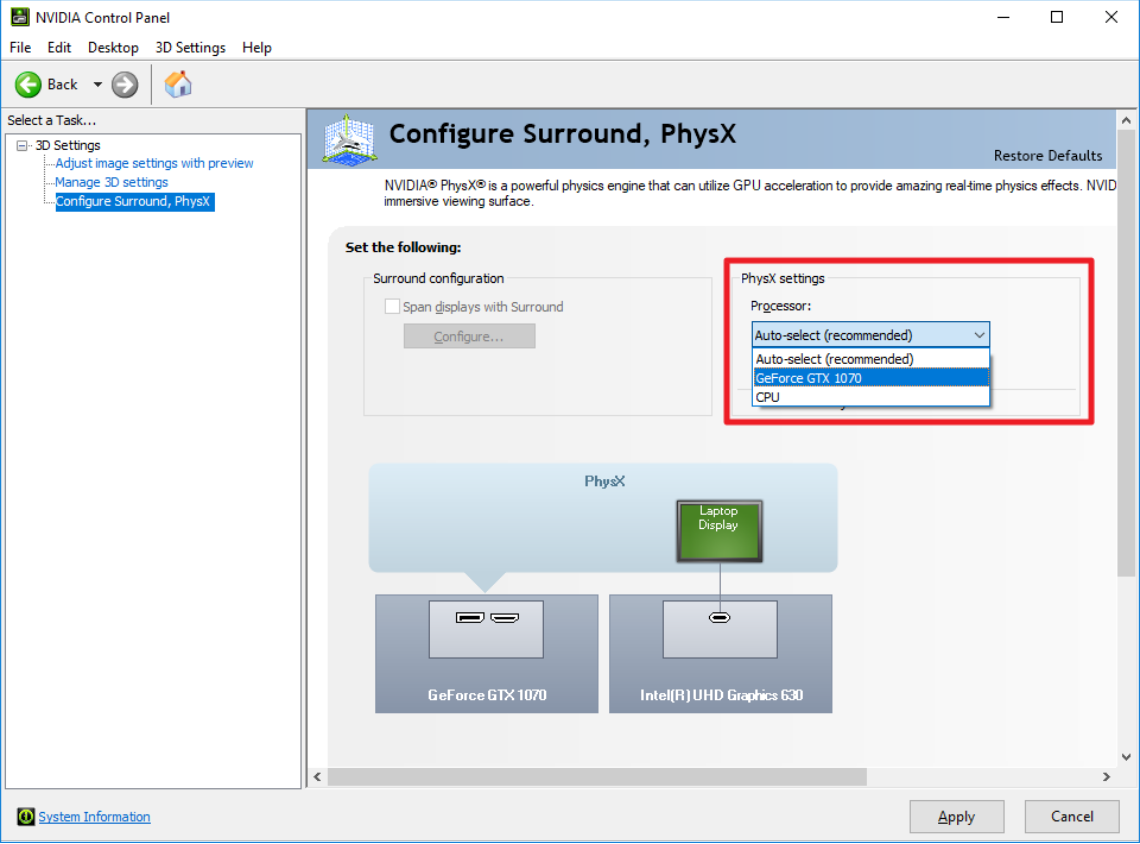
When setup Virtual Reality (VR) device, it's suggested adjusting PhysX setting to use Nvidia graphics in Nvidia control panel.
Please refer to the following steps and the attachment.
1. Right click on desktop
2. Select "NVIDIA Control Panel"
3. Select "Configure Surround, PhysX"
4. Set Nvidia graphics in the dropdown menu of PhysX settings
5. Click on "Apply" to save the change.
Common Questions
Q1: Why does the VR headset need PhysX set to use the NVIDIA graphics card?
A1: VR headsets require continuous, high-performance graphics processing. On notebooks with switchable graphics, video output may default to the integrated graphics, which does not have enough performance for VR rendering and can cause no display output or connection failures. Setting PhysX to use the NVIDIA graphics card ensures the discrete GPU handles the VR headset's display output.
If the above answers do not resolve your issue, please
Contact Us