[How To] Intel graphics driver Clean Install/Update
Answer
This guide shows how to completely uninstall Intel graphics driver from the system without leaving old files and settings and manually install by downloading from MSI website.
This article applies to MSI laptops equipped with Intel graphics.
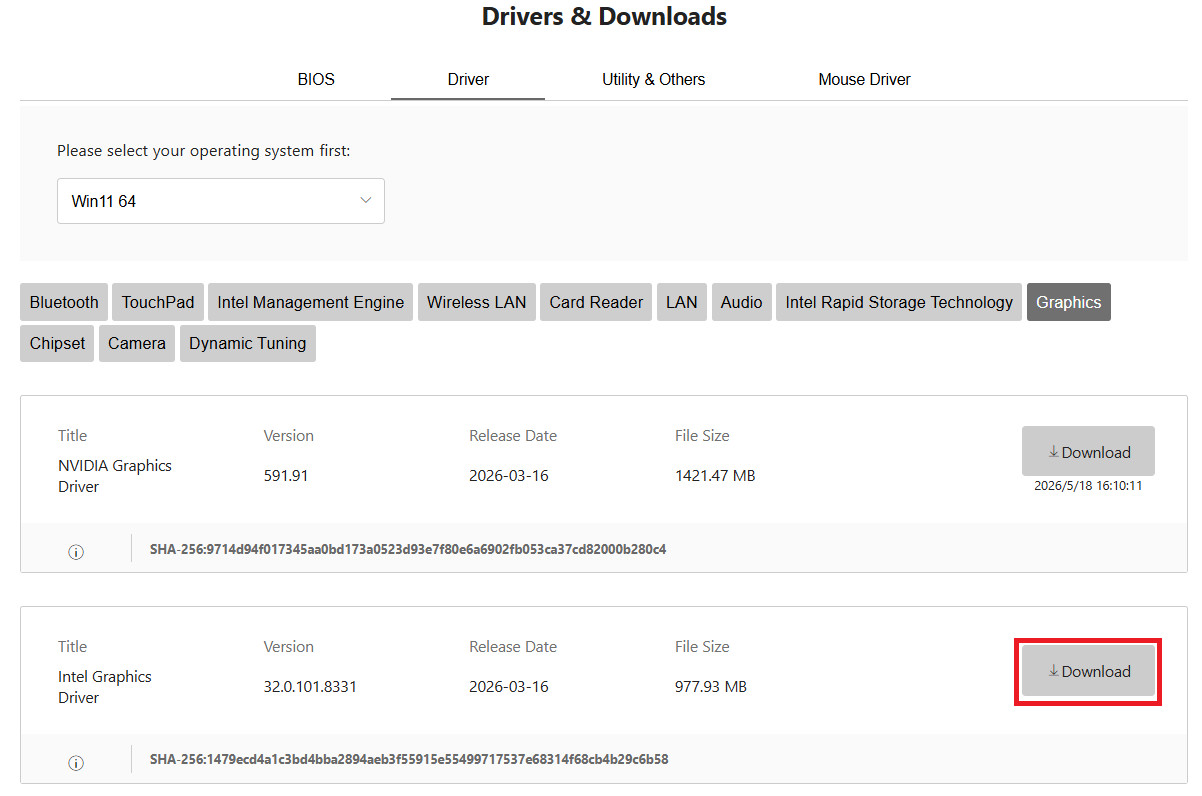
Download and save the DDU file and the corresponding Intel graphics driver.
- The DDU download link may change without notice, visit Guru3d.com and look for Display Driver Uninstaller.
- Download the Intel graphics driver package from MSI Driver download page.
Uninstall Current Driver
* Disconnect to the network by removing the LAN cable, or disable the wireless connection.
* Multiple system reboot might be required, please keep the power plugged during the whole update process.
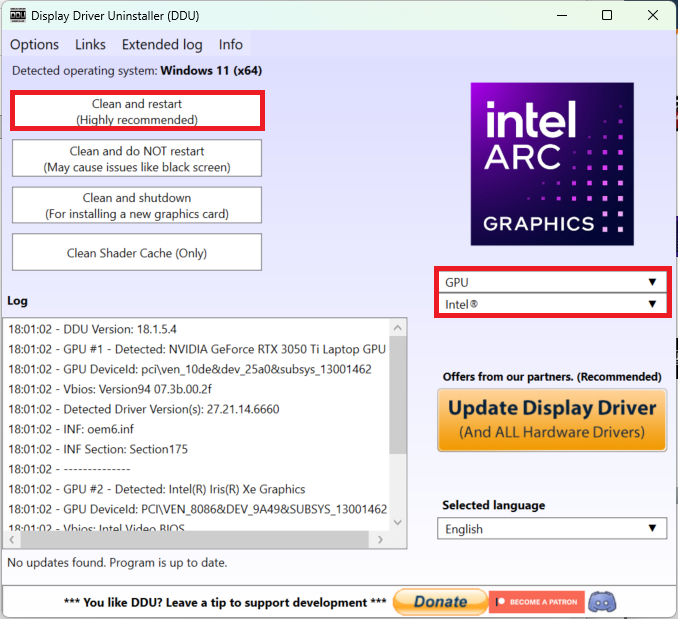
- Remove the driver by using “DDU (Display Driver Uninstaller)”
- Perform DDU in “Safe Mode”.
- The DDU control panel will shows up automatically after system boot into Safe mode.
- Make sure to select the Intel GPU, and click “Clean and restart” to uninstall the driver. (System will reboot automatically after the DDU is finished.)
- The Intel display adapter should be “Microsoft Basic Display Adapter” in Device Manager since the driver has been removed.
- Remove the driver from “Device Manager”
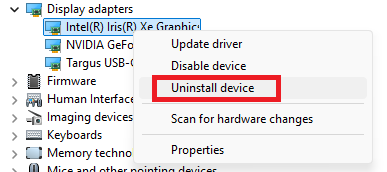
- Right click on the Windows icon and select “Device Manager”.
- Right-click“Intel graphics” under “Display Adapter”and select "Uninstall the device".
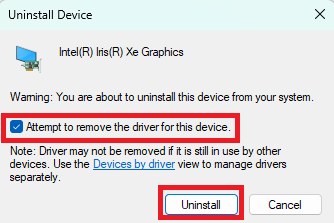
- Check “Delete the driver software for this device”and click "Uninstall" button to start the uninstallation.
Install & Update Intel Graphics Driver
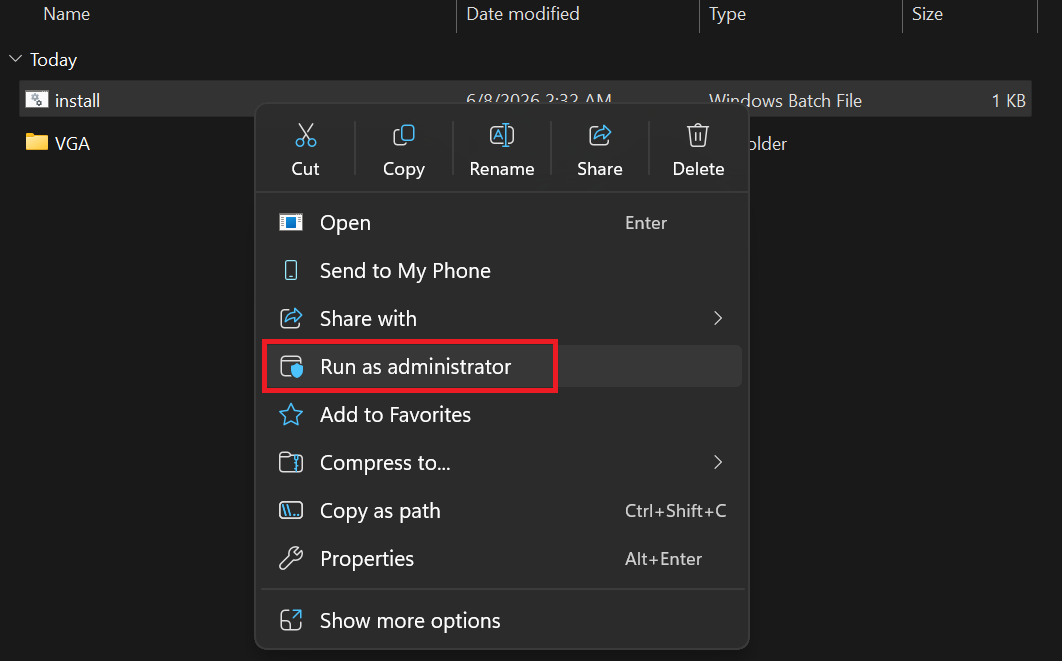
Locate the driver package downloaded from the MSI website, extract its contents, and then right-click Install.bat and select Run as administrator to start the installation.
FAQ
Q: Which users or devices is this installation guide applicable to?
A: This guide is specifically intended for MSI laptop users with an Intel Graphics adapter. If you encounter display driver abnormalities, you may refer to this standard operating procedure for troubleshooting.
Q: What is a “Clean Install”?
A: A clean install refers to completely uninstalling the existing Intel Graphics driver without retaining any old files or settings, then manually downloading and installing the corresponding driver version from the MSI official website. This helps prevent residual registry entries or files from affecting functionality or performance.
Q: Why is it necessary to “disconnect from the network” and keep the power adapter connected during the installation process?
A: Disconnecting from the network, such as unplugging the Ethernet cable or turning off the wireless connection, prevents Windows from automatically downloading and installing an unexpected driver after the existing driver is removed. This ensures that the installation process is not interrupted or affected. Keeping the power adapter connected is also required because the system may need to restart multiple times during the update process, and sufficient power helps prevent system damage caused by power loss.
Q: How can I confirm that the current driver has been successfully removed?
A: After completing the DDU cleanup and restarting the system, go to Device Manager to check the display adapter. If the Intel Graphics adapter name changes to “Microsoft Basic Display Adapter,” it means the previous Intel driver has been completely removed.