[How To] Update Intel ME Firmware
Answer
This article explains how to update the Intel Management Engine firmware (ME FW). To ensure the security of the system's underlying layers, a complete ME firmware update is necessary. During the update, please keep the power supply stable and connect the laptop to a power adapter; it is recommended to close all resident security software before updating to avoid interruptions or triggering system protection mechanisms.
This article applies to all MSI laptop models equipped with Intel CPUs.
A. Check if the ME firmware needs to be updated
1. Download Intel CSME Detection Tool.
2. Extract the file to the desktop and open the file folder "DiscoveryTool.GUI".
3. Double-click "CSME-Version-Detection-Tool.exe" to run the inspection tool.
4. If, after inspection, it shows "This system is vulnerable," then you need to perform the ME firmware update.
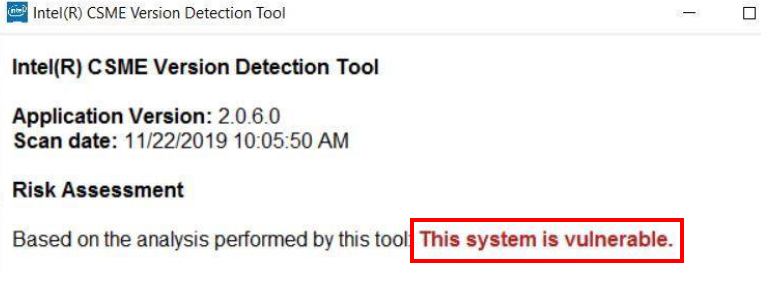
B. Download and update the latest BIOS from MSI's official website. To ensure system stability, please update the system to the latest BIOS before performing the ME firmware update.
1. Download and update the latest BIOS (visit the MSI official website → search for the full product name→ click to download → BIOS → extract to the root directory of the FAT32-formatted USB drive).
2. Insert the USB drive, restart the system, and repeatedly press the "Delete" key to enter the BIOS interface.
3. Select "Advanced"→ UEFI BIOS Update→ press Enter to enter→ select USB drive→ select the BIOS file→ and execute the update.
4. Press F9 to load the default settings, then press F10 to save and exit.
C. Update Intel ME firmware
Please keep your network online throughout the update process.
1. Download the ME update tool from the BIOS download page.
2. Extract the ME update tool "Intel ME FW Update Tool" to the desktop.
3. Type "Command Prompt" in the Windows search bar.
4. Right-click the Command Prompt and select "Run as administrator."
5. Type "cd\" in the command prompt and press Enter.
6. Open the folder extracted in step 2 and go to the location where the "MEfwUpdate.bat" file is located.
7. Right-click the path field and select "Copy address to text."
8. In the command prompt, type "cd" and press the spacebar, paste the address copied from step 7, then press Enter.

9. Type "MEfwUpdate.bat" and press Enter.

10. The update program will start automatically.
11. After the update is complete, the laptop will automatically restart.
D. Confirm the ME security vulnerability has been fixed
1. Run the Intel CSME Detection Tool again.
2. After a successful update, the inspection tool should display "This system is not vulnerable."
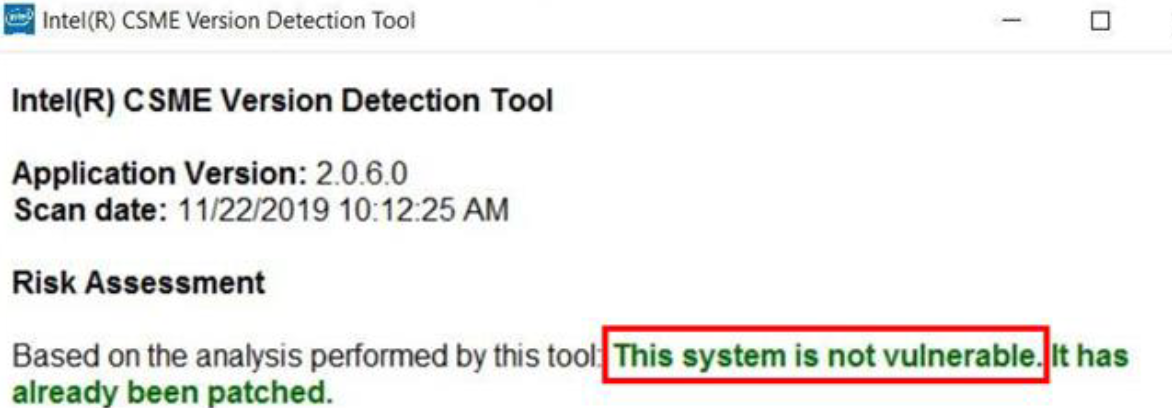
Please note: If, after updating to the latest Intel ME security vulnerability firmware available on the MSI official website, the CSME detection tool still displays the message “This system is vulnerable,” please contact MSI's official customer service.