[Troubleshooting] Ethernet speed drops when using the specific 2.5G Router/Switch
Answer
When a notebook computer is connected to a specific 2.5G wired network router or switch, the network speed may abnormally decrease due to protocol compatibility between hardware devices.
Please refer to this article to adjust the advanced settings of the network adapter and fix the connection mode to a stable transmission rate. This can help rule out compatibility interference and ensure network connection quality.
This article applies to all MSI notebook products.
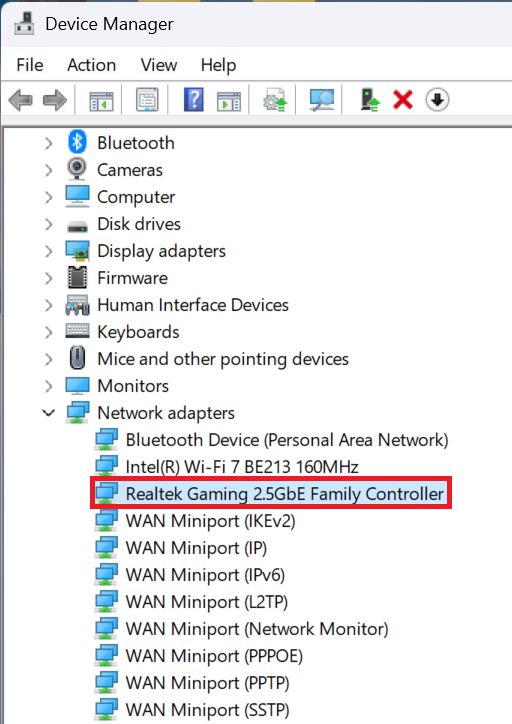
Open Device Manager.
Under Network adapters, find the Ethernet controller and double-click it to open the Properties menu.
*The device name may vary depending on the Ethernet controller installed on the system. Please refer to the actual device name shown on your system.
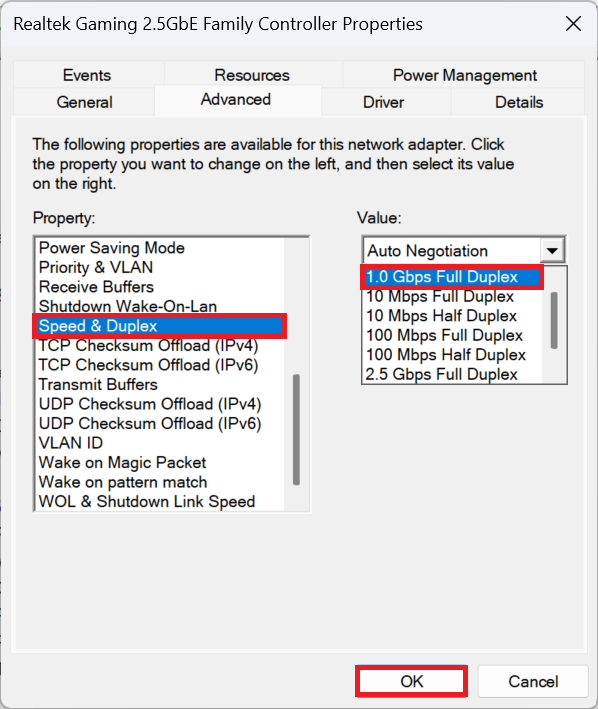
Select the "Advanced" tab, change the "Speed & Duplex" setting to "1.0 Gbps Full Duplex" or another non-auto setting, then click "OK" to save the setting.
FAQ
Q: Who is this setting guide applicable to?
A: This guide applies to users who are using a 2.5G wired network router or switch and notice that the wired network speed of their notebook computer is abnormally reduced.
Q: Why do I need to change the setting to 1.0 Gbps Full Duplex?
A: This is to rule out possible compatibility issues between the notebook network adapter and 2.5G network devices. By manually fixing the speed to 1.0 Gbps, you can avoid speed reduction caused by auto-negotiation failure and maintain stable connection quality.
Q: When should I perform this operation?
A: You should perform this operation when your notebook is connected to a high-speed network device, such as a 2.5G router or switch, but the actual network speed test result is lower than expected, or the connection quality is unstable.
If the above answers do not resolve your issue, please
Contact Us