[How To] NVIDIA VBIOS Update
Answer
This article aims to explain how to update the NVIDIA VBIOS. VBIOS is the firmware for graphics cards. Before updating, please ensure that the NVIDIA driver version is the latest provided on MSI's official website. Disconnect from the network, and during the update, always connect the power supply and avoid shutting down, restarting, or interrupting the update process.
This article applies to all MSI laptops equipped with NVIDIA graphics.
1. Download the latest version of the VBIOS installation package
a. Visit the MSI official website and search for the product name.
b. Click "Download" to enter the download page.
c. Click "Firmware" to download the VBIOS installation package.
2. Open the VBIOS file and extract it to the target directory, then double-click the .exe program.
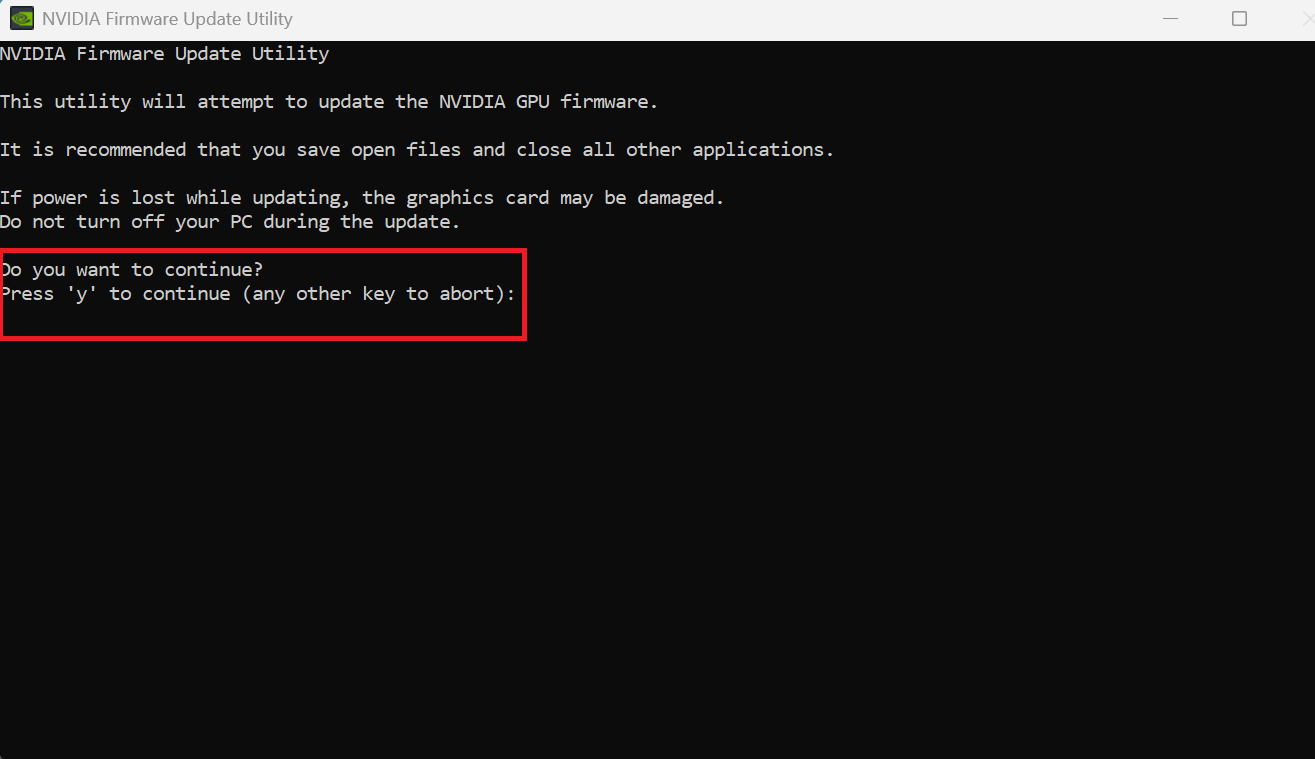
3. When the phrase "Do you want to continue?" appears, enter "Y" to continue updating.
4. After the update is complete, the laptop will automatically restart.
5. Confirm the update is complete
a. Right-click the desktop and select "NVIDIA Control Panel," then click "System information" in the bottom-left corner.
b. Under the "Display" section, check that the "Video BIOS Version" matches the version listed on the MSI official website to confirm the update was successful.
If the above answers do not resolve your issue, please
Contact Us