[How To] Set Up RAID in BIOS
Answer
This article applies to MSI notebooks equipped with Intel platforms and supporting Intel Rapid Storage Technology.
Follow the steps below to create a RAID array in the system BIOS.
Reminder:
* To ensure optimal performance, SSDs used for RAID configuration are recommended to have the same brand, specifications, and capacity.
* Before configuring RAID, make sure to back up all personal data stored on the original SSD to prevent data loss caused by formatting during the process.
* If you need assistance with SSD upgrades, please contact an MSI service center.
1. Power on the laptop and press the "DEL" key when the MSI logo appears to enter the BIOS menu.
2. In the BIOS main menu, select "Storage Information"and confirm that the SSDs to be configured are detected correctly.
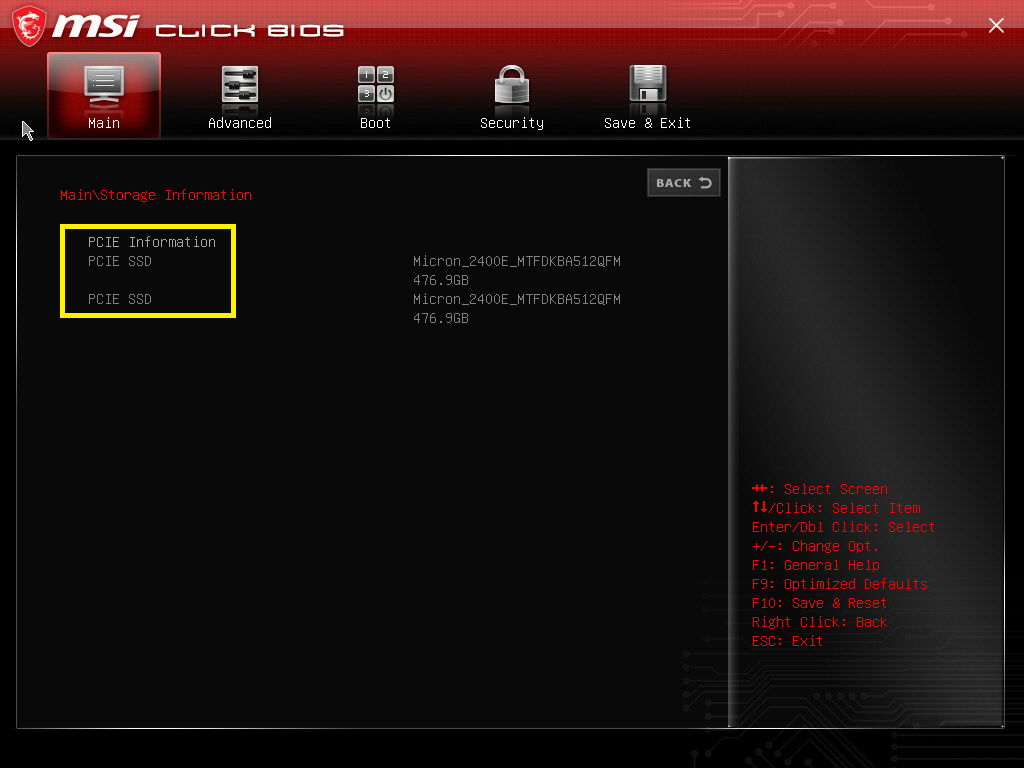
3. Go to the "Advanced"menu, select "Intel(R) Rapid Storage Technology", and click "Create RAID Volume".
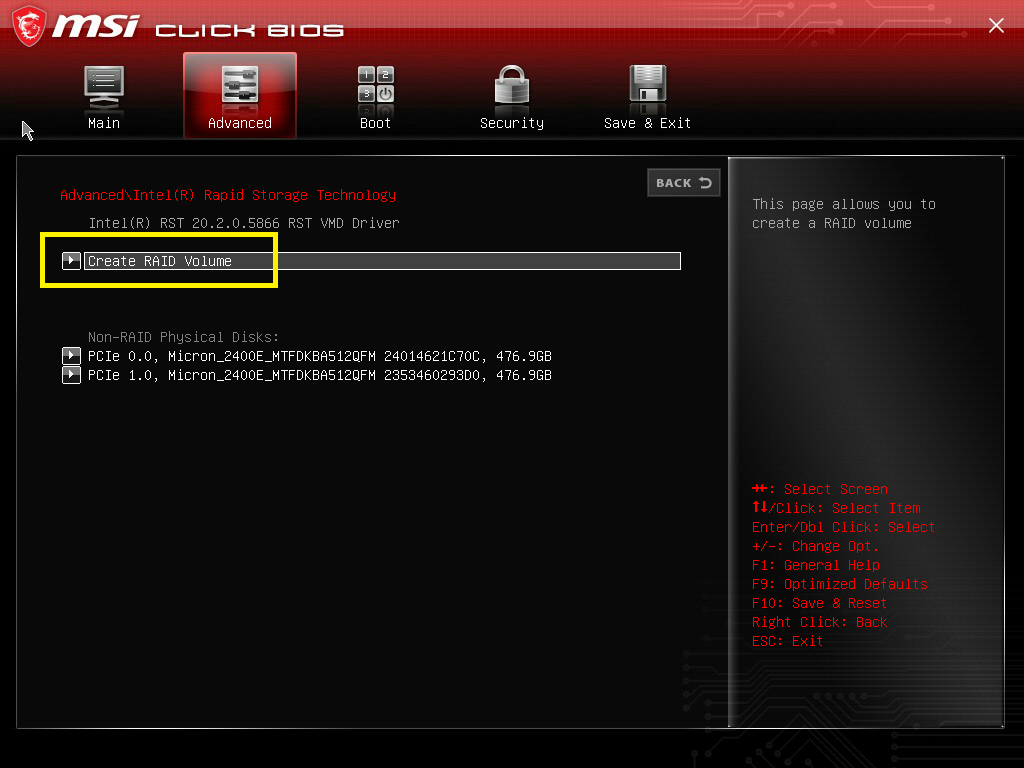
*Note: For MSI notebooks equipped with Intel CPUs older than 13th Gen, the Enable VMD controller option is disabled by default. Please download and run the "VMD Switch Tool"to enable Enable VMD controller before creating a RAID array.
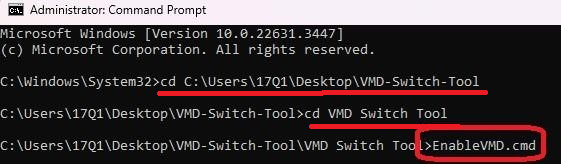
a) Download and extract the folder in the desktop.
b) Copy the file directory.
c) Launch Command Prompt by "Run as administrator".
d) Type "cd " and paste the file directory, press [Enter] to change the file directory.
e) Type "cd VMD Switch Tool"and press [Enter] to move into the subdirectory.
f) Enter command "EnableVMD.cmd" and press enter to run the tool.
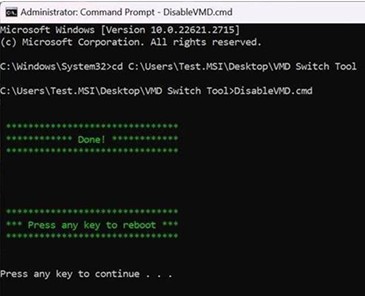
g) When it indicates "Done!", press any key to reboot the system.
h) Go to "Save & Exit", select "Save Changes and Reset" select "Yes" to reboot the system. Press "DEL"key to enter BIOS menu again.
4. Select "RAID Level", then choose "RAID0" or "RAID1" according to your requirements.
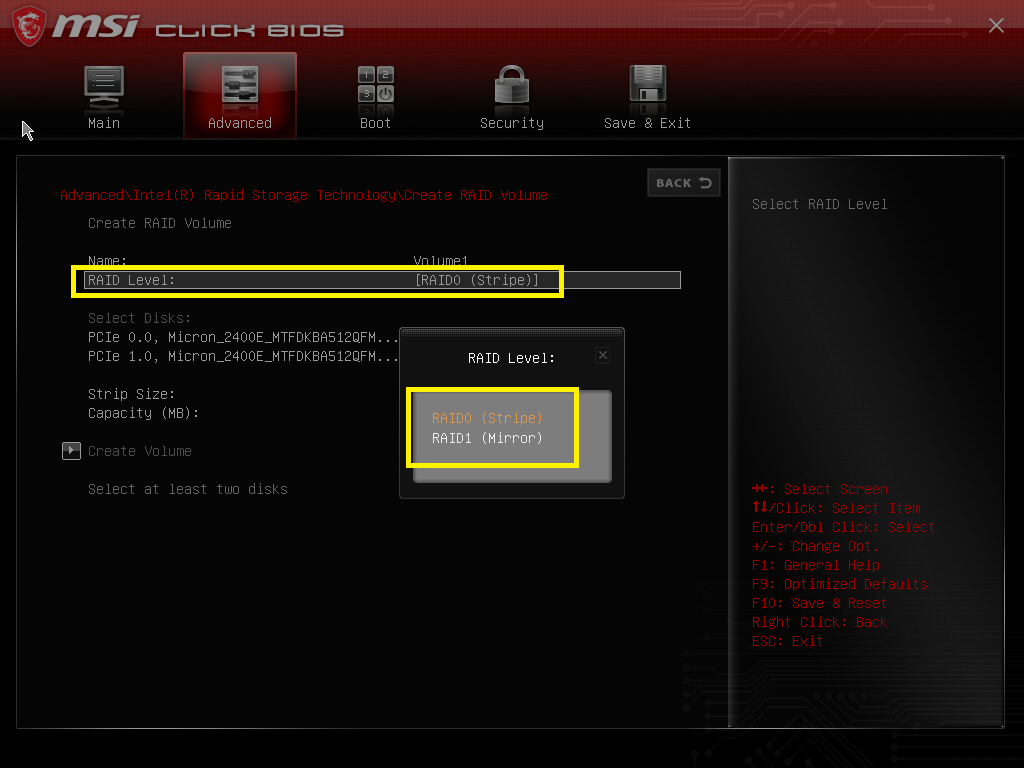
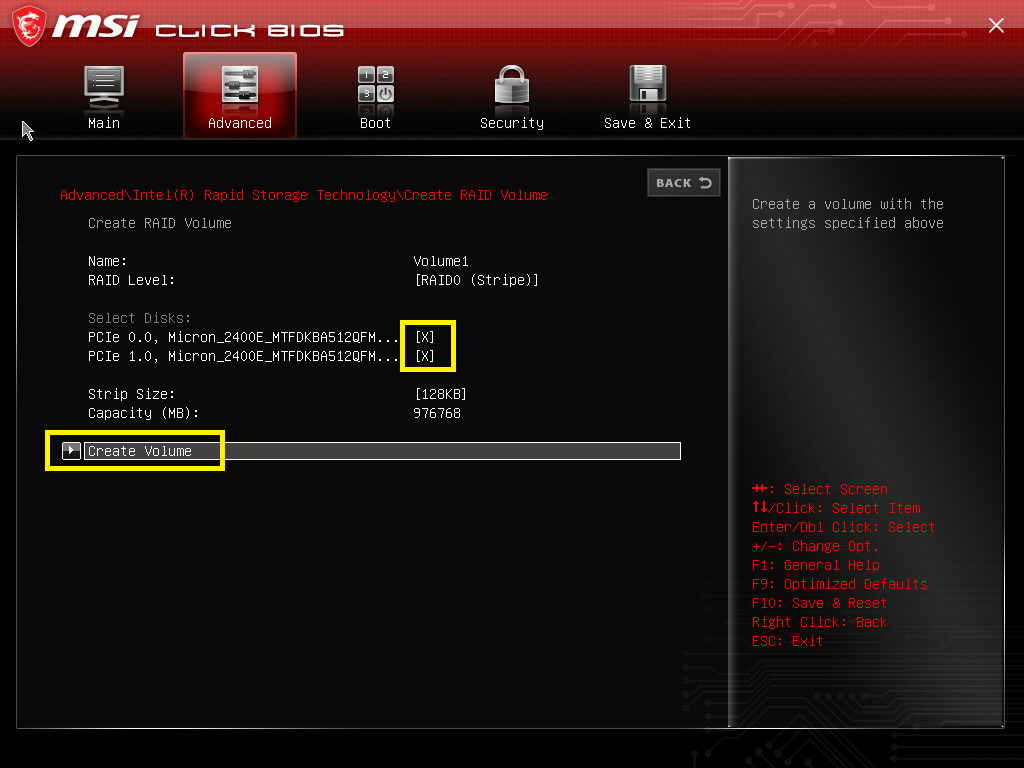
5. Select each SSD, choose mark "X"and press enter.
6. Confirm that all SSDs are marked with "X", then select "Create Volume" and click "Volume1, RAID 0 (Stripe)".
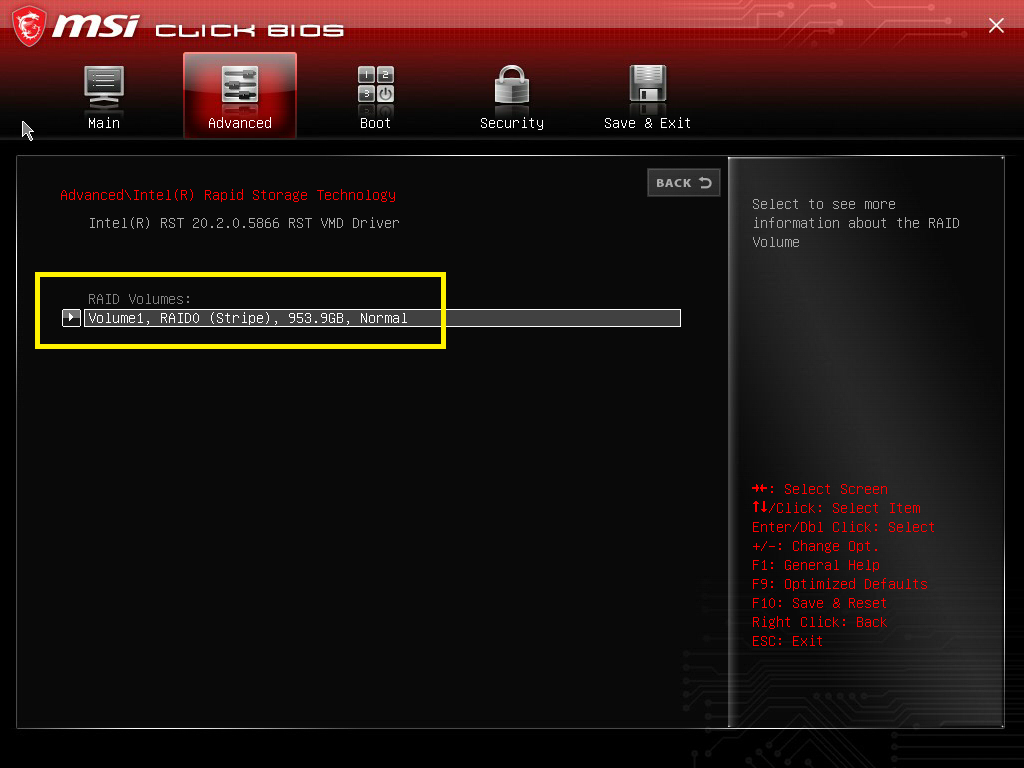
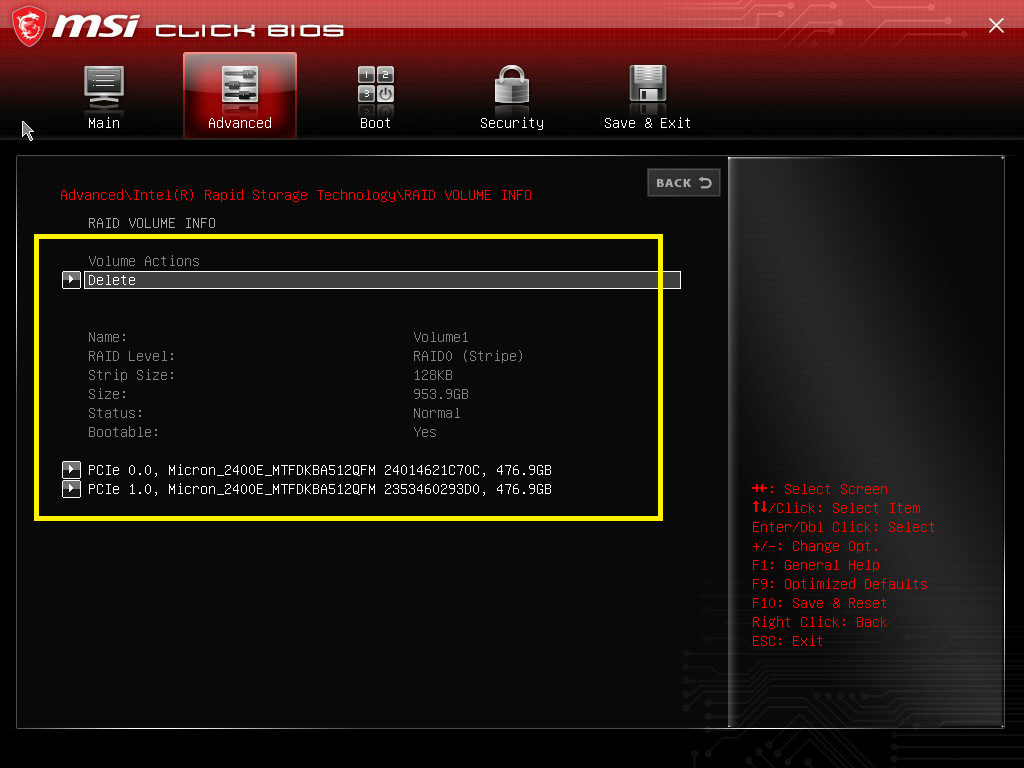
7. Once you see RAID volume information, go to "Save & Exit", select "Save Changes and Reset" select "Yes". RAID is successfully setup.
FAQ
Q: What are the differences between RAID 0 and RAID 1?
A: RAID 0
1)Data is striped across multiple SSDs.
2)Delivers improved read and write performance.
3)Failure of any single SSD may result in complete data loss.
RAID 1
1)Data is mirrored simultaneously onto two SSDs.
2)Provides data redundancy and protection.
3)The usable capacity is approximately equal to the capacity of one single SSD.
Q: Will creating a RAID array erase existing data?
A: Yes. It is recommended to back up all critical data before creating a RAID array to avoid data loss.
Q: Why is the "Create RAID Volume" option missing in BIOS?
A: Common causes are listed below:
1)Improperly installed SSDs
2)SSDs are not detected by BIOS
3)VMD function is disabled
4)The device model does not support RAID functionality
Q: Is it mandatory to use SSDs of the same capacity for RAID configuration?
A: It is highly recommended to use SSDs with identical capacity and specifications. If SSD capacities differ, the usable space of the RAID array will be limited to the capacity of the smallest SSD.
Q: Do I need to reinstall Windows after setting up a RAID array?
A: If all existing disk data was cleared during RAID creation, reinstalling Windows 11 is generally required, along with loading the corresponding Intel RST drivers.