[How To] Reset Forgotten Windows PIN
Answer
This article applies to all MSI laptop products
Before setting up Windows Hello (such as fingerprint or facial recognition), you must first set up a Windows PIN in order to use this feature. If too many failed login attempts occur using Windows Hello and exceed the maximum number of attempts allowed by the system, the system will require you to log in using your Windows PIN instead. If you have forgotten your previously set Windows PIN, please refer to the steps below to log in using your account password and reset a new Windows PIN.
*Please note: This method can only be used if you remember your local system account password.
Operating steps:
1.Log in to the system using your default Windows account password.
2.Click the "Start" button, select "Settings" to open Windows Settings.
3.Click "Accounts", then go to "Sign-in options".
4.Click "PIN (Windows Hello)", then select "I forgot my PIN".
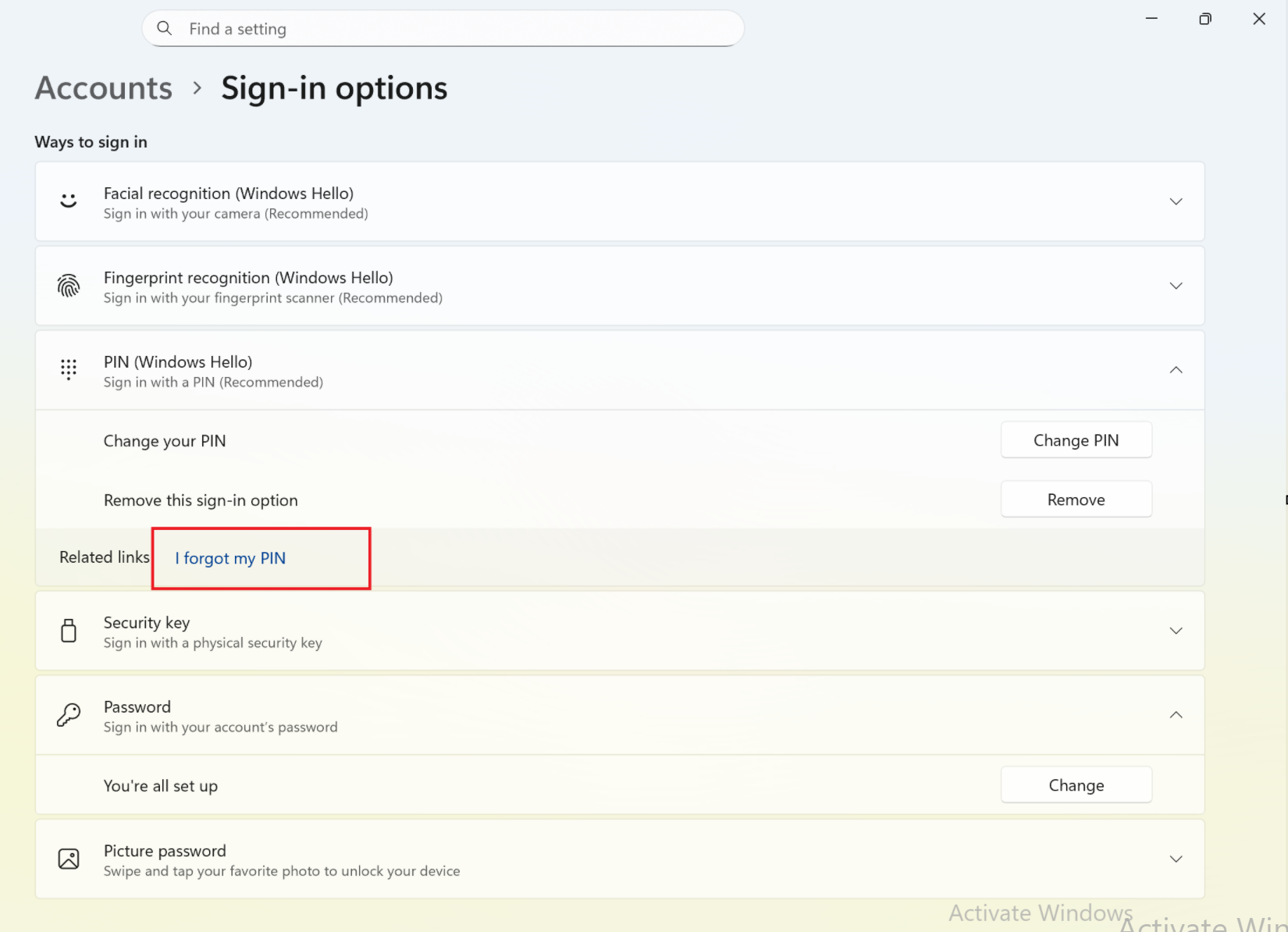
5.Verify your account password.
6.Set a new PIN, and enter it again to confirm.
7.The new PIN can be used the next time you log in to the system.
If the above answers do not resolve your issue, please
Contact Us