[How To] Check Windows 11 Compatibility
Answer
To verify whether an MSI laptop supports Windows 11, please refer to the following information:
This article applies to all MSI laptop products.
Windows 11 minimum system requirements:
- Processor: 1 GHz or faster, compatible 64-bit processor (Intel/AMD) with 2 or more cores
- Memory: 4 GB or more
- Storage: 64 GB or larger storage device
- TPM: TPM 2.0
- System firmware: UEFI firmware with Secure Boot support
For more information, please refer to Windows 11 System Requirements.
How to verify whether an MSI laptop supports Windows 11?
1. Use Microsoft PC Health Check to check compatibility
- Download the PC Health Check tool from Microsoft’s official website and run it.
- Accept the terms, then click Install.
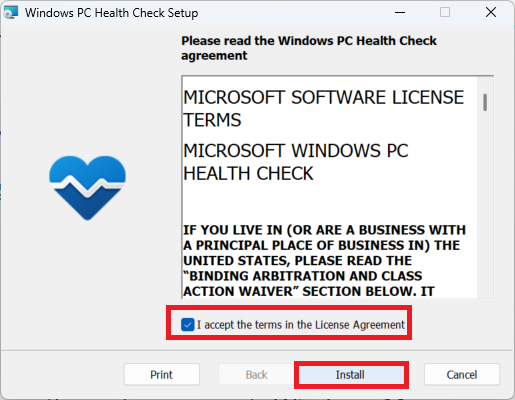
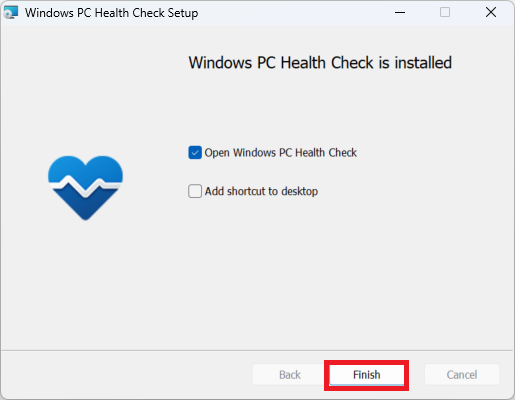
- After the installation is complete, click Finish to open the program.
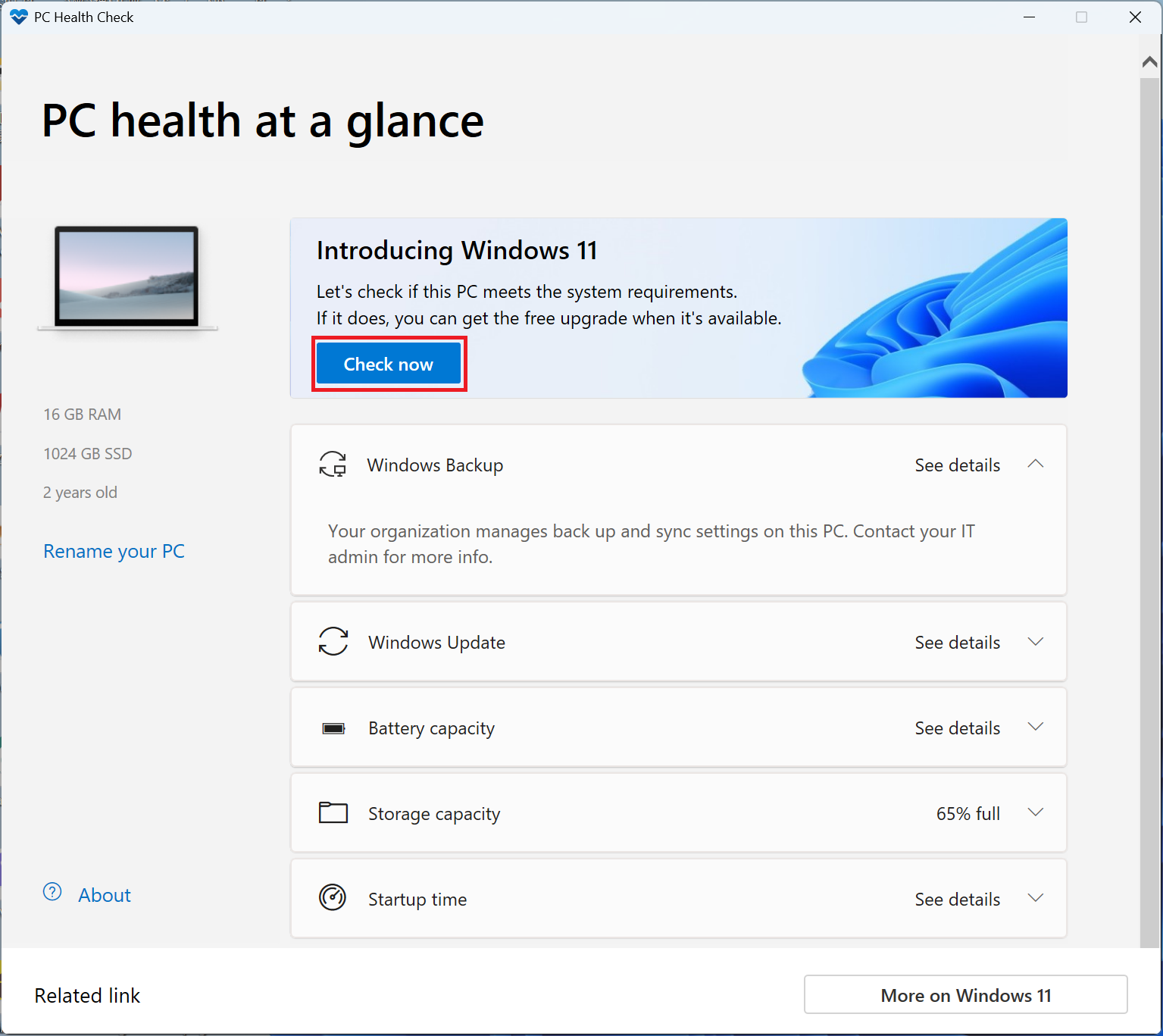
- Click Check now to confirm whether the device meets Windows 11 requirements.
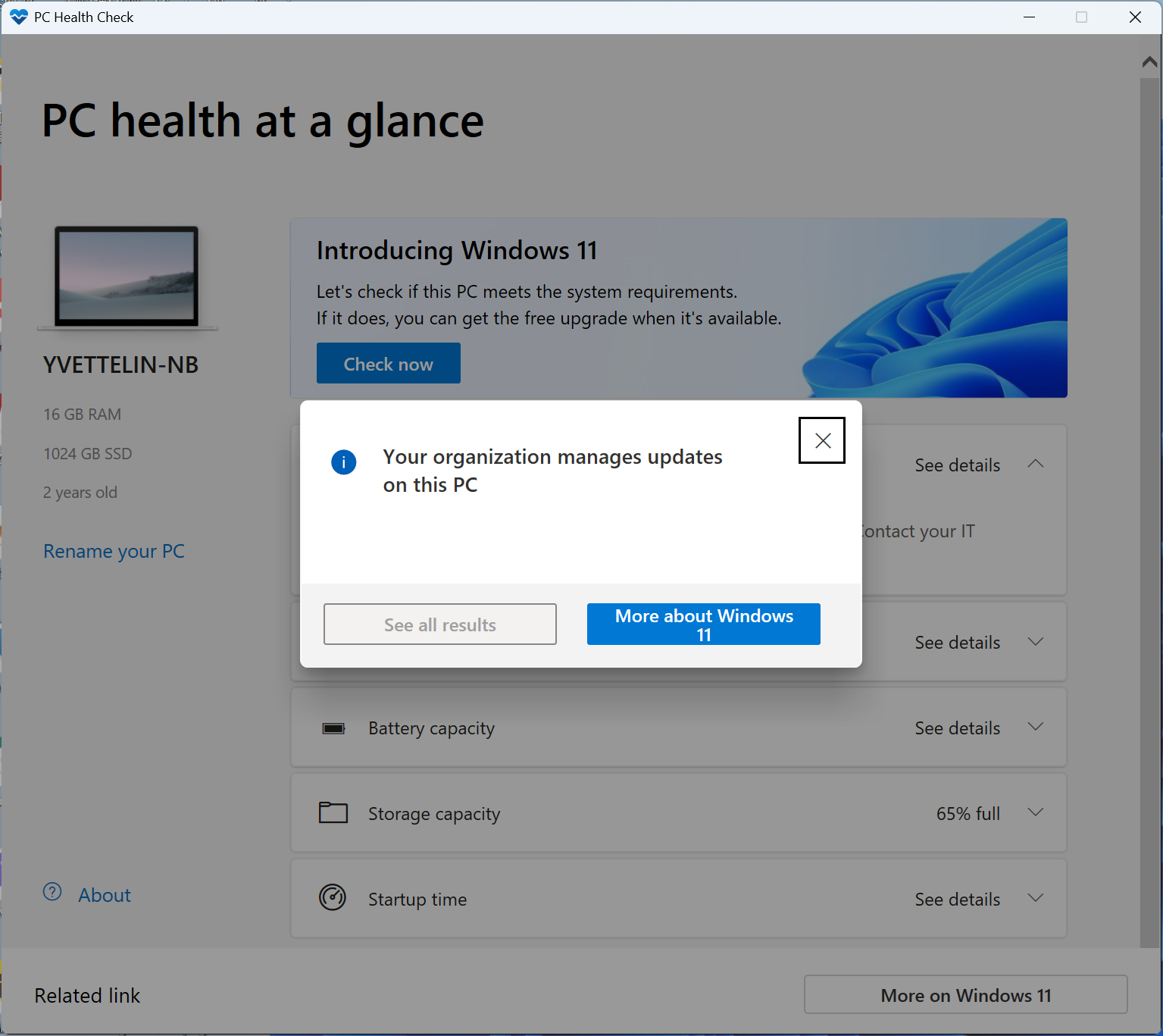
- If the screen shows “This PC meets Windows 11 requirements”, it means the system supports Windows 11.
FAQ
Q: What should I do if the check result shows that the device does not meet Windows 11 requirements?
A: If the tool shows “This PC doesn’t currently meet Windows 11 system requirements”, the screen will list the items that do not meet the requirements, for example:
1. TPM 2.0 is not enabled
2. Secure Boot is not enabled
3. The processor is not on the supported list
4. Insufficient memory or storage space
You can check the settings or hardware conditions item by item according to the results.
Q: If an MSI laptop is not on the supported model list, does that mean it cannot be upgraded to Windows 11?
A: Not necessarily. If the model is not listed in MSI’s supported model list, it is recommended to use Microsoft’s PC Health Check tool again to confirm whether it meets the minimum requirements for Windows 11.
Related Topics
[Windows 11] Preparation Before Upgrade
[How to] How to Enable TPM 2.0?