[How To] Windows 11 Upgrade
Answer
This article applies to all MSI notebooks that support upgrading to Windows 11.
This guide explains how to upgrade your system from Windows 10 to Windows 11.
Before starting...
Please refer to the Windows 11 Supported Devices List to confirm compatibility, or refer to[How To] Check Windows 11 Compatibility and run the Microsoft PC Health Check app to verify whether your system meets the requirements. Before upgrading to Windows 11, please also refer to [Windows 11] Preparation Before Upgrade and ensure that all preparations have been completed.
Note:
1. It is highly recommended to back up your system before starting the upgrade.
2. The free Windows 11 upgrade is only available for eligible Windows 10 systems.
3. During the upgrade process, ensure a stable internet connection and keep the AC adapter connected with sufficient power supply.
Please follow one of the methods below to upgrade your system.
Method 1: Upgrade to Windows 11 via Windows Update (Recommended)
If your MSI laptop meets Windows 11 upgrade specifications, the upgrade notification will usually be pushed automatically through Windows Update.
Steps
1.Click the Windows (Start) button > Settings > Update & Security.
2.Click "Check for updates".
*Note: Windows 11 upgrades are gradually rolled out in phases. The availability time may vary depending on device hardware specifications, driver compatibility, and system status. To ensure the best upgrade experience, MSI recommends regularly checking Windows Update and performing the upgrade after Windows Update indicates that your device is ready and the Windows 11 upgrade option becomes available.
3.When the Windows 11 upgrade prompt appears on the Windows Update page, click "Download and install" to obtain the Windows 11 upgrade files.
4.Follow the on-screen prompts to finish the upgrade process.
*This upgrade process will keep your personal files, installed applications, and customized system settings from Windows 10.
5.Once the upgrade completes, the PC will restart automatically and load the Windows 11 login screen.
Warning: The update duration depends on internet speed and device hardware. Do not force shut down the computer during the upgrade.
Windows Update & Driver Updates
Windows Update regularly releases system packages and security patches. To maintain stable system performance, we recommend running Windows Update periodically to install the latest system builds and drivers. Most preinstalled Windows 10 drivers and software are compatible with Windows 11.
1.Connect to the internet.
2.Click the Windows Start icon and select "Settings".
3.Select "Windows Update".
4.Click the "Check for updates" button; the system will automatically search for and download the newest system and driver updates.
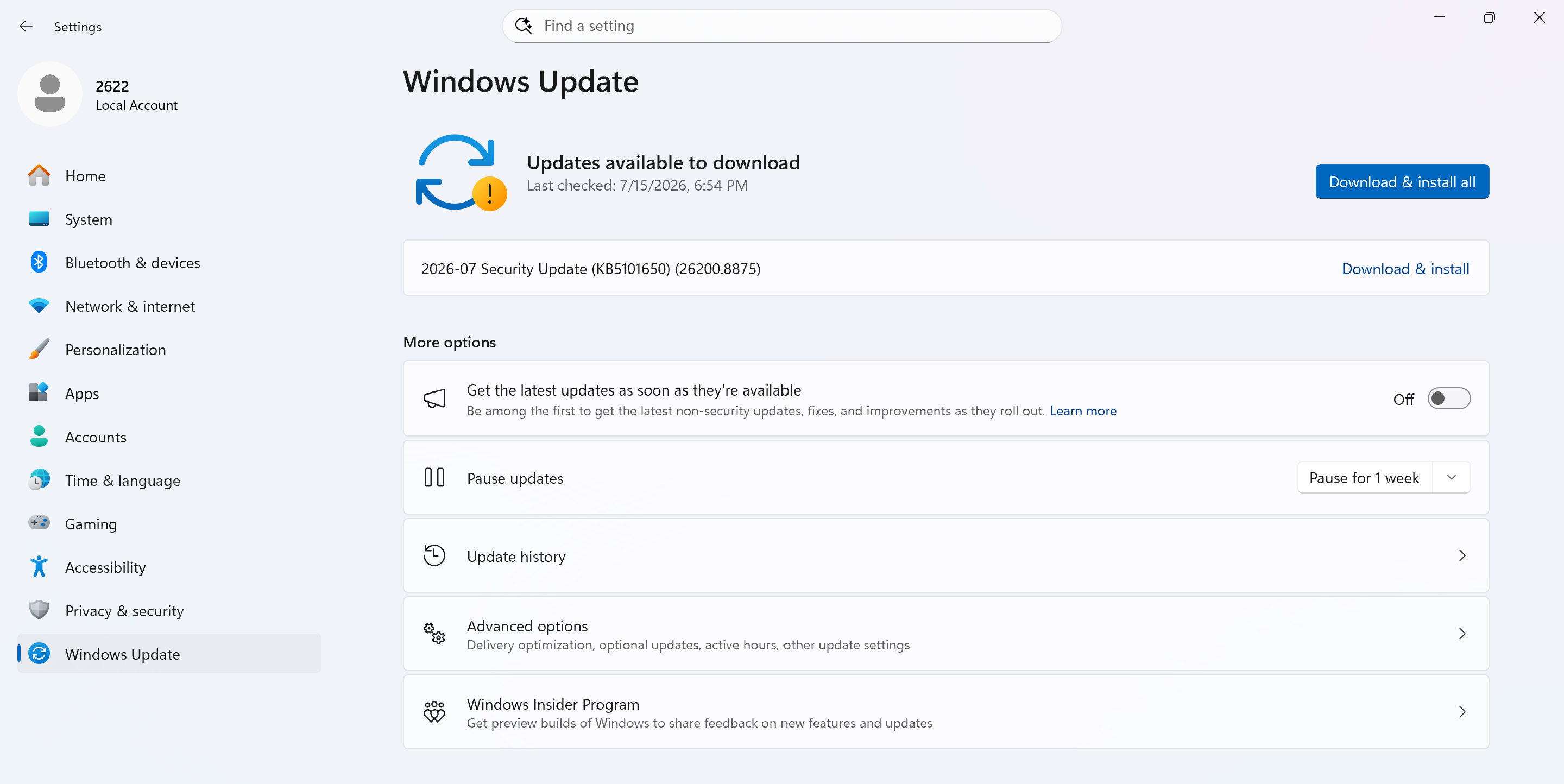
5.Repeat Step 4 until the page confirms your system is fully up to date.
6.You may also open the Microsoft Store to manually update applications. For the latest MSI drivers and bundled utility software, visit the official MSI Download Center.
Method 2: Upgrade Using the Windows 11 Installation Assistant
If no upgrade prompt appears in Windows Update, use the official Microsoft Windows 11 Installation Assistant.
Steps
1.Download “Windows 11 Installation Assistant” on the Microsoft Website.
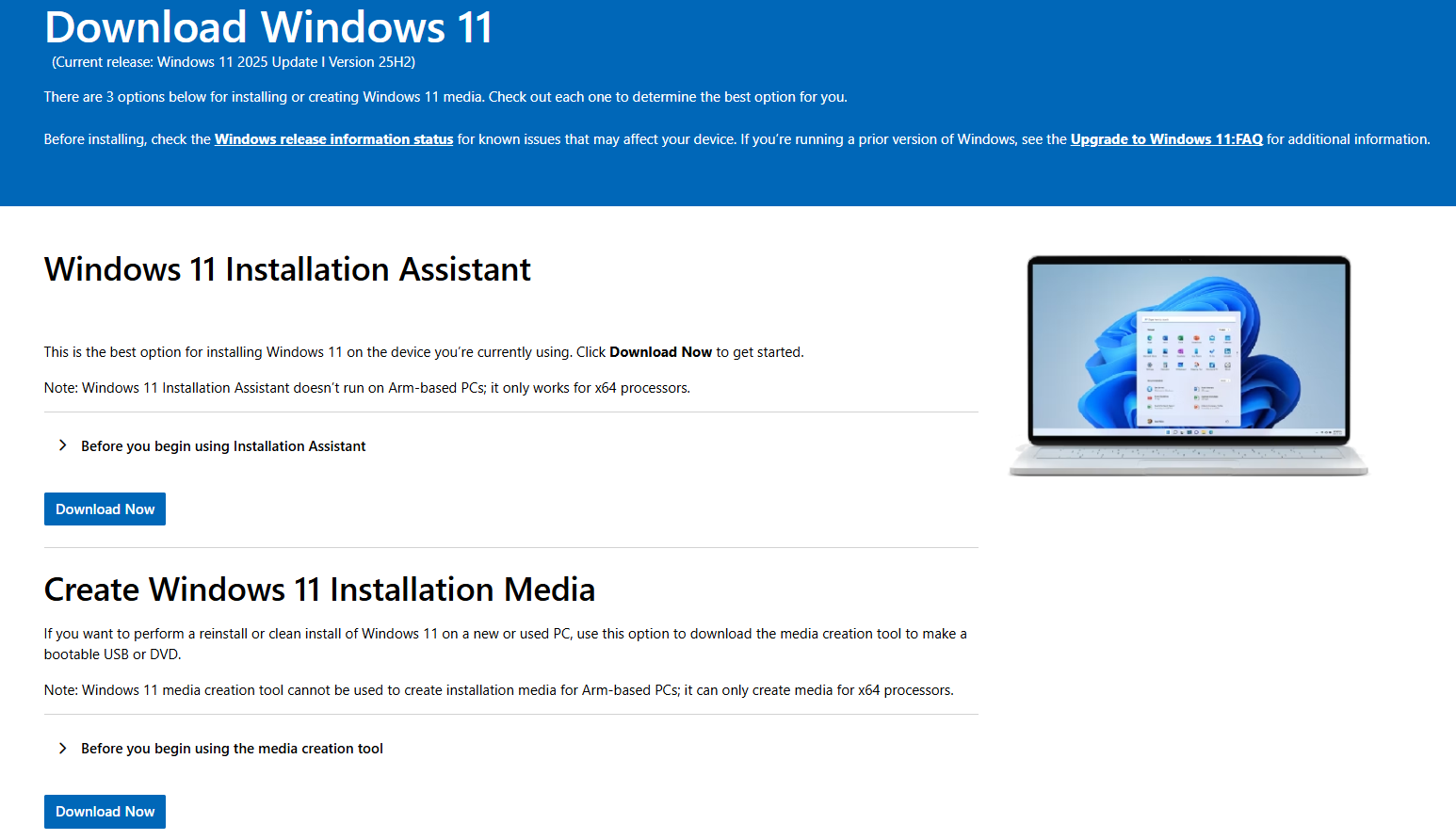
2.After downloading, right-click "Windows11InstallationAssistant" and select "Run as administrator".
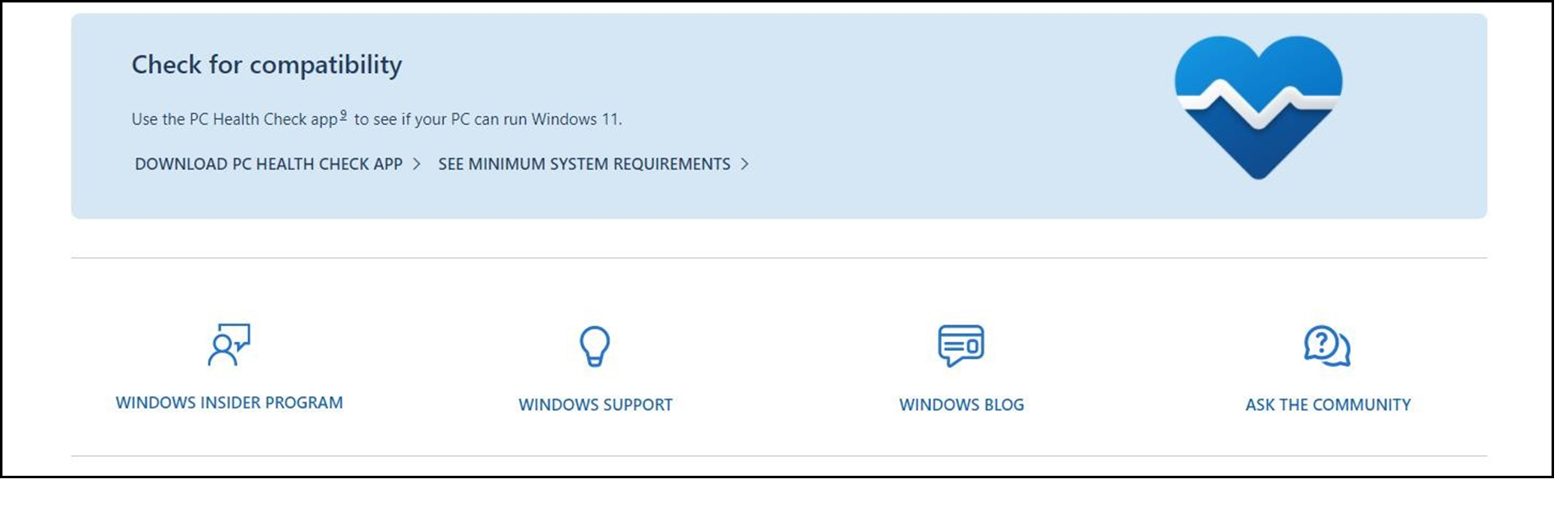
3.Click "Get PC Health Check app". If the tool is already installed on your device, launch the PC Health Check app directly.
4.Download the app or use original appliance and check whether your device meets requirements.
5.Return to the window from Step 3 and click "Refresh".
6.The system will automatically prepare the upgrade installer.
7.Read the license terms, then click "Accept and install" to begin the Windows 11 installation.
Method 3: Create Windows 11 Installation Media for Upgrade
*Please check whether the PC meets Windows requirements .
*If you would like to perform a reinstall or clean install of Windows 11 on a new or used PC, you could use Media Creation Tool through making a bootable USB or DVD.
Steps
1.Download in the Microsoft Web to create Windows 11 Installation Media.
2.Double-click to run "MediaCreationToolW11" and launch the Windows 11 installer.
3.Complete the Windows 11 installation by following the on-screen instructions.
FAQ
Q: Will upgrading to Windows 11 delete files stored on my laptop?
A: Upgrading via Windows Update or the Installation Assistant preserves the following items by default:
a.Personal files
b.Installed applications
c.Custom system settings
We still recommend backing up critical data in advance to avoid data loss risks.
Q: Why is the Windows 11 upgrade option missing from Windows Update?
A: Common root causes include:
a.The device does not meet Windows 11 hardware requirements
b.BIOS or TPM functionality is disabled
c.The Windows 11 upgrade rollout has not reached your device yet
d.The current Windows 10 build version is outdated
We suggest installing all available Windows updates, then rechecking for upgrades.
Q: Do I need to reinstall MSI drivers after upgrading?
A: Nearly all existing drivers will continue working normally.
Download the latest drivers from the official MSI Support page if you encounter the following issues:
a.Audio malfunctions / no sound output
b.Loss of internet connectivity
c.Abnormal graphics card performance