[How To] Uninstall/Install Bluetooth driver
Answer
When the Bluetooth device connection is unstable or unable to pair, performing a clean driver installation (completely removing the old version before installing the new one) is the most effective solution. This guide applies to all MSI laptops equipped with wireless network cards and Bluetooth adapters. Please follow the three stages below:
This FAQ applies to all MSI notebooks.
Step 1: Download the Driver
- Go to the MSI official website’s product support page and download the latest Bluetooth driver for your specific model.
Step 2: Disconnect Network and Completely Remove Old Drivers
- Disconnect from the network: Make sure to turn off Wi-Fi or unplug the network cable first. This prevents Windows from automatically downloading and installing a generic Microsoft driver in the background during the uninstallation process.
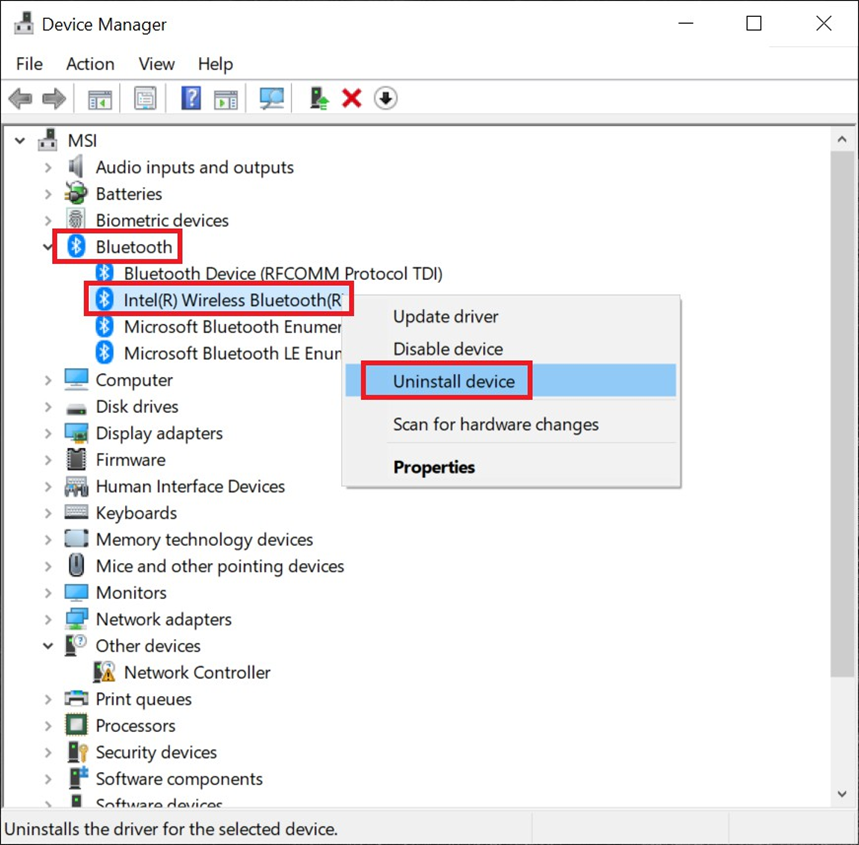
- Remove from Device Manager: After restarting the system, open Device Manager again and expand Bluetooth. Right-click on your Bluetooth adapter and select Uninstall device.
- Delete driver software: If a warning window appears, make sure to check “Delete the driver software for this device”, then click Uninstall. Restart the system again after completion.
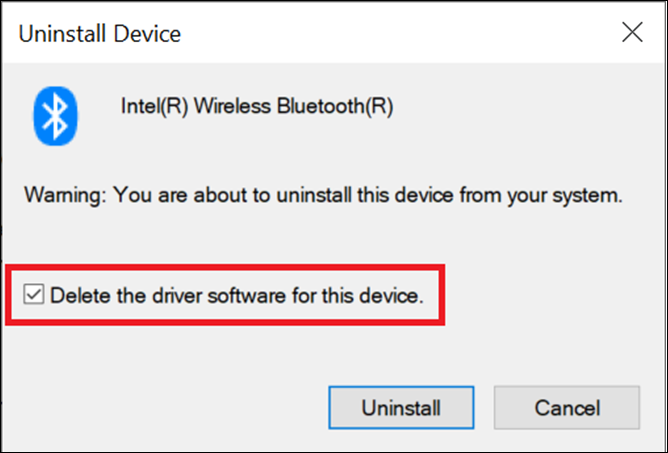
- Complete removal: Repeat the above uninstall steps until the “Delete the driver software for this device” option no longer appears. This indicates that all old driver files have been completely removed.
Step 3: Install the New Bluetooth Driver
Extract the driver file you downloaded in Step 1, and follow the installation steps below:
- Open the extracted folder.
- Right-click and run "install.bat" as administrator, and follow the on-screen instructions to complete the installation.
- Restart the system after installation.
FAQ
Q: When should I update or reinstall the Bluetooth driver?
A: It is recommended to perform this process when the Bluetooth icon suddenly disappears from the system tray, the external devices frequently disconnect or fail to connect, or the Bluetooth stops working after a major Windows Update.
Q: Why do I need to repeatedly uninstall until the “Delete driver software” option disappears?
A: The system may cache multiple versions of driver files. Repeatedly uninstalling and selecting the delete option ensures that all residual files, including those deeply embedded in the system, are completely removed. This prevents conflicts between old files and the newly installed driver.