[How To] Optimize battery run time on MSI laptops
Answer
To extend the battery runtime of your MSI laptop, you can reduce system power consumption by adjusting the usage scenario in the MSI laptop control software, Windows power settings, screen brightness, background activities, and peripheral devices.
Note: Actual battery runtime may vary depending on factors such as battery capacity, processor and graphics performance, screen resolution and refresh rate, screen brightness, applications in use, and connected peripheral devices.
This article applies to MSI laptops running Windows 11
Follow the methods below to optimize battery runtime:
1. Select a power-saving usage scenario in the MSI laptop control software
Different MSI laptops may come with different control software, such as MSI Center, Dragon Center, Creator Center, or MSI Center Pro. For models supporting the UWP-based MSI Center / Dragon Center / Creator Center / MSI Center Pro, select Energy-Saving Mode on the Usage Scenario page.
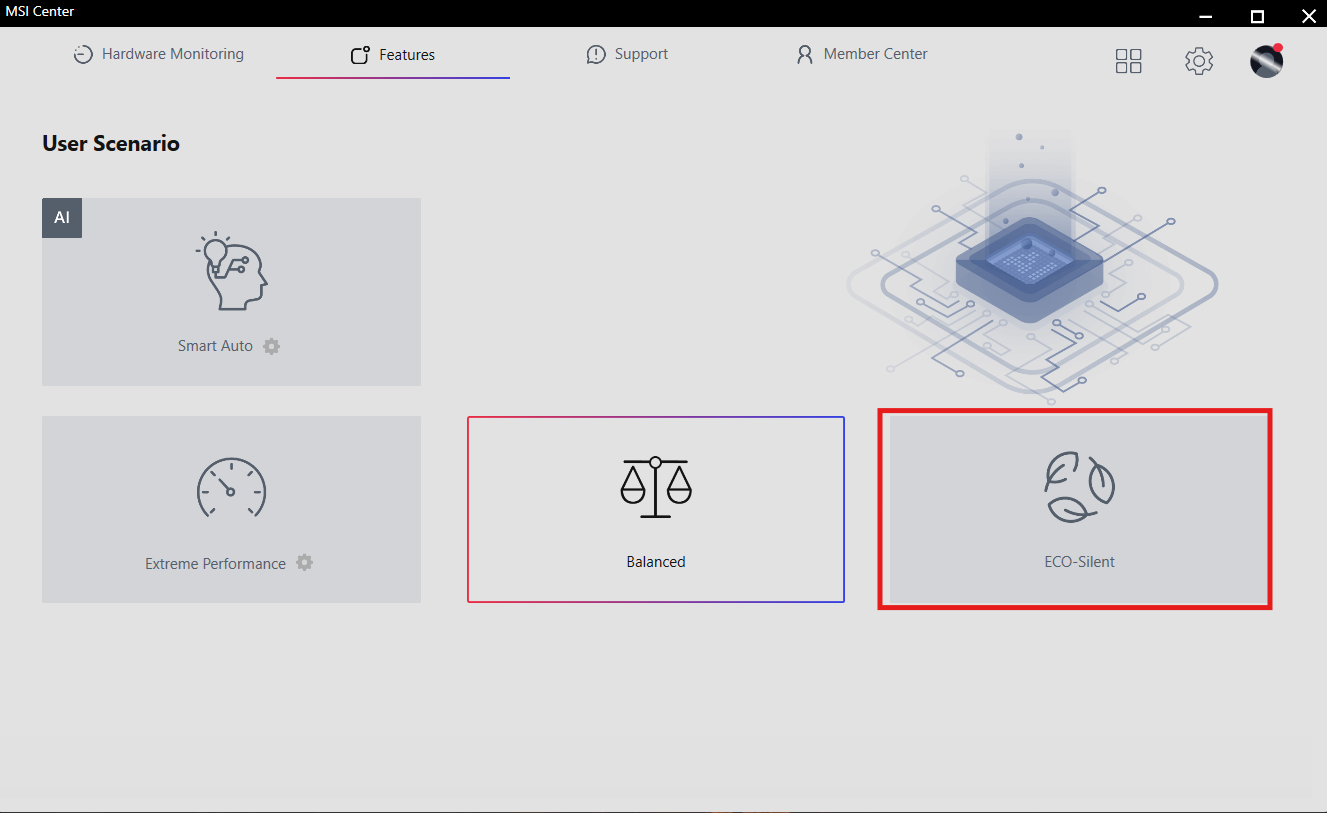
Note: To check whether your laptop supports the UWP version of the MSI control software, go to the MSI official website, open the product's download page, and check whether a Microsoft Store download link for UWP Center is available under the Utility section.
The supported control software and usage scenarios may vary depending on the MSI laptop model. Please refer to the options available on your laptop. Selecting a power-saving mode may reduce system performance to lower power consumption and extend battery runtime.
2. Reduce screen brightness and refresh rate
The display is one of the major sources of power consumption on a laptop. Reducing the screen brightness and refresh rate can help further reduce battery consumption.
a. Adjust the screen brightness: Press Windows + A to open Quick Settings. Use the brightness slider to lower the screen brightness.
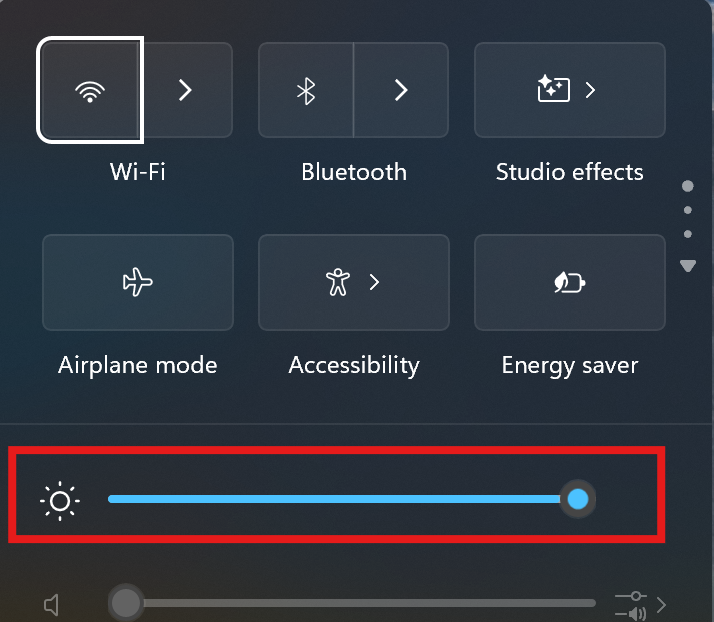
Note: You can also use the brightness hotkeys provided on the laptop to adjust the screen brightness.
b. Lower the screen refresh rate: Open Settings > System > Display > Advanced display. Select a lower refresh rate under Choose a refresh rate.
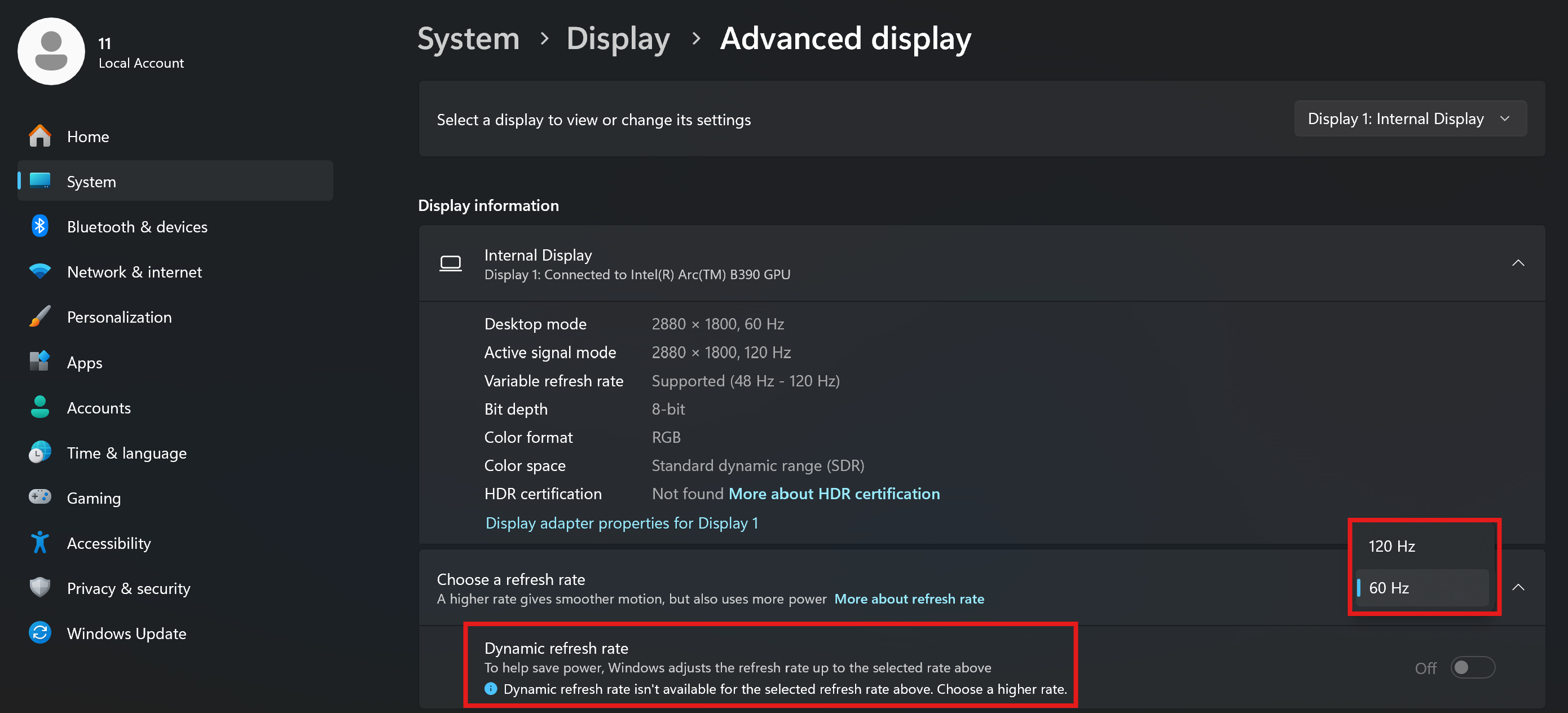
Note: If your laptop and Windows version support Dynamic Refresh Rate, you can enable this feature to allow Windows to adjust the refresh rate based on the usage scenario.
3. Close unnecessary applications and background activities
Unused applications may continue running in the background, increasing processor load and battery consumption. We recommend the following: Close applications that are not currently in use. Close unnecessary browser tabs, especially webpages containing videos, animations, or autoplay content.
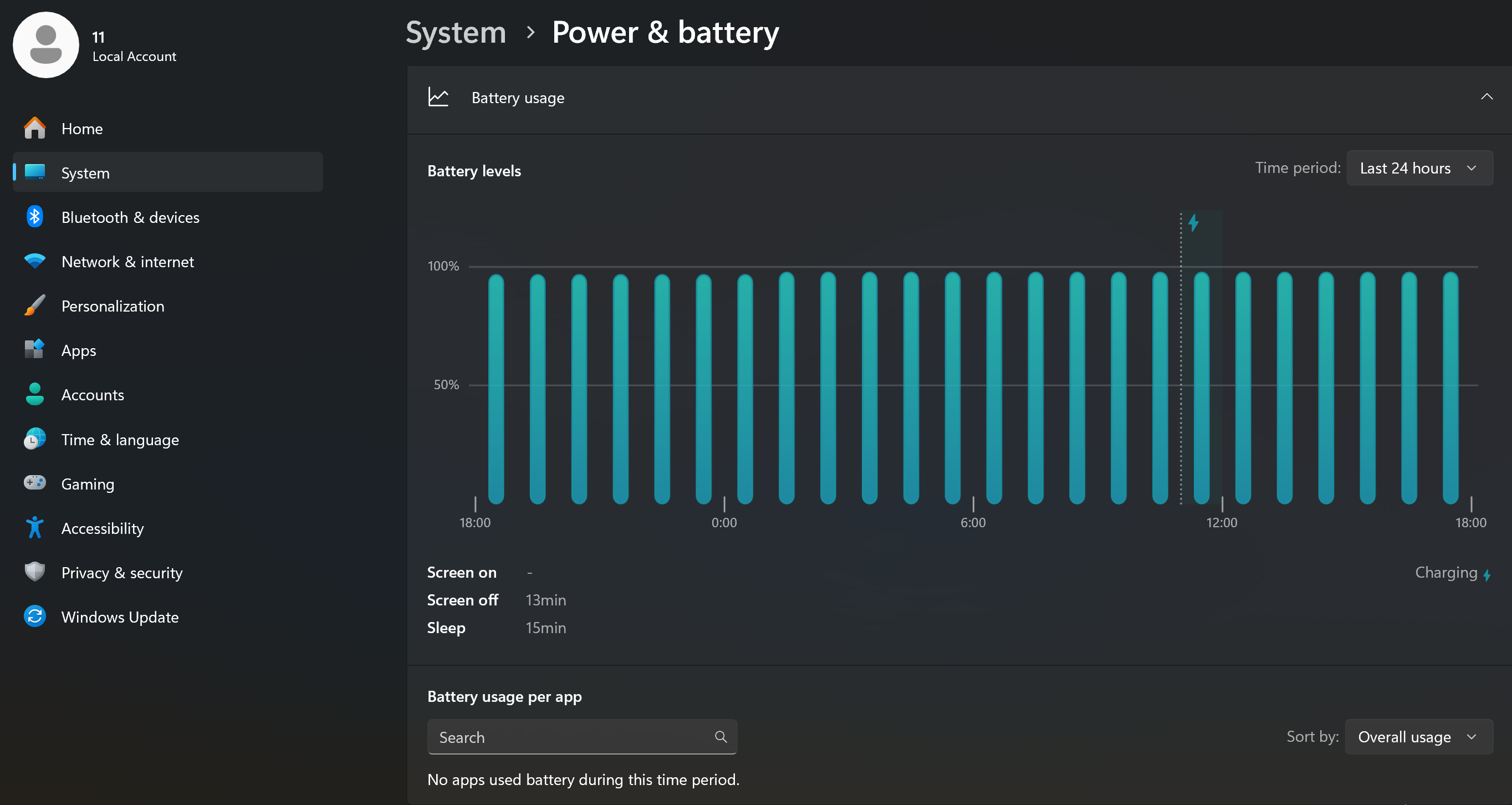
a. Open Settings > System > Power & battery > Battery usage to check which applications consume the most power.
For applications that support background activity management, limit their background activity when necessary.
4. Remove unnecessary external devices
External devices may continue to consume power from the laptop. If they are not currently in use, disconnect unnecessary external devices, such as: External monitors, USB flash drives, External hard drives, USB audio devices, etc.
5. Turn off unnecessary keyboard backlighting and RGB lighting
Keyboard backlighting and other RGB lighting effects can increase power consumption. Use the hotkeys provided by the laptop to turn off or reduce the keyboard backlight.
If your model supports SteelSeries GG, turn off unnecessary RGB lighting effects in the relevant settings.
6. Use Windows "Energy recommendations" to quickly apply power-saving settings
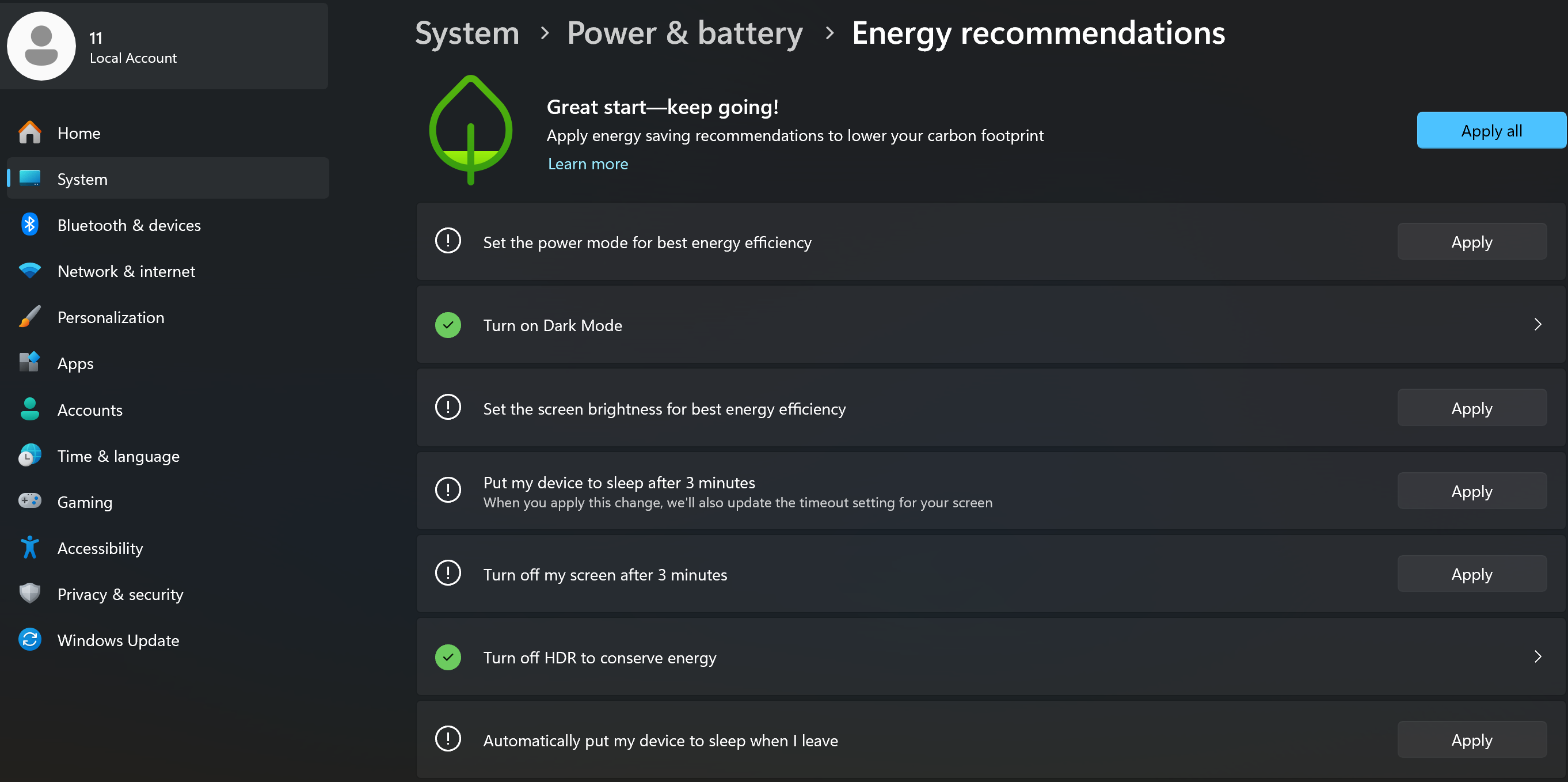
Windows 11 provides Energy recommendations, which allows you to review and apply multiple power-saving settings in one place.
a. Open Settings > System > Power & battery > Energy recommendations.
b. Review the power-saving recommendations provided by Windows. Select Apply or adjust the settings individually according to your needs.
Energy recommendations may include reducing screen brightness, shortening the screen and sleep timeout, and changing the power mode. The available options may vary depending on the device hardware and Windows settings.
7. Set the Windows power mode to "Best Power Efficiency"
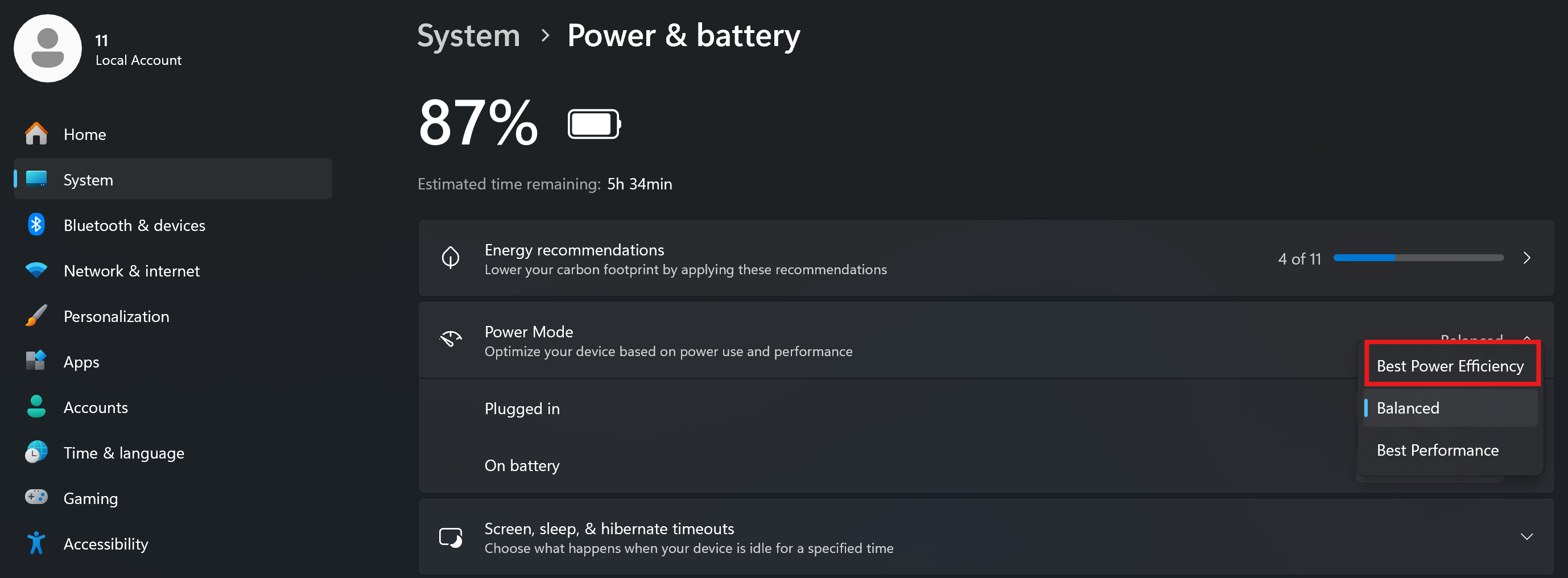
Windows 11 provides different power modes. If your main goal is to extend battery runtime, we recommend selecting Best Power Efficiency.
a. Open Settings. Select System > Power & battery.
b. Locate Power mode. Select Best Power Efficiency.
This setting can reduce system power consumption, but performance in some high-load workloads may be affected.
8. Turn on Windows "Energy saver"
When you need to further extend battery runtime, you can turn on Energy saver in Windows 11.
a. Open Settings > System > Power & battery.Select Energy saver.
b. Turn on Energy saver, or configure it to turn on automatically when the battery level falls below a specified percentage.
When Energy saver is enabled, Windows reduces power consumption by limiting certain background activities and adjusting system behavior.
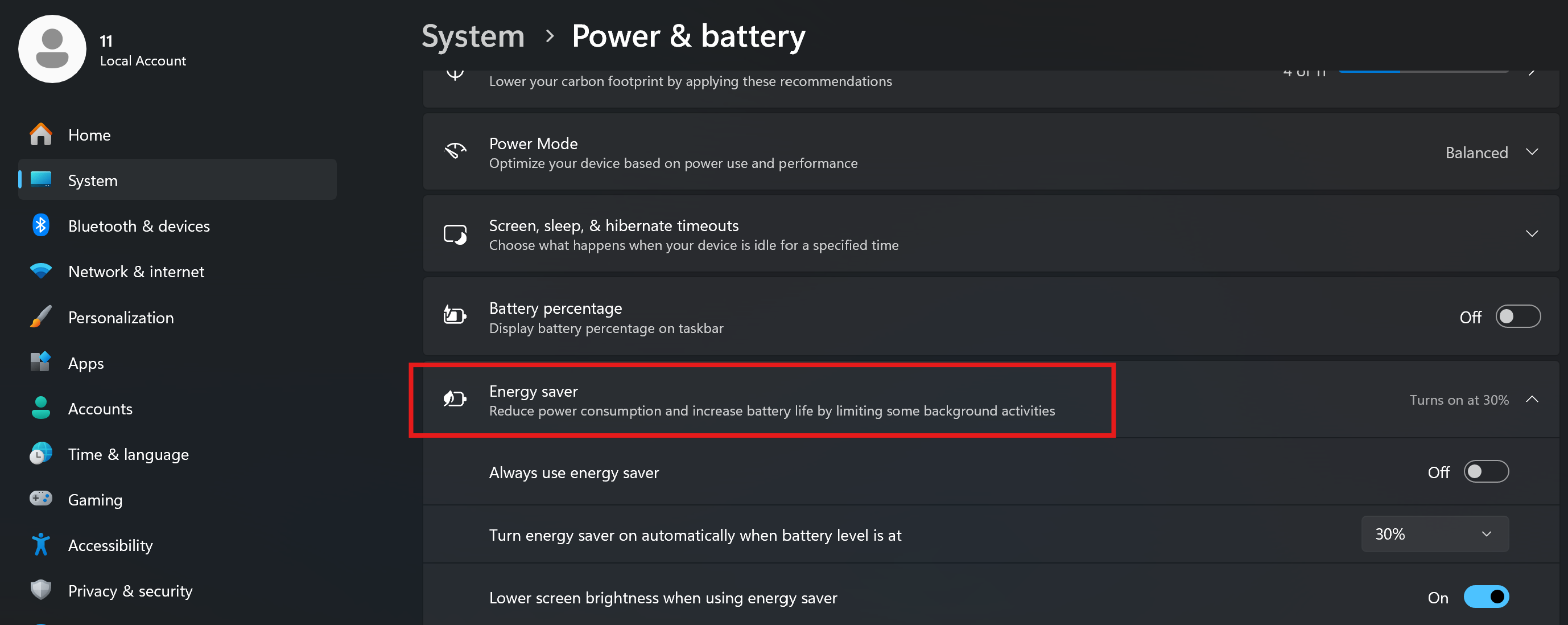
Note: If the system provides the Lower screen brightness when using energy saver option, you can enable it to further reduce display power consumption.
9. Shorten the screen and sleep timeout
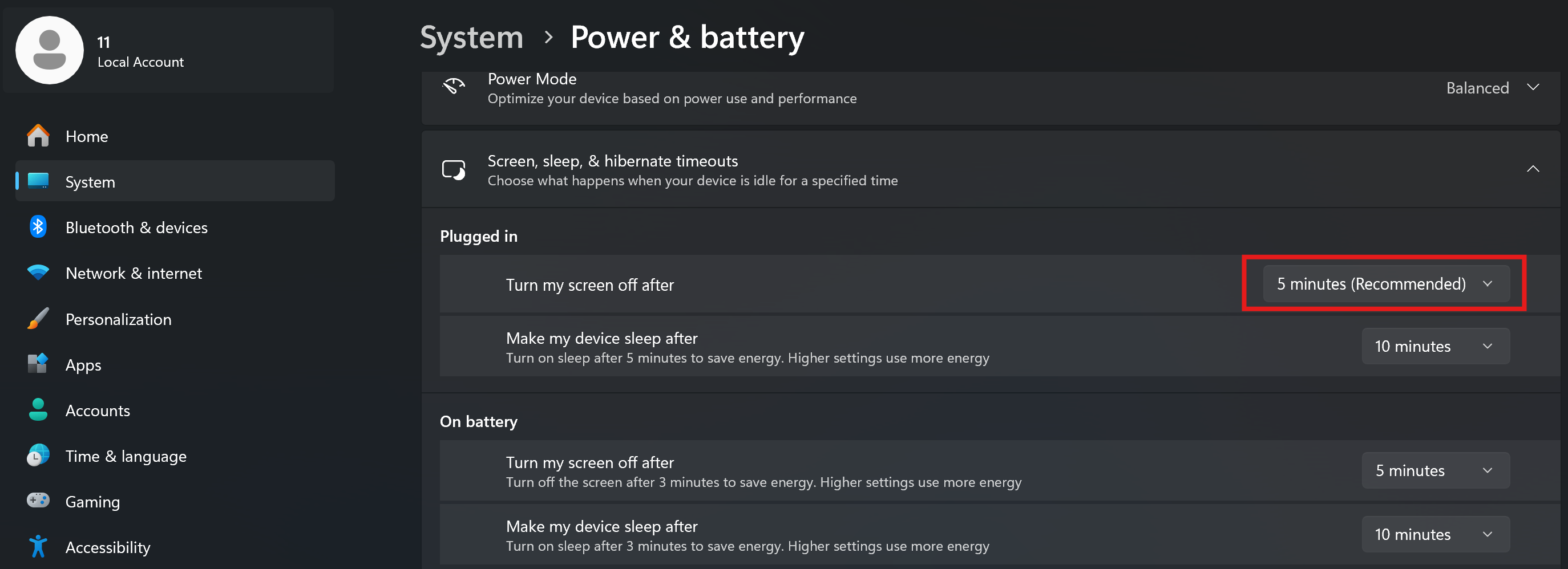
If the laptop remains idle for an extended period, we recommend shortening the screen-off and sleep timeout.
a. Open Settings > System > Power & battery.
b. Locate Screen, sleep, & hibernate timeouts.
c. Under On battery power, configure the following: Set Turn my screen off after to a shorter period.
d. Set Make my device sleep after to a shorter period.
This helps prevent unnecessary power consumption while the laptop is idle.
10. Turn off Wi-Fi and Bluetooth when not in use
If you do not currently need wireless network or Bluetooth connectivity, you can turn them off to reduce unnecessary wireless activity in the background.
a. Press Windows + A to open Quick Settings. Turn off Wi-Fi or Bluetooth when they are not needed.
If you currently need to use a network connection or Bluetooth device, there is no need to turn off the corresponding function.
FAQ
Q: Why does my MSI laptop consume battery power quickly even when I am not running demanding applications?
A: Battery consumption is affected by more than CPU or GPU load. Screen brightness, screen refresh rate, background applications, wireless connections, external devices, and RGB lighting can also increase power consumption.
We recommend following the steps in this article to adjust the MSI laptop control software and Windows power settings. You can also go to Settings > System > Power & battery > Battery usage to identify applications with high power consumption.
Q: What is the difference between "Best Power Efficiency" and "Energy saver" in Windows 11?
A: Both features are designed to reduce system power consumption, but they work differently:
1)Best Power Efficiency: Adjusts the Windows power mode to reduce overall system power consumption.
2)Energy saver: When the battery level is low or the feature is manually enabled, Windows further reduces power consumption by limiting certain background activities and adjusting system behavior.
If you want to reduce system power consumption during normal battery-powered use, you can select Best Power Efficiency. If you need to further extend battery runtime when the battery level is low, you can turn on Energy saver.
Q: Why may laptop performance decrease after selecting "Best Power Efficiency"?
A: The main purpose of Best Power Efficiency is to reduce system power consumption. Therefore, system performance in some high-load workloads may be affected.
If you need to run games, video editing software, or other demanding applications, we recommend switching to a suitable power mode based on your usage requirements.
Q: Can the methods in this article restore battery health?
A: No. The methods described in this article are intended to reduce system power consumption and extend battery runtime per charge. They cannot restore battery health that has already deteriorated.
If your laptop has significantly reduced battery capacity, cannot charge, or exhibits other battery-related issues, refer to the [Product Information] Laptop Battery information or contact MSI Customer Service for further assistance.