[How To] Setup Privacy Screen with Continuous ID in Tobii Aware
Answer
Tobii Aware uses an infrared camera to detect the user's presence and eye movements, providing three core features that allow users to work in a secure and privacy-focused environment:
- Screen Privacy
When the user looks away from the screen, the display will be blurred. When the user looks back at the screen, the display will be restored. - Peeker Detection
When another person is looking at the screen, Tobii Aware will notify the user. - Auto-lock Windows
If the user is away from the laptop, the system will automatically lock the screen.
When Screen Privacy is enabled, users can select the Continuous ID option to ensure that Tobii Aware only restores the screen for the correct user. This feature detects the user's facial characteristics to determine whether the person in front of the laptop is the authorized user. If the person is not the correct user, the system will automatically lock the screen.
To ensure that Tobii Aware can correctly identify the authorized user, please follow the steps below to configure the Continuous ID feature.
*This article applies to MSI laptops that support Tobii Aware.
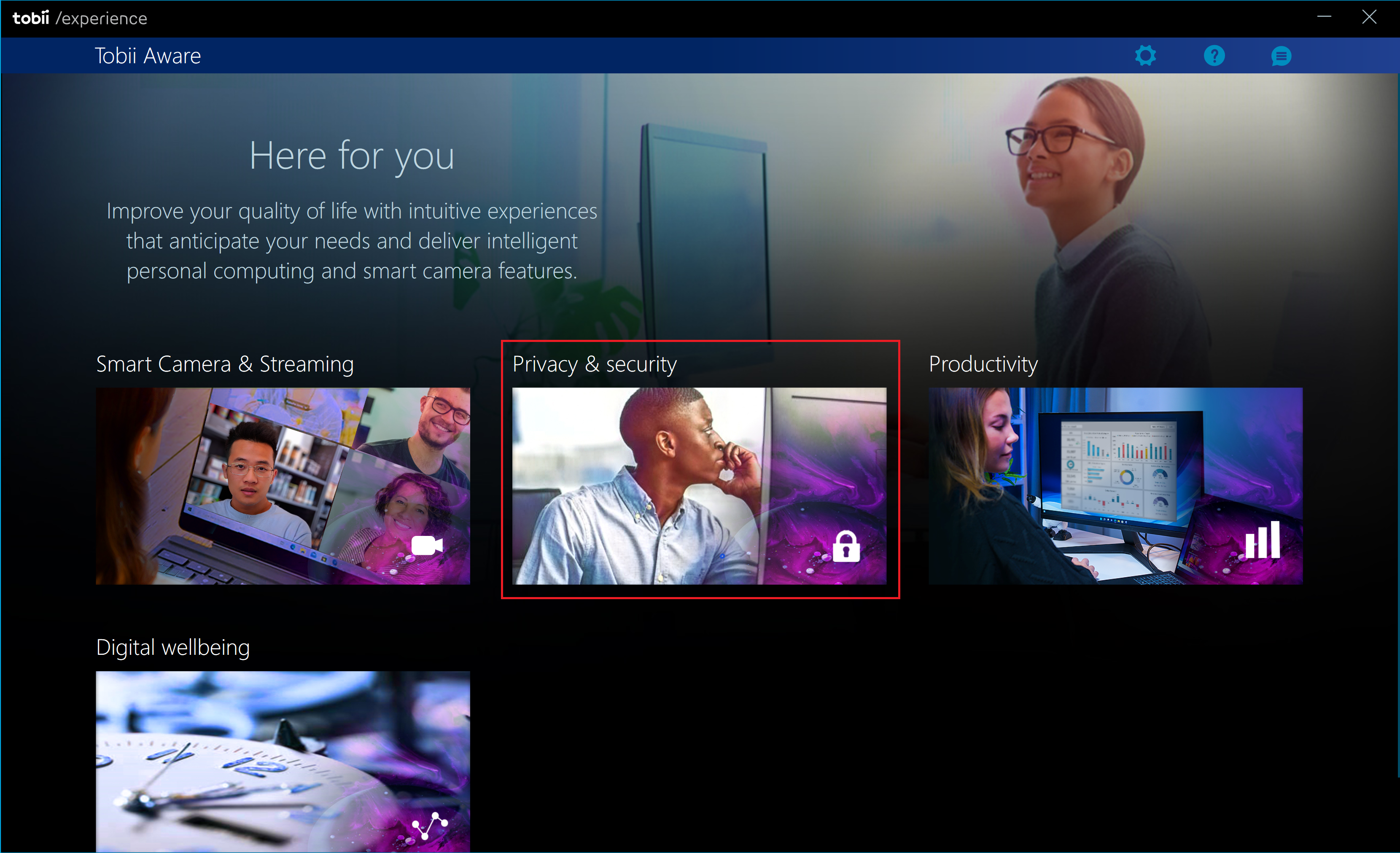
- Open the Tobii Experience application and click "Privacy & Security".
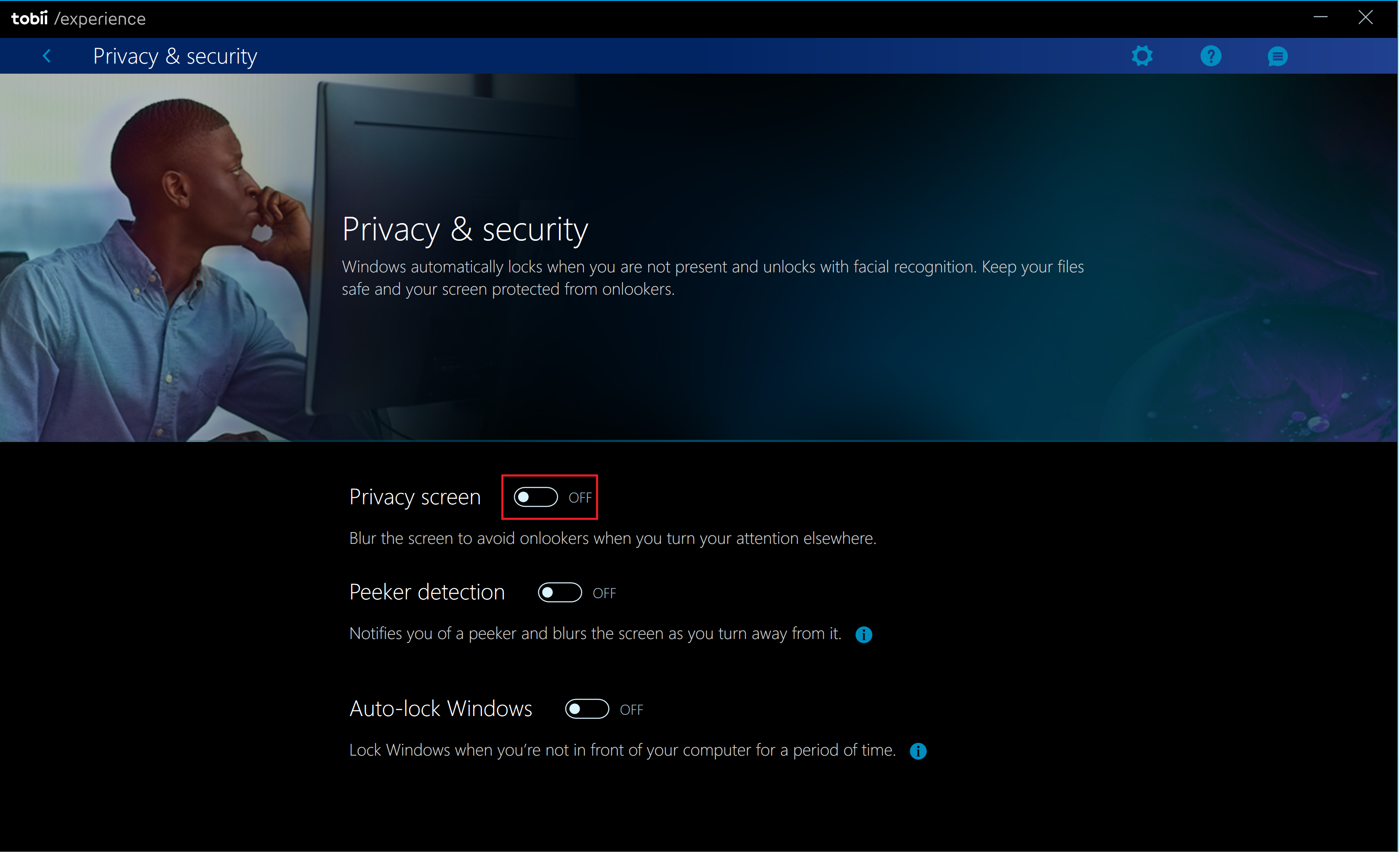
- Enable "Privacy Screen".
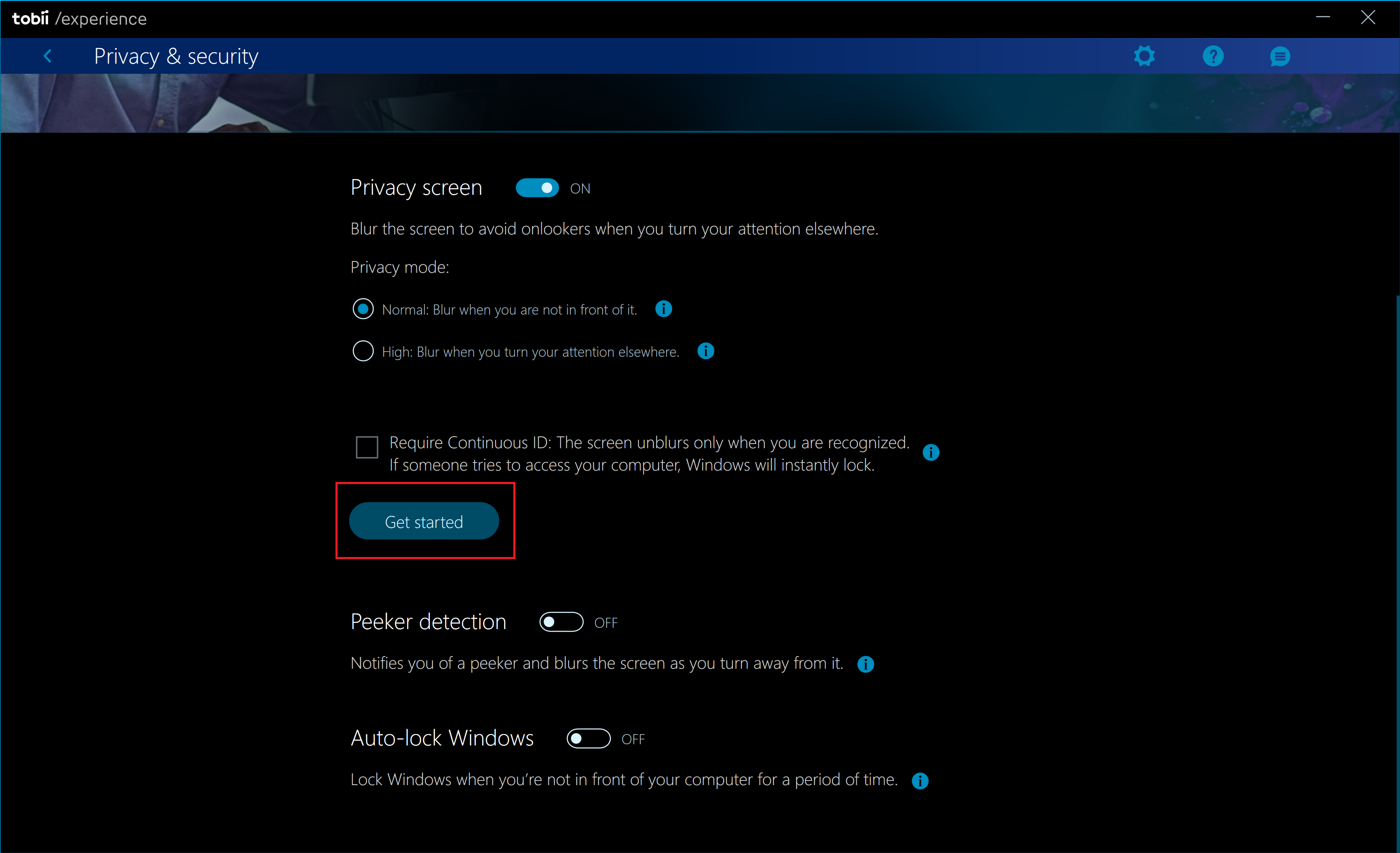
- If Continuous ID has not been configured before, click "Get Started".
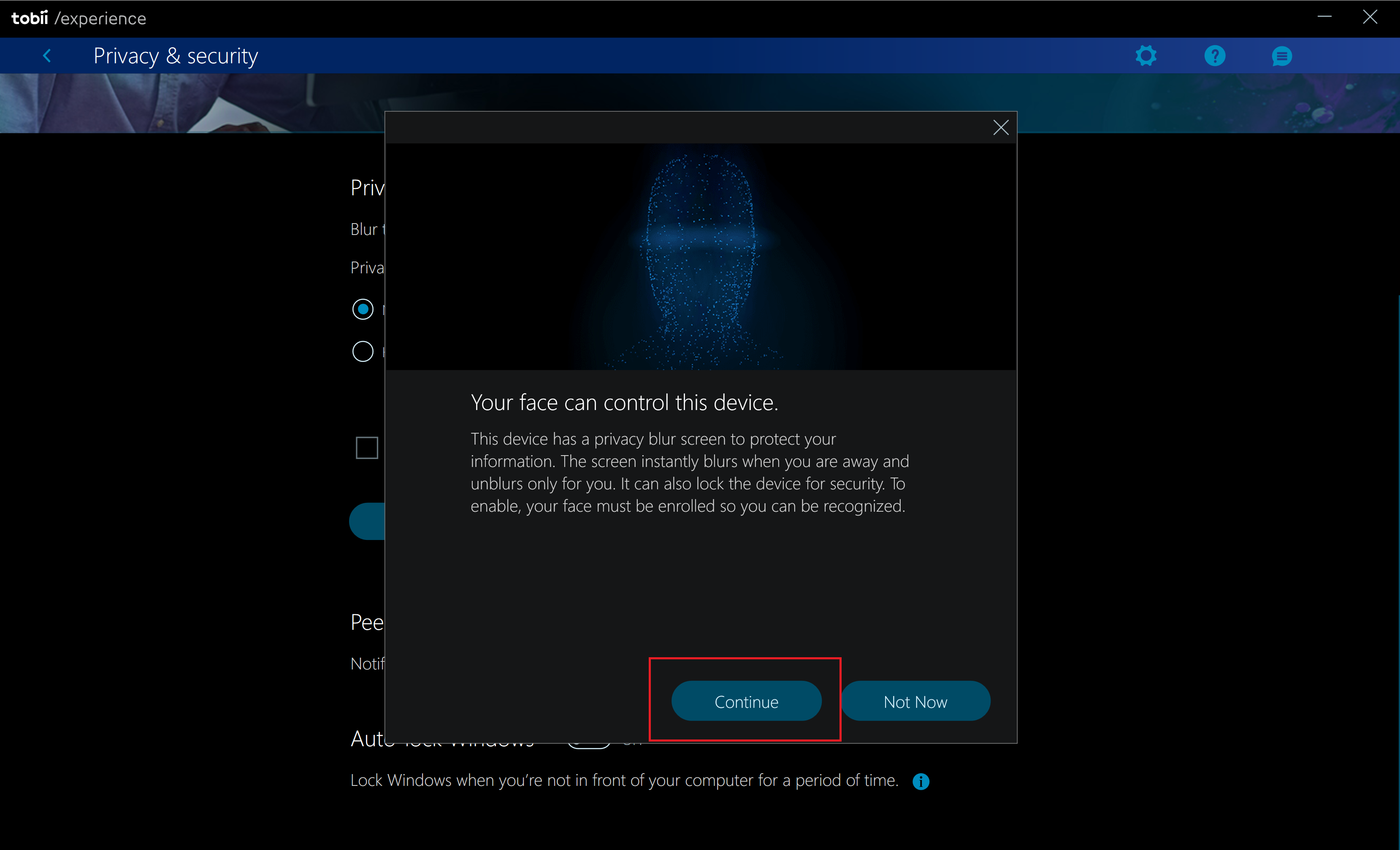
- Follow the on-screen instructions to register your facial profile.
- After the setup is complete, the system will only remove screen blurring for the authorized user.
*Note: For users who occasionally wear glasses or a mask, click "Improve" to register additional facial profiles and enhance facial recognition accuracy.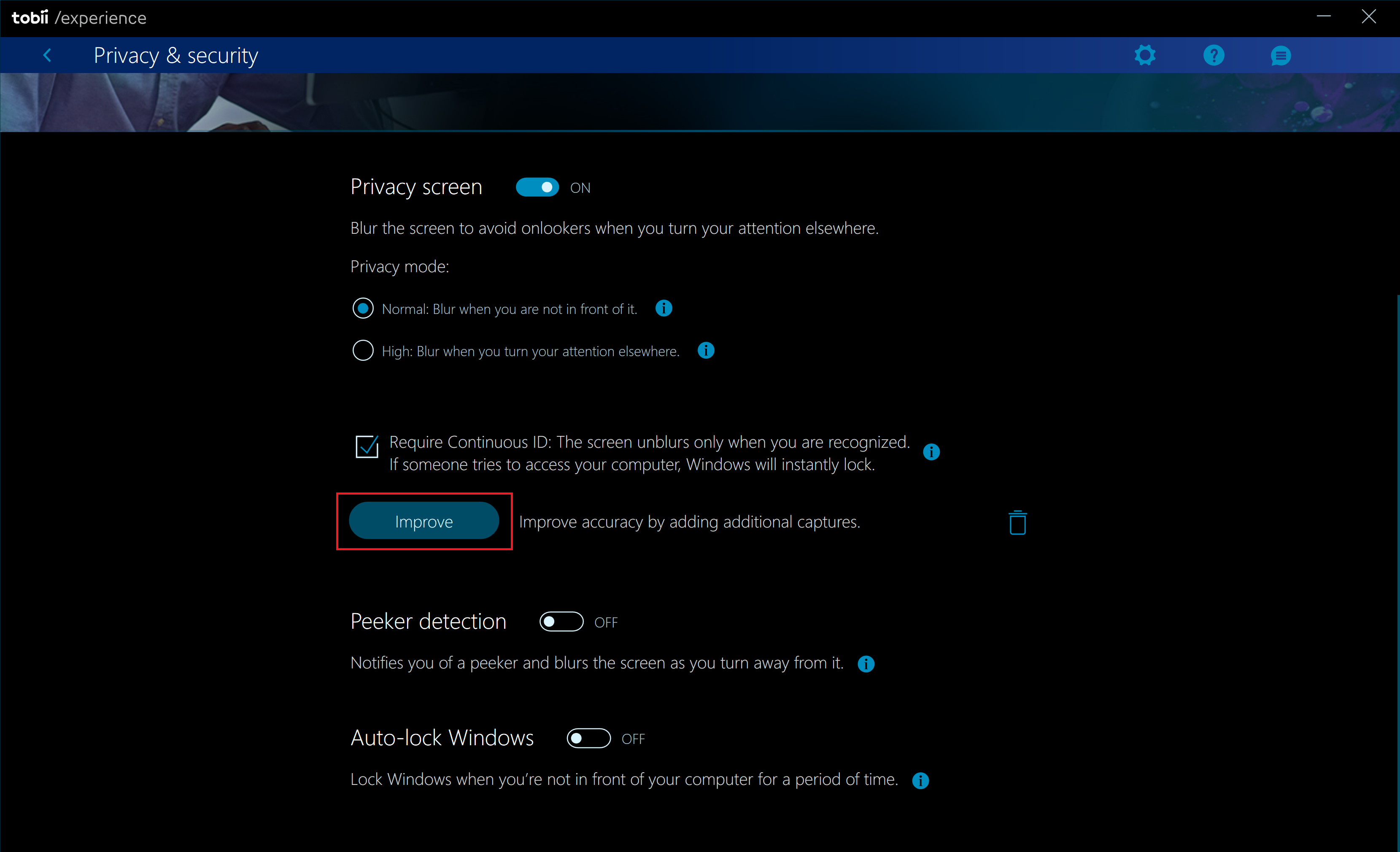
FAQ
Q: Which devices and users is this guide intended for?
A: This guide applies to all MSI laptops that support Tobii Aware technology. It is intended for users who work in open or public environments and require a high level of information security and personal privacy.
Q: Why do I need to enable the "Continuous ID" feature?
A: This feature ensures that the system only restores screen content for the authorized user. By recognizing facial characteristics, if the person in front of the laptop is identified as someone other than the owner, the system will keep the screen blurred or automatically lock the device, providing an additional layer of security.
Q: Under what circumstances will the system blur or lock the screen?
A: When the system detects that the user has looked away from the screen, the "Screen Privacy" feature will immediately blur the display. When the user is no longer in front of the laptop, the "Auto-lock Windows" feature will be triggered.
Models
If the above answers do not resolve your issue, please
Contact Us