[How to] Install, Change, or Remove the System Language
Answer
In Windows, you can use Language settings to install a new language pack, change the Windows display language, or remove languages you no longer need. Before downloading language features, please make sure your device is connected to the internet.
This article applies to all MSI laptop products.
Windows 11
Install a language pack
- Open Settings > Time & language > Language & region > Add a language under Preferred languages.
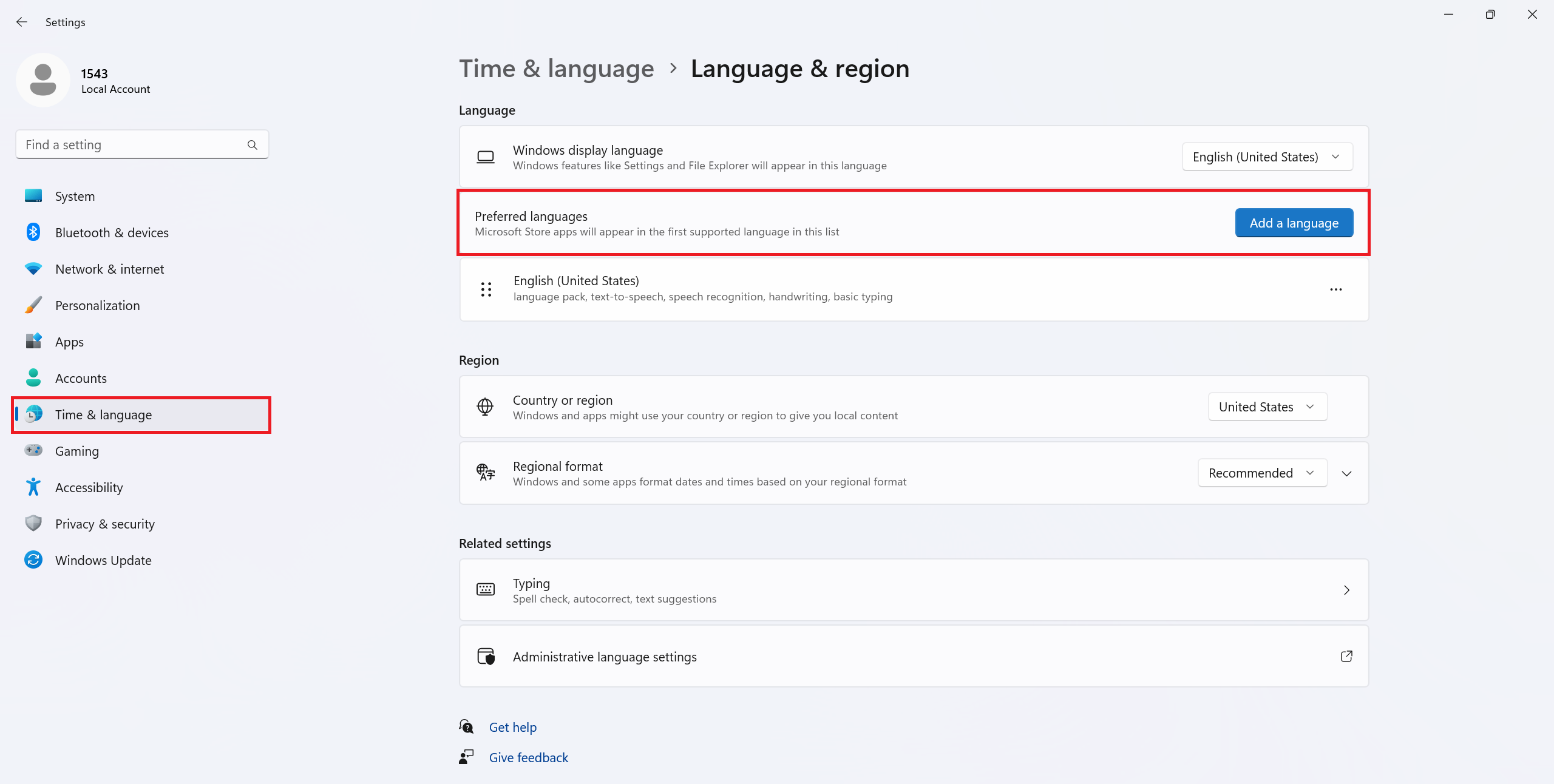
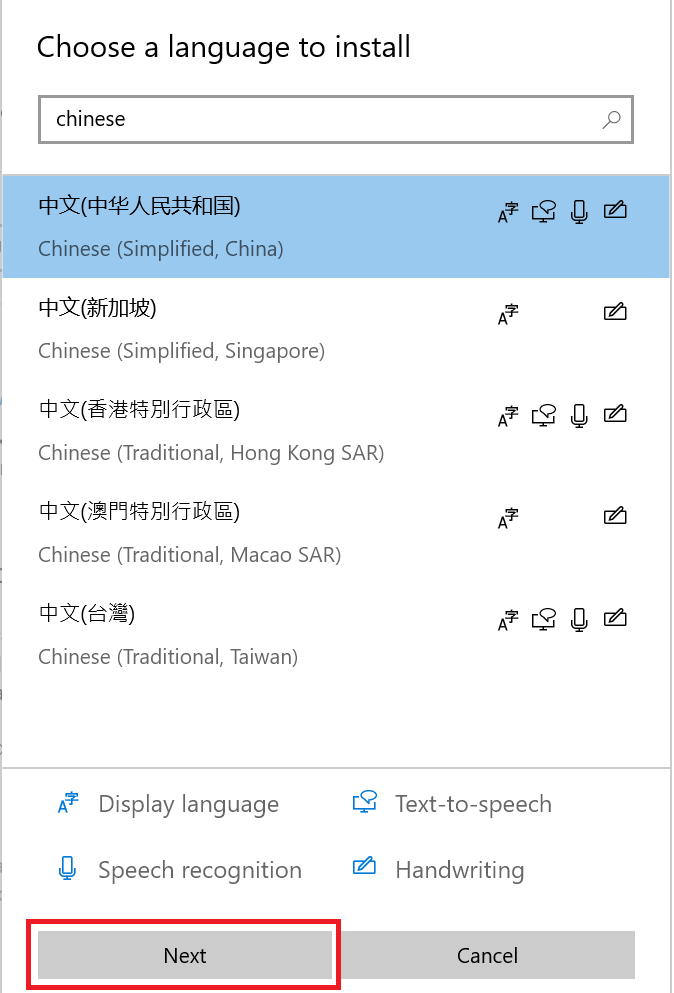
- Select the language you want to install, then click Next.
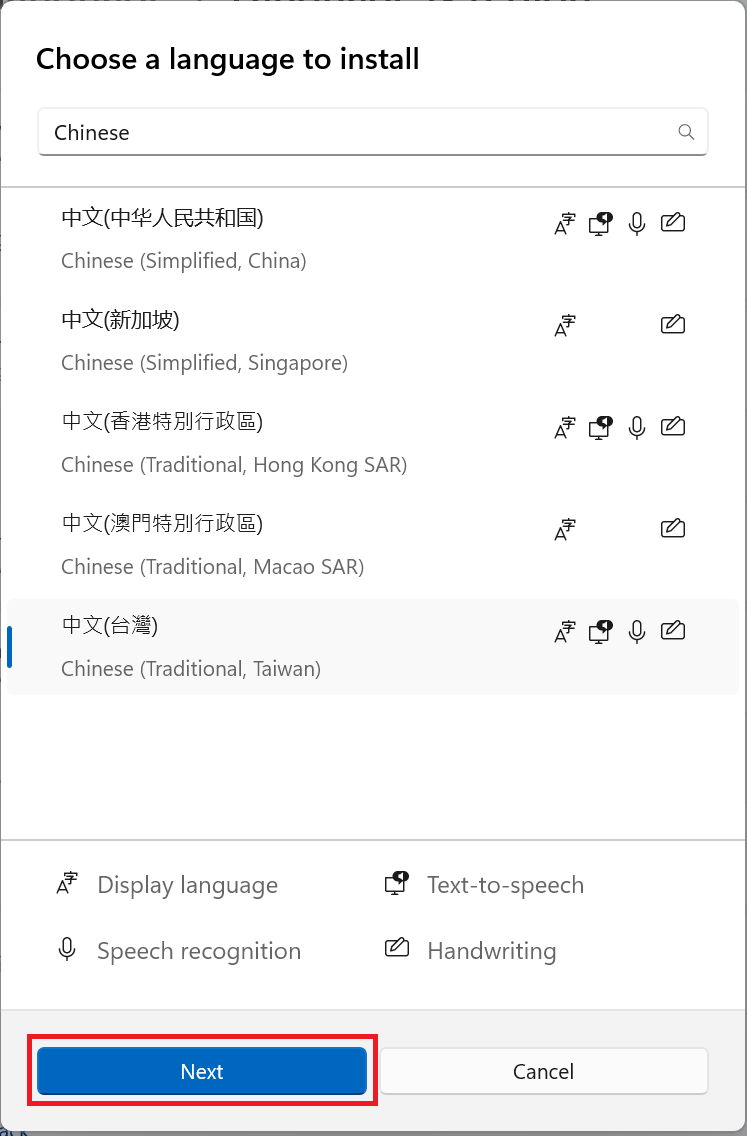
- Check the language features you need, then click Install. If you check Set as my Windows display language, you will need to sign in again after installation for the change to take effect.
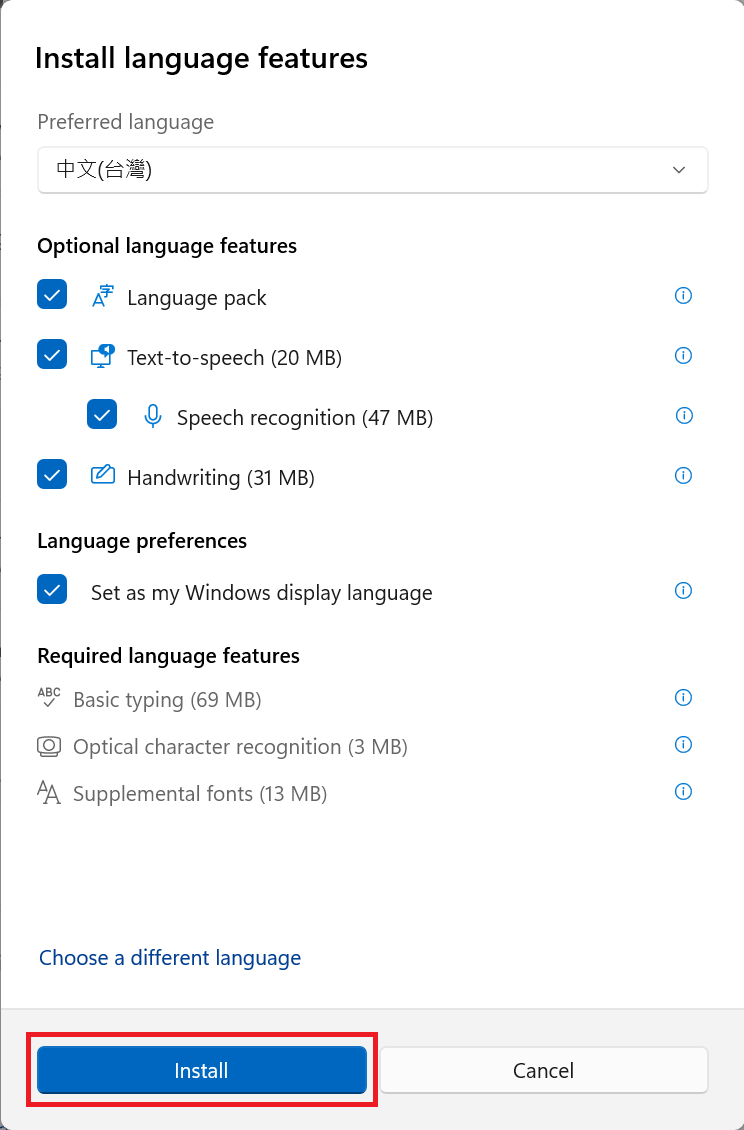
Change the display language
- Open Settings > Time & language > Language & region.
- Select the target language from the Windows display language drop-down menu.
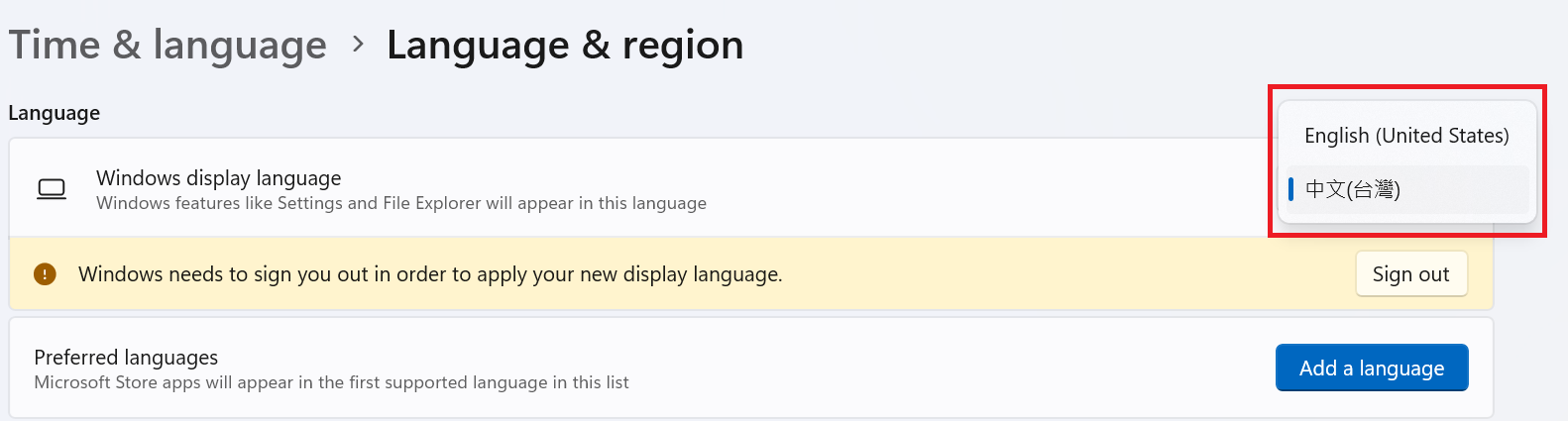
- Sign out of the system. After signing in again, the system interface will switch to the new language.
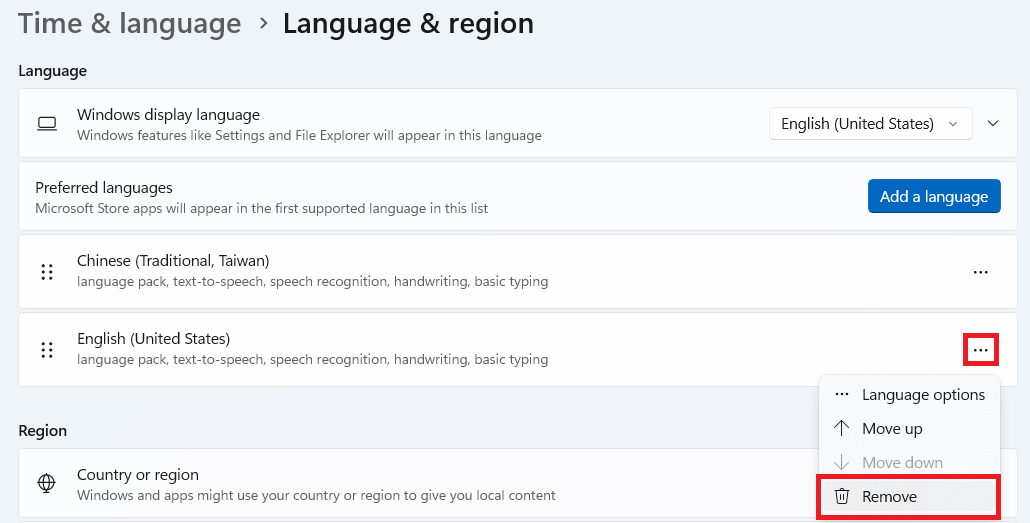
Remove a language pack
- Open Settings > Time & language > Language & region.
- Find the language you want to delete in the language list.
- Click the More icon next to that language, then select Remove.
Windows 10
Install a language pack
- Open Settings > Time & language > Language & region > Language > click Add a language.
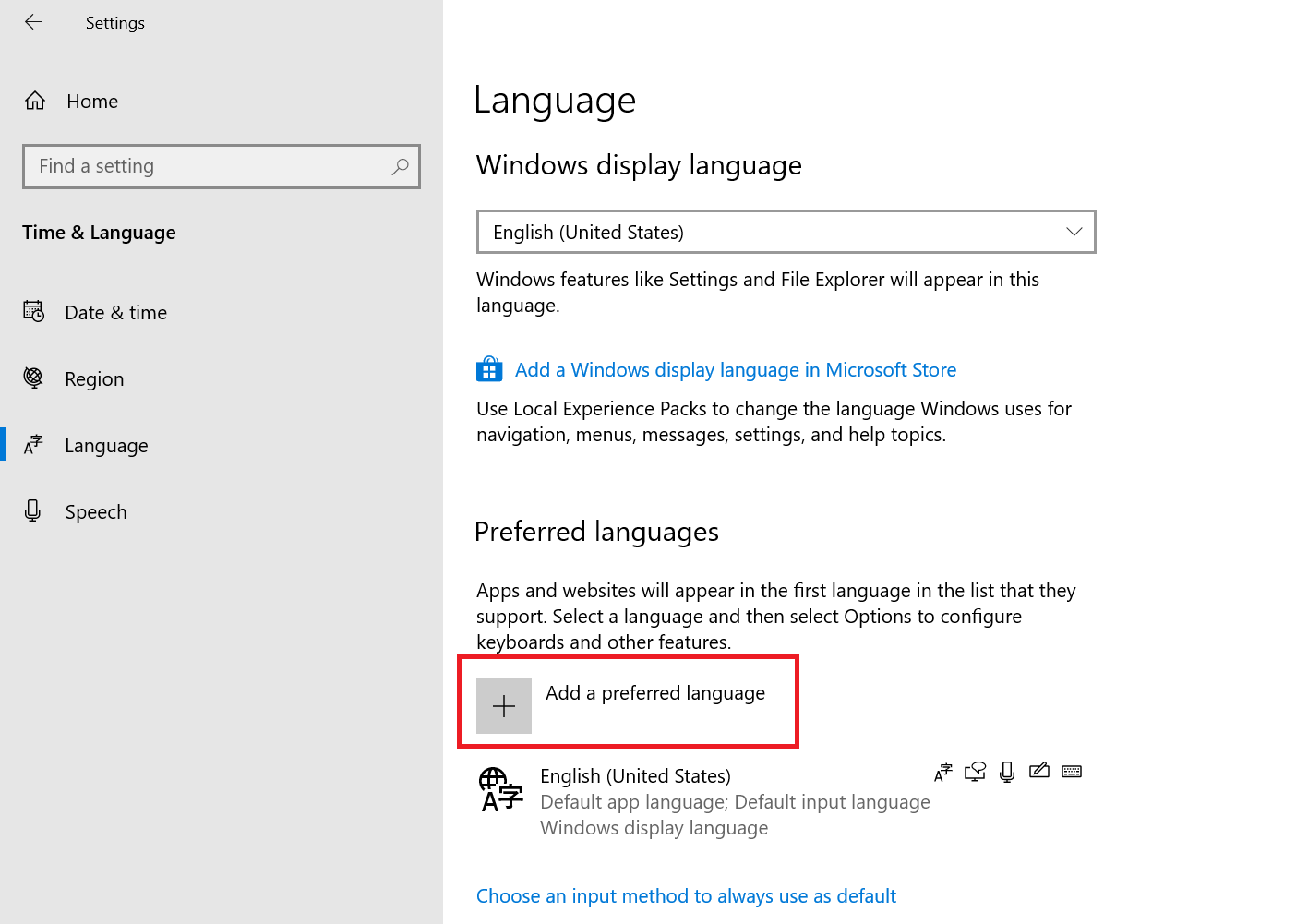
- Select the language you want to install, then click Next.
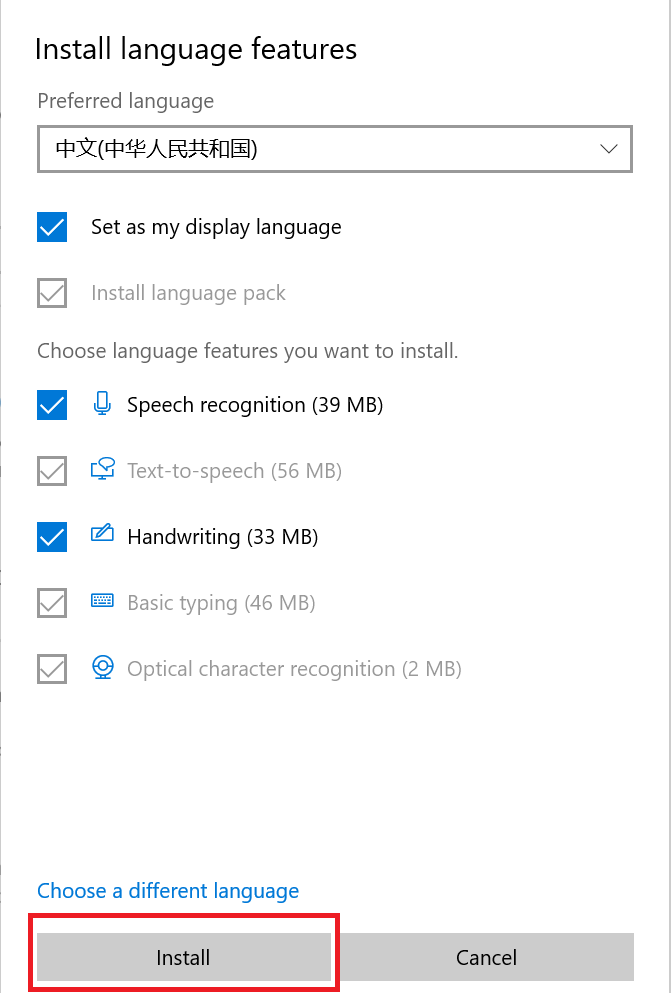
- Check the language features you need, then click Install. If you check Set as my Windows display language, you will need to sign in again after installation for the change to take effect.
Change the display language
- Open Settings > Time & language > Language & region > Language.
- Select the target language from the Windows display language drop-down menu.
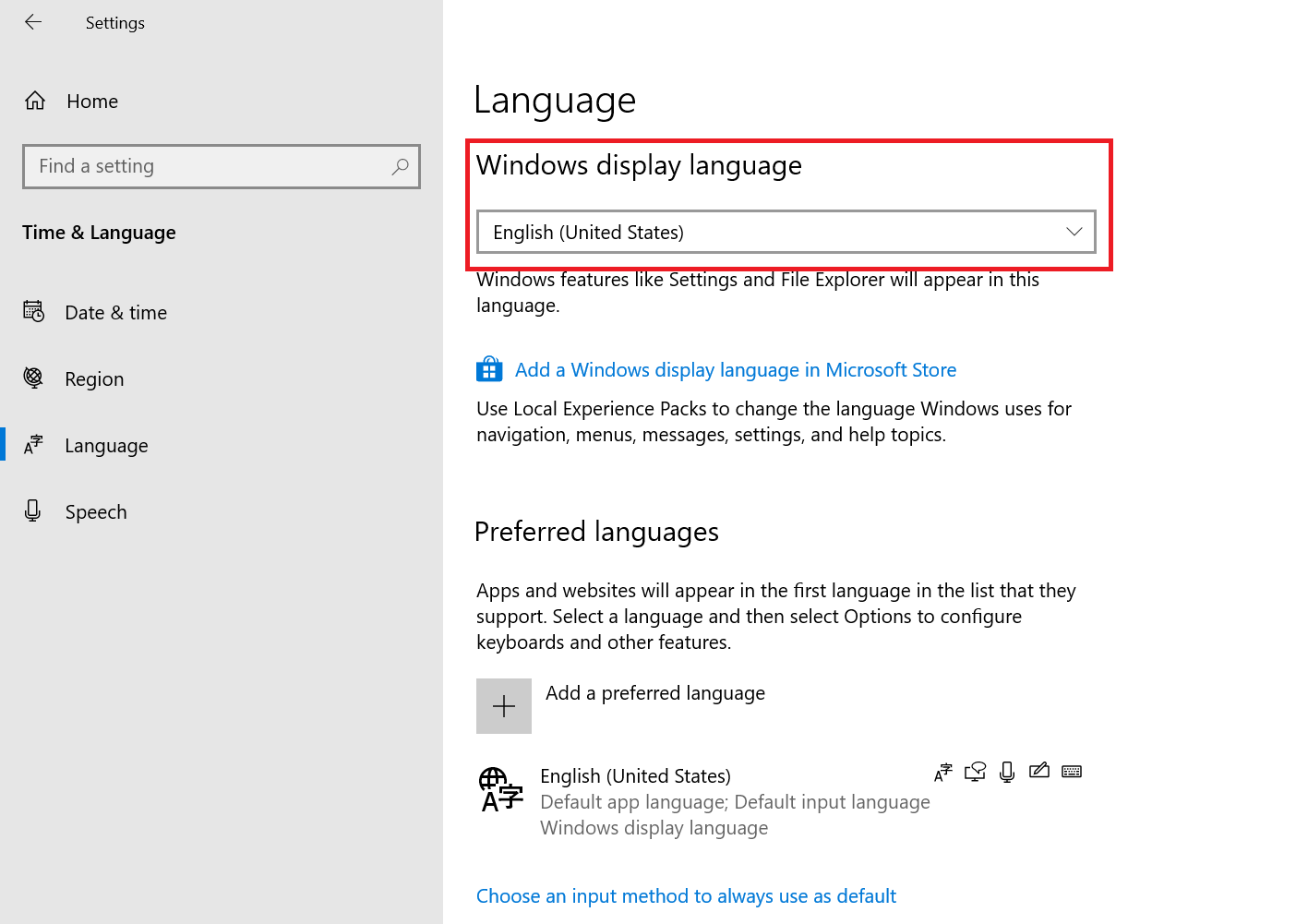
- Sign out of the system. After signing in again, the system interface will switch to the new language.
Remove a language pack
- Open Settings > Time & language > Language & region.
- Find the language you want to delete in the language list.
- Click the More icon next to that language, then select Remove.
FAQ
Q: Why can’t I add a language?
A: If your device is running Windows Single Language Edition, the system usually does not support adding display languages. If you need to use other languages, you may need to upgrade to a Windows version that supports multiple languages.
Q: Will installing multiple language packs affect system performance?
A: Installing multiple language packs usually will not noticeably reduce daily operating speed, but they will take up storage space and may also make Windows Update downloads and installation take longer. It is recommended to keep only the languages you use frequently.
Q: Why doesn’t the language change take effect immediately?
A: The Windows display language requires you to sign out and then sign in again before it is fully applied to the system interface.
Q: Will the input method also disappear after removing a language?
A: Possibly. If the input method for that language is tied to the language pack, removing the language may also remove the related input method.
If the above answers do not resolve your issue, please
Contact Us