[Windows] Why Do Some Pre-installed Windows Apps Appear in English When a Non-English System Display Language Is Selected?
Answer
After completing the initial Windows setup (OOBE) on an MSI notebook, some built-in Windows apps may still appear in English even when a non-English system display language has been selected. This behavior is related to the underlying system deployment architecture and can usually be resolved through an online update. If you encounter this behavior, refer to the information below.
This article applies to all MSI notebook products.
Cause Analysis
The multilingual Windows system pre-installed by MSI is built on an English Windows environment. Due to this deployment architecture, some pre-installed apps may use English as their default display language. Therefore, when a user signs in to the account for the first time, these apps may not yet have completed synchronization with the system display language.
Standard Troubleshooting Steps
To make the pre-installed apps display in the language configured in the system, follow the steps below to trigger the app initialization process:
- Make sure the notebook is connected to the Internet.
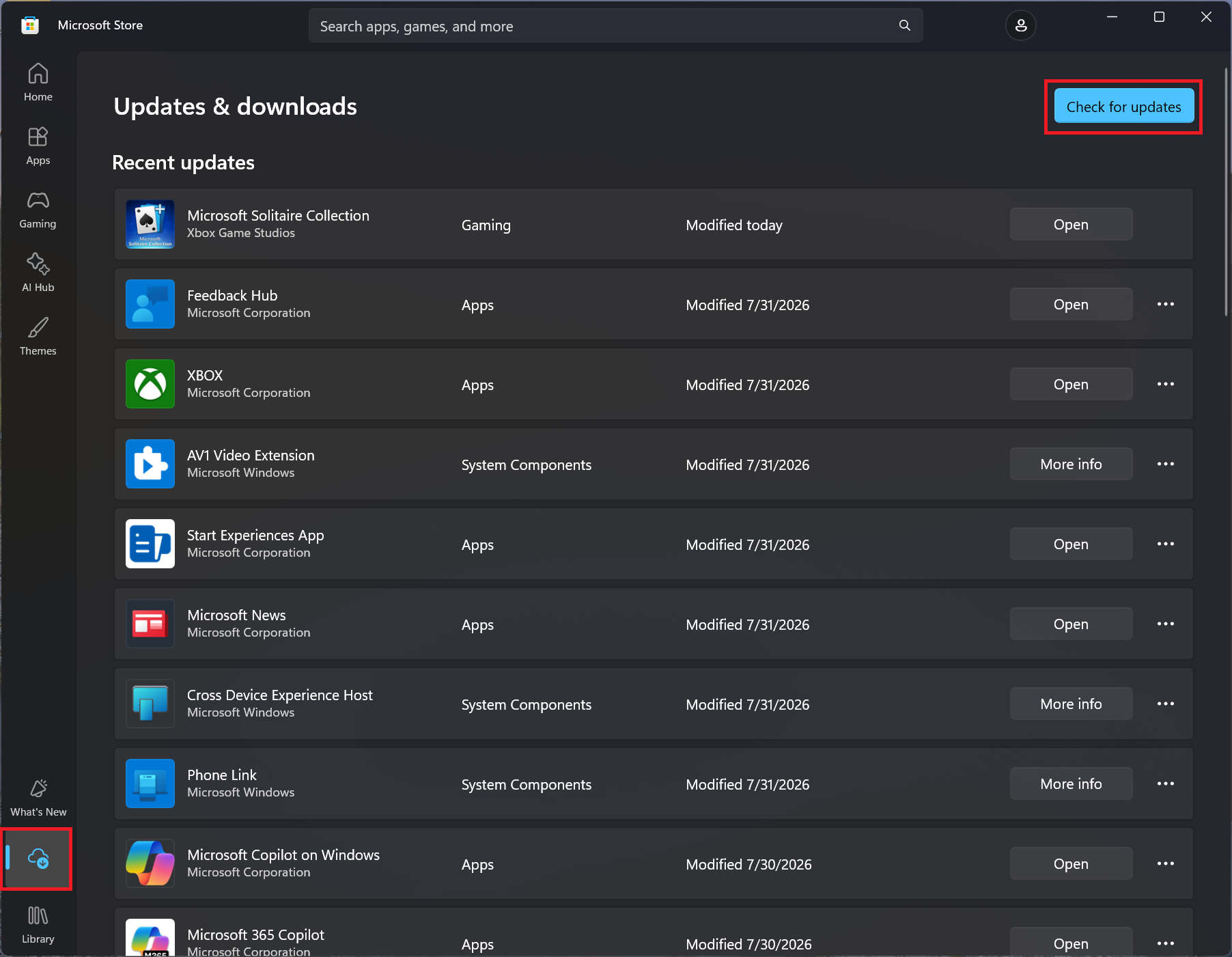
- Open “Microsoft Store” > “Downloads” > “Check for updates” to automatically update all apps.
Frequently Asked Questions
Q: Does this mean that the system was installed incorrectly?
A: No. This is not an installation error. It is a normal behavior that may occur during the initial setup for users of the multilingual Windows system pre-installed by MSI.
Q: Why is a fully localized language environment not pre-installed directly?
A: The multilingual version of Windows is pre-installed to provide greater flexibility, allowing users in different countries to use the same system image. Because the image is built on an English environment, it helps ensure stable global deployment, while individual language settings are applied through subsequent synchronization.
Q: Should I change the language in Settings?
A: It is recommended to confirm the language setting is correct in the settings first, and go to the Microsoft Store media cabinet to perform automatic updates.
Q: Do I need to manually download multiple language packs?
A: No. After signing in to the account for the first time and connecting to the Internet, launch the apps or run Microsoft Store updates. The initialization will complete automatically in the background and apply the configured language.
If the above answers do not resolve your issue, please
Contact Us