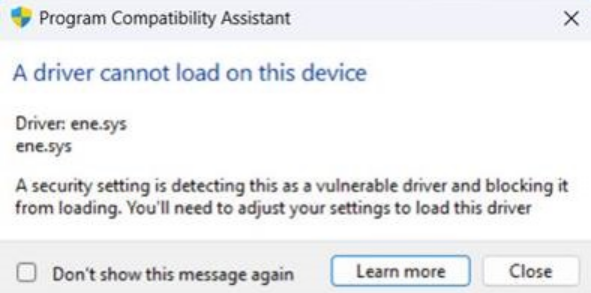
[Troubleshooting] Removing the ene.sys Driver When Program Compatibility Assistant Shows “A driver cannot load on this device” at Every Login
Answer
Some MSI notebooks show a Program Compatibility Assistant pop-up window every time the system starts and the user logs in, stating “A driver cannot load on this device” and referencing a driver file named ene.sys. This message does not prevent Windows from starting normally, but it reappears at every login until the ene.sys driver is removed from the system. Refer to this article if this exact pop-up window and message appear at login.
This article applies to all MSI notebooks.
Remove the ene.sys Driver Using the MSI Removal Tool
1. Download the ene.sys Driver Removal Tool from the MSI download server.
2. Extract the downloaded “RemoveDriver.zip” file.
3. Open the extracted folder, and double-click the “.exe” file inside to run the tool.
Note: Running this tool removes only the ene.sys driver file from the system. No other drivers, settings, or files are affected.
4. Restart the notebook.