[How To] Grant Camera Access Authorization to Applications on MSI Notebooks
Answer
Modern MSI notebooks require explicit user authorization before any application — including the built-in Camera app, Tobii Aware, or a third-party antivirus's camera-protection feature — is allowed to access the camera. This authorization step improves privacy and security, but it also means the camera will not work in an application until permission has been granted. Refer to this article if a camera-based application shows a black screen, an authorization pop-up, or a permission error, especially when a third-party antivirus such as Norton 360 is installed.
This article applies to all MSI notebooks.
Grant Camera Access When the Authorization Prompt Appears
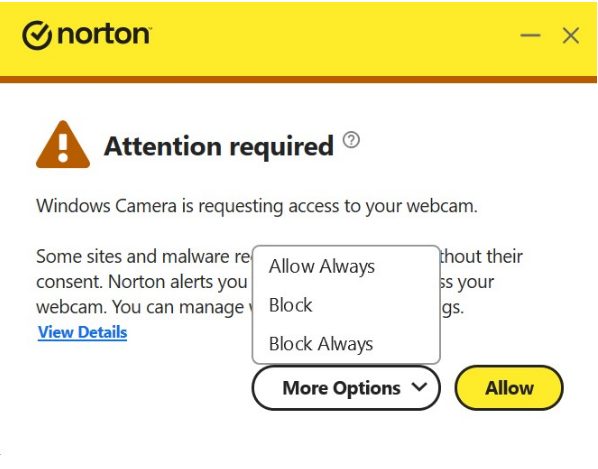
1. Launch the camera application (for example, the Windows Camera app).
2. When Norton 360 displays an authorization pop-up requesting camera access, select “Allow Always” to grant permanent access to the camera.
Note: If the pop-up is dismissed accidentally before a selection is made, the application is not authorized. Use the manual steps below to grant access afterward.
Manually Enable Camera Access via Norton 360 SafeCam
A. Open “Norton 360”.
B. Next to “Device Security”, click “Open”.
C. Select “Settings”.
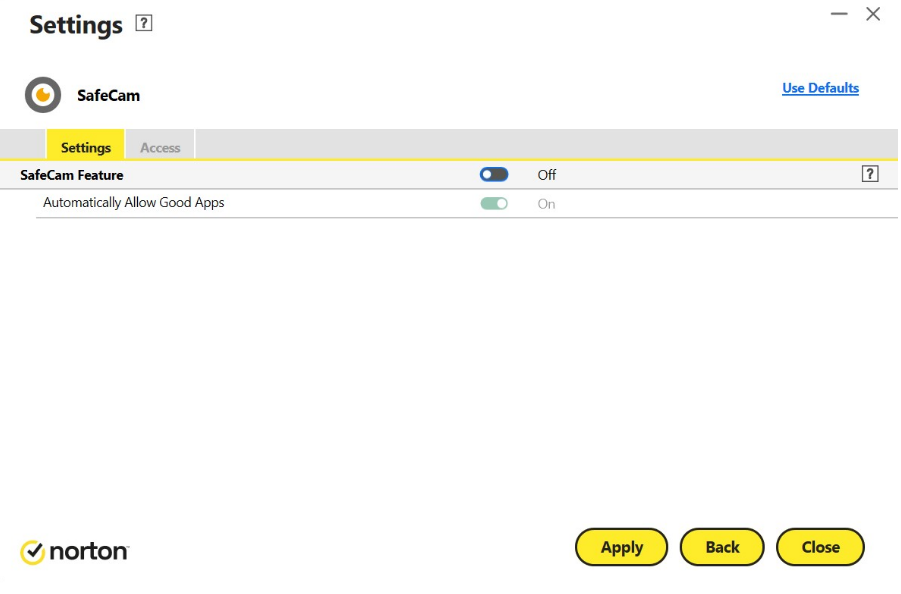
D. Click “SafeCam”.
E. In the SafeCam settings, set the SafeCam toggle to “Off”.
F. Click “Apply”, then click “Close”.
Note:
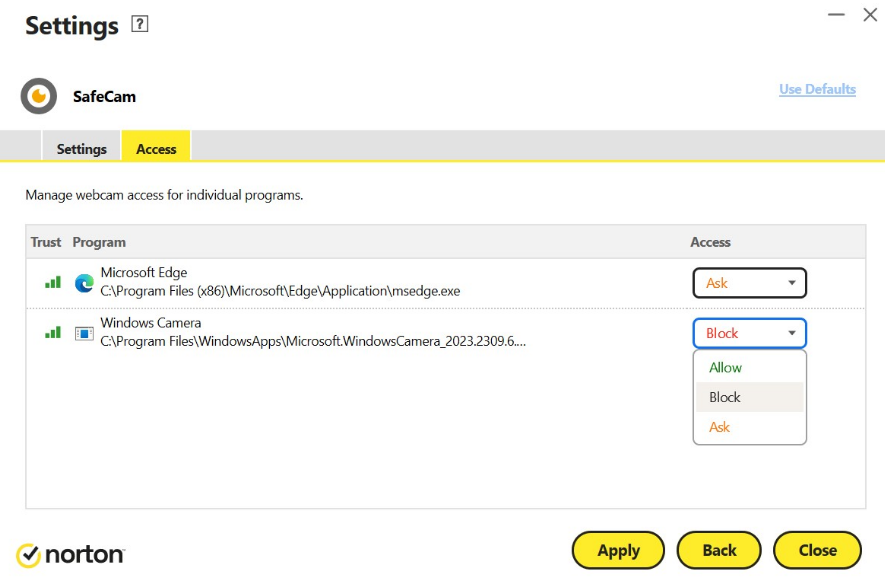
-Setting SafeCam to “Off” allows all applications to access the camera without an individual authorization prompt. If per-application authorization is preferred instead, keep SafeCam “On” and grant access to each application individually when prompted.
-If the camera access setting in the antivirus application is set to “Block” instead of “Allow” or “Off”, the camera will be disabled, and any application requiring camera access will be unable to use it.
Common Questions (Q&A)
What happens if I never respond to the authorization pop-up?
The application remains unauthorized, and the camera continues to show a black screen or an access-denied message in that application. Use the manual steps in this article to grant access afterward.
Why does the notebook require this authorization step at all?
Requiring explicit authorization prevents applications from accessing the camera without the user's knowledge, which reduces the risk of unauthorized recording. This behavior comes from the antivirus or security software installed on the notebook, not from the camera hardware itself.
Does this authorization requirement apply if Norton 360 is not installed?
The camera authorization prompt in this article's example comes from Norton 360 SafeCam specifically. Other antivirus or security software may include a similar camera-protection feature with its own settings menu; the underlying concept — granting permission before an app can access the camera — applies broadly, but the exact steps vary by software.