[Troubleshooting] Intel & AMD's generic graphics driver get roll back automatically by Windows Update
Answer
If you install the latest reference graphics driver from the official Intel or AMD website, Windows Update may automatically replace it with the OEM customized driver provided on the MSI official support page after subsequent system updates.
This is expected behavior of Windows Update. Windows prioritizes device drivers validated by OEMs (device manufacturers) to improve hardware compatibility and system stability.
Reminder: The OEM graphics drivers released by MSI have been optimized and validated for MSI notebook hardware. If you encounter display anomalies, performance drops or functional issues after installing Intel or AMD reference drivers, we recommend switching back to the OEM driver version available from the MSI website.
If you wish to keep using the latest Intel or AMD reference drivers, follow the steps below to disable automatic driver updates via Windows Update.
Notice: Disconnect the network before proceeding to prevent Windows Update from reinstalling drivers before the configuration takes effect.
This article applies to all MSI notebooks
Method A: Disable automatic driver updates from Windows Update (Recommended)
Windows Professional Version
1.Press Windows + R, type gpedit.msc and press Enter to open the Local Group Policy Editor.
2.Navigate to Computer Configuration → Administrative Templates → Windows Components → Windows Update → Manage updates offered from Windows Update. Locate Do not include drivers with Windows Updates.
3.Double-click Do not include drivers with Windows Updates, select Enabled, then click Apply > OK .
4.Restart your PC to apply changes.
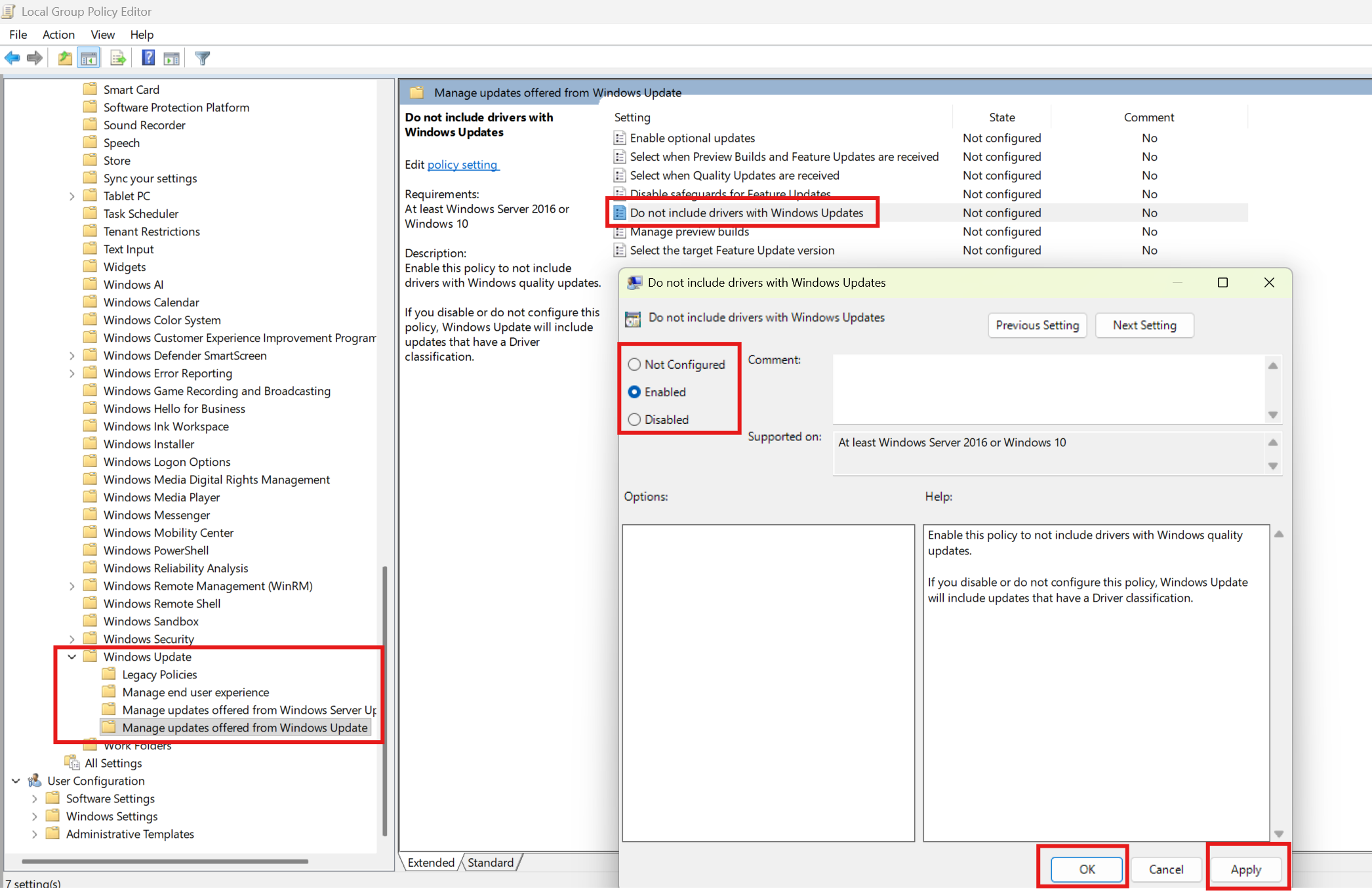
Notice: To re-enable automatic driver updates via Windows Update, set this policy back to Not Configured or Disabled.
Windows Home Version
1.Press Windows + R, type regedit and press Enter to open the Registry Editor.
2.Paste the following path into the address bar: Computer\HKEY_LOCAL_MACHINE\SOFTWARE\WOW6432Node\Policies\Microsoft\Windows\WindowsUpdate
3.Right-click empty space → New →『 DWORD (32-bit) Value』.
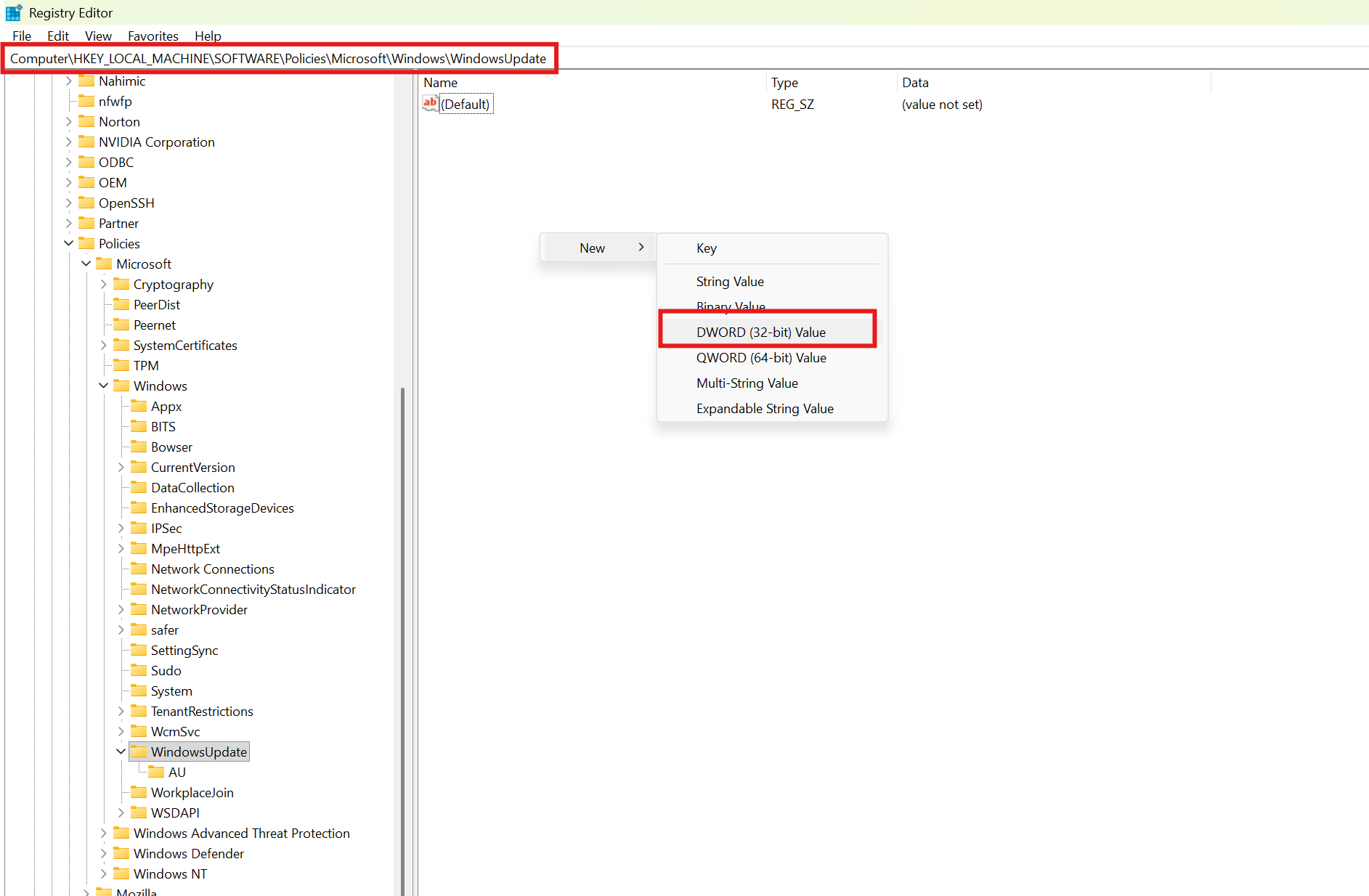
4.Name the newly created DWORD value ExcludeWUDriversInQualityUpdate.
5.Double-click the value, set Value data to 1, then click OK.
6.Restart your PC to apply changes.
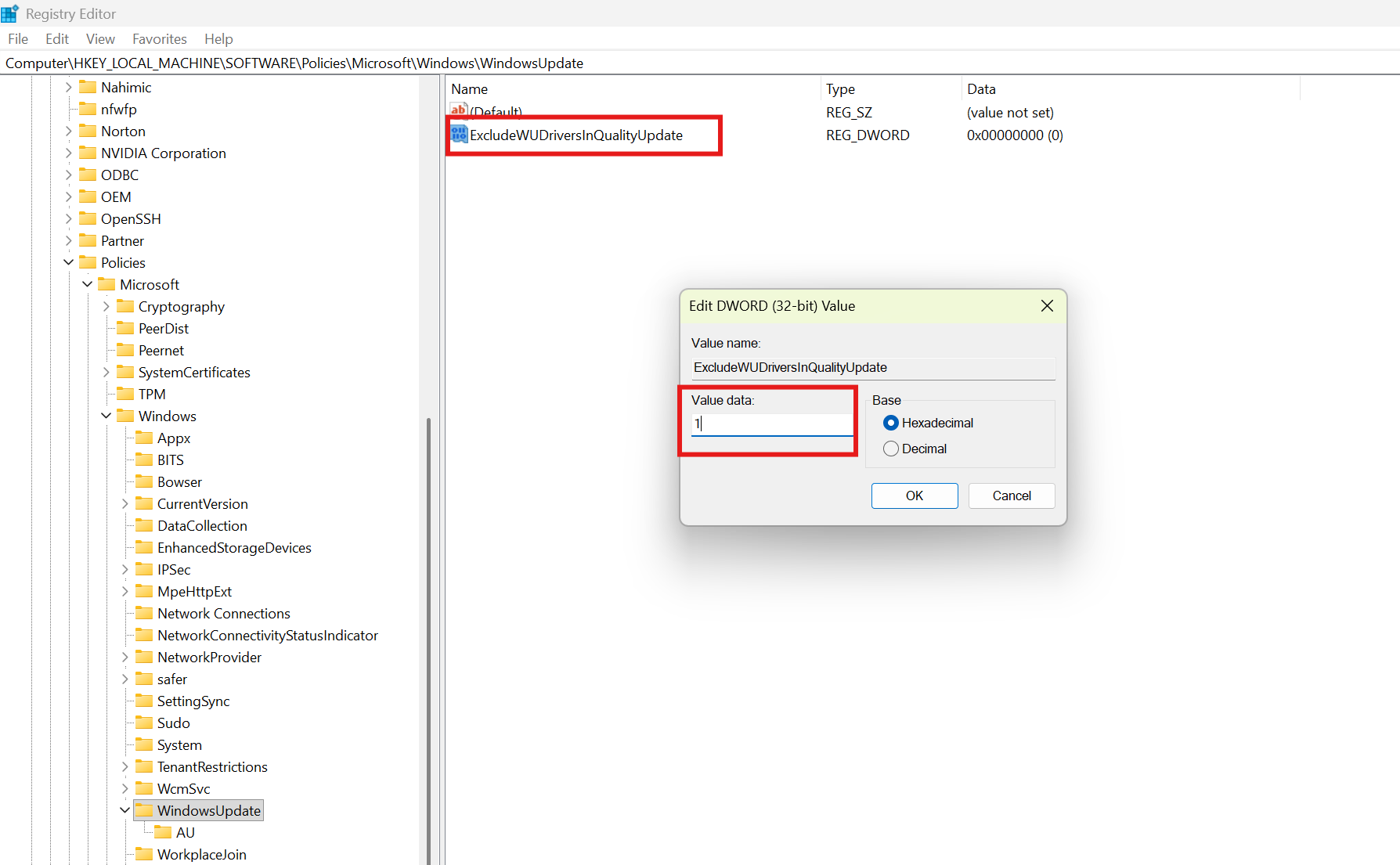
Notice: To restore automatic driver updates via Windows Update, change the value of ExcludeWUDriversInQualityUpdate to 0 and restart the computer.
Method B: Roll Back Driver
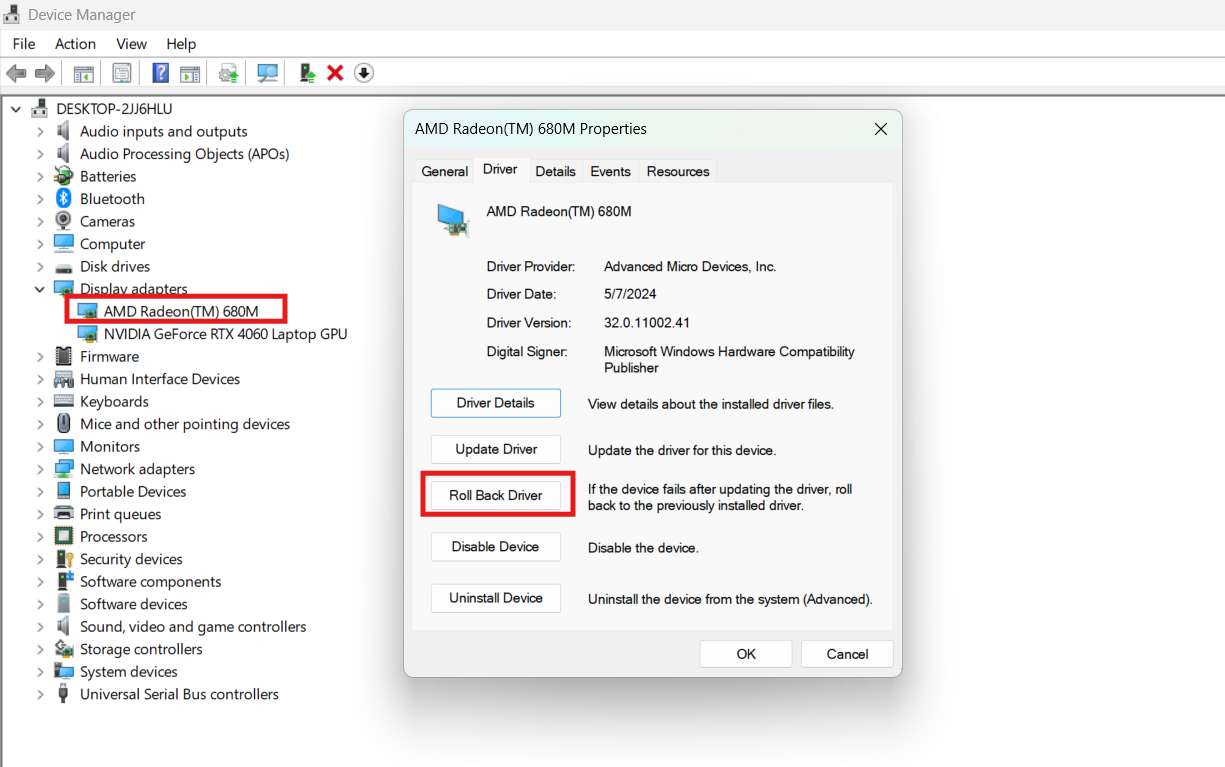
If problems occur after Windows Update replaces the graphics driver, you may use Windows built-in rollback function to restore the previous driver version.
Notice: If automatic driver updates via Windows Update are not disabled, Windows may reinstall the newer driver automatically again.
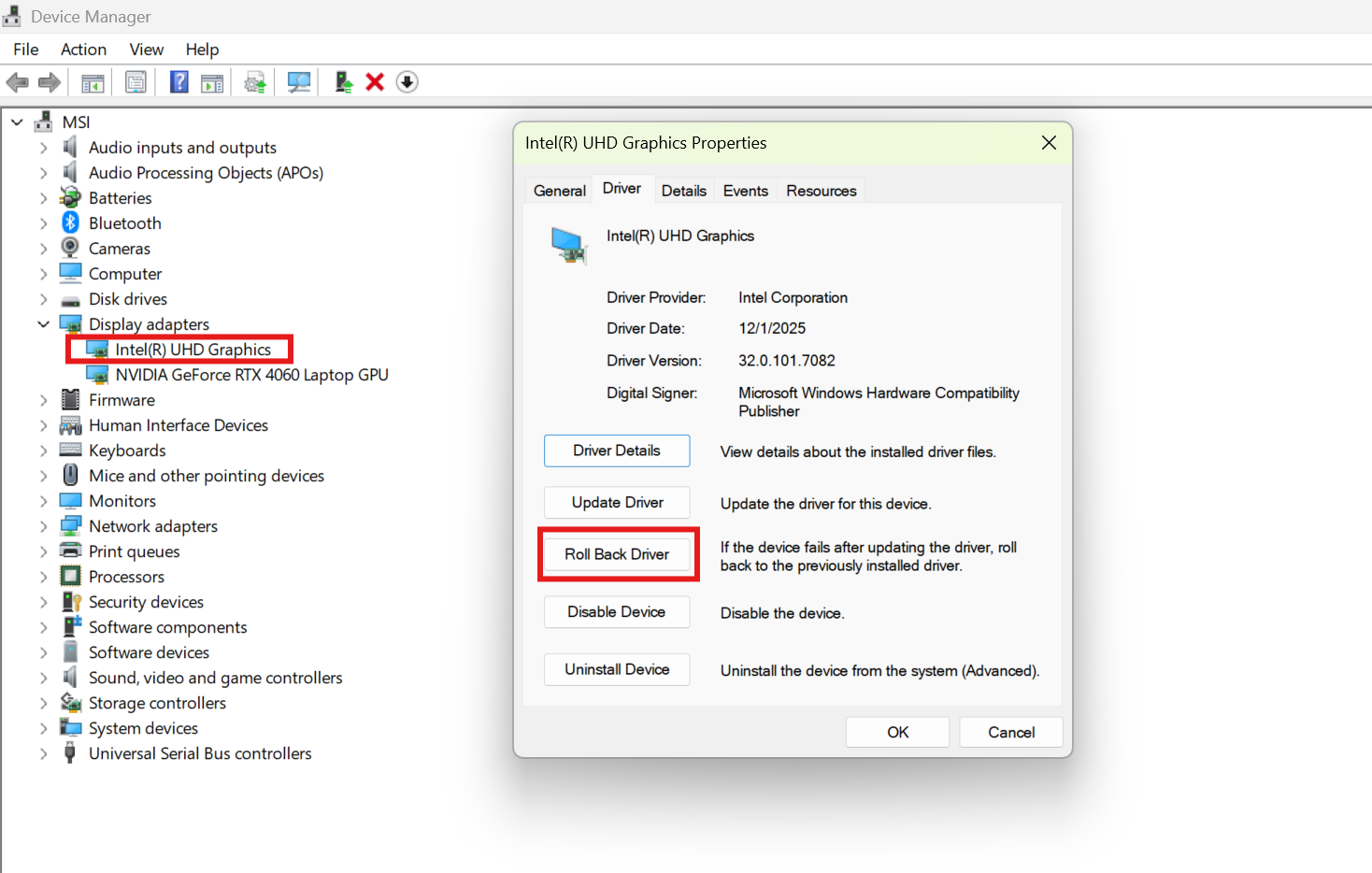
1.Search for Device Manager in Windows and open it.
2.Expand Display adapters, then double-click Intel Graphics or AMD Radeon Graphics.
3.Switch to the Driver tab, click Roll Back Driver, and follow the on-screen instructions.
FAQ
Q: What is the difference between MSI OEM drivers and Intel / AMD reference drivers?
A: MSI OEM drivers are validated and optimized specifically for notebook hardware, thermal designs and integrated functions, delivering generally better stability. Intel / AMD reference drivers receive updates more frequently and may include new features and game optimizations, yet they are not guaranteed to work on all notebook models.
Q: Will Windows security updates still be installed after disabling Windows Update driver updates?
A: Yes. This configuration only blocks automatic installation of hardware drivers through Windows Update. It does not affect Windows security updates or cumulative updates.