[Troubleshooting] Moiré Pattern Appears When Playing High-Resolution Video on a Lower-Resolution Display
Answer
When playing high-resolution (4K) video on an MSI notebook's built-in display or an external monitor with a lower resolution (such as FHD), an interference pattern known as Moiré Pattern can appear on screen — visible as fine wavy or grid-like lines overlaying the video.
This occurs because of the resolution difference between the video content and the display panel, and is a normal display characteristic rather than a hardware defect.
The pattern is typically more noticeable when the video is played in a minimized or smaller window rather than full screen. Refer to this article if you notice this pattern while playing high-resolution video.
This article applies to all MSI notebooks.

Reduce the Moiré Pattern Effect
For the best experience, maximize the video player window or use full-screen playback mode, which minimizes the Moiré Pattern effect.
If a smaller playback window is needed, adjust the display sharpness or image scaling setting depending on which graphics processor is currently rendering the video:
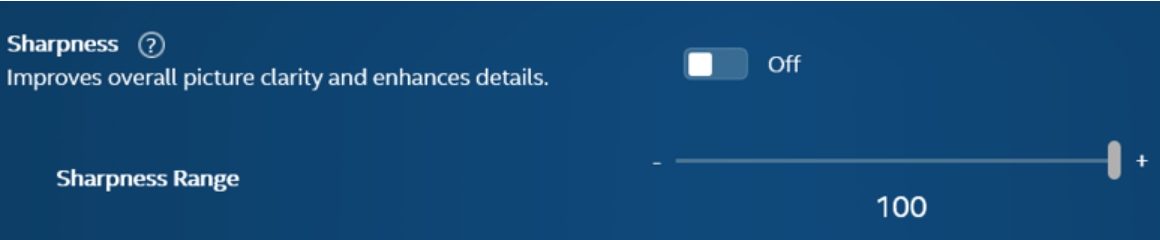
Video Playback via Intel Graphics (Power LED Lights White)
1. Search for “Intel Graphics Command Center” from the desktop search bar and open it.
2. Go to the “Video” page.
3. Turn off “Sharpness”, or reduce the “Sharpness Range” value.
Video Playback via NVIDIA Graphics (Power LED Lights Amber)
1. Right-click the desktop and select “NVIDIA Control Panel”.
2. Go to “Manage 3D settings”.
3. Set “Image Scaling” to “On”.
4. Click “OK” to apply the settings.
Note: These settings reduce the visibility of the Moiré Pattern but may not fully eliminate it in every case. Playing the video in full-screen mode remains the most reliable way to avoid the pattern entirely.

Common Questions (Q&A)
What exactly causes the Moiré Pattern to appear?
The pattern results from the mismatch between the video content's resolution (for example, 4K) and the display panel's native resolution (for example, FHD). When the system compensates for this resolution difference, especially in a smaller playback window, the compensation process can produce the visible interference pattern known as Moiré Pattern.
Why is the pattern more noticeable in a smaller playback window than in full screen?
In full-screen playback, the video content is scaled to match the display's native resolution through a single consistent scaling process. In a smaller window, the scaling and compositing calculations differ, which makes the resolution compensation — and the resulting pattern — more visually apparent.
Who does this affect — does it happen on every MSI notebook or monitor?
This can occur on any display where the video content's resolution is higher than the display panel's native resolution, regardless of specific model, since it results from the resolution mismatch itself rather than a defect in a particular unit.
If the above answers do not resolve your issue, please
Contact Us