[Troubleshooting] Why Does My Game Load Slowly or Make Unusual Noises When Installed on an HDD?
Answer
If you install games on an HDD (Hard Disk Drive) or run games from an external HDD and notice any of the following observable symptoms, this guide will help you understand the cause and improve the situation: game loading screens take unusually long or the progress bar stalls, noticeable stuttering or freezing occurs during gameplay, audible spinning sounds or abnormal clicking noises can be heard from the drive, or the HDD activity light flashes continuously for extended periods. Some of these symptoms are normal physical characteristics of HDDs, while others may indicate a problem with the drive's health. This guide will help you identify which applies to your situation and walk you through the appropriate steps.
Applicable to users with a built-in HDD in their notebook, or who store games on an externally connected USB HDD
Before Addressing the Solutions: Why Does an HDD Behave This Way?
An HDD (Hard Disk Drive) is a storage device that uses spinning magnetic disks and a read/write head. Unlike an SSD (Solid State Drive), its read/write speed and response time are limited by its mechanical structure.
Slow game loading, audible spinning sounds during read/write operations, and occasional stuttering are all normal physical characteristics of an HDD and do not indicate a malfunction. However, the following situations may require further investigation:
The hard drive suddenly sounds louder, or produces abnormal clicking or knocking sounds. Game loading times are noticeably longer than before
The system frequently becomes unresponsive or overall performance has significantly declined
Step 1: Disable HDD Power Management to Prevent the Drive from Entering Sleep During Use
Windows is configured by default to automatically power down the hard drive after a period of inactivity to conserve energy. If this occurs during gameplay, the drive needs time to spin back up, causing noticeable stuttering and additional noise
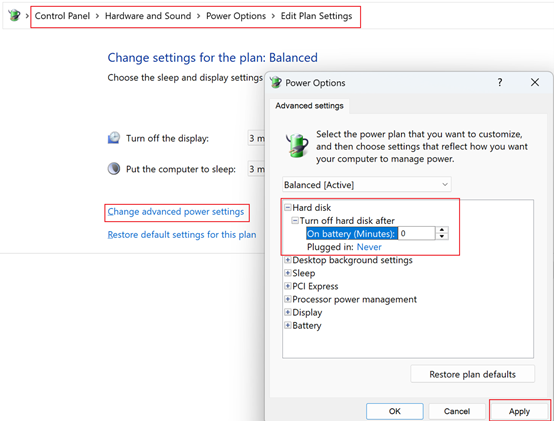
Type「Power plan」in the search bar and open「Choose a power plan」
Click「Change plan settings」next to your current power plan
Click「Change advanced power settings」
Expand「Hard disk」→「Turn off hard disk after」
Set the value to「0」(which means never turn off)
Click「Apply」→「OK」
Restart the computer and test again
Step 2: Check HDD Usage and Health Status
Confirm that HDD usage does not exceed 90% of total capacity
Right-click Start → File Explorer → right-click the HDD drive → Properties, and check the available space
When the remaining space on an HDD is too low, read/write speeds will drop noticeably. It is recommended to delete unnecessary files or move some data to another storage device
Run Disk Optimization
Right-click the HDD drive → Properties → Tools → Optimize
Select the HDD drive, click「Optimize」, and wait for the process to complete
Check HDD Health Status
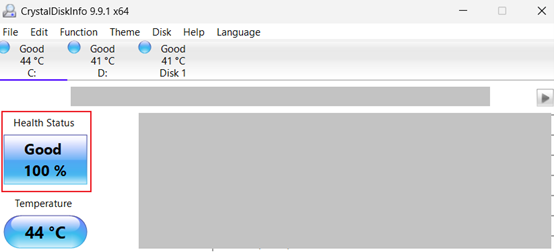
Visit the CrystalDiskInfo official website (crystalmark.info) to download and install CrystalDiskInfo
Open the application and locate your HDD
Confirm that the health status field displays「Good」
If it displays「Caution」or「Bad」, it is recommended to back up your important data immediately and contact your local MSI service center for inspection
Step 3: Additional Recommendations for External USB HDD
If you are using a USB-connected external HDD to store games, the following factors may also affect read/write speed and stability:
Confirm you are using a USB 3.0 or higher port
The maximum transfer speed of USB 2.0 is approximately 60 MB/s, which is significantly lower than the 625 MB/s of USB 3.0. Using a USB 2.0 port will noticeably limit the HDD's read/write speed
Avoid using multiple USB devices simultaneously
When multiple USB devices share the same controller, the available bandwidth is divided among them, reducing the transfer speed of the external HDD
Disable USB Selective Suspend for the external HDD
Settings → System → Power & sleep → Additional power settings → Change plan settings → Change advanced power settings
Expand「USB settings」→「USB selective suspend setting」→ set to「Disabled」
Optimization Recommendations
Due to the limitations of its mechanical structure, an HDD is fundamentally not well-suited as the primary storage device for gaming. If you frequently experience slow game loading, the following are long-term improvement suggestions:
Install frequently played games on an SSD, and use the HDD for other files or games you play less often
If your notebook has an available M.2 slot, consider adding an SSD
External HDDs are best used for archiving backups or storing data that does not need to be accessed in real time — it is not recommended to run games directly from an external HDD
FAQ
Q: Is it normal for an HDD to make clicking or knocking sounds?
A: Light spinning sounds are a normal physical characteristic of HDDs. However, if you hear repetitive abnormal clicking or knocking sounds, this may indicate a mechanical failure. Back up your important data immediately and contact your local MSI service center for inspection.
Q: Will disabling power management affect my notebook's battery life?
A: There will be a slight impact. An HDD that runs continuously consumes more power than one that enters sleep mode. It is recommended to disable this setting when using AC power, and restore the default value when running on battery if needed.
Q: Does disk optimization work on SSDs?
A: Windows 11 automatically detects SSDs and runs the TRIM command instead of traditional defragmentation, so manual optimization is not required. The disk optimization steps in this guide apply to HDDs only.
If the above answers do not resolve your issue, please
Contact Us