[Troubleshooting] Touchpad not working, cursor jumping, or click button issues
Answer
If the touchpad on your notebook cannot be operated, the cursor does not move smoothly or jumps around, or the click buttons do not respond, please refer to the troubleshooting steps below.
This FAQ applies to all MSI notebook products.
1. Check the Touchpad Hotkey
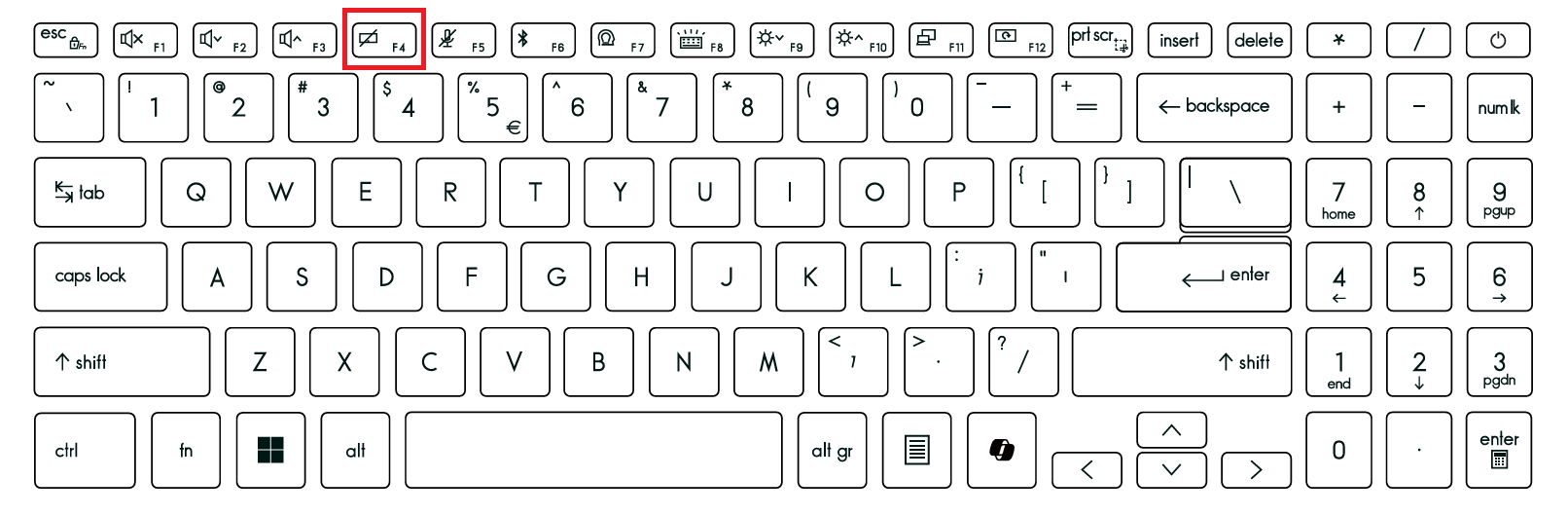
Check whether your notebook keyboard has a hotkey with a touchpad disable/enable icon. This key is usually F4, but it may vary by model. Press the hotkey directly or press Fn + the hotkey, and confirm that the on-screen notification indicates that the touchpad is enabled.
2. Check the Windows 11 Touchpad Settings
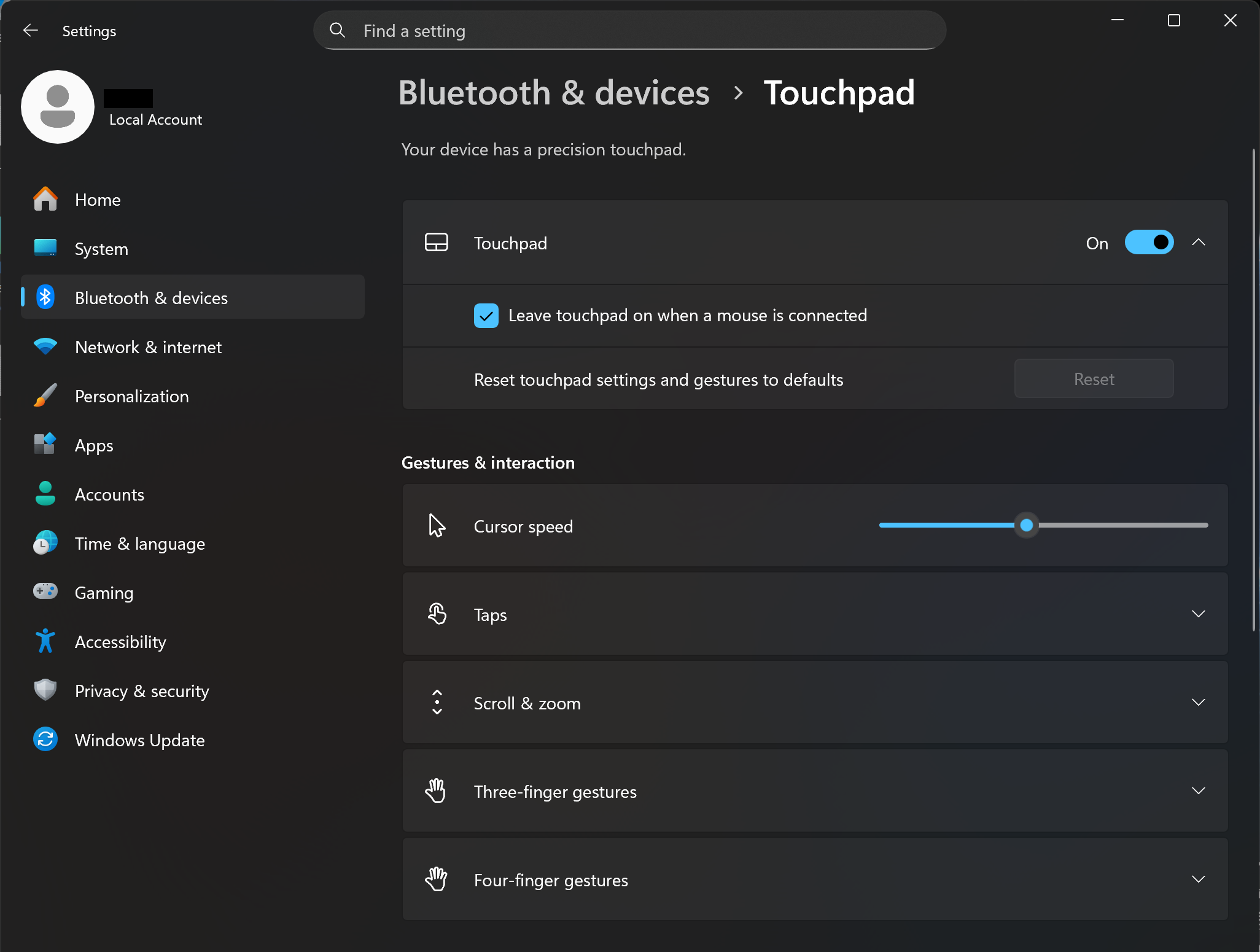
Go to Windows Settings > Bluetooth & devices > Touchpad. Make sure the touchpad is turned on. You can also adjust the advanced touchpad options, such as cursor speed and gestures, according to your usage preference.
3. Uninstall and Reinstall the Driver
If the settings above do not resolve the issue, the underlying driver may be corrupted. Please allow Windows to detect the hardware again and reinstall a clean driver.
- Right-click the Windows Start icon on the taskbar and select Device Manager.
- Expand Human Interface Devices, and then locate the touchpad-related device, such as I2C HID Device or HID-compliant touch pad.
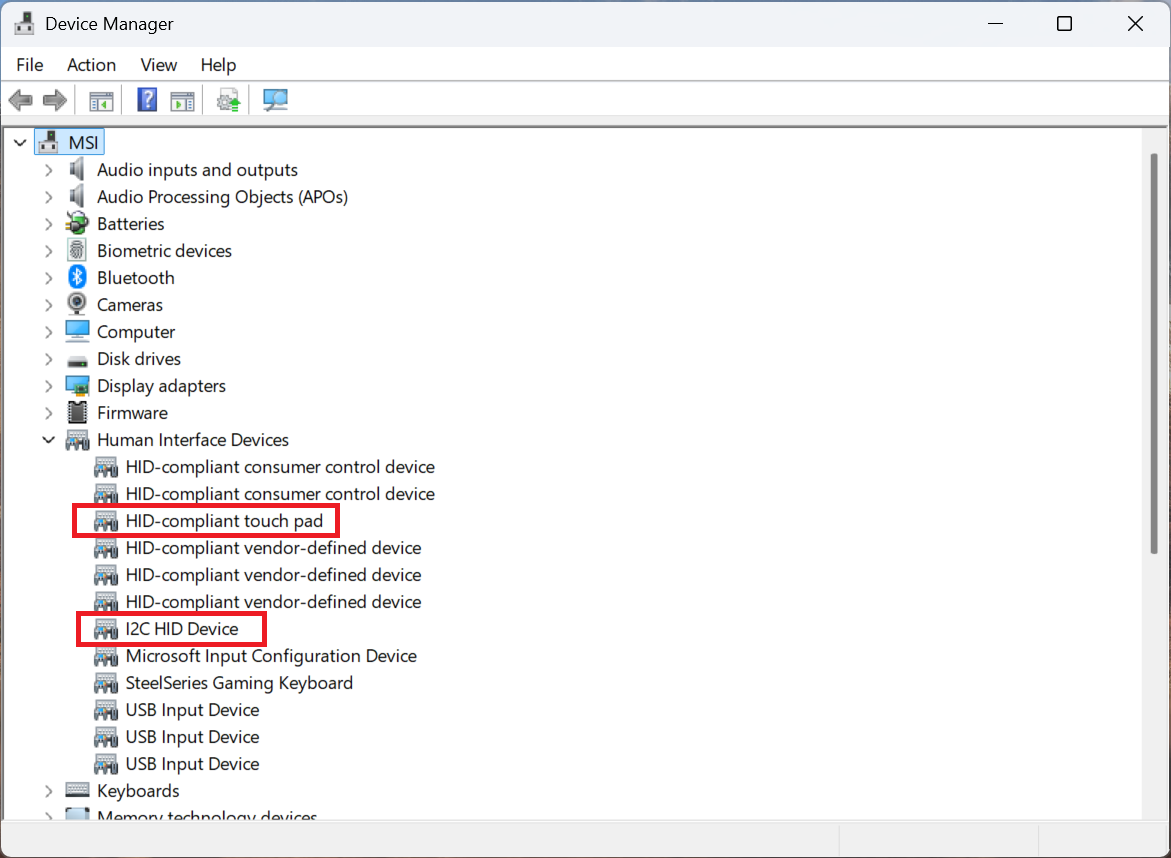
- Right-click the device and select Uninstall device.
- If a confirmation window appears, select Delete the driver software for this device, and then click Uninstall.
- Restart the computer. After the system boots into Windows, it will automatically detect the hardware and reinstall the driver.
4. Perform an EC Reset
The EC controls system power management and several hardware components. Performing an EC reset can restore the low-level hardware status of the device to its default state, which can help resolve unexpected hardware-related failures. Please refer to the MSI official EC reset instructions for the detailed steps.
[How To] BIOS, EC Update and EC Reset
FAQ
Q: What is the safest way to update the touchpad driver?
A: It is recommended using the built-in Windows Update feature in Windows 11. Most modern notebooks use Microsoft Precision Touchpad drivers, and Windows can automatically obtain driver updates when the system is connected to the Internet.
Q: What should I do if the touchpad still does not respond after completing all steps?
A: If you have already reinstalled the driver, performed an EC reset, and confirmed that an external mouse works normally, but the touchpad still does not respond, the issue may be caused by a loose touchpad cable or a physical hardware failure of the touchpad module. Please back up your important data and contact an MSI-authorized service center for further hardware inspection.