[How To] Pair/Remove the Bluetooth Devices
Answer
Bluetooth functionality allows a notebook computer to connect wirelessly with devices such as headsets, speakers, mice, keyboards, and game controllers, improving convenience and productivity. If you need to add, re-pair, or remove a Bluetooth device, please refer to this guide to complete the required settings.
This article applies to all MSI laptop products.
Before You Begin…
Please refer to the documents below and ensure that the Bluetooth or audio-related drivers are properly installed and updated to the latest version according to the type of Bluetooth device you would like to connect.
• [How-to] Remove/Install Bluetooth Driver
• [How-to] Remove/Install Realtek Audio Driver, Nahimic 3, and Related Software
Pair a Bluetooth Device
- Click the Quick Settings panel in the lower-right corner of the taskbar > Confirm that Bluetooth is enabled, then click the right arrow.
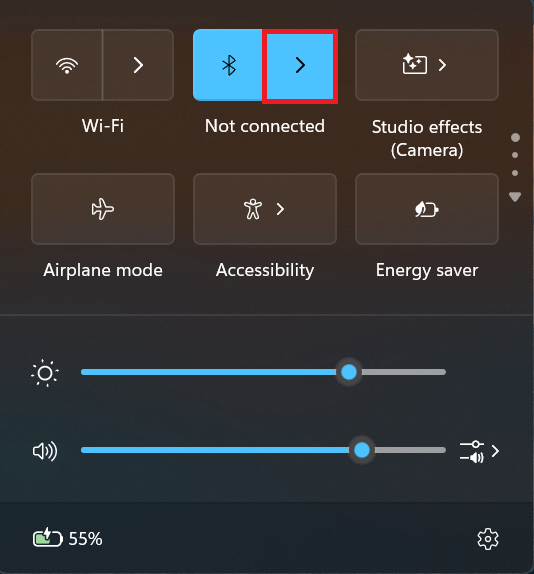
- Select the device you would like to connect.
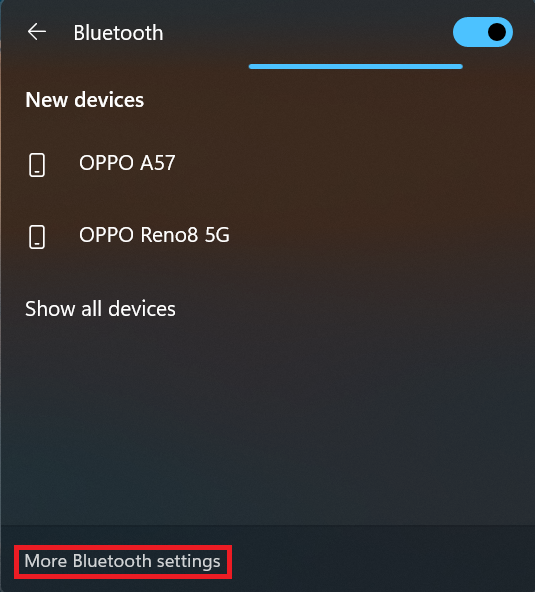
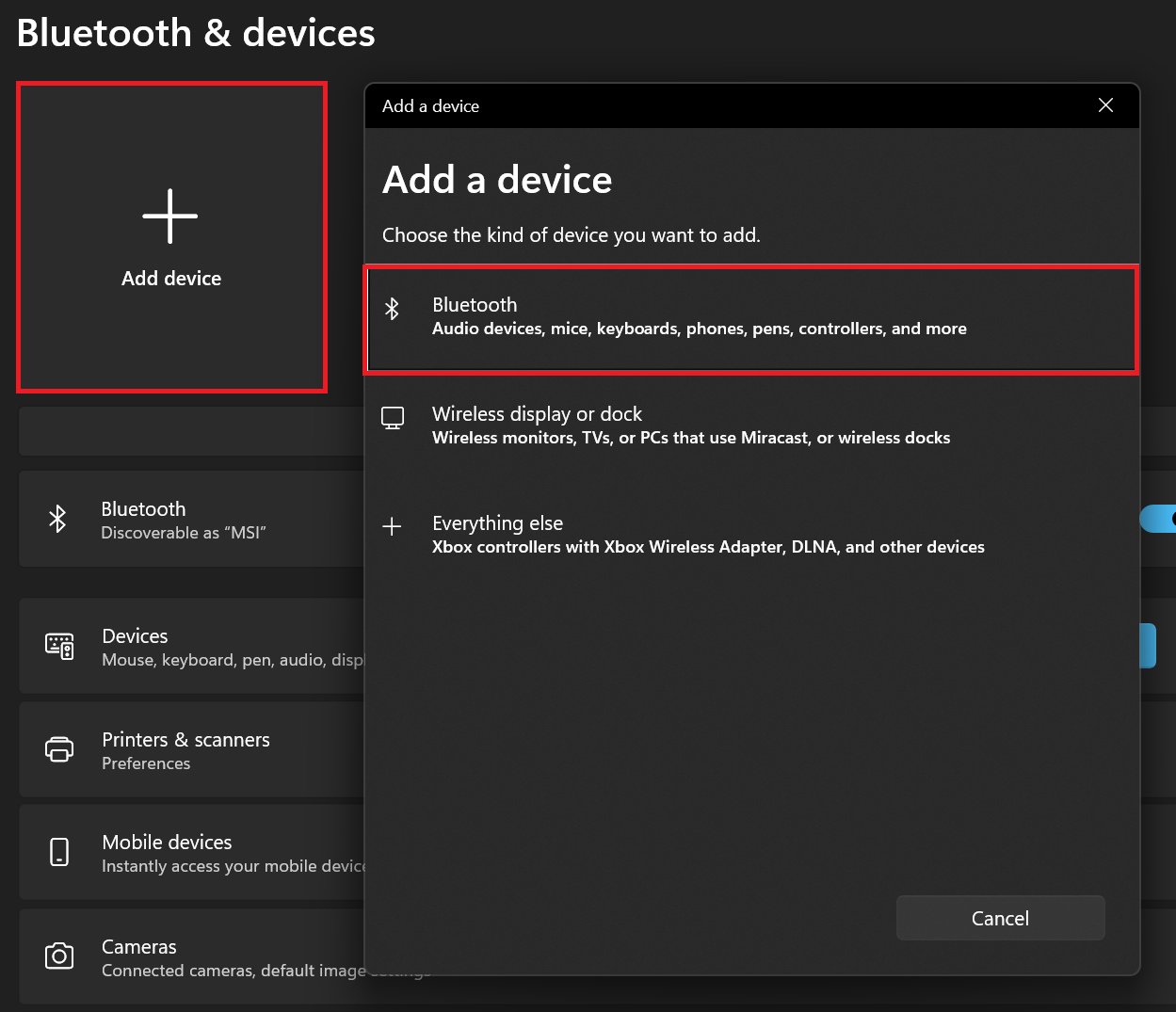
- If the device cannot be detected, click “More Bluetooth settings” in the lower-left corner > Click “Add device” > Select “Bluetooth,” then choose the device you would like to connect and follow the on-screen instructions to complete the setup.
Remove a Bluetooth Device
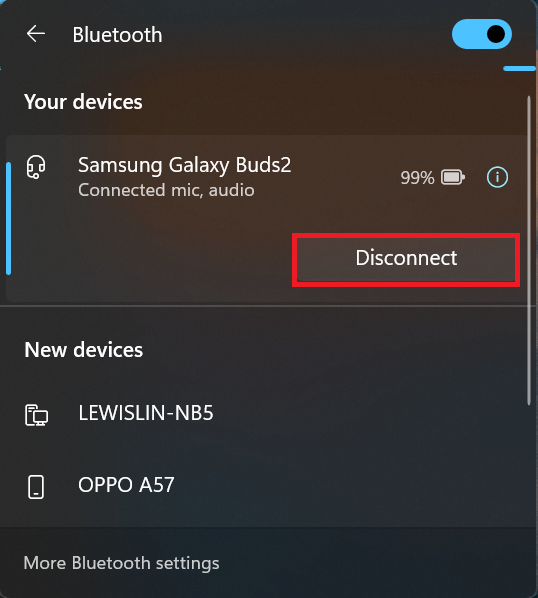
- Click the Quick Settings panel in the lower-right corner of the taskbar > Click the right arrow.
- Select the Bluetooth device you would like to remove, then click “Disconnect.”
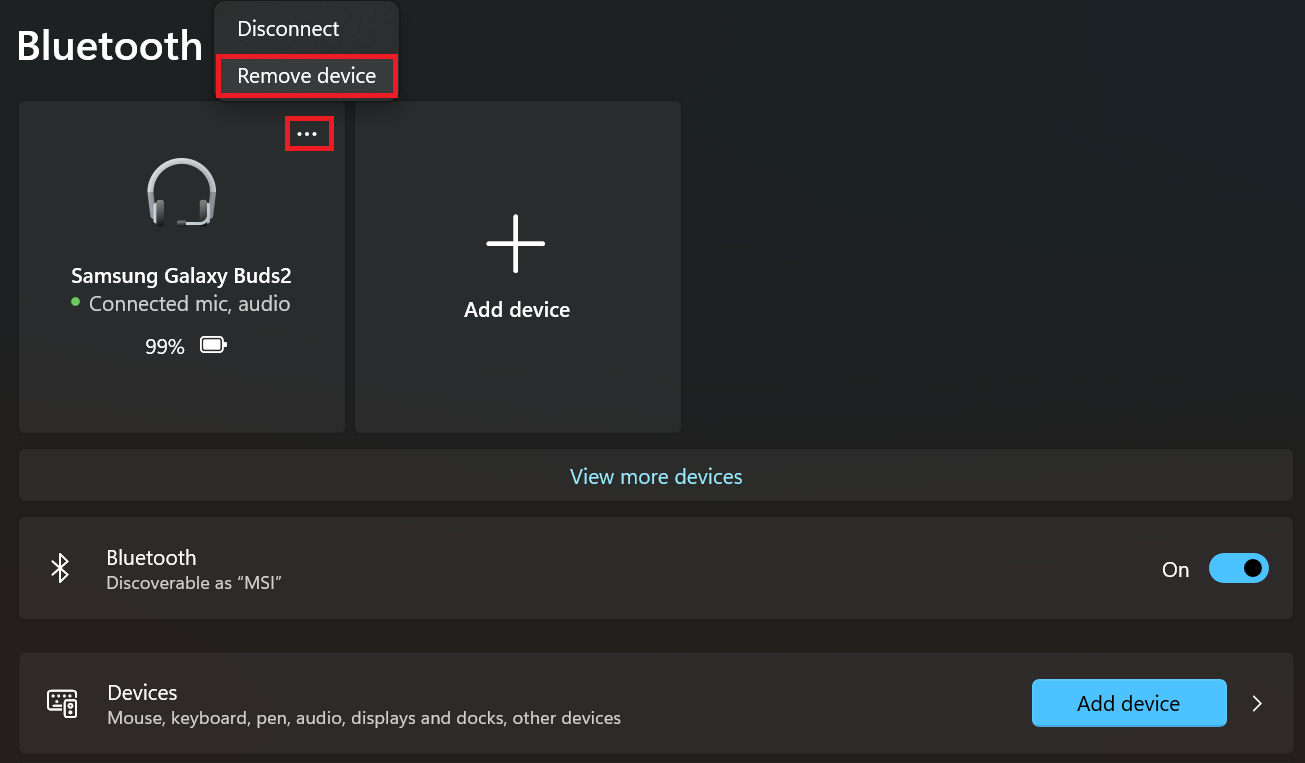
- Click “More Bluetooth settings” > Click the More icon in the upper-right corner of the Bluetooth device you would like to remove > Select “Remove device” to successfully remove the Bluetooth device.
FAQ
Q: Why can't I find the Bluetooth device I want to pair?
A: If the system cannot detect the Bluetooth device, please confirm the following:
- The Bluetooth device is powered on and in Pairing Mode.
- The Bluetooth device is not currently connected to another device.
- Bluetooth is enabled on the notebook.
- The Bluetooth driver is properly installed and updated to the latest version.
- The distance between the device and the notebook is not too far, and there is no significant interference.
Q: When should I remove and re-pair a Bluetooth device?
A: It is recommended to remove the device and pair it again if any of the following situations occur:
- The Bluetooth device cannot reconnect automatically.
- The device name is duplicated or displayed incorrectly.
- The audio device has no sound, or the microphone is not functioning properly.
- A connection conflict occurs after switching to a different Bluetooth device.
- The Bluetooth driver has been updated and the pairing information needs to be re-established.
Related Articles:
[How-to] Adjust Default Audio Input and Output Devices
[Troubleshooting] Bluetooth Connection Is Unstable or Cannot Connect