[How To] Enable or Disable NVIDIA G-SYNC
Answer
NVIDIA G-SYNC is an advanced display technology that synchronizes the monitor's refresh rate with the frame rate of the NVIDIA graphics processing unit (GPU). This technology effectively eliminates screen tearing, reduces stuttering, and lowers input latency to provide a smoother visual experience. To use this feature, refer to the instructions below.
This article applies to all MSI laptop products.
System Requirements
- Connect an external monitor that supports G-SYNC technology.
*Except for models specifically marked as supporting G-SYNC, MSI laptops' built-in screens do not support G-SYNC. - Use an MSI laptop that meets the minimum requirements for G-SYNC technology.
For detailed information, refer to G-SYNC SYSTEM REQUIREMENTS
Enable or Disable G-SYNC
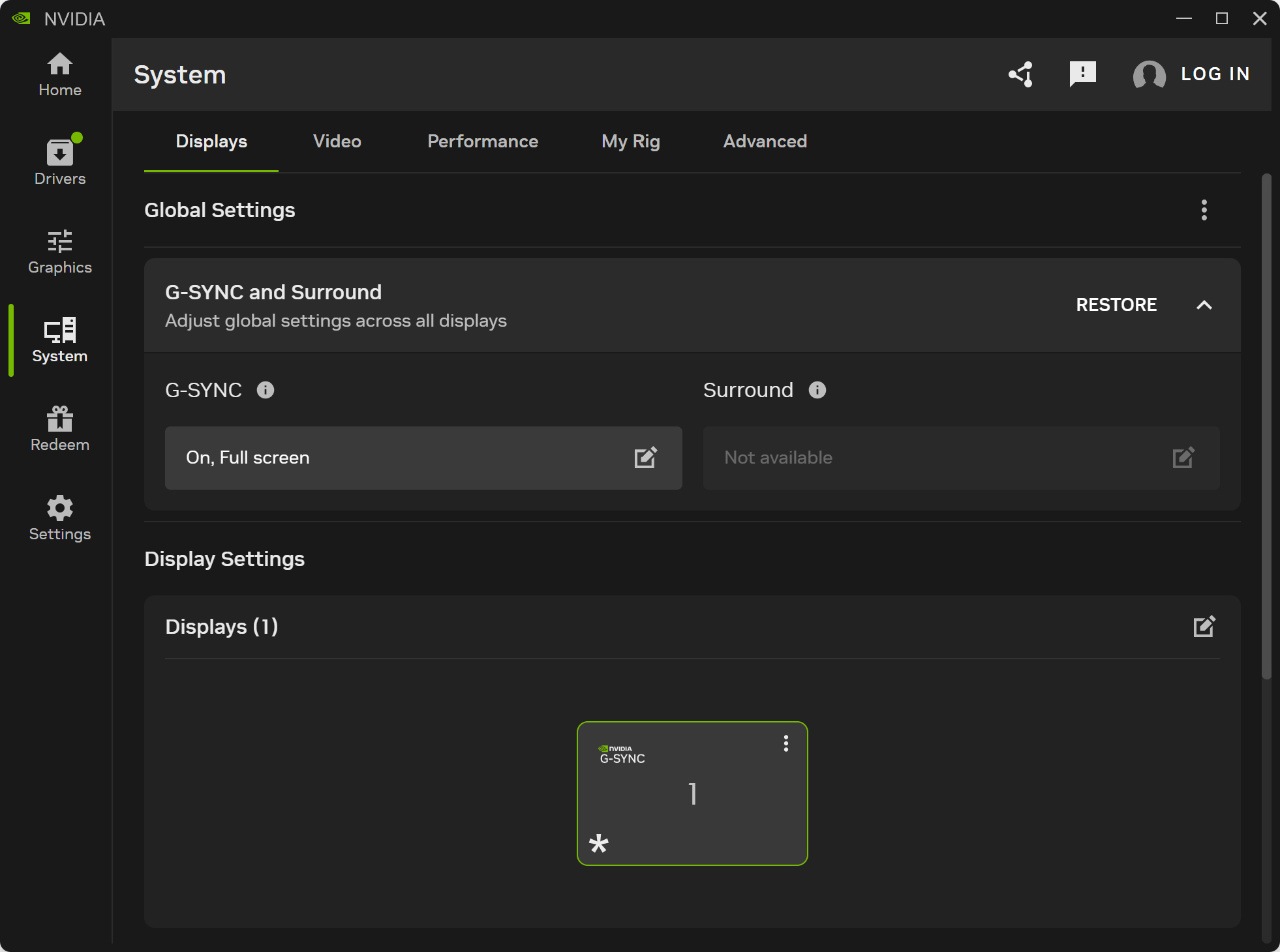
- Search for and open "NVIDIA App" > "System" > "Displays" > "G-SYNC and Surround."
- Click the G-SYNC menu to configure the settings.
FAQ
Q: What practical benefits does enabling G-SYNC provide for gaming?
A: G-SYNC addresses mismatches between the GPU output frame rate and the monitor refresh rate. It prevents screen tearing during rapid movement and keeps the image visually smooth and stable when the frame rate fluctuates.
Q: Should G-SYNC be kept on all the time for the best results?
A: Although G-SYNC improves visual smoothness, competitive players may disable all synchronization features in certain esports scenarios to achieve the lowest possible input latency. It may also be necessary to disable G-SYNC temporarily if a specific application has a compatibility conflict with variable refresh rate technology.