[How To] Install Drivers with .inf Files
Answer
On some older MSI laptop models, certain device drivers, such as the touchpad or fingerprint reader, must be installed through an Information (.inf) file. If you cannot find an executable installer after extracting the downloaded driver package, please follow the steps below to manually install the driver through the Information (.inf) file.
This article applies to all MSI laptop products.
1. Download and extract the driver package
Search for your product model on the MSI official website, locate the corresponding product and driver in the search results, then click Download and extract the package.

2. Install the driver
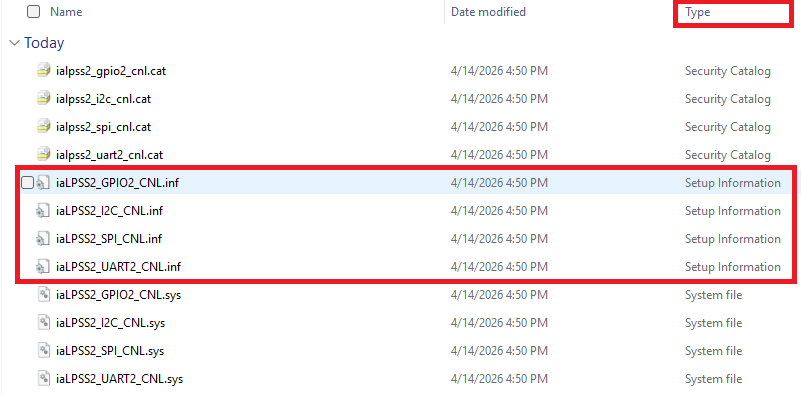
- In the extracted driver package folder, sort files by Type and locate all files with the Setup Information file type.
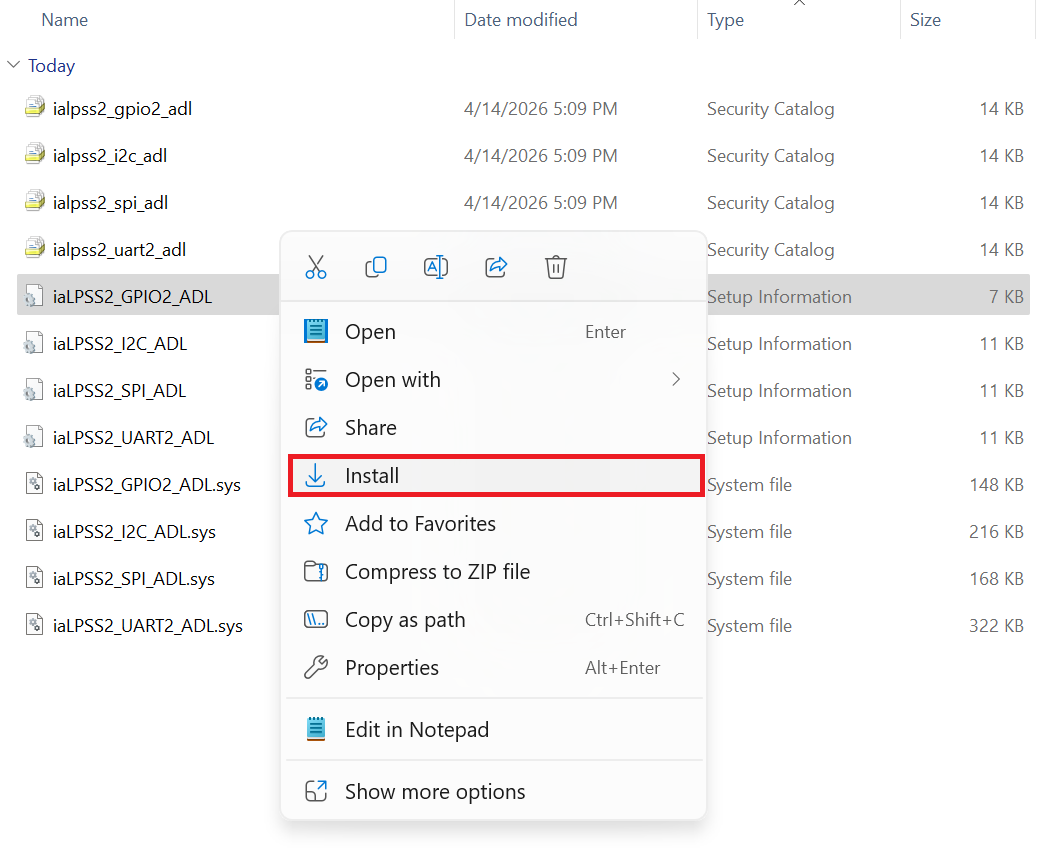
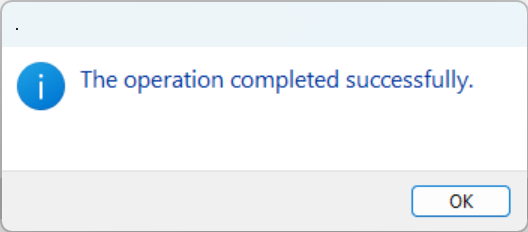
- Right-click the file and select Install. If the message “The operation completed successfully” appears, the installation was successful.
- Verify whether the device is detected correctly
3. Open Device Manager and check whether the device is correctly recognized. Also confirm that the installed driver version matches the driver version you intended to install.

FAQ
Q: What does this process install?
A: This is a manual method that instructs the system to read the Information (.inf) file, allowing Windows to correctly identify the hardware and load the required driver components.
Q: Why do some drivers not include an automatic installer?
A: Due to Microsoft policy requirements, certain hardware categories, such as touchpads and fingerprint readers, must be installed and registered through an Information (.inf) file.
Q: How can I make sure the driver works properly?
A: The key points are:
1. You must extract the driver package before installation.
2. You must ensure that all files with the “Setup Information” type in the folder have been installed by right-clicking and selecting Install.