[How To] Check the battery health status
Answer
If you notice significantly reduced battery life, abnormal battery drain, or simply want to check your battery's condition, you can verify its Battery Health using MSI Center or the built-in Windows Battery Report tool.
This FAQ applies to all MSI notebooks.
Method 1: Check Battery Health Using MSI Center (Supported Models Only)
If your device supports MSI Center, you can check the battery health status directly through the System Diagnosis feature.
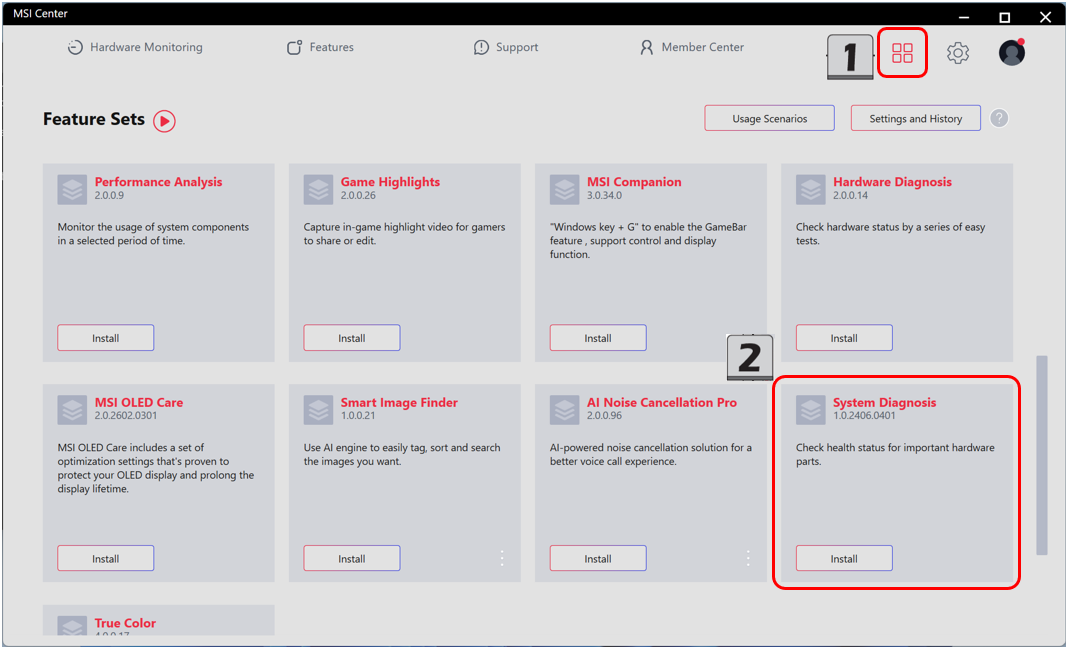
1. Launch MSI Center
2. Install the System Diagnosis Feature (if not already installed)
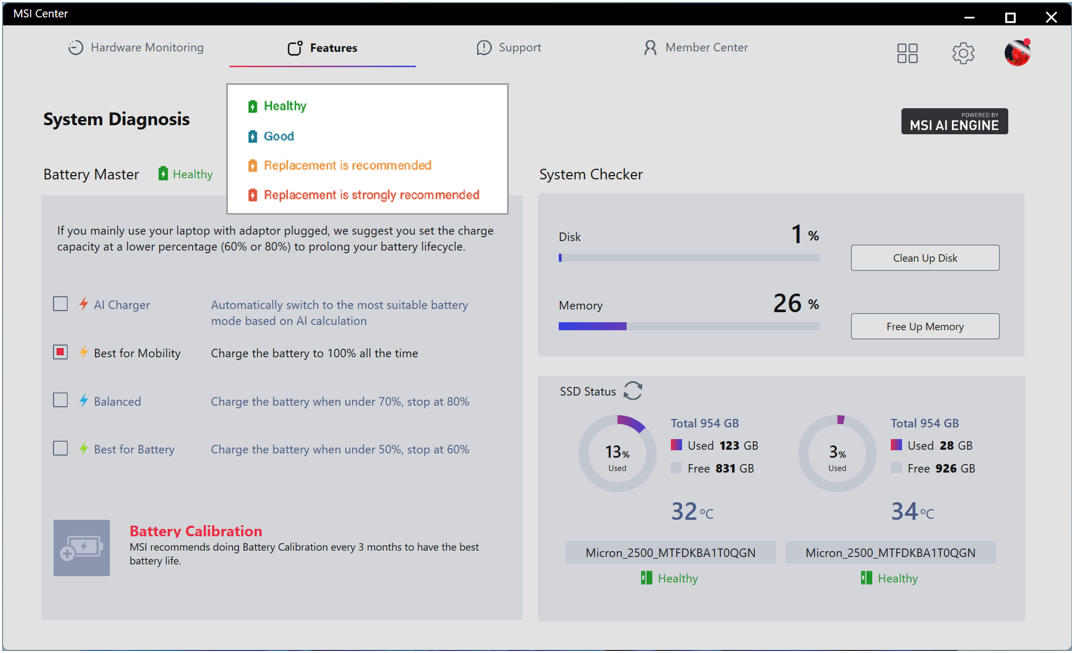
3. Check Battery Status
*Note: If the battery status displays "Replacement Recommended" or "Replacement Strongly Recommended", it is recommended to perform Battery Calibration or contact MSI Customer Service for further assistance.
Method 2: Check Battery Health Using the Windows Battery Report
If MSI Center is not available on your device, you can generate a battery report using the built-in Windows utility.
1. Open Windows Terminal as Administrator
- Press Windows + X
- Select Terminal (Admin)
2. Generate a Battery Report
- Enter the following command and press Enter: powercfg /batteryreport
- After the command is completed, Windows will display the actual save location of the battery-report.html file.
Open the report using the path shown in the terminal window.

3. Check Battery Capacity Information
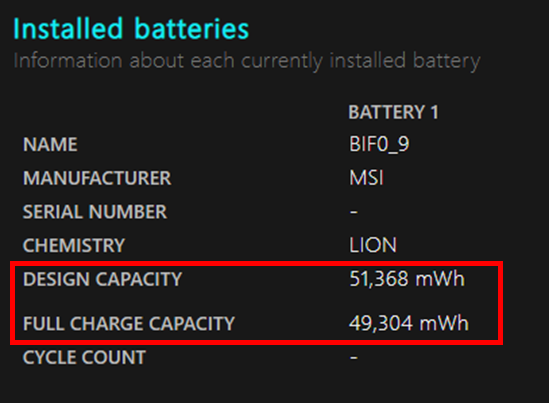
In the report, locate the Installed batteries section and find the Design Capacity and Full Charge Capacity values.
4. Calculate Battery Wear Level
Use the formula: (Design Capacity - Full Charge Capacity) ÷ Design Capacity × 100%
The result represents the estimated battery wear percentage.
5. Evaluate Battery Wear Level
As a general guideline:
- 0%–20%: Normal condition
- 20%–50%: Continue monitoring and perform Battery Calibration periodically
- Above 50%: Battery runtime may be significantly reduced; consider battery replacement
If you experience unusually low battery capacity, inaccurate battery percentage readings, or sudden increases or decreases in reported battery capacity, it is recommended to perform Battery Calibration 2–3 times to recalibrate the battery gauge. After completing the calibration process, generate a new battery report and verify the results again. If the battery wear level remains unusually high after calibration, please contact MSI Customer Service for further diagnosis.
- Reference: [How To] Perform Battery Calibration
FAQ
Q: What is battery health?
A: Battery health indicates how much charge the battery can currently hold compared to its original design capacity. As lithium-ion batteries age, their maximum capacity gradually decreases, which is a normal characteristic of battery usage.
Q: Why does battery capacity decrease over time?
A: Battery aging is a normal characteristic of lithium-ion batteries. Factors that may accelerate battery wear include:
- Prolonged exposure to high temperatures
- Frequent charge and discharge cycles
- Extended periods of complete battery discharge
For more information about battery maintenance and usage, please refer to: [Notebook] Laptop Battery
Q: Does abnormal battery health always indicate a defective battery?
A: Not necessarily. In some cases, inaccurate battery gauge information may cause battery health readings to appear abnormal. It is recommended to perform Battery Calibration first. If the reported values remain abnormal after calibration, please contact MSI Customer Service for further inspection.