DigiME Help Guide
Installation
- Run the Installer DigiMESetup.exe.
- Follow the on-screen instructions to finish the installation.
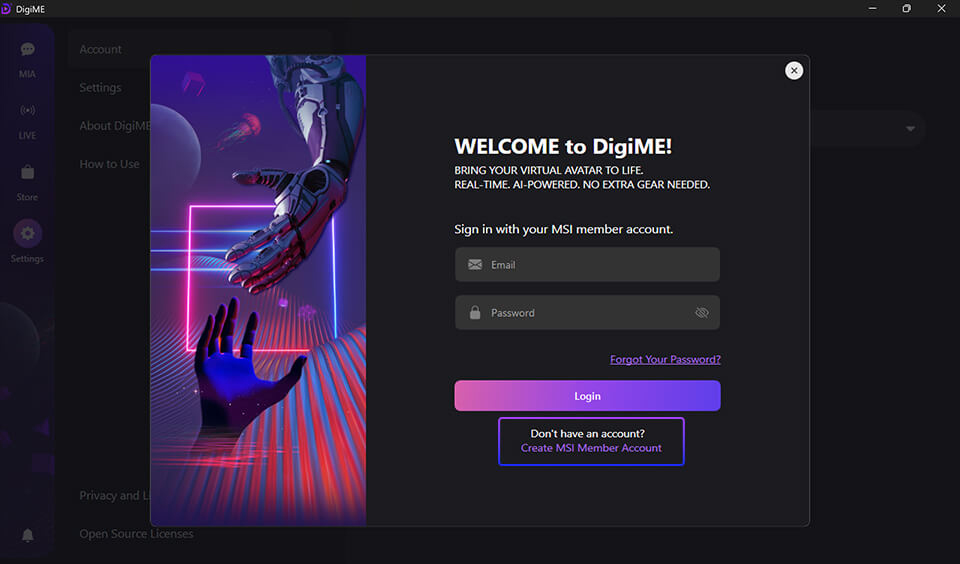
Upon launching DigiME for the first time, you will be prompted to log in with your MSI account to unlock all features.
- New Users: If you do not have an account, click "Create MSI Member Account" and fill out the required information.
- Verification: For your initial login, you must enter the verification code sent to your registered email address.
Main Interface Overview
DigiME integrates two core experiences: MIA, your AI voice assistant, and Live Avatar. Once you have successfully logged in, the main interface will appear; on the left side, you will find the function bar containing MIA, Live Avatar, Store, and Settings.
[MIA] MSI Intelligence Assistant
To provide instant tech support and interactive AI companionship through voice or text.
- Full Customization: Choose your favorite characters and voices.
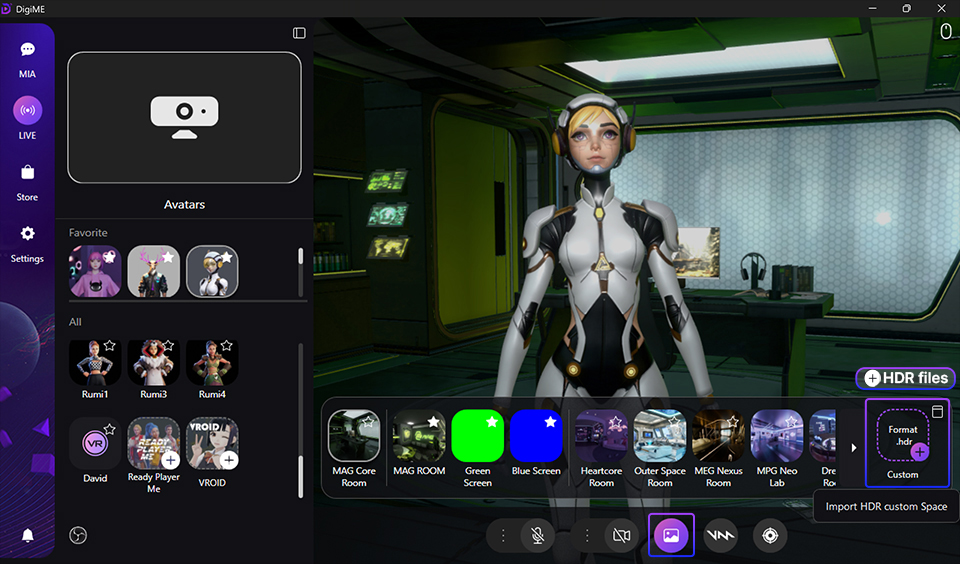
- Personal Spaces: Pick up the space from the store list or upload your own HDR background designs.
- Hands-Free Interaction: Enable Voice Detection to chat instead of typing.
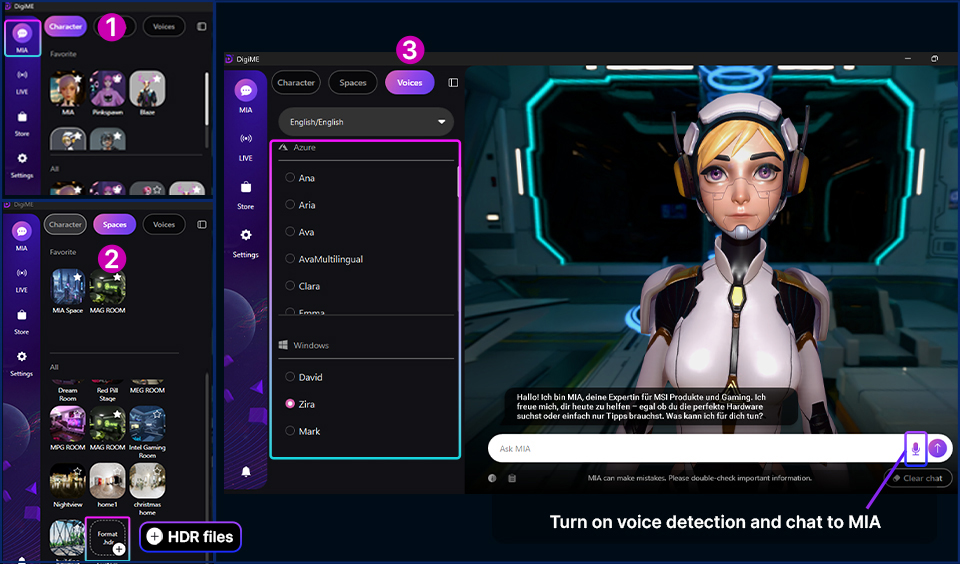
* Guests have limited daily chats. Log in as an MSI member to enjoy extended conversations.
[Live Avatar]
To transform your webcam into a high-precision motion tracker without needing any wearable sensors. Follow the steps below to set up your avatar.
- Select Camera: Choose the camera for motion tracking. For optimal results, a standard 720P / 60 FPS webcam is recommended.
- Select Microphone (Optional): Choose a microphone for enhanced lip-sync responsiveness.
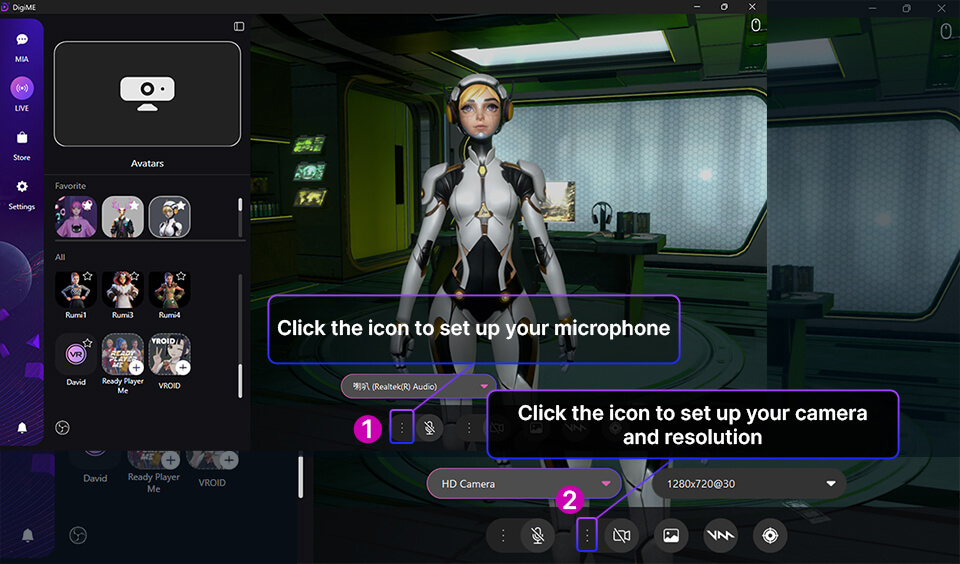
*Note: A crossed-out camera or microphone icon indicates the device is inactive. Click the icon to activate it.
Select your favorite characters.
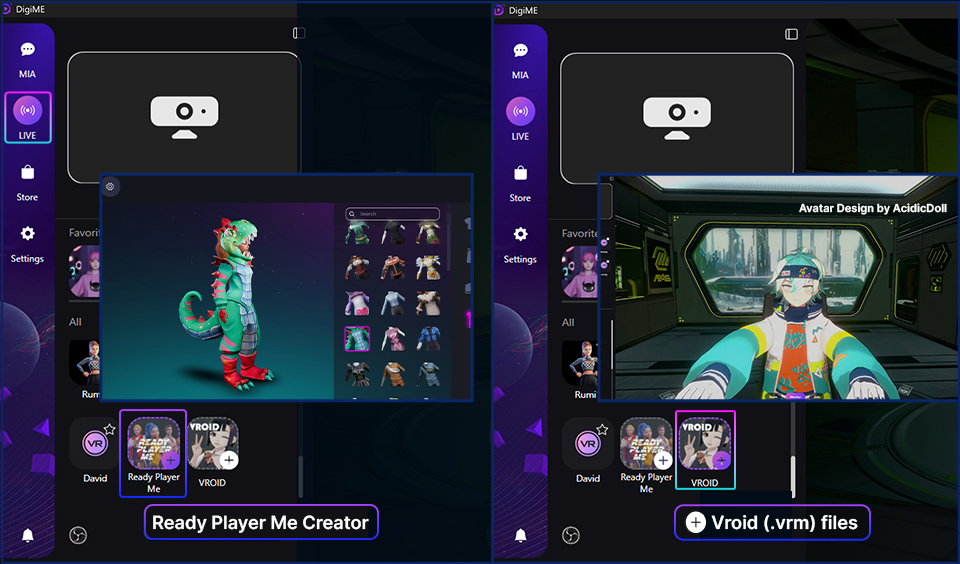
Choose your characters in many ways.
- Choose preset characters from the list.
- Create avatar by Ready Player Me.
Note: Ready Player Me services were discontinued on January 31, 2026. The service is no longer officially available. - Upload your own Vroid files.
Select your favorite spaces.
Also, there are several ways to setup the background from function bar.
- Choose preset background from list.
- Use green/ blue screen while doing streaming.
- Upload your own background with HDR files.
Voicemod integration-Real Time Voice Changer
You could also change your voices by login Voicemod. If you haven’t download it yet, please visit the website here.
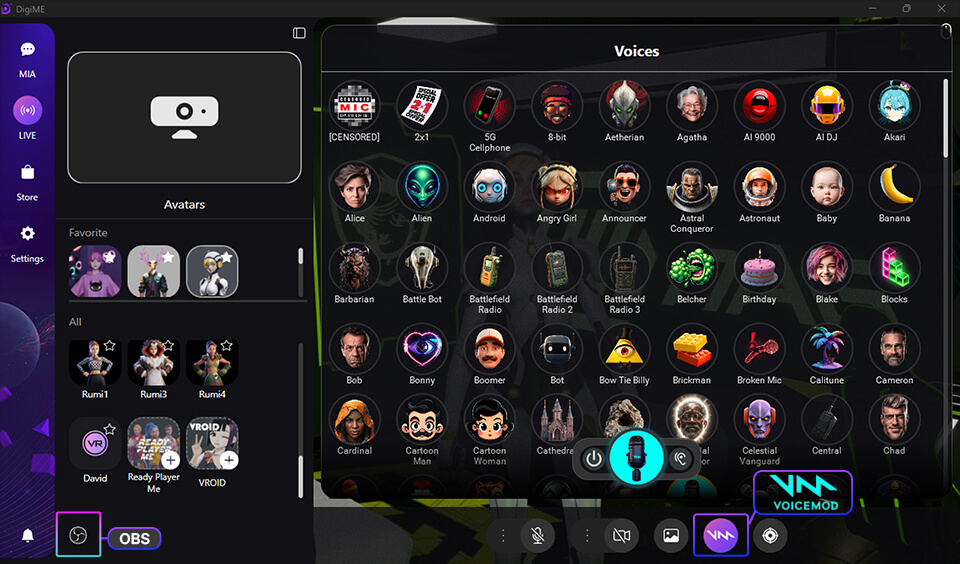
*In bottom of the control panel, there is shortcuts to guide you to OBS.
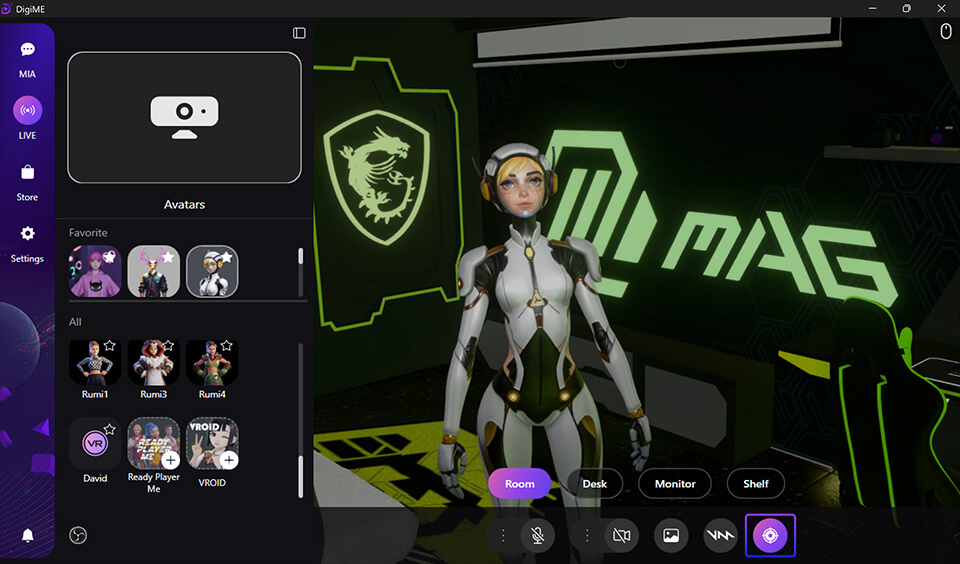
Positing
You can change your positions all the time by click positing icon.
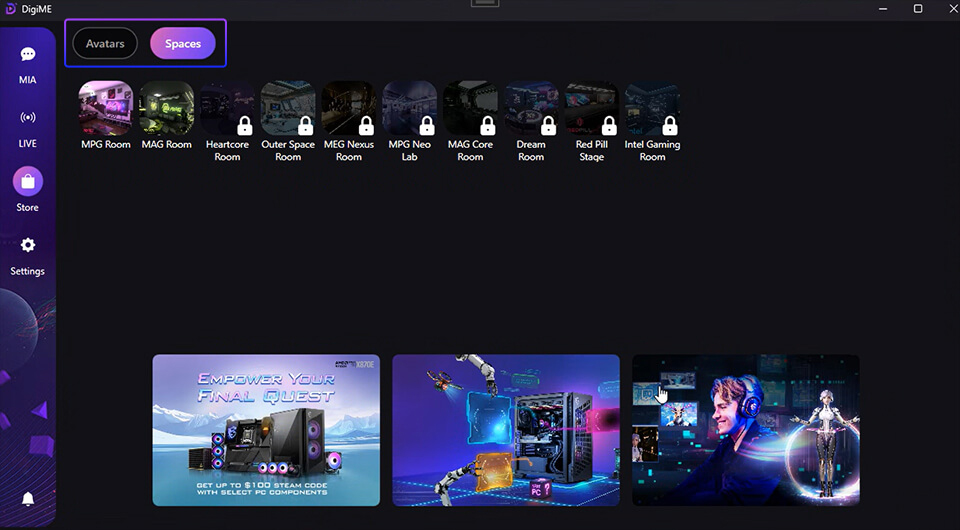
[Store]
After you login DigiME, you could unlock to download all avatar and spaces. Once downloaded, they will appear in MIA and Live Avatar.
[Settings]
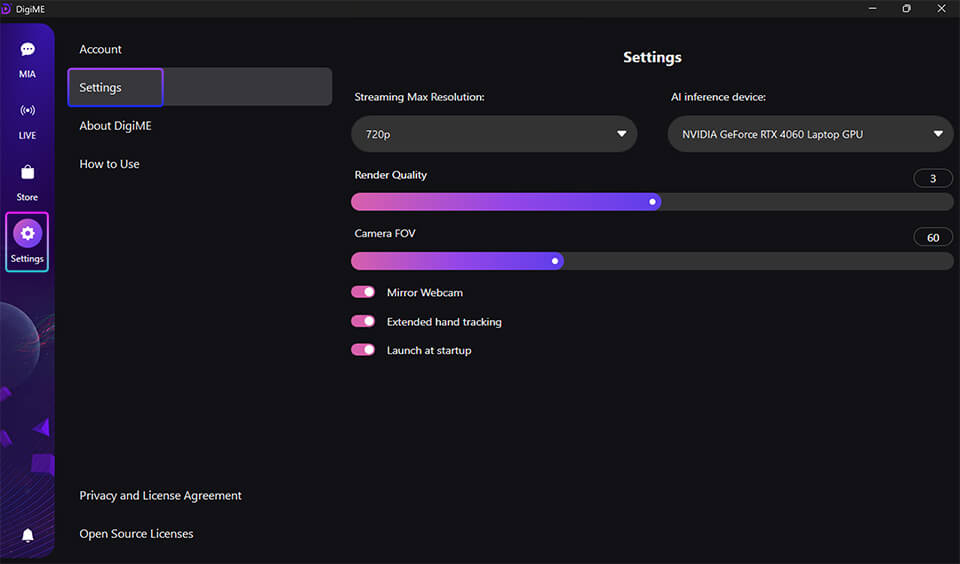
1. Streaming Resolution: Adjust the output resolution. Note that the setting lower than your DigiME camera resolution may result in reduced broadcast quality.
2. AI Inference Device: Choose the device used to run AI models. For optimal performance, NPU is the preferred option if available.
3. Camera FOV (Field of View): Set the vertical field of view to match your camera’s specifications. This ensures more accurate AI tracking and depth estimation.
4. Mirror Webcam: When enabled, your avatar’s movements will mimic your reflection in a mirror, making interaction more intuitive.
5. Extended Hand Tracking:
- Enabled: The AI will predict hand positions even when they are partially obstructed or out of frame.
- Disabled: Avatar hands will return to a default position when they move outside the camera’s view.
Tips of 3D View and Scene Navigation
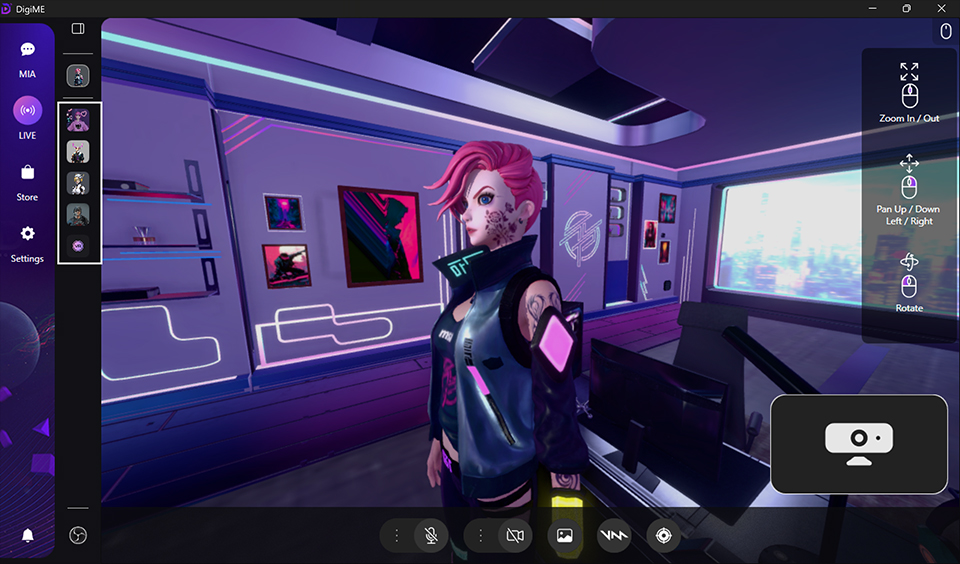
- Full-Screen Mode: Press F11.
- To move around the scene, use the mouse:
1. Left mouse button + drag rotates the viewport camera.
2. Right mouse button + drag moves the viewport camera left/right/up/down.
3. Mouse scroll wheel moves the viewport camera forward/backwards - Could quickly click the favorite avatars from left side to do quickly switch.
Integrating DigiME with Streaming Software and video chatting
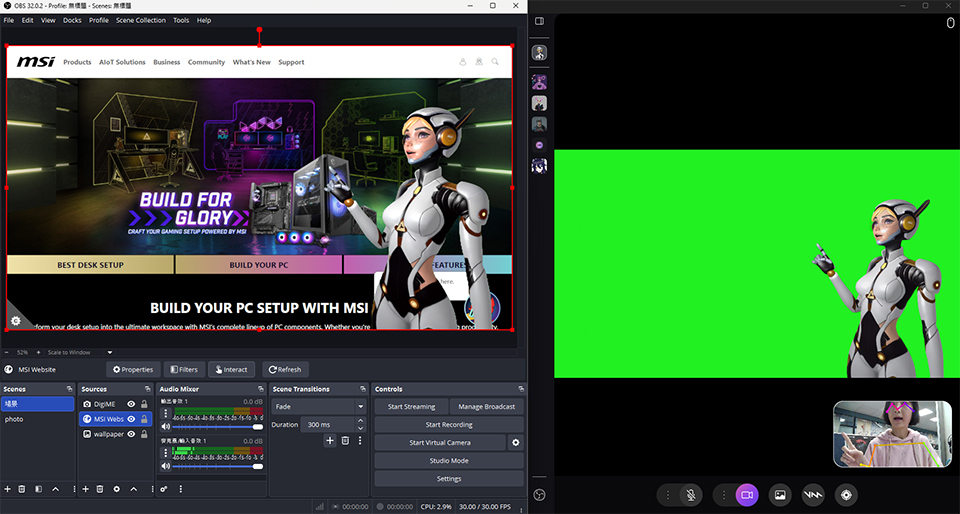
While DigiME is running, you can integrate it with any software that uses a webcam, including: OBS, Twitch, Microsoft Teams, Zoom, Google Meet, and Discord.
*Example: Simply select DigiME Camera as your video source, and your avatar will be broadcasted in real-time.
Troubleshooting
Device Activation
- If a device is not responding, ensure it's selected in the Control Panel and click the icon to activate it.
- Check device permissions in your operating system settings.
To stream or video chat, simply select DigiME Camera as your video source in related software (e.g., OBS/Teams).
Avatar & Assets Issues:
- Re-download assets if they don’t appear in the Asset panel.
- Ensure avatars are up-to-date if an update icon is visible.
Video Quality
- Adjust the rendering resolution and GI quality settings in the settings panel if the video appears pixelated.
Additional Support
For more help, visit our official Support Page or contact us via email at support@rplab.ai.
This guide should provide you with all the necessary information to get started with DigiME. Enjoy creating immersive livestreams with your personalized avatars!