

Feel like your MSI Claw could be faster and smoother? You're right.
Some settings are designed to provide a stable foundation, but true, ultimate performance is waiting to be awakened with a few simple tweaks. This guide will walk you through the most crucial steps to unleash your device's full potential.
Don't settle for the default—let's get started and discover your MSI Claw's peak performance!
Step 1: Build the Foundation – Always Stay Updated
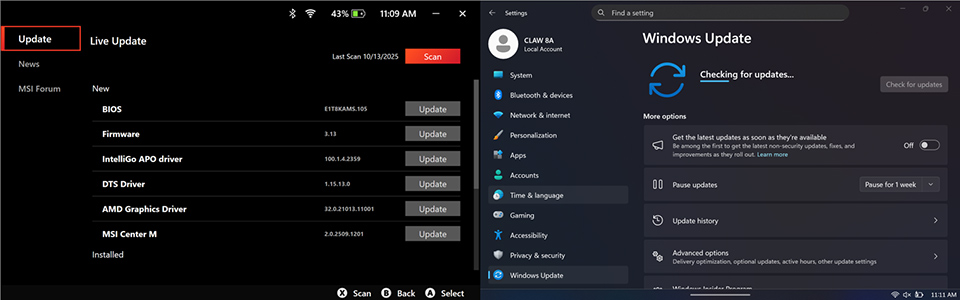
Before we dive into any deep tuning, the most fundamental and critical step is to ensure your MSI Claw is fully up-to-date. MSI and all vendors are constantly working to optimize performance, fix bugs, and improve game compatibility through software updates. Skipping this is like driving a supercar that's never been serviced—you'll never reach its top speed.
Easy Guide:
- Open the MSI Center M software and click on Live Update.
- Open the Windows Update.
- Scan and install all available updates, paying special attention to the BIOS and Graphics Driver.
Step 2: System Cleanup – Reclaim Every Resource for Your Games
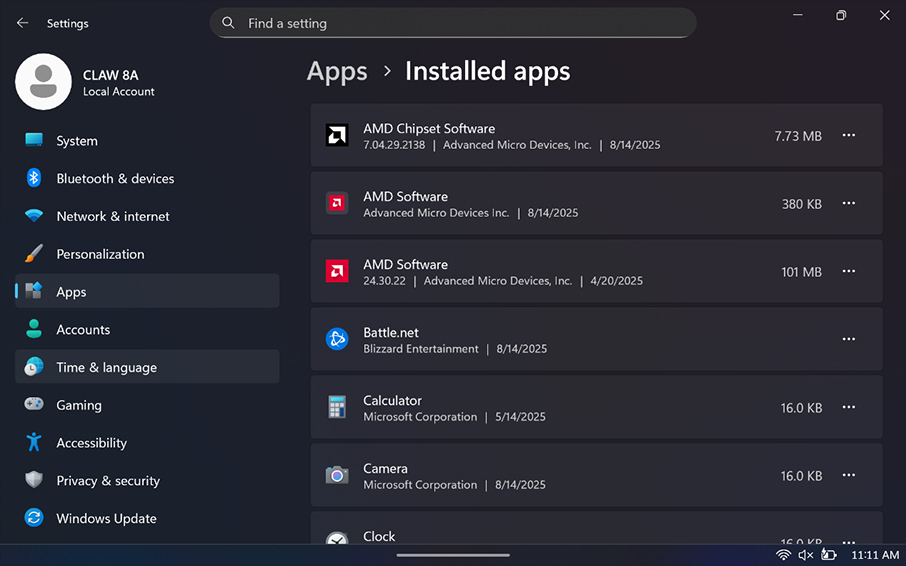
For the sake of versatility, Windows comes pre-loaded with a lot of software that is unnecessary for a pure gaming experience. We call this "bloatware." These programs quietly run in the background, consuming your precious CPU and memory resources, which directly impacts game loading times and smoothness. It's time to show them the door.
Easy Guide:
- Search for and open "Apps & features" in the Windows search bar.
- Carefully scroll through the list and identify any software you know you won't use (e.g., Office trials, widgets, etc.).
- Click the options next to it and select "Uninstall" to free up more performance for your games.
* Only uninstall applications you are 100% certain you do not need. Avoid using third-party "debloating" scripts unless you trust the source completely.
Step 3: Unleash the Power – Switch to "Best Performance" Mode
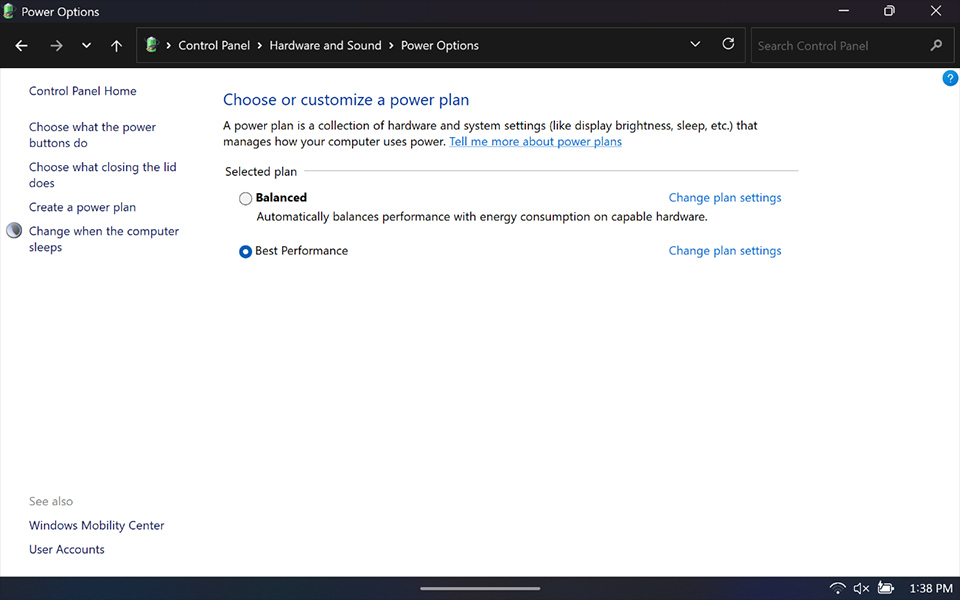
This is a simple yet highly effective setting that sends a clear message to Windows: "Hey, performance is the priority right now, not power saving!" This ensures that both your CPU and GPU get the full power they need to go all-out when you're in a game.
Easy Guide:
- Search for "Edit power plan" in the Windows search bar.
- Go to "Power Options" and select "Best performance."
*The only trade-off here is that this setting will noticeably reduce your battery life during non-gaming activities (like browsing the web or watching videos). But for the ultimate gaming experience, it's a worthy exchange!
Step 4: Break the Seal – Disable Core Isolation for a Speed Boost
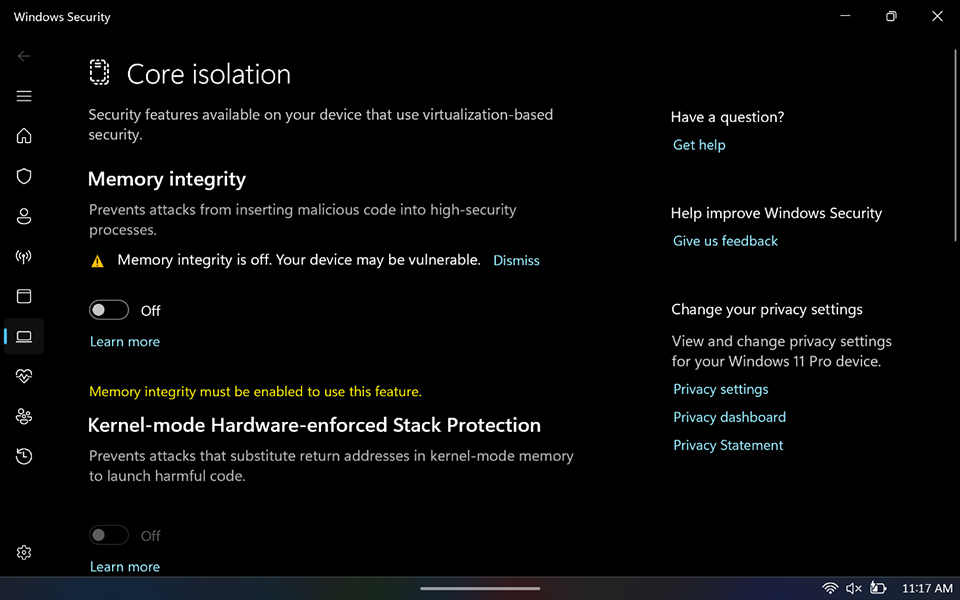
This is the "secret weapon" widely recognized by the Windows handheld gaming community. Windows' built-in "Core Isolation" and "Memory Integrity" is an advanced security feature that uses virtualization to protect the system's core. However, this protection comes at the cost of significant performance overhead. For a device dedicated to gaming, turning it off can instantly reward you with a noticeable FPS boost and lower operating temperatures.
Easy Guide:
- Search for "Core isolation" in the Windows search bar.
- Once open, turn the toggle for "Memory Integrity" to OFF.
- Restart your device and get ready to feel the leap in performance!
* In very rare cases, some anti-cheat software or high-security applications may require this feature to be enabled to function correctly.
Step 5: Build a Highway – Manually Set Your Virtual Memory
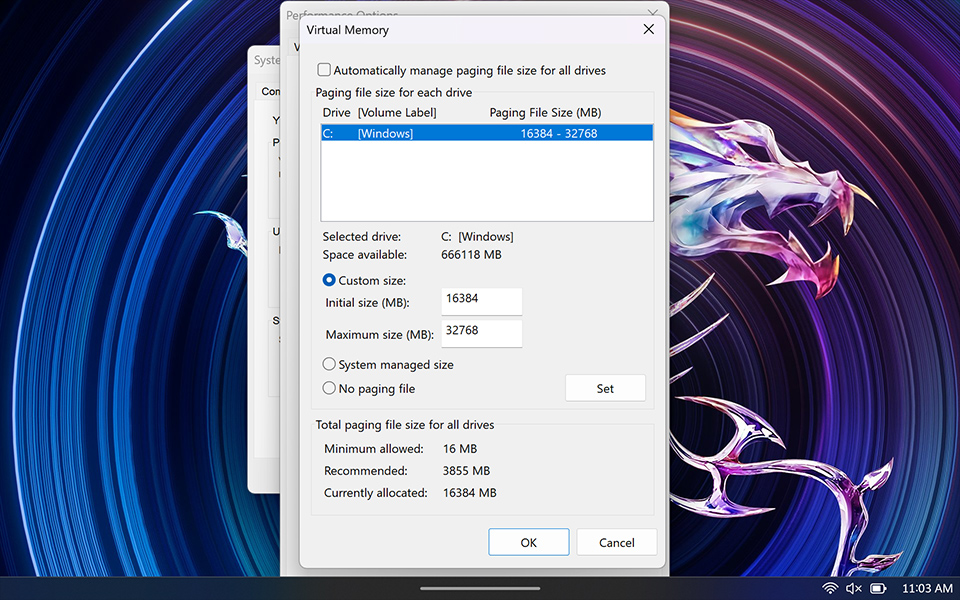
Have you ever experienced a sudden, frustrating stutter in the middle of a crucial gameplay moment? The culprit is often Windows dynamically resizing your virtual memory (Page File). By manually setting a fixed size, you're essentially creating a dedicated, high-speed highway for your system's memory to use, preventing these interruptions and ensuring your gameplay is as smooth as silk.
Easy Guide:
- Search for "View advanced system settings" in the Windows search bar.
- Under the "Performance" section, click "Settings," go to the "Advanced" tab, and then click "Change."
- Uncheck "Automatically manage paging file size for all drives."
- Select "Custom size" and enter the following recommended values (for a 16GB RAM model):
- Initial size (MB): 16384 (equal to your physical RAM)
- Maximum size (MB): 32768 (about 2x your physical RAM)
- 5. Click "Set" and then restart your device.
* Disk Space and Stability: Ensure your drive has enough free space to accommodate the size you set. Setting the value too low could cause applications to crash if your system's total memory demand (RAM + virtual memory) is exceeded.
Forge Your Own Performance Beast
Congratulations! From system updates and debloating to core performance tuning, you've just completed the five most important and effective optimizations for your MSI Claw. These tweaks will work together to bring you a more stable, smoother, and more immersive gaming experience. Now, go and enjoy the performance beast you've just unleashed!