
The MSI Claw continues to evolve — and now, it supports the new Xbox Full Screen Experience (FSE) mode.
This upgrade makes gaming on your handheld even more intuitive and responsive, giving players a console-like experience on Windows.
In this article, we’ll walk you through how to set it up, what benefits it brings, and a few handy tips to get the most out of it.
Step 1: Prepare Your System
Before diving in, make sure your system is fully updated.
Go to Settings ? Windows Update, and click “Check for updates” or “Download and install all.”
Continue until you see the message that your device is up to date.
This ensures your Claw has the latest improvements needed for Full Screen Experience (FSE) to work smoothly.
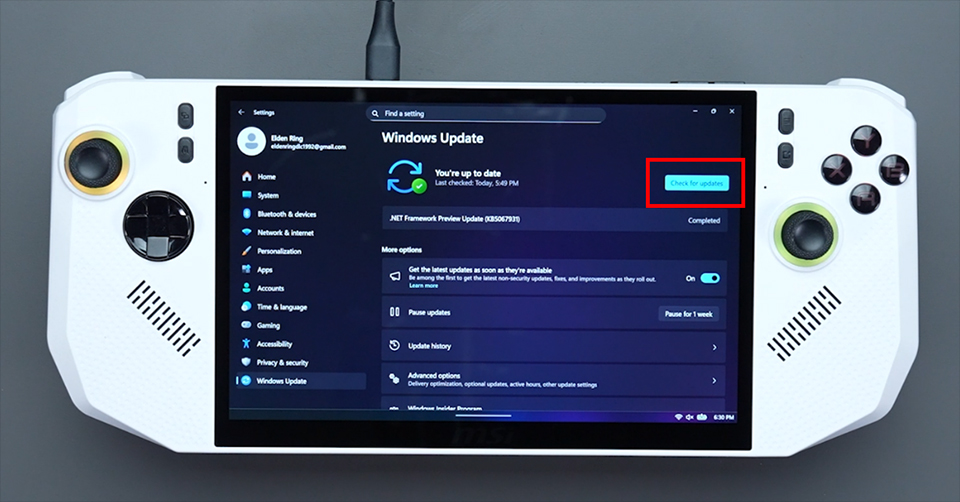
? FSE Setup Step 1: Ensure your system is fully updated.
Also, make sure both your BIOS version and MSI Center M are up to date.
To enable Full Screen Experience (FSE) properly, make sure your system is running the following versions or newer:
- Intel-based Claw BIOS version ending in 10F
- AMD-based Claw BIOS version ending in 105
- MSI Center M version 2.0.51031.0

? Confirm your BIOS and MSI Center M meet the required versions.
Step 2: Enable Full Screen Experience (FSE)
You can enable FSE in two ways, depending on whether you prefer the automated setup or a manual approach.
(A) Enable via MSI Center M App
When your system meets the version requirements, you’ll see a prompt in MSI Center M that says “Full Screen Experience.”
Once you’ve updated both the Xbox App and Game Bar, simply click “Windows Settings” and follow the on-screen instructions.
The app will automatically guide you to the Windows Full Screen Experience settings.
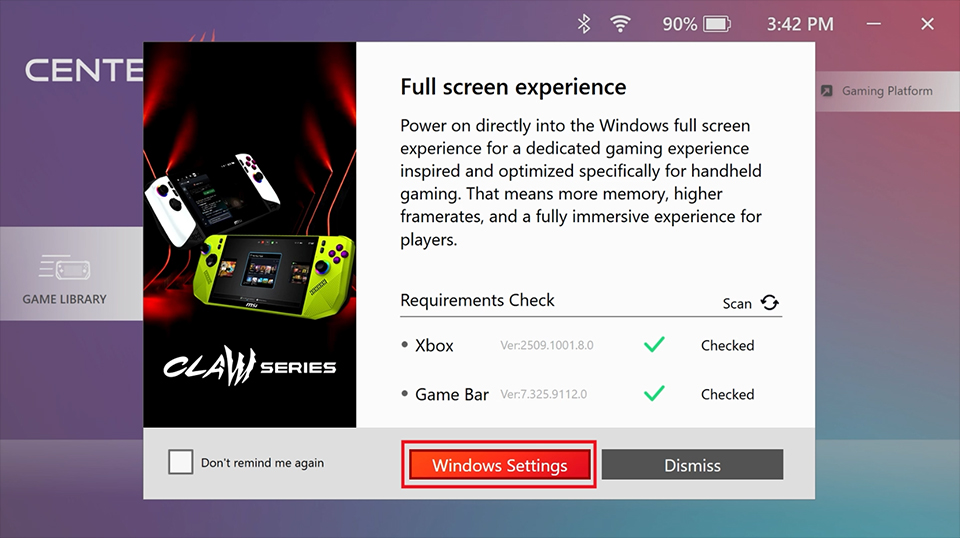
? If you enable FSE via MSI Center M, the prompt will direct you to Windows Settings.
From there, choose “Xbox” as your home app,
turn on “Enter Full Screen Experience on Startup” and then restart your device.
(B) Enable via Windows Settings (Manual Setup)
Prefer to handle things yourself? Here’s how to do it manually:
Go to Settings ? Gaming ? Full Screen Experience.
Select Xbox as your home app.
Turn on “Enter FSE on Startup” and restart your device.
Once rebooted, your Full Screen Experience mode is all set.
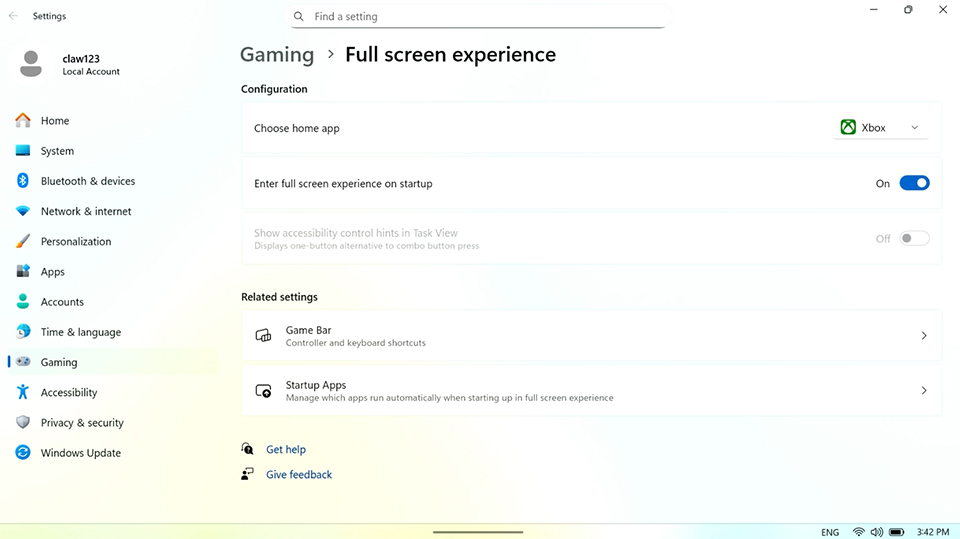
? Configure FSE manually in Windows Settings and restart to apply.
Quick Tip:
If you want your Claw to boot directly into FSE, go to MSI Center M ? Settings ? General Settings, and uncheck the option “Set MSI Center M as the default startup screen.”

? Uncheck ‘Default startup screen’ in MSI Center M to boot straight into FSE.
The Benefits of Full Screen Experience
When Full Screen Experience is enabled, overall RAM usage decreases, giving games more available memory space. This is because FSE reduces the number of background processes loaded at startup, freeing up system resources for your gameplay.
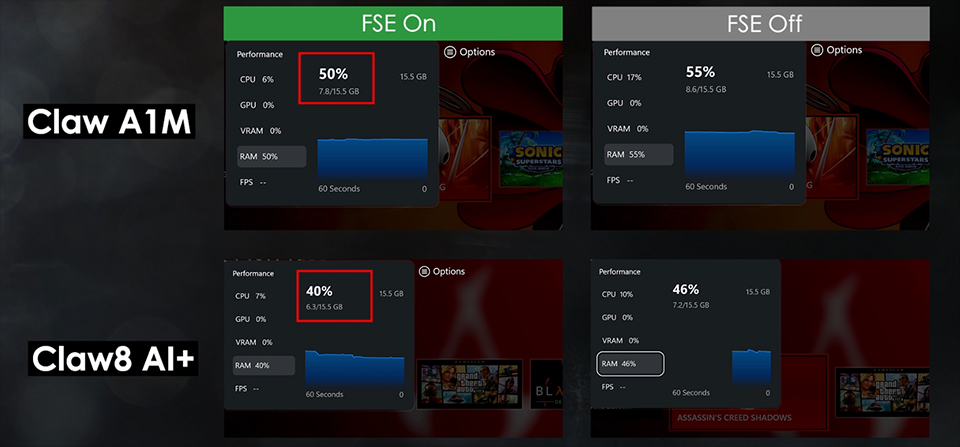
? With FSE on, the system loads fewer background tasks — resulting in lower RAM usage.
Based on benchmark testing across three different MSI Claw configurations, Cyberpunk 2077 showed noticeably smoother frame rates and improved consistency when FSE was turned on.
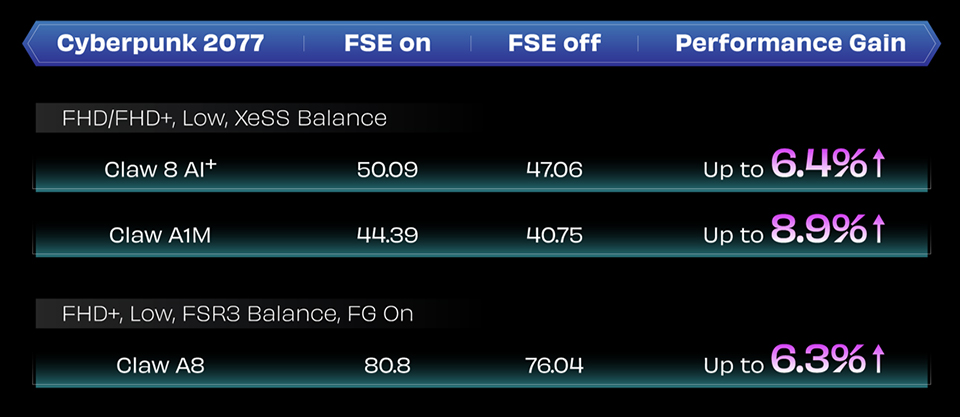
? Reduced RAM usage frees up system resources, improving overall gaming performance.
How to Use Xbox Full Screen Experience
Once FSE is activated, here’s how you can easily navigate within it:
To switch between apps or tasks, press and hold the Quick Settings button, then use LB/RB or the D-pad to move between apps.
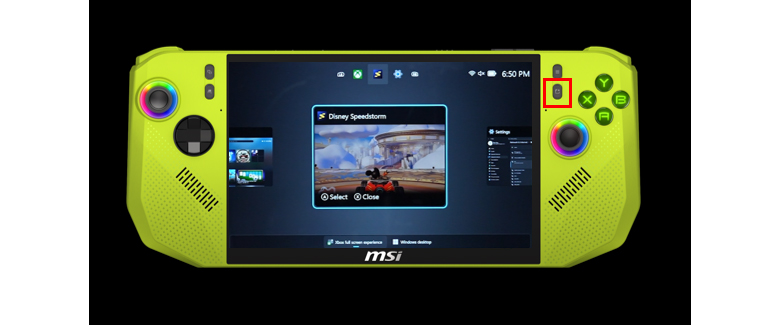
? Hold Quick Settings, then use LB/RB or the D-pad to switch apps.
To close an app, simply press the X button.
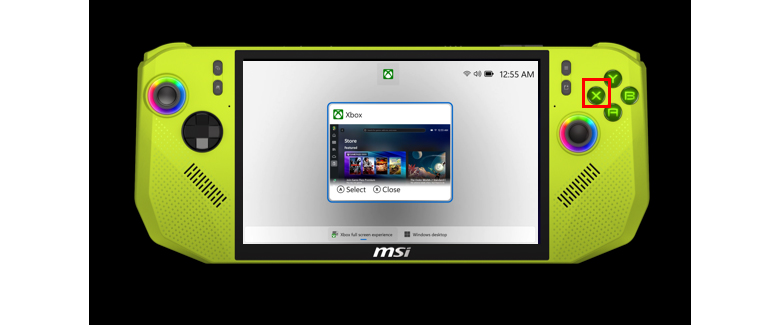
? Press the X button to close apps.
To return to Windows Desktop mode, swipe up, use the D-pad to select the Desktop tab, and press A.
You’ll instantly return to the standard Windows interface.
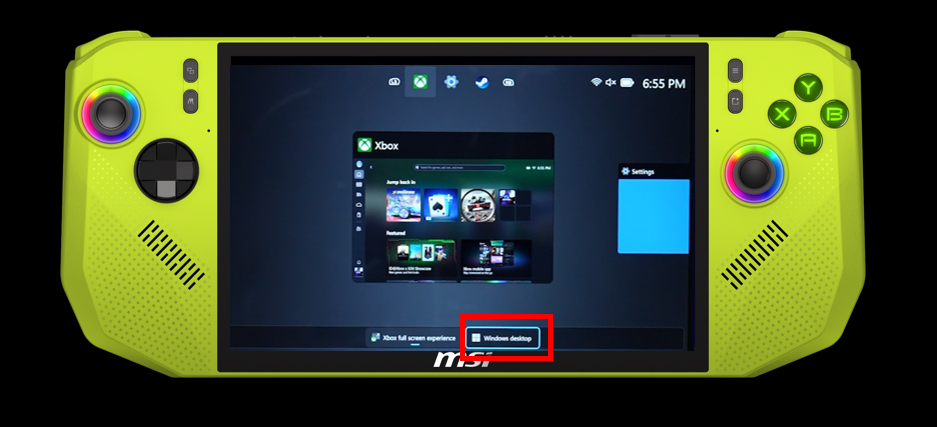
? Swipe up and select the Desktop tab to return to Windows Desktop mode.
To go back to FSE mode, click the Xbox app icon on the taskbar.
When the app opens, click the Xbox Full Screen option at the top right corner.
The system will prompt you to restart — do so for the best performance.
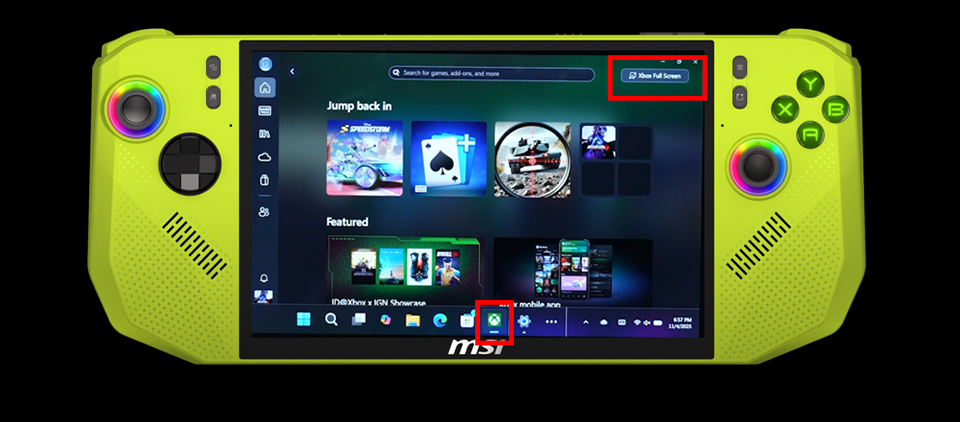
? Click the Xbox icon, then select “Full Screen” to return to FSE mode.
Enjoy FSE on Claw
That’s it! You’ve successfully enabled Xbox Full Screen Experience on your MSI Claw.
Now you can enjoy smoother gameplay, lower memory usage, and a cleaner, console-like interface right on your handheld.
If you’d like to fine-tune your setup even further, remember — MSI Center M and Quick Settings are always there to help you personalize your experience.
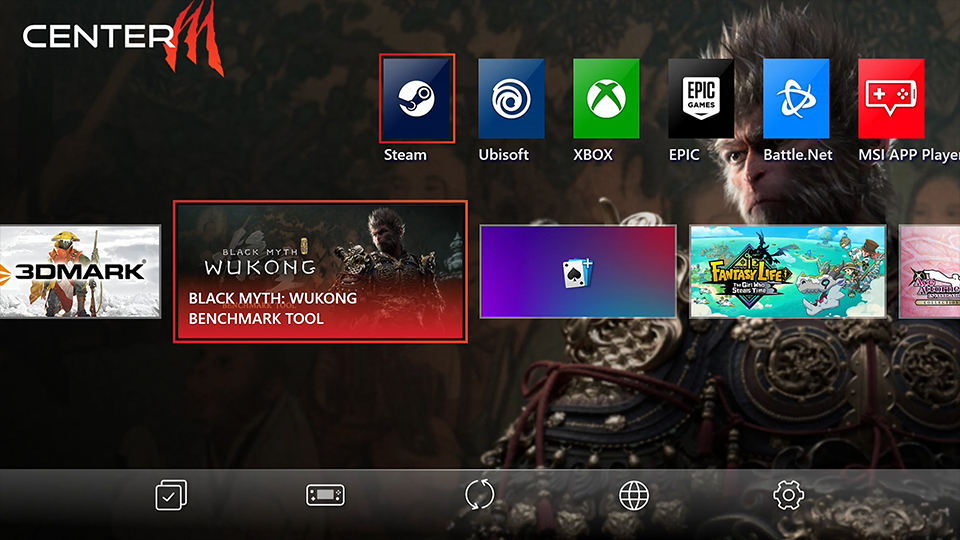
? MSI Center M provides a clean, intuitive interface for switching between user scenarios, control modes, and general settings.
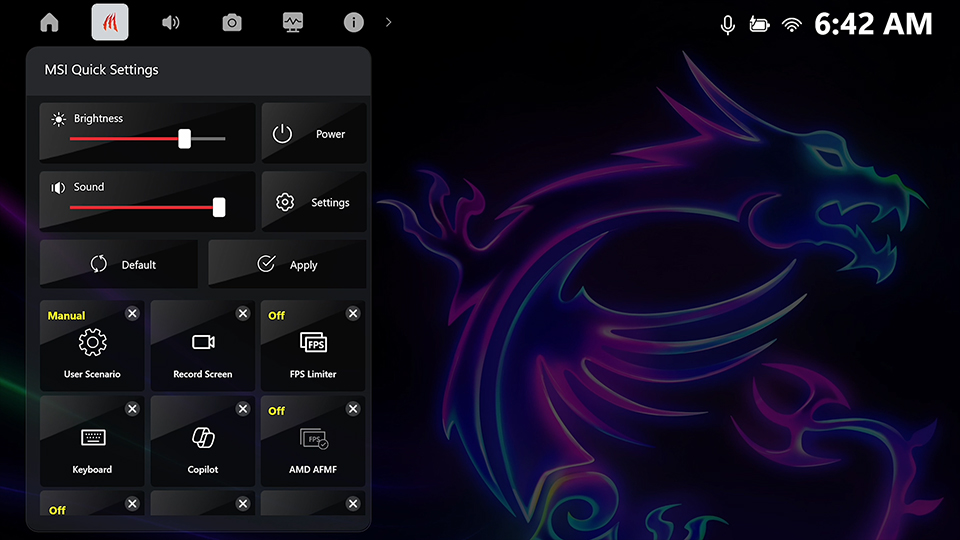
? Quick Settings provides fast access to essential controls and advanced customization, deeply integrated with the Xbox Game Bar.
Watch video now?https://msi.gm/Claw_FSE