[Product Information] Wi-Fi 6E and Wi-Fi 7
Answer
As wireless networking technology continues to evolve, MSI notebooks have gradually adopted Wi-Fi 6E and Wi-Fi 7 to provide users with faster, lower-latency wireless connectivity.
To use the 6 GHz band of Wi-Fi 6E or Wi-Fi 7 features, the notebook, operating system, drivers, wireless router, and local wireless spectrum regulations must meet the applicable requirements.
This article applies to all MSI notebooks equipped with a Wi-Fi 6E or Wi-Fi 7 wireless network adapter.
How to identify the wireless network adapter in the notebook
Method 1: Check the product specifications on the MSI website
- Go to the MSI website.
- Search for the full product name of the notebook.
- Open the product specification page.
- Check the “Wireless LAN” or “Communication” section.
- Confirm whether the product is listed as supporting Wi-Fi 6E or Wi-Fi 7.

Method 2: Check through Device Manager
- Right-click the Windows Start icon.
- Select “Device Manager.”
- Expand “Network adapters.”
- Check the full name of the installed wireless network adapter.
- Identify the supported Wi-Fi standard according to the adapter model.
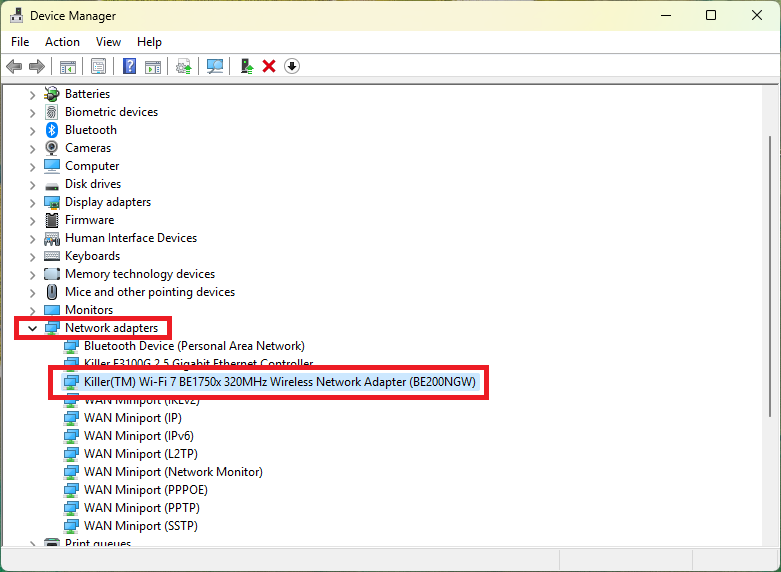
If the wireless network adapter is not shown in Device Manager, first make sure Airplane mode is turned off, and then reinstall the WLAN driver for the notebook. Refer to [How To] Install or update the wireless LAN (WLAN) driver
System requirements and activation conditions for Wi-Fi 6E and Wi-Fi 7
To use the 6 GHz band of Wi-Fi 6E or Wi-Fi 7 features, make sure the system meets the following requirements.
- The applicable wireless frequency bands are supported in your country or region
The 6 GHz wireless band must be available and supported in your country or region.
Availability of the 6 GHz band, permitted bandwidth, and transmit power limits may vary by country. To check whether the band is supported in your region, refer to the latest information published by the Wi-Fi Alliance: Wi-Fi Alliance: Countries enabling Wi-Fi in the 6 GHz band
Even if both the notebook and router support Wi-Fi 6E or Wi-Fi 7, the system may still be unable to detect or use a 6 GHz network if the 6 GHz band has not been enabled in the region.
- Use a supported version of Windows 11
Update the operating system to Windows 11 24H2 or later.
You can update through Windows Update or upgrade by using the Microsoft Media Creation Tool. For instructions, refer to One Touch Install Quick Guide or tutorial video
- Install a wireless network adapter that supports the required standard
The notebook must be equipped with a wireless network adapter that supports the required Wi-Fi standard:
- To use Wi-Fi 6E: The notebook must be equipped with a wireless network adapter that supports Wi-Fi 6E and the 6 GHz band, such as Intel AX210, Intel Killer AX1675, or a later model.
- To use Wi-Fi 7: The notebook must be equipped with a wireless network adapter that supports Wi-Fi 7.
Note that a wireless network adapter supporting only Wi-Fi 6 cannot use the 6 GHz band.
- Update the BIOS and WLAN driver
Search for the notebook model on the MSI website, and download and install the latest BIOS and WLAN driver from the support page for that model.
The minimum driver version requirements for Wi-Fi 6E are as follows:
- Intel wireless network adapter: v22.70.0.6 or later
- AMD wireless network adapter: v3.2.0.192 or later
Obtain the Wi-Fi 7 driver as follows:
- Intel wireless network adapter: Install the Intel generic WLAN driver that supports Wi-Fi 7.
- AMD, MediaTek, or Qualcomm wireless network adapter: Download the applicable WLAN driver from the model support page on the MSI website.
To ensure system compatibility, it is recommended to install the driver provided on the model support page of the MSI website first.
- Use a wireless router that supports the required standard
The router must support the wireless standard you want to use:
- To use Wi-Fi 6E or the 6 GHz band: Use a wireless router that supports Wi-Fi 6E or Wi-Fi 7.
- To use Wi-Fi 7 features: Use a wireless router that supports Wi-Fi 7.
A router that supports only Wi-Fi 6 does not support the 6 GHz band. Also make sure the applicable frequency bands and features are enabled on the router configuration page.
FAQ
Q: Why can’t the computer find a 6 GHz network even though it supports Wi-Fi 6E or Wi-Fi 7?
A: Even if the notebook supports Wi-Fi 6E or Wi-Fi 7, regional regulations, router settings, and the system environment must meet the applicable requirements before a 6 GHz network can be detected and used.
Possible causes include:
- The 6 GHz band has not been enabled in the country or region.
- The 6 GHz wireless network is not enabled on the router.
- The router supports only Wi-Fi 6 and does not support Wi-Fi 6E or Wi-Fi 7.
- The wireless network adapter in the notebook does not support the 6 GHz band.
- The Windows, BIOS, or WLAN driver version is outdated.
- The router’s 6 GHz SSID is set to hidden.
- The router firmware has not been updated, or the wireless network configuration has not been completed.
- The channel or feature currently used by the router is not supported in the region or by the wireless network adapter.
First confirm whether the 6 GHz band is available in the region. Then check the router specifications and settings, and update Windows, the BIOS, the WLAN driver, and the router firmware.
Q: Why isn’t the computer using Wi-Fi 7 after connecting to a Wi-Fi 7 router?
A: Connecting to a Wi-Fi 7 router does not necessarily mean that the current connection is using the Wi-Fi 7 standard.
The wireless connection is negotiated between the notebook and router and uses the connection standards and features supported by both devices. The actual connection mode may be affected by the following conditions:
- The specifications of the notebook’s wireless network adapter.
- The Windows version.
- The WLAN driver version.
- The router settings and firmware version.
- The wireless frequency bands and channels available in the region.
- The channel bandwidth, modulation methods, and other Wi-Fi 7 features supported by both the router and notebook.
- Wireless signal strength, distance, and interference in the network environment.
Make sure the notebook is equipped with a Wi-Fi 7 wireless network adapter and has Windows 11 24H2, the latest BIOS, and a WLAN driver that supports Wi-Fi 7 installed. Also make sure the router has been updated to the latest firmware and that the applicable Wi-Fi 7 features are properly enabled.