[How To] Intel Wireless LAN (WLAN) Driver Install/Update Guide
Answer
To keep the wireless network driver updated to the latest version, you can visit the Intel website to obtain the latest generic driver, or download the verified and relatively stable version from the product download page on the MSI website.
Please refer to the instructions below or the step-by-step instructions in the attachment to complete the driver installation/update.
This article applies to MSI laptop products equipped with Intel, Qualcomm, and AMD/MediaTek wireless network cards.
1. Download the driver installation package
Note: If you have already downloaded the driver through Live Update or MSI Driver & App Center, please skip this step.
a. Go to the MSI official website and search for the product name.
b. Click “Download” and select the corresponding model name to enter the download page.
c. In Drivers & Download, locate the corresponding Wireless LAN Driver under "Wireless LAN" and download the file.
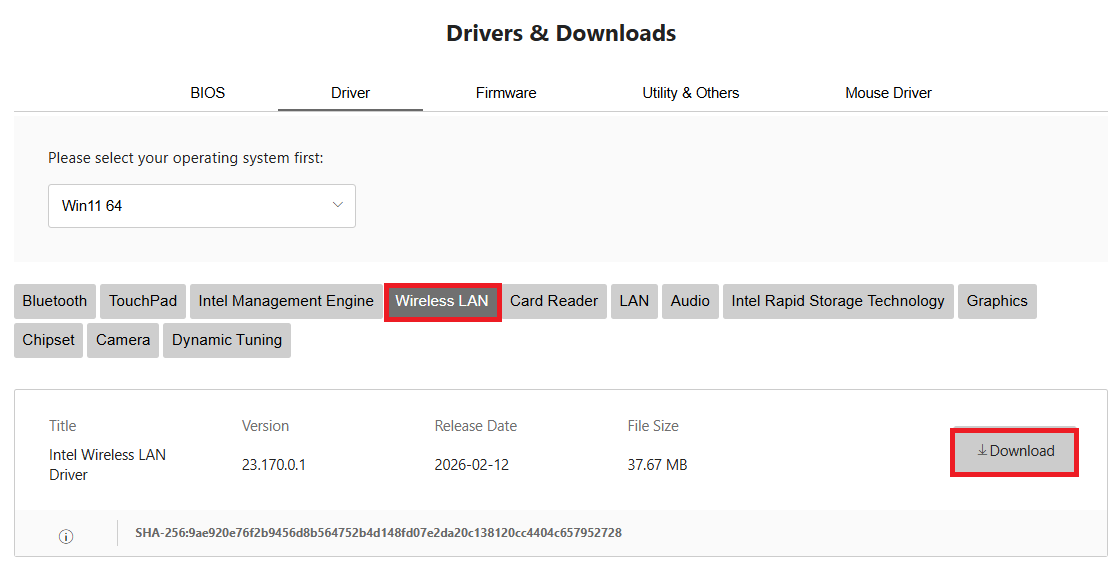
d. Save the file to the specified location and extract it.
e. After completion, please remove the wired network connection or turn off the wireless network connection to ensure that the system network connection has been disconnected.
2. Completely remove the existing wireless network card driver
a. Right-click the Start icon and open Device Manager.
b. Under “Network adapters,” right-click the wireless network card device and click “Uninstall device.”
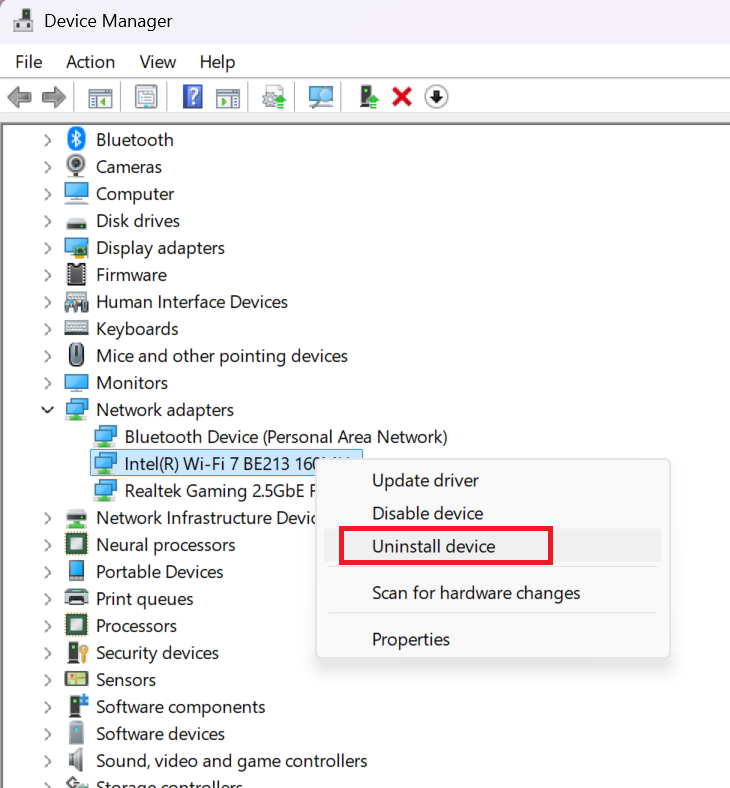
c. Check “Attempt to remove the driver for this device,” then click the “Uninstall” button to start removing the program.
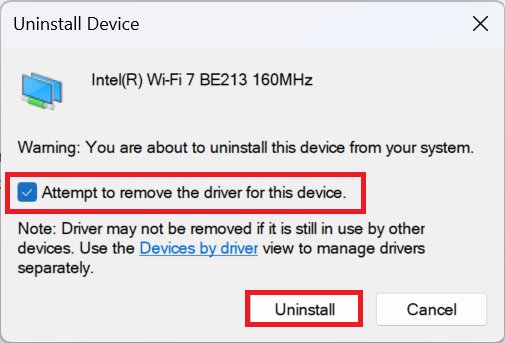
d. After completion, please restart the machine and confirm in Device Manager that the wireless network card device has been removed.
3. Install the driver
a. In the extracted folder, right-click “Install.bat” and run it as administrator.
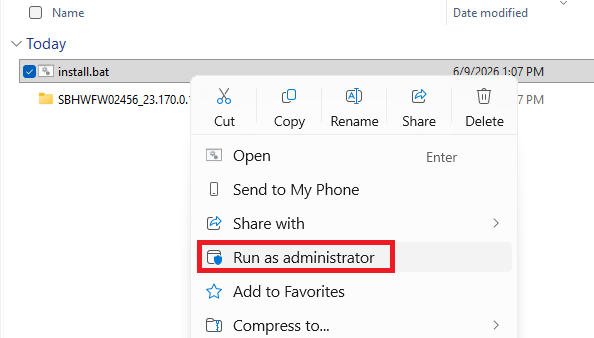
b. After completion, please confirm in Device Manager that the wireless network card device has appeared.
FAQ
Q: How to perform a driver clean installation if my network adapter is Killer?
A: If your laptop uses Killer series network adapter, please refer to [How To] Uninstall/Install Killer driver and Killer Control Center.
Q: Why is it necessary to remove the network connection, including both wired and wireless connections, before installing the driver?
A: This is to ensure that the system network connection has been completely disconnected, preventing the system from automatically downloading and installing an unexpected driver through Windows Update after the old driver is removed, and ensuring a clean and stable installation process.
Related topics:
[Troubleshooting] The connection of Wi-Fi adapter is unstable or disconnected
[Troubleshooting] Unstable Bluetooth connection or disconnected