[How To] Prevent and Reduce Image Persistence on Display
Answer
Displaying bright or high-contrast static images for extended periods may cause temporary image persistence on the screen. This article explains the causes of image persistence and provides recommendations for preventing it.
This article applies to all MSI laptop products.
What Are Image Retention and Screen Burn-In, and Why Are They More Likely to Occur on OLED Displays?
Image retention refers to a temporary, faint outline of previously displayed content that remains visible after the image on the screen has changed. Unlike conventional LCD displays that use a backlight, OLED displays consist of individual pixels that emit their own light. Therefore, displaying static, bright, or high-contrast elements—such as the taskbar, application windows, logos, game interfaces, or desktop icons—at high brightness for extended periods may cause the pixels to age unevenly. As a result, OLED displays have a higher risk of image retention or screen burn-in than conventional LCD displays.
Depending on how long the residual image remains and what causes it, the condition can be classified into the following two types:
- Image persistence or image retention:
A temporary residual image that may gradually disappear after the screen displays changing content or is turned off. - Burn-in:
A persistent residual image caused by uneven pixel aging that may not disappear completely.
These conditions are characteristics of OLED display technology and are more likely to occur under extreme usage conditions, such as continuously displaying the same static image at high brightness.
How can I prevent image persistence?
Use the following recommendations to reduce the risk of image persistence:
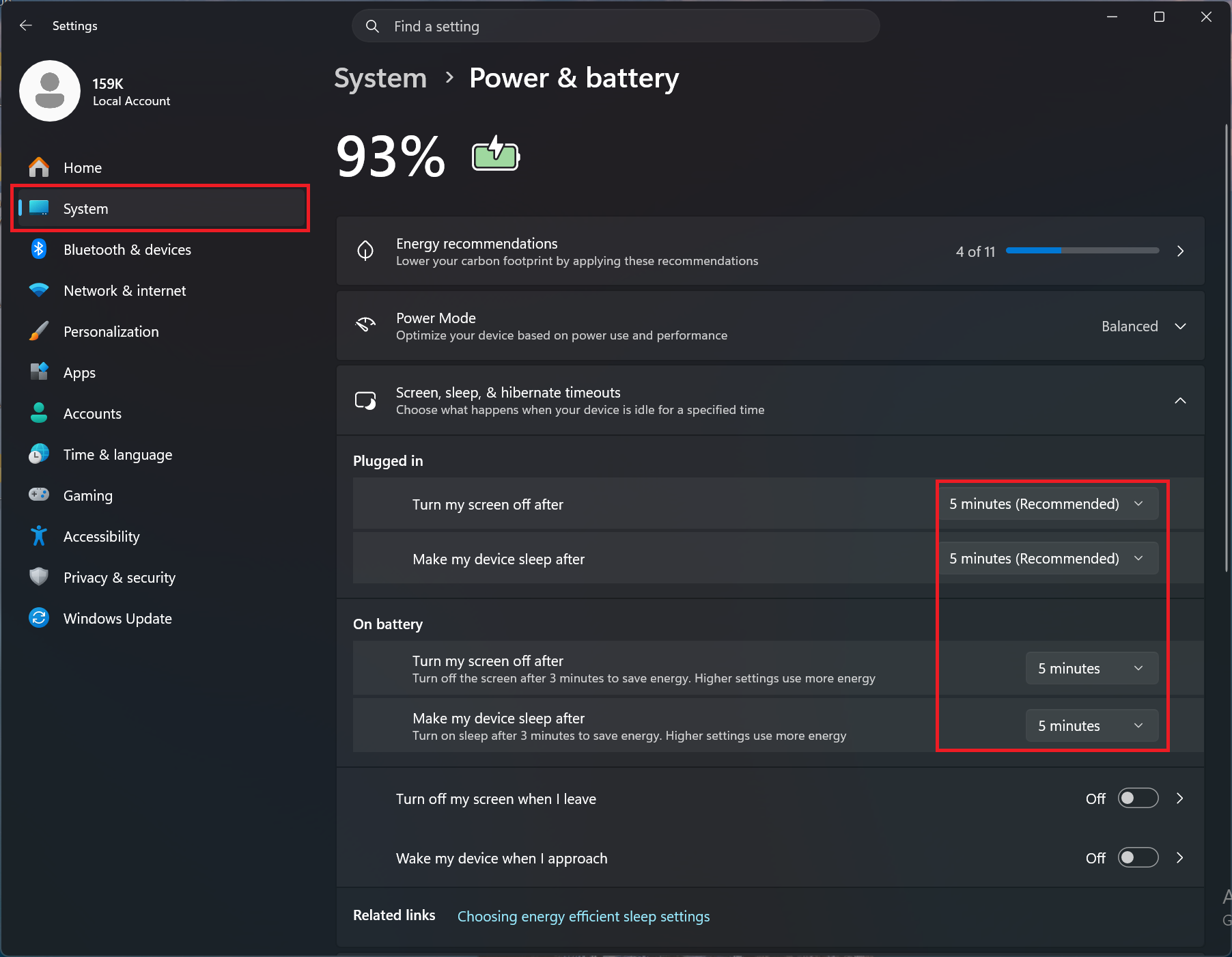
Method 1: Set System Screen & Sleep
- Go to "Settings" > "System" > "Power & battery".
- Expand "Screen, sleep & hibernate timeouts".
- Configure the display to turn off after a short period of inactivity.
*For OLED display protection, MSI recommends setting the screen-off time to approximately "5 minutes or less", depending on your usage requirements.
Method 2: Fix Image Persistence: Run Screen Saver or Turn the Display Off
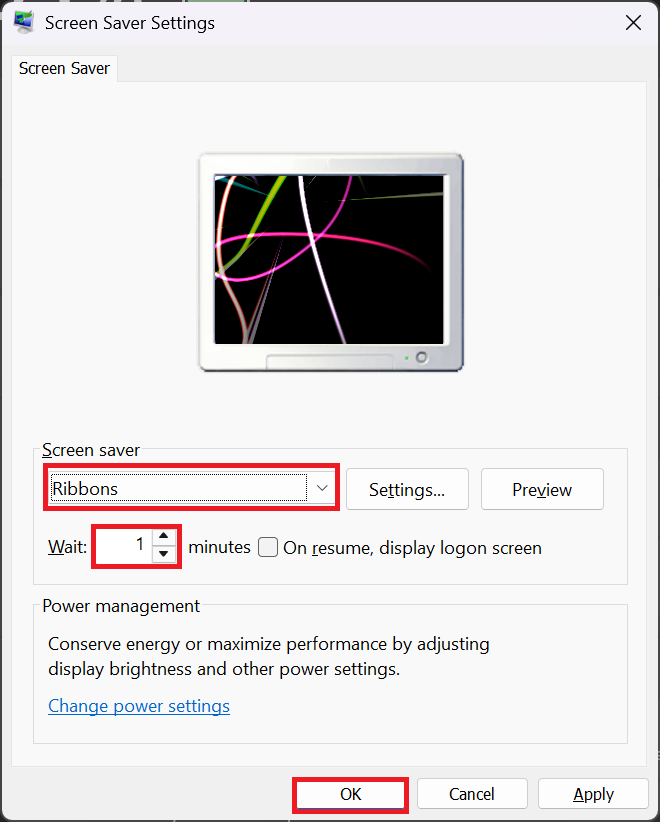
- Press Windows key + S > Search for "Change screen saver".
- Select a screen saver that displays moving content.
- Set the "Wait" time to a value shorter than the configured screen-off time.
- Select "OK".
*Do not use a screen saver that displays the same static image continuously.
FAQ
Q: What causes image persistence on a display?
A: Image persistence may occur when the same static or high-contrast content remains on the screen for an extended period, especially at high brightness. Common examples include the Windows taskbar, desktop icons, application menus, game interfaces, channel logos, and paused videos.
Q: What should I do if image persistence is already visible?
A: Close the application or image that caused the residual image, and then display varied or moving content. You can also turn off the display or shut down the notebook and leave the screen off for approximately as long as the static image was previously displayed. Temporary image persistence may gradually fade after the pixels are allowed to rest. However, recovery time may vary depending on the brightness, display duration, and panel condition.
Q: What should I do if the residual image does not disappear?
A: If the residual image remains visible after the display has been turned off for an extended period:
- Restart the notebook.
- Check whether the residual image also appears on the MSI logo or BIOS screen.
- Run the supported OLED protection or pixel-care function in MSI Center.
- Contact MSI Support if the residual image remains clearly visible.