[Product Information] Support for External Infrared Cameras and Windows Hello
Answer
MSI notebooks that meet Microsoft's advanced Secure-Cored PC standards are configured with Microsoft Security Level 2 protections and enable built-in biometric devices, such as fingerprint readers or infrared cameras, by default to provide the highest level of security. To use Windows Hello with an external device, refer to the information below.
This article applies to all MSI notebook products.
Why External Biometric Devices May Be Restricted
When a user attempts to add an external device (such as an external infrared camera or fingerprint reader) to log in via Windows Hello, the system may automatically block the device if it does not meet the same security standards as the system, even if the device can be used in general software. As a result, the device may not be detected during Windows Hello setup.
Recommended Solution and Security Considerations
To help prevent malicious attacks and maintain system integrity, use the built-in biometric device whenever possible, or make sure the external device is certified to meet the applicable Microsoft security requirements.
If an external device that does not meet the security requirements must still be used, follow the manual steps below to allow the device:
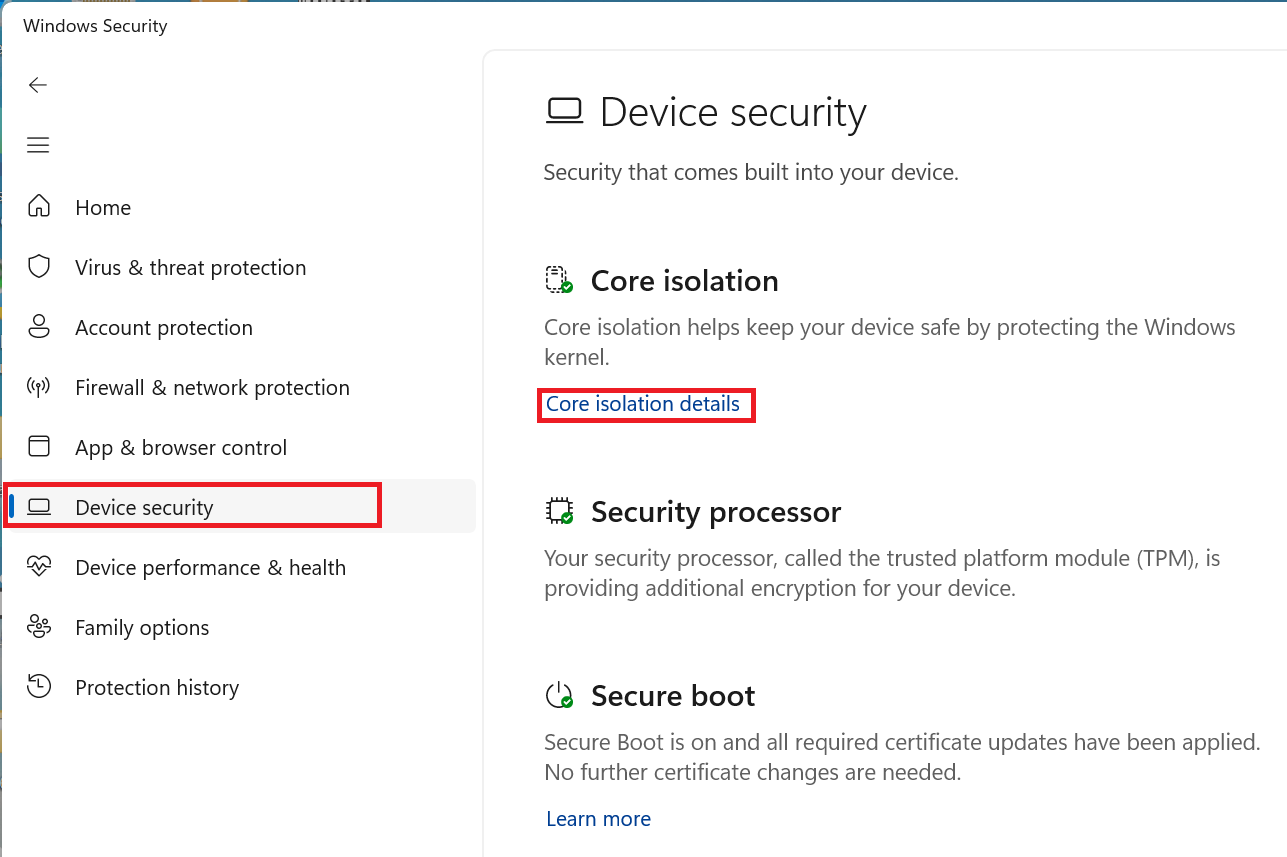
- Search for and open “Windows Security.”
- Go to “Device security” > “Core isolation details.”
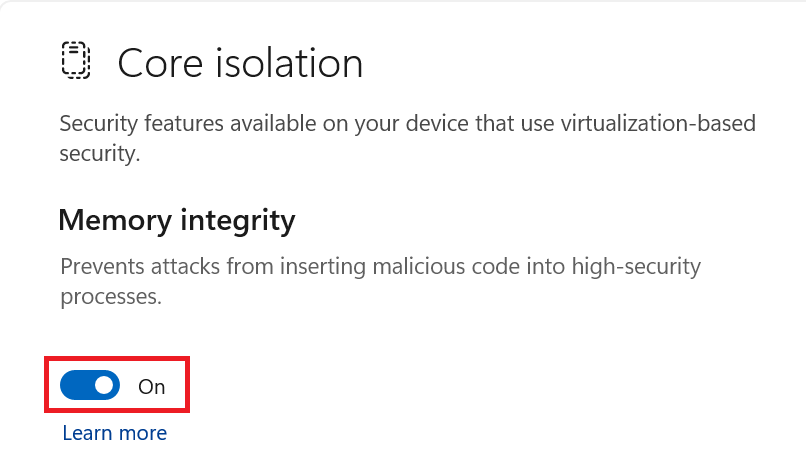
- Turn off “Memory integrity,” select “Yes” to allow the change, and then restart the system to complete the configuration.
FAQ
Q: What happens when the external device is blocked?
A: The device may not be detected at all in the Windows Hello setup interface or may be shown as unavailable. This occurs because the system determines that the external device has a lower security level than the notebook’s built-in security standard and blocks it to protect user data.
Q: What effect will disabling this feature have on the computer?
A: Disabling “Memory integrity” lowers the system’s security level. This feature is designed to help prevent malicious code from being injected into highly secure processes. Although disabling it may allow less compatible external devices to operate, it also reduces the system’s protection against certain types of malicious attacks.
Q: Should Memory integrity remain disabled?
A: This is recommended only when the built-in camera is damaged, the available external device is not recognized by the system, and Windows Hello sign-in is required. Otherwise, keep Memory integrity enabled to maintain the highest level of system security.