[Troubleshooting] Unable to Enable Facial Recognition or Fingerprint Recognition After Installing Windows 11
Answer
On a manually installed Windows 11 system, Windows Hello may remain unavailable even when the device is equipped with a Windows Hello-compatible infrared camera or fingerprint reader. This is usually because a higher-level security setting is enabled by default and blocks initialization access for the biometric device. Refer to the instructions below to resolve the issue.
This article applies to all MSI notebook products.
Common Symptoms
- Fingerprint recognition: The Settings page displays “This option is currently unavailable.”

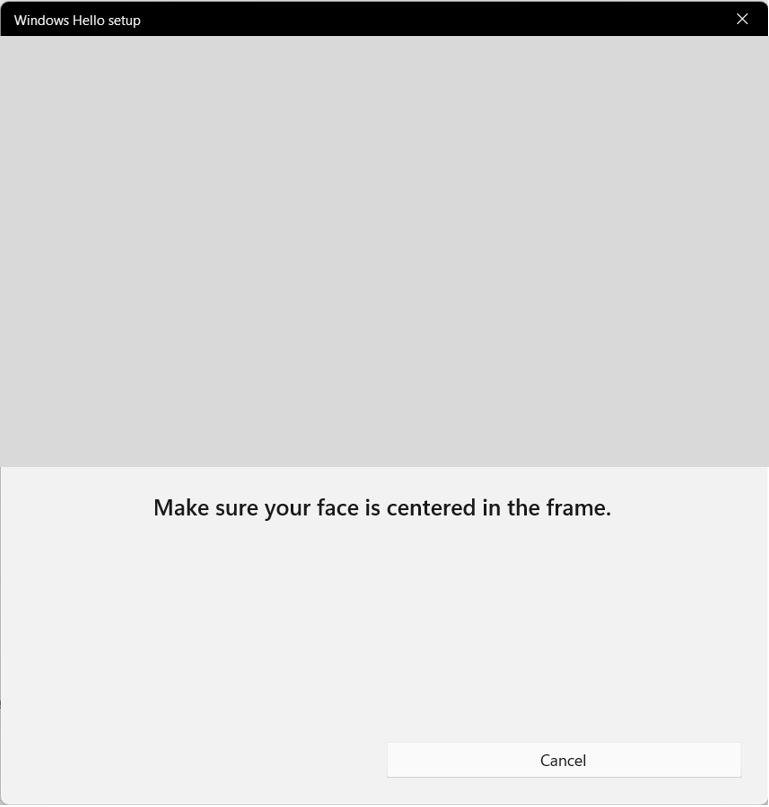
- Facial recognition: The infrared camera cannot detect a face, preventing the setup process from being completed.

Solution
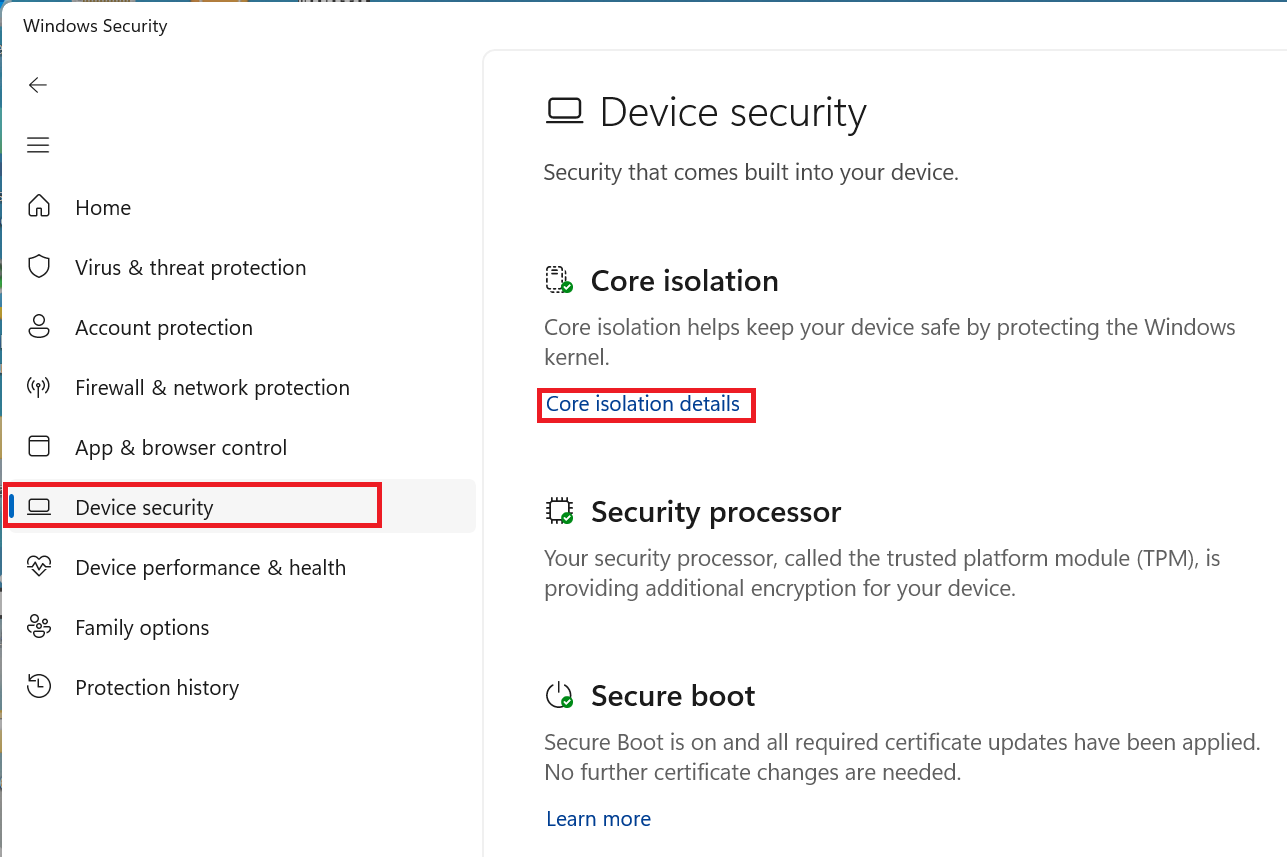
- Search for and open “Windows Security.”
- Go to “Device security” > “Core isolation details.”
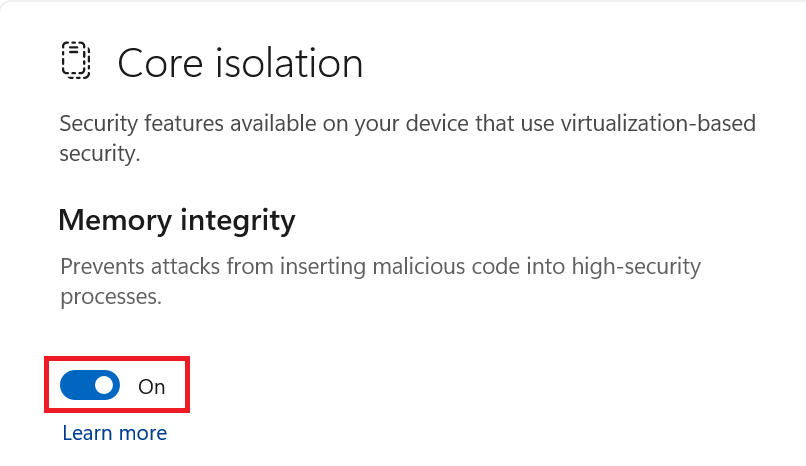
- Turn off “Memory integrity,” select “Yes” to allow the change, and then restart the system to complete the configuration.
FAQ
Q: Does this mean that my notebook hardware is defective?
A: This is usually not a hardware failure. It is a common software-environment configuration issue encountered after manually installing Windows 11. Factory-preinstalled systems are generally configured with the appropriate settings, while a clean installation applies the default security restrictions.
Q: Why does Windows 11 block my camera or fingerprint reader?
A: Windows 11 enables additional system security settings by default. To help prevent malicious software from imitating biometric data, the system strictly restricts initialization access paths for external or unverified biometric devices.
Q: Does turning off “Memory integrity” reduce system security?
A: Yes. Memory integrity is part of Core isolation and helps prevent malicious code from being injected into high-security processes. Turning it off allows the biometric driver to complete the system initialization verification. If your hardware requires this configuration to operate, you must balance the convenience of Windows Hello sign-in against the highest available level of security protection.
Q: Where else can I check the hardware status besides Core isolation?
A: Open Device Manager and check “Biometric devices” or “Imaging devices.” If the hardware is shown as working properly but the Windows Hello interface still reports an error, the issue is likely related to the Core isolation security setting.
Q: Should I perform these steps immediately after installing Windows?
A: Perform these steps only if the initial Windows Hello setup fails, such as when the face cannot be detected or the option is unavailable. If the device works normally while Memory integrity is enabled, there is no need to change the setting.
Related Articles
[Product Information] Windows Hello Face Support for External Infrared Cameras