[How To] Enable HDR and Setup for HDR Video Streaming/Gaming
Answer
If the MSI notebook is equipped with an HDR-capable display, or if an external HDR-capable monitor or TV is connected, HDR can be enabled through Windows settings. You can then use HDR video streaming or play games that support HDR.
Before proceeding, please confirm that the notebook meets the hardware and software requirements for HDR. If you are unsure whether HDR is supported, please refer to [Product Information] Display HDR.
This article applies to all MSI notebooks that support HDR.
Enable HDR in Windows
- Use the notebook’s built-in HDR display
If the MSI notebook is equipped with a built-in display that supports HDR, follow the steps below:
- Click the Windows icon
- Open “Settings”
- Go to “System” > “Display”
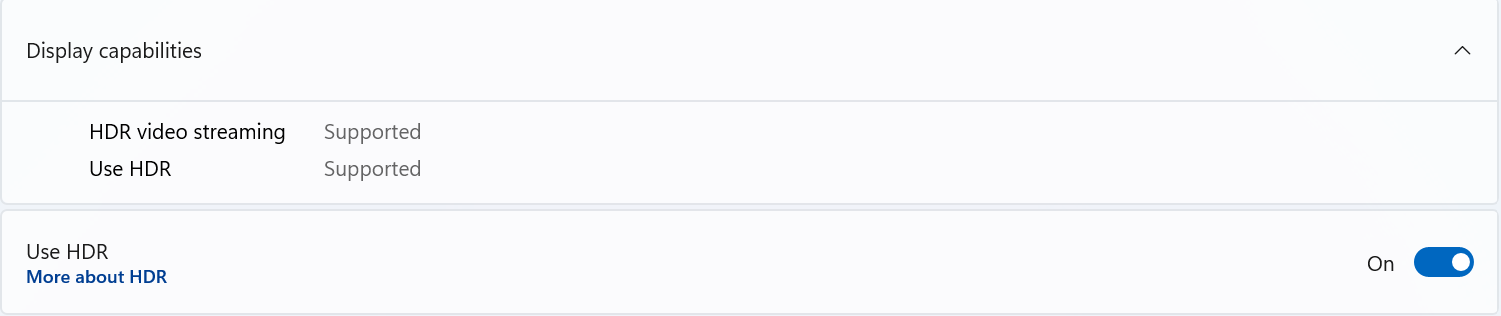
- Enable “HDR”
- Use an external HDR monitor or TV
If the MSI notebook is connected to an external monitor or TV that supports HDR, it is recommended to keep the notebook connected to AC power while using HDR. Enabling HDR while running on battery power may increase power consumption.
Follow the steps below:
- Click the Windows icon
- Open “Settings”
- Go to “System” > “Display”
- Set the display mode to “Extend” or “Second screen only”
- If multiple external displays are connected, select the display that supports HDR
- Enable “HDR”
How to Set Up Netflix HDR Video Streaming
Before playing HDR videos on Netflix, please make sure the following requirements are met:
- An NVIDIA GTX 10 Series discrete graphics card with at least 3 GB of video memory.
- A Netflix plan that supports HDR.
- An Internet connection speed of at least 15 Mbps.
After confirming that the requirements are met, follow the steps below:
- Open the Netflix website in a browser, or install the Netflix app for Windows from the Microsoft Store
- Open Netflix
- If using the Netflix app, go to “Settings” and set the video quality to “High”

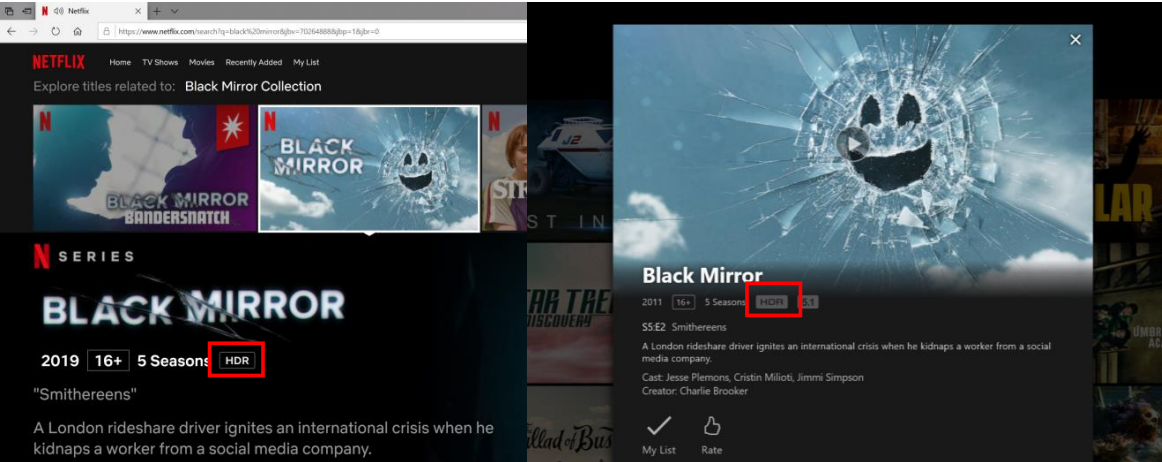
- Select and play a video that supports HDR
How to Enable HDR in Games
Before starting, please make sure that the game itself supports HDR.
- First, enable HDR in Windows by following the steps above
- Launch a game that supports HDR
- Go to the game’s video or display settings
- Find the HDR-related option and enable it
Using Cyberpunk 2077 as an example, go to “Settings” > “Video” > “HDR Mode” in the game to enable HDR.

FAQ
Q: Is it necessary to connect the notebook to AC power when using an external HDR display?
A: It is recommended to keep the notebook connected to AC power while using HDR. HDR display may increase system power consumption, so battery life may be reduced when running on battery power.
Q: Why is there still no HDR effect even after HDR is enabled in the game?
A: In addition to enabling HDR in Windows, the game itself must also support HDR. Some games also require HDR to be enabled separately in the game’s display or video settings.
Related Topics
[Product Information] Display HDR
[Product Information] Why Is HDR Certification Not Found in Windows?