[Product Information] Modern Standby Introduction
Answer
What Is Modern Standby?
Modern Standby is a low-power sleep mode used by Windows, also known as “S0 Low Power Idle”. When the system enters Modern Standby, the display turns off, and most hardware components enter a low-power state. In addition to allowing the system to resume quickly when the user wakes the computer, Windows may also briefly activate the system when necessary to perform background activities such as delivering notifications, carrying out system maintenance, or completing Windows Update tasks. (Learn more about Modern Standby)
This article applies to all MSI laptop products.
How to Check Whether the Computer Supports Modern Standby
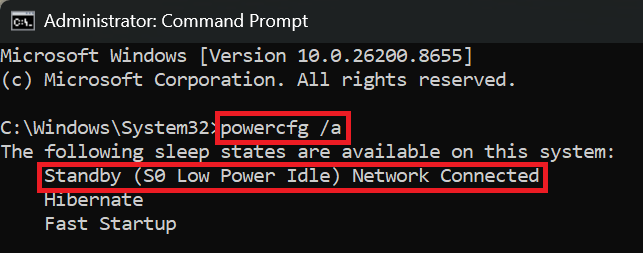
- Enter “cmd” in the Windows search box and run “Command Prompt” as administrator.
- Enter “powercfg /a” and press “Enter”.
- If “Standby (S0 Low Power Idle) Network Connected” is displayed, the system supports Modern Standby.
How to Enter Modern Standby
Select “Start > Power > Sleep,” close the display lid, or press the power button to enter Sleep. The actual behavior depends on the Windows power settings.
Why Does the Fan Continue Spinning After Entering Modern Standby?
After the system enters Sleep, Windows Update, system maintenance, drivers, or certain background applications may still briefly use the processor, storage device, or network. If the system is still processing tasks or the internal temperature has not yet decreased, the fan may continue spinning temporarily.
Before entering Modern Standby, it is recommended to close unused applications, make sure there are no pending Windows Update tasks, or use Hibernate instead.
Please refer to [Troubleshooting] The Battery Drains Quickly in Sleep Mode
Why Does the Computer Still Appear to Be Running After Entering Sleep?
Modern Standby allows the system to perform brief and controlled background activities while the display is turned off. In addition, Modern Standby also requires both the computer hardware and connected external devices to support low-power states. If a hardware component or external device cannot enter the required power-saving state, the system may remain active. Therefore, it is recommended to disconnect all external devices before entering Sleep.
FAQ
Q: Will the computer always receive emails and notifications during Modern Standby?
A: Not necessarily. Whether the system can receive notifications or perform network activities during Sleep depends on:
- Windows network-connectivity management
- Whether the application is allowed to run in the background
- Whether the computer is connected to AC power or running on battery power
- The status of the network adapter and its driver
- The system power-saving policy
Q: Why do the keyboard backlight or power indicator remain on after entering Modern Standby?
A: The light behavior may vary depending on the model, BIOS, EC firmware, and lighting settings. However, the keyboard backlight should normally turn off after the system enters a low-power state. If the keyboard backlight, display, or fan remains active for an extended period, check whether background tasks, external devices, or drivers are preventing the system from entering a deeper low-power state.
Q: Can external devices affect Modern Standby?
A: Yes. USB devices, Thunderbolt devices, network adapters, docking stations, or other peripherals that do not properly support low-power states may increase standby power consumption or prevent the system from entering a deeper low-power state. Disconnect the external devices and test again to determine whether the issue is caused by a peripheral device.