

[Motherboard] How to Choose and Install Memory Correctly?
How to check the compatible RAM for your PC and install it properly?
Check Compatible Memory for the Motherboard
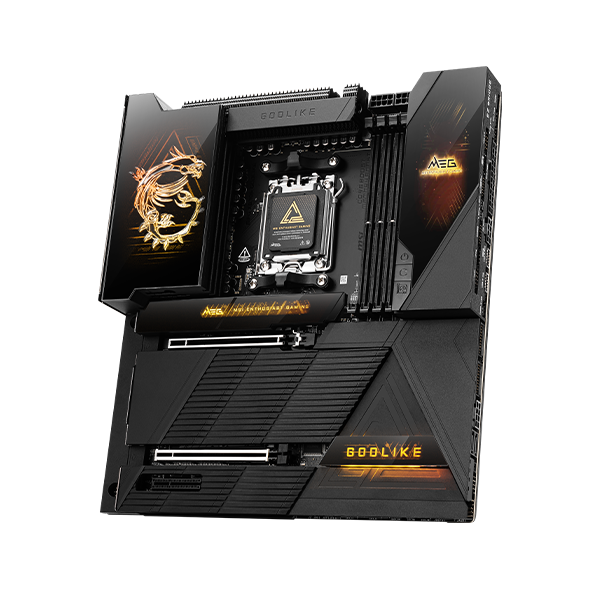
1. Go to the MSI Official Website, enter your motherboard model in the search bar, for example: MEG Z790 GODLIKE MAX, then press “Enter” to search.
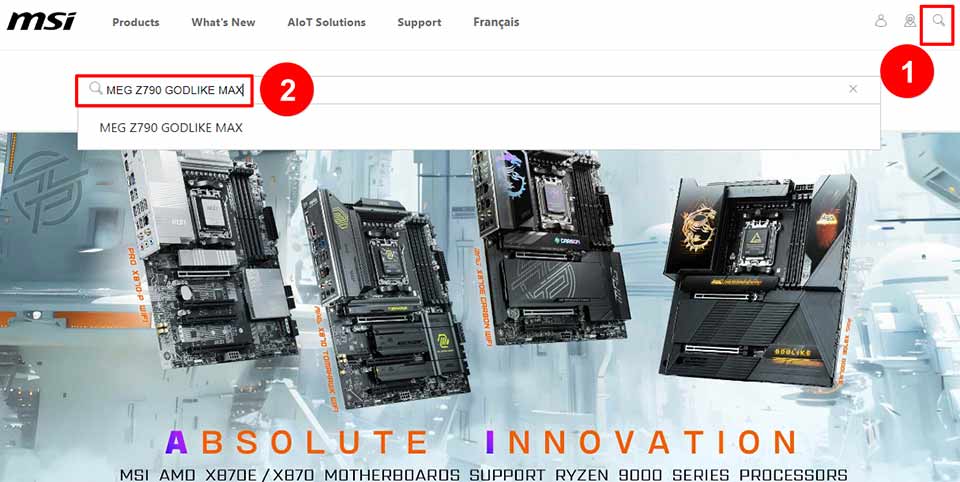
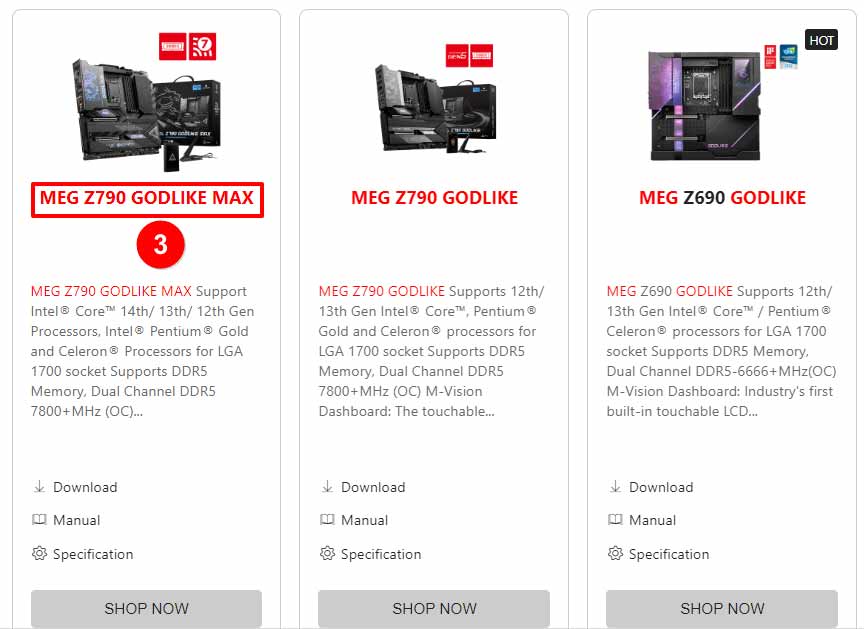
2. Find and click on your model.
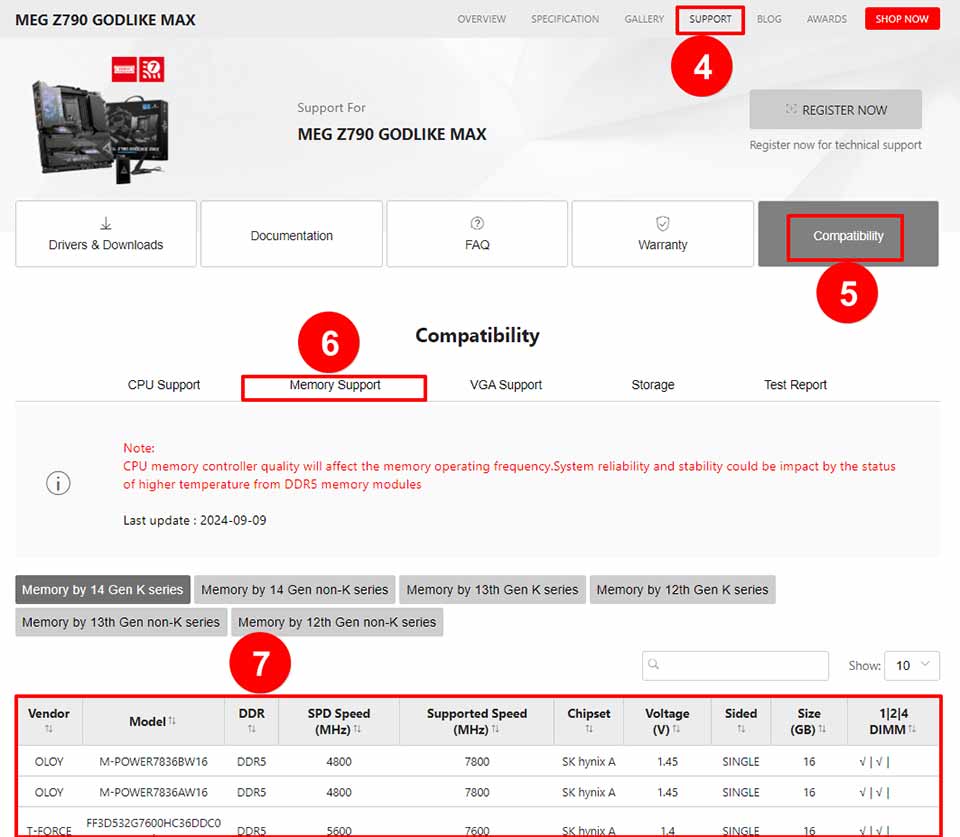
3. Click “SUPPORT”→ “Compatibility” → then click ”Memory Support” to find the compatibility modules for your motherboard.
Install and Remove Memory
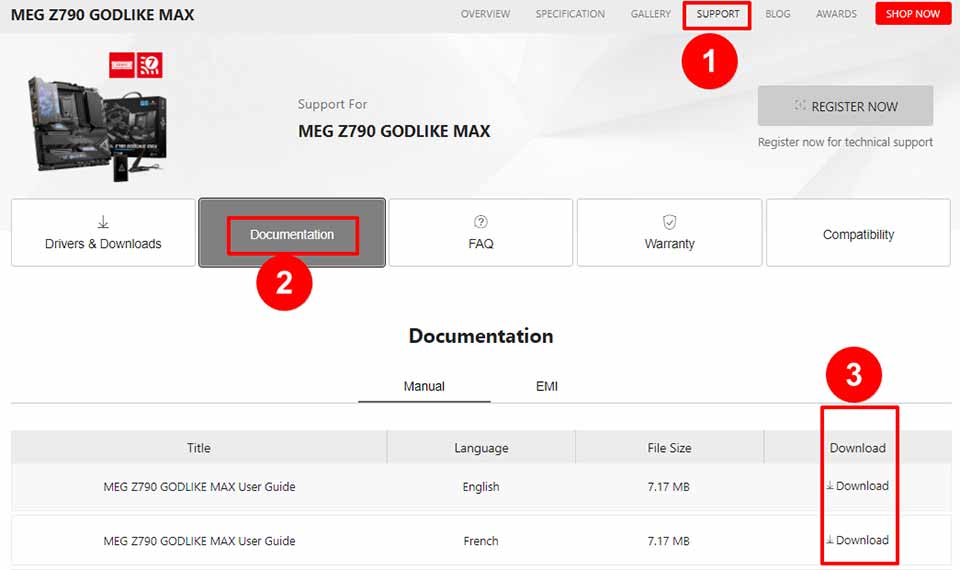
1. Using the "MEG Z790 GODLIKE MAX" as an example, go to the product page, click "SUPPORT," and download the product manual in your preferred language under the "Documentation" section.
Note: Before installing memory, please ensure the PC is powered off, and the power supply is disconnected.
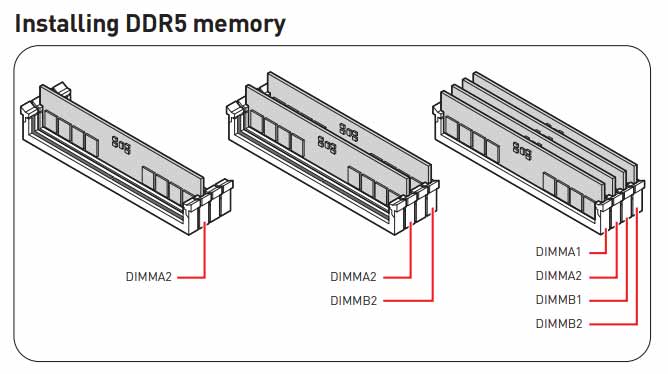
2. Locate the "Installing DDR5 Memory" section in the manual.
For one memory module, install it in the DIMMA2 slot.
For two memory modules, install them in the DIMMA2 and DIMMB2 slots.
For four memory modules, install them in the DIMMA1, DIMMA2, DIMMB1, and DIMMB2 slots.
Note: Installation methods may vary by motherboard. Please refer to the manual for specific details.
How to Install Memory
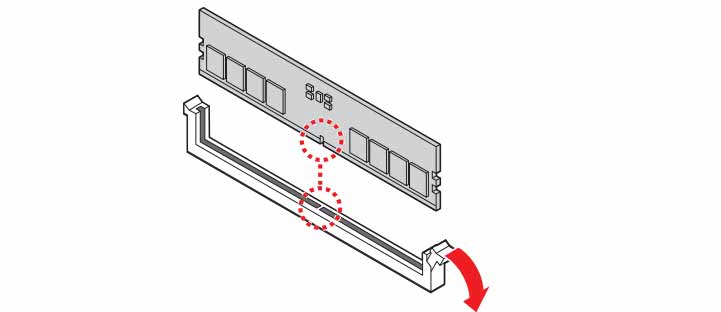
1. Press down on the retention clips to open the memory slot. Align the notch on the memory module with the key in the slot.
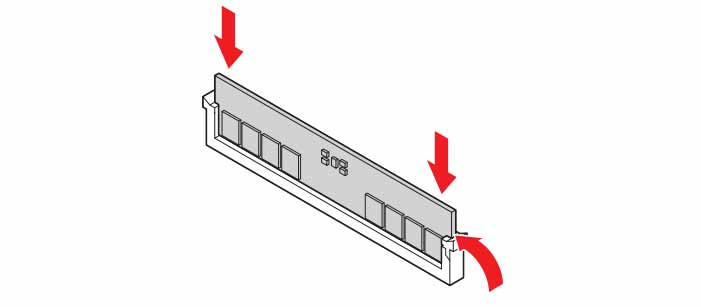
2. Push the memory module down vertically with firm pressure until the retaining clips lock into place.
How to to Remove Memory
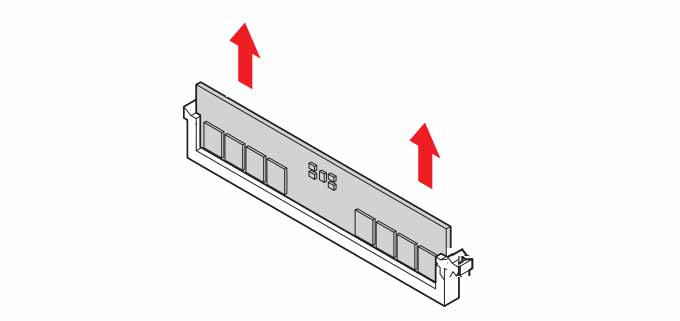
1. Press down on the retention clips to release the memory module.
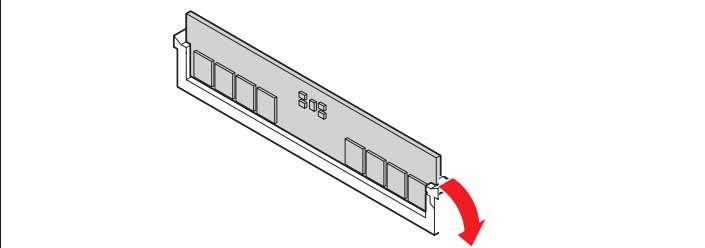
2. Lift the memory module vertically out of the slot.
Verify Memory in BIOS
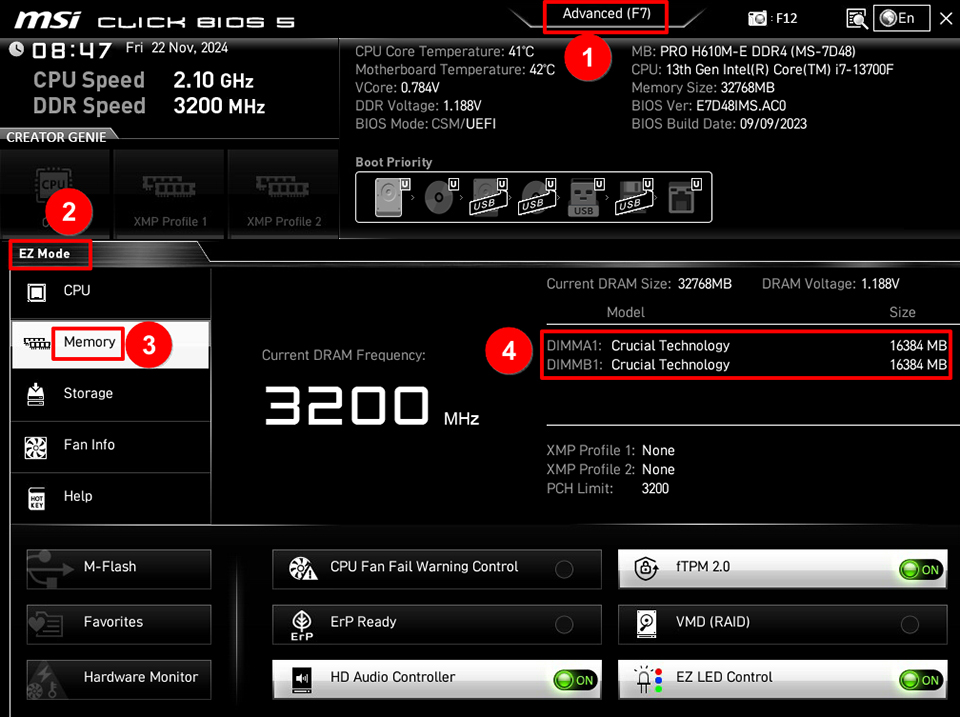
After powering on your computer, immediately press the "Delete" key to enter the BIOS. Switch to "Advanced " → "EZ Mode," and check the memory information on the right side under "Memory."
For example: If two memory modules are installed in slots A1 and B1, and both display a capacity of 1684MB, the memory is installed correctly.
Note: The BIOS interface and function tabs may vary by motherboard.
If the BIOS does not detect the memory module, please reinstall the memory following the installation steps above, ensuring it is securely seated in the slot.
If the computer still fails to boot after reseating the memory, please refer to [Motherboard] What to do if there is no power after booting up or no display on the monitor.
Reference Information and Related Articles
[Motherboard] What to do if there is no power after booting up or no display on the monitor