

How to deal with pixelated line and abnormal display issues after booting?
When pixelated lines, blurry display or system crash take place simultaneously, please first inspect the external monitor or graphics card to identify where the source of the problem lies.
Please refer below for troubleshooting methods:
- Access monitor OSD menu – load factory default settings
- Cross-testing with HDMI, DP connection cables and interfaces
- Cross-testing with another monitor
- Cross-testing with dedicated graphics card
Access monitor OSD menu – load factory default settings
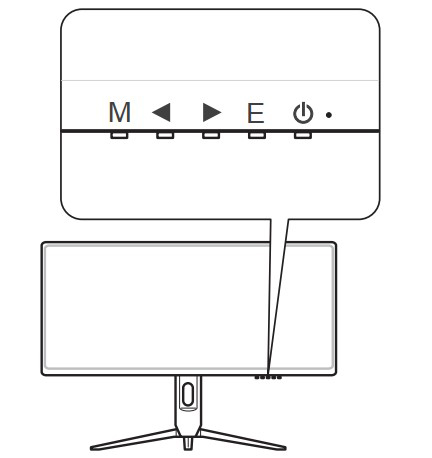
1. Press “M” Key to launch the OSD(On-Screen Display) menu
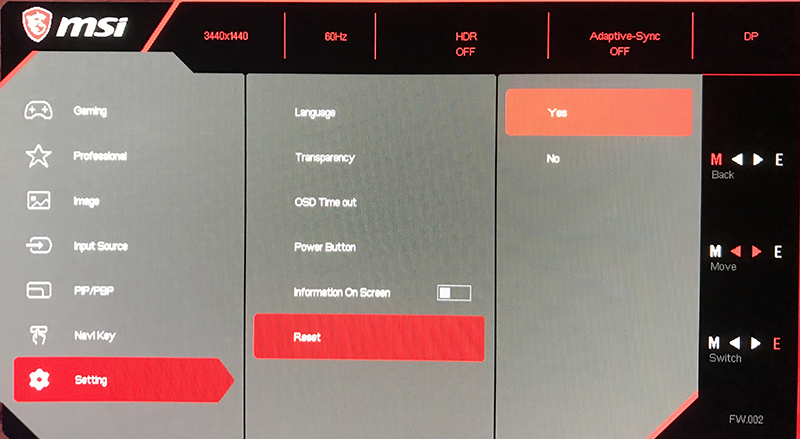
2. Find the [Reset] option under [Setting] and press [Yes] to load factory default monitor settings
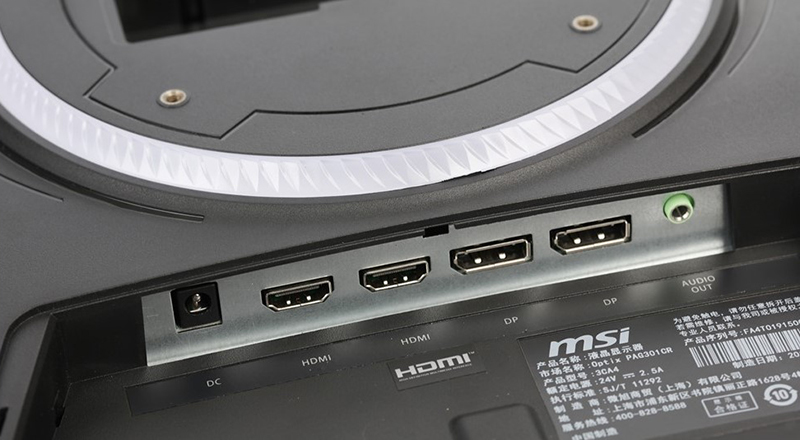
Perform Cross-testing with HDMI, DP connection cables and interfaces
Cross-test with different display cables and interfaces to rule out the problem.
Cross-testing with another monitor
Please cross-test with another external monitor when display cables and interfaces have been eliminated as possible causes of malfunction.
Cross-testing with dedicated graphics card
If the CPU contains integrated graphics, please switch to the integrated graphics for display output in order to isolate dedicated graphics card as the root cause of pixelated screen..
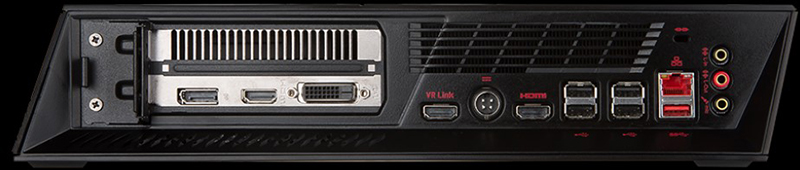
If the dedicated graphics card is identified as the cause for display error, please refer to below article for troubleshooting procedure:
How to deal with pixelated display and lines