
[Monitor] How to Set Refresh Rate
The Refresh rate refers to the number of times the monitor updates images per second. It is usually expressed in Hertz (Hz). A higher refresh rate means a higher frequency of screen refresh, resulting in smoother screen transitions, especially in fast-moving scenes, reducing blurriness and frame skipping.
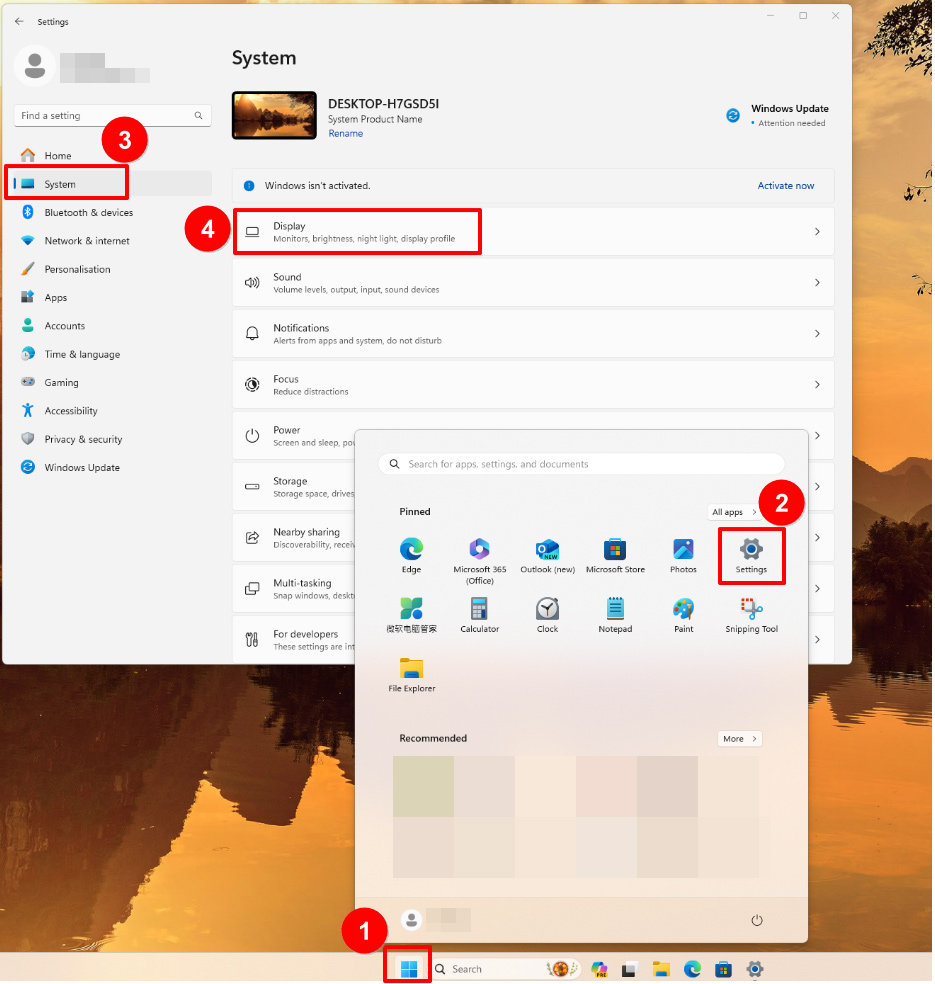
1. Click on "Start" on your desktop →"Settings," and navigate to "System" →Click on "Display."
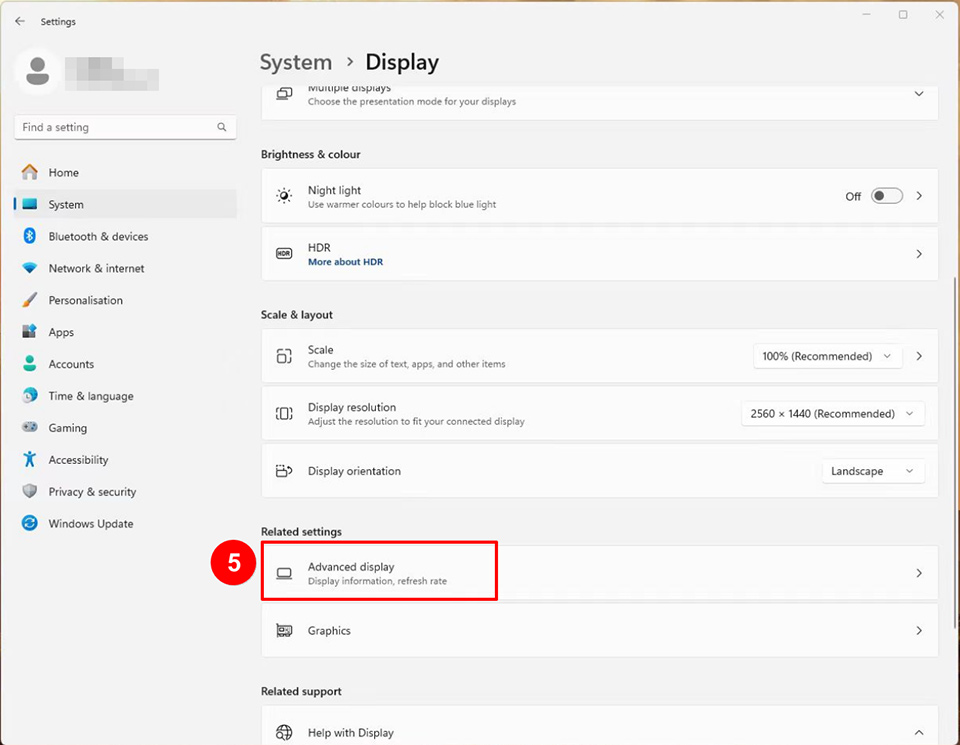
2. Scroll down and click on "Advanced display settings."
3. Choose the monitor you want to configure.
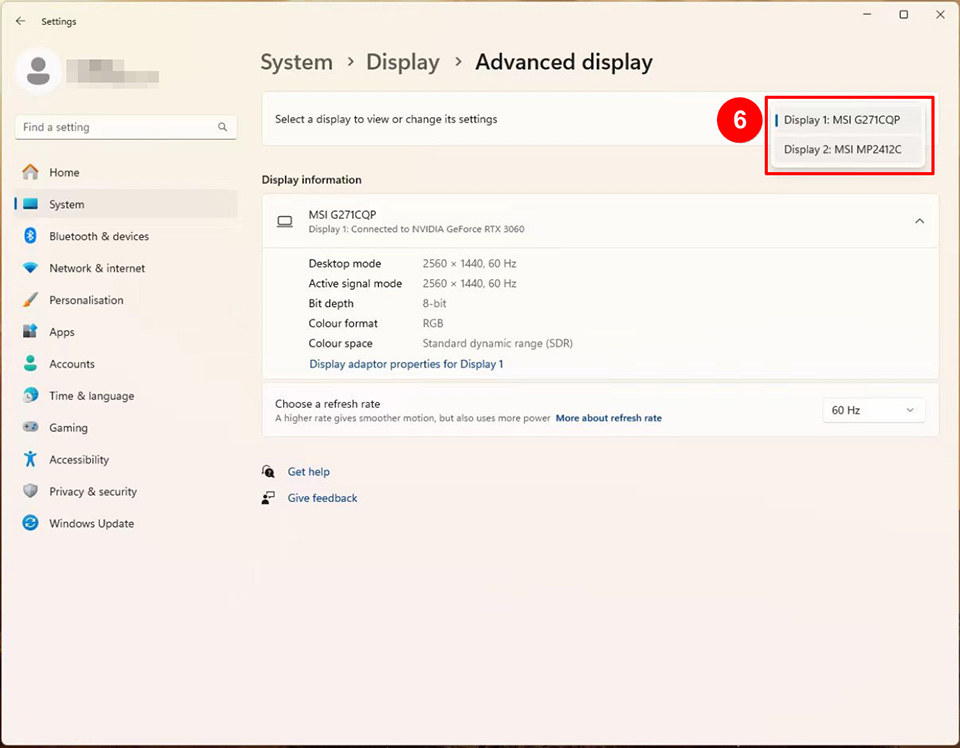
4. Click on the “Refresh Rate” to adjust the settings.
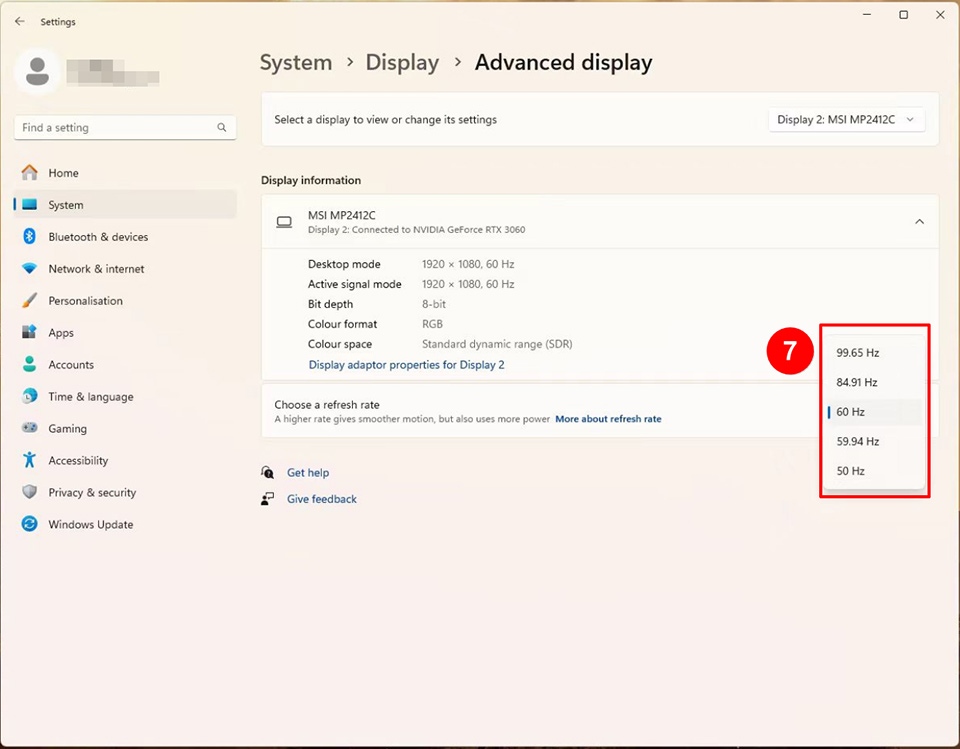
Note: The available refresh rate settings depend on the specifications of your monitor, graphics card, and connection cable. Ensure that all related hardware supports the desired refresh rate.
For example, if your monitor supports a maximum of 4K@144Hz but your graphics card only supports a maximum of 4K@30Hz, the refresh rate will be limited by the graphics card's specifications.