




[Notebook] How to solve the BitLocker recovery screen that appears after boot up?
BitLocker is a device encryption function of Windows; encryption can help prevent unauthorized access. You can still use the computer normally after it is encrypted, but unauthorized users cannot access your documents.
The BitLocker recovery screen may appear during boot up after system update, hardware changes or BIOS updated. The recovery key is requested to unlock the device.
Note: BitLocker is an encryption security product by Microsoft; MSI does not have the ability to save nor provide the recovery keys. If you are unable to enter the BitLocker recovery key to release the protection, it can only be unlocked by reinstalling the system.
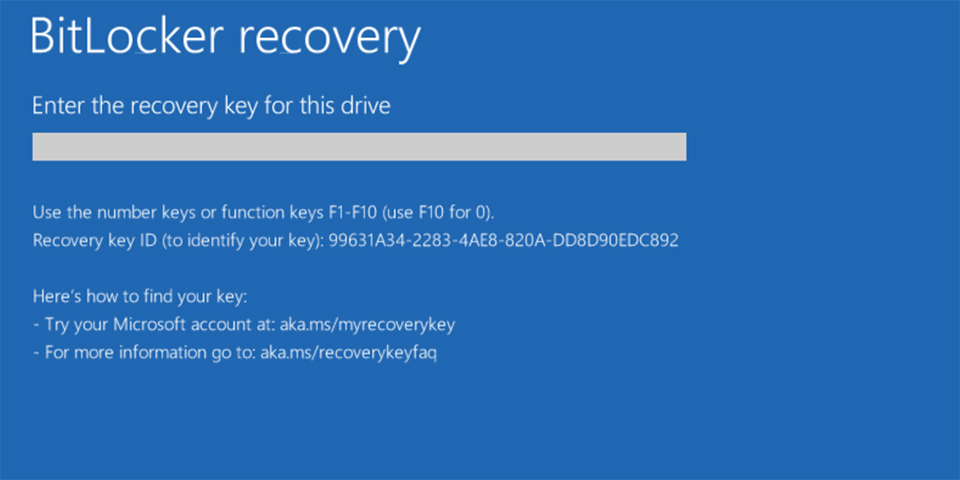
Finding your Bitlocker recovery key
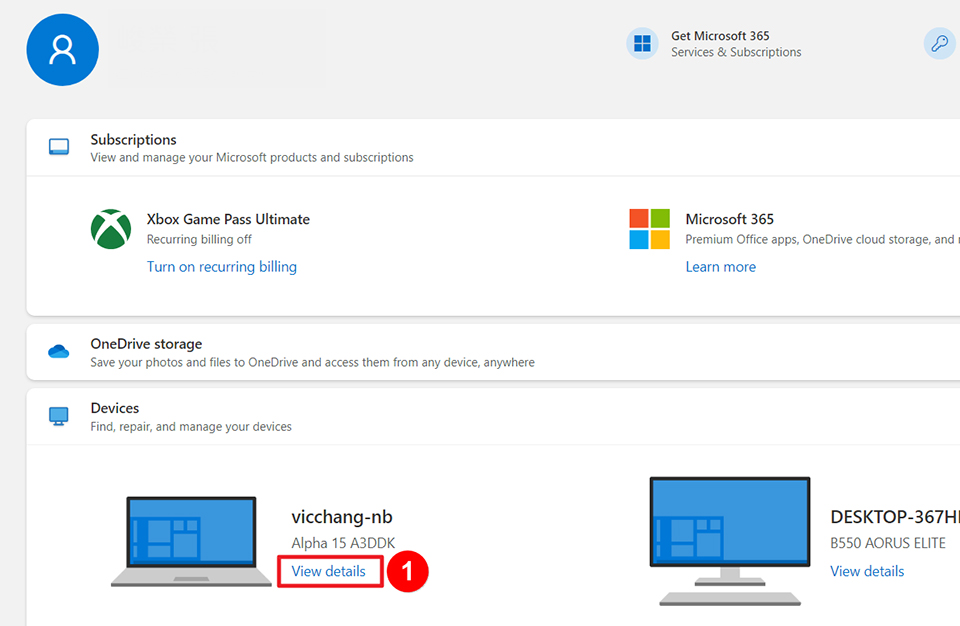
1. Use another device and log in to your Microsoft Soft account, locate your computer and click “View details”.
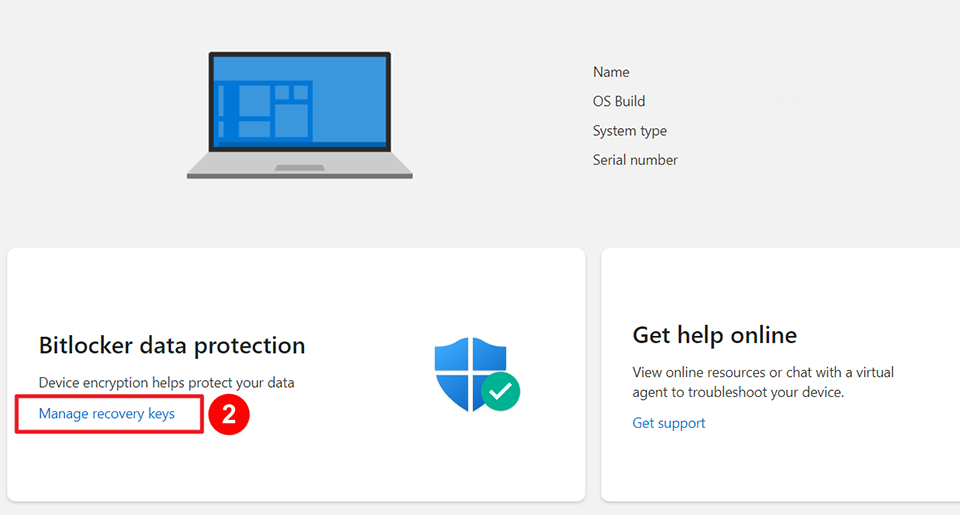
2. Click “Manage recovery keys”.
3. Match the Recovery Key ID on the screen and find the corresponding recovery key.
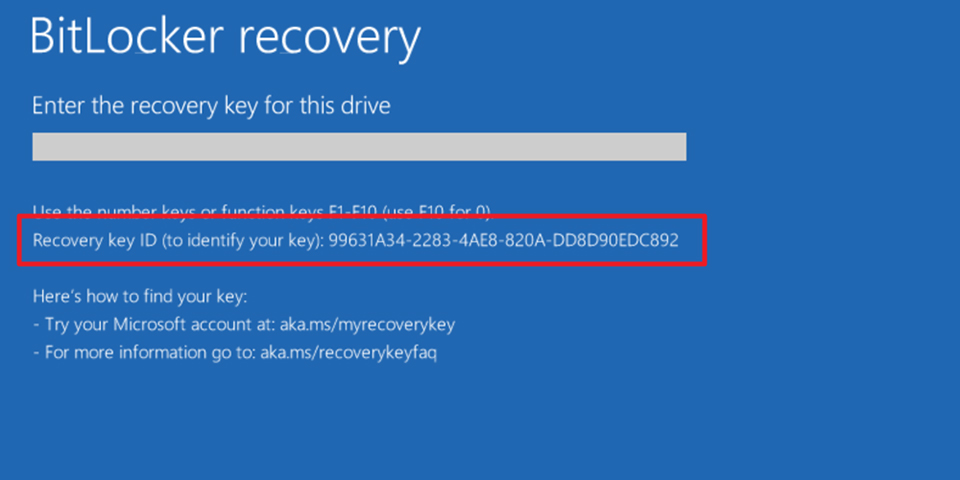
4. Enter the corresponding key to enter the system.
For other introductions to Bitlocker and how to retrieve the key, you can refer to the following support article from Microsoft: Finding your BitLocker recovery key in Windows