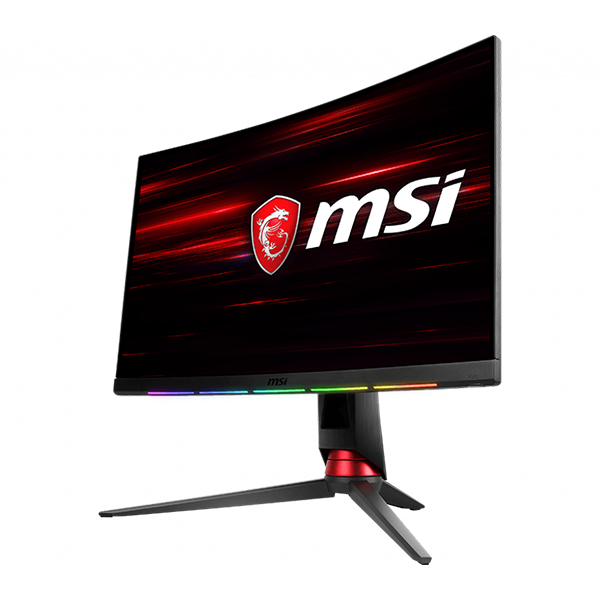

[Notebook] How to Adjust or Disable the Chassis Lighting on MSI Laptops
Some MSI notebooks have chassis lighting that can be controlled via software.
Before adjusting, please confirm which lighting engine is used, then proceed with the appropriate tool.
Please refer to below steps to identify the lighting control engine:
1. Go to the MSI official website, click the “magnifying glass” icon in the upper right corner. Enter your model name, for example "Stealth 14 AI Studio A1V", and press “Enter”.

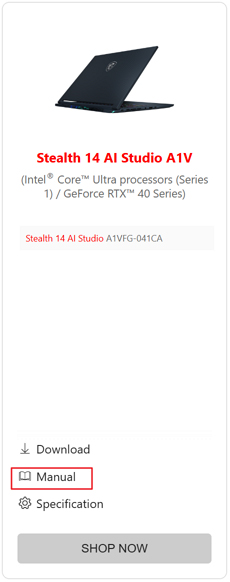
2. Find the model you are looking for and click "Manual".
3. Select your device model.
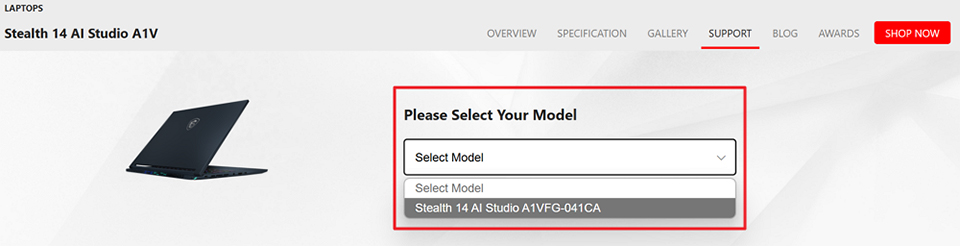
4. Choose your preferred language and click "Download".

5. On the page, check the lighting control section to confirm whether your device uses MSI Center or SteelSeries Engine for lighting adjustment.
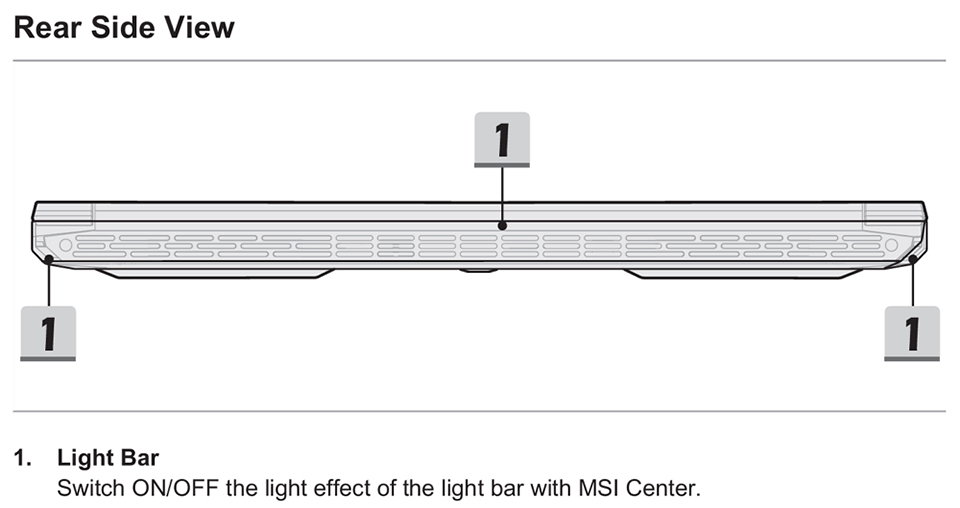
Adjust via MSI Center
1. Open MSI Center → go to “Features” → “Mystic Light”.
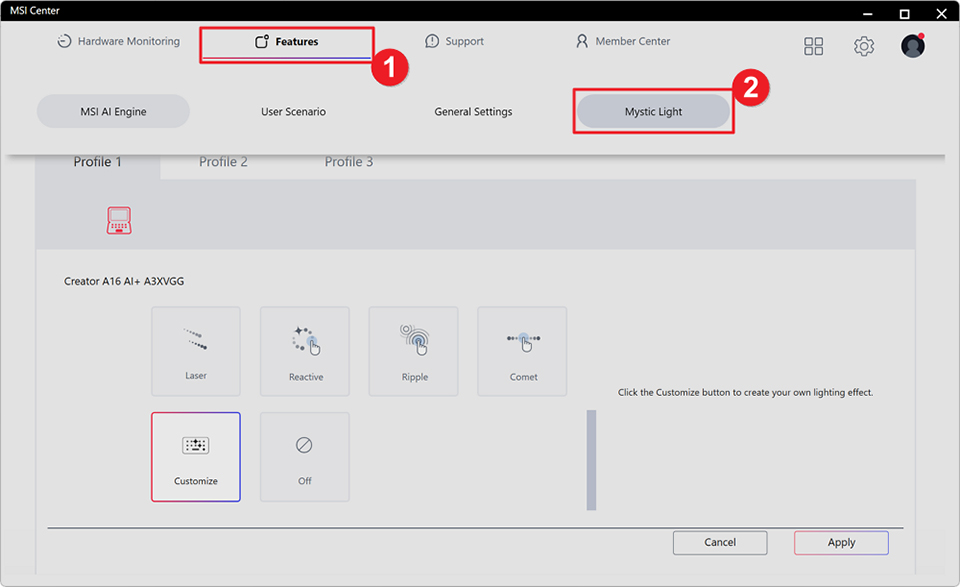
You can use the templates to customize color, speed…etc.
2. Select a profile and click “Customize” to fine-tune the lighting.
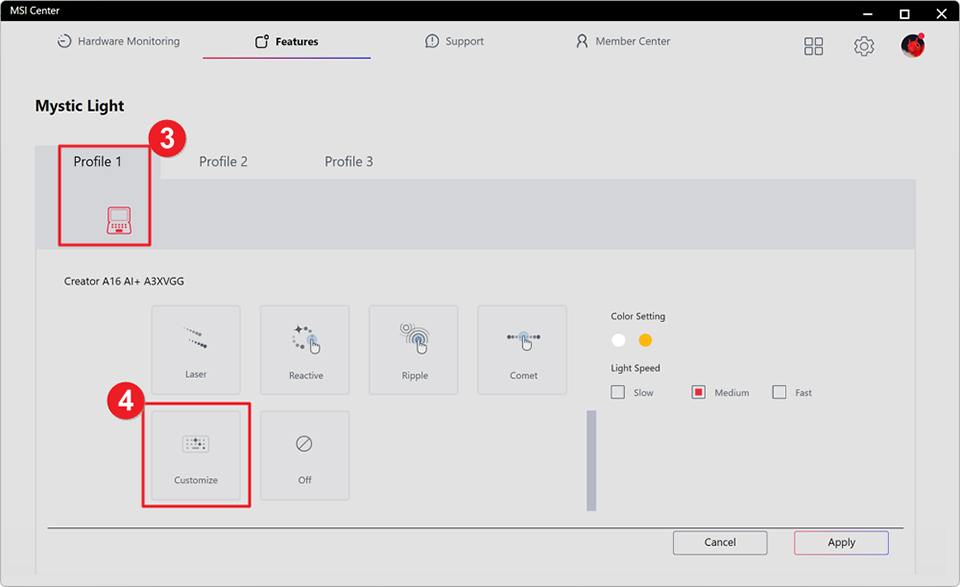
Adjust via SteelSeries GG (SteelSeries Engine):
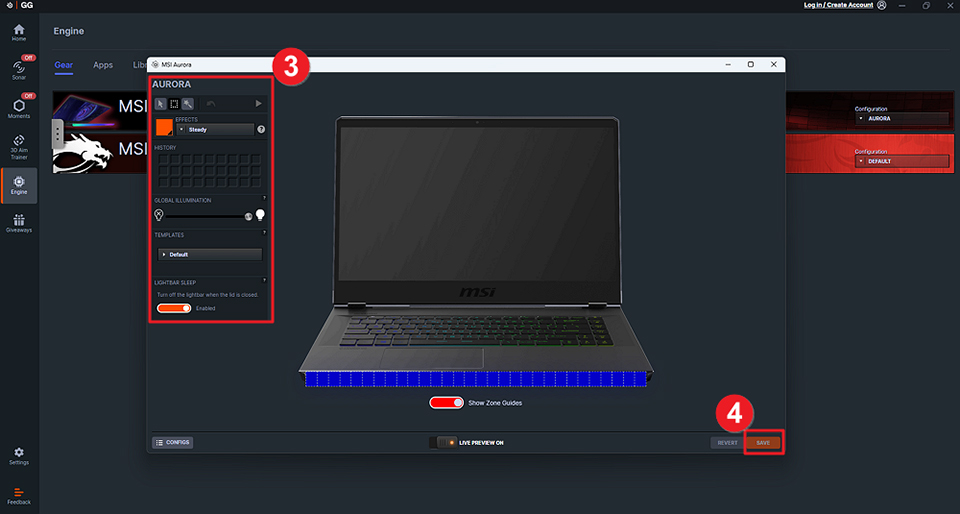
1. Open SteelSeries GG → select “Engine” → “MSI AURORA”.
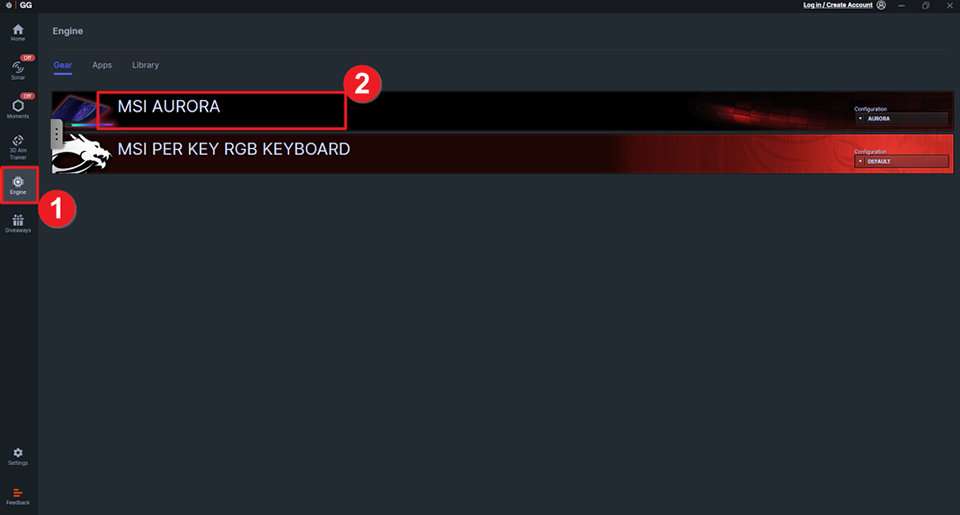
2. Adjust effects or toggle lighting on/off, then click “SAVE”.