




How to fix a slow or unstable internet connection?
Please try to use Windows function [Troubleshoot problem] for detecting and repairing the problem. If the network is still unstable, intermittent problem, please check to see if the wireless indicator LED is illuminated. In the event that the LED is not illuminated, it means that the device’s Wi-Fi function is not enabled. In this case, follow the “How to enable the wireless device” checklist before proceeding. If the LED indicator is on, it means that the Wi-Fi feature is currently functional. Follow “Driver installation” to proceed
External environment confirm
- Please use mobile phone or other computer to confirm that the wireless router is working properly. If the mobile phone or other computer is also unable to connect, it is recommended to check the router hardware or settings.
- Please change to other LAN cable to confirm.
How to: Enabling wireless functionality
Check to see whether or not the wireless indicator LED is illuminated.
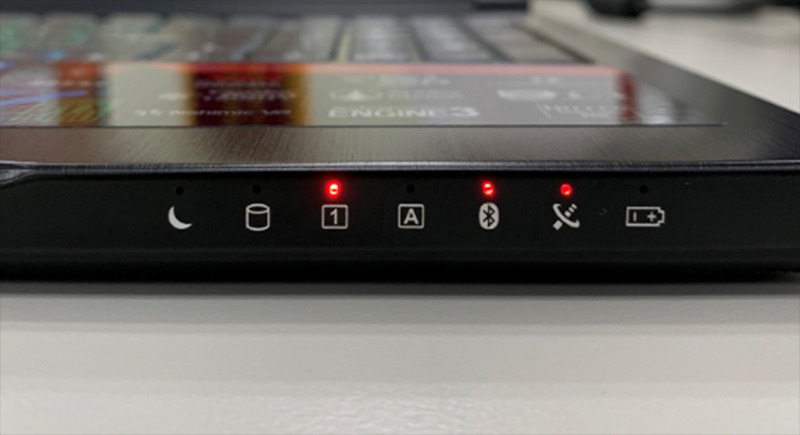
In the event that the indicator LED is not illuminated, please hold Fn Key and F10 Key to turn on air mode.
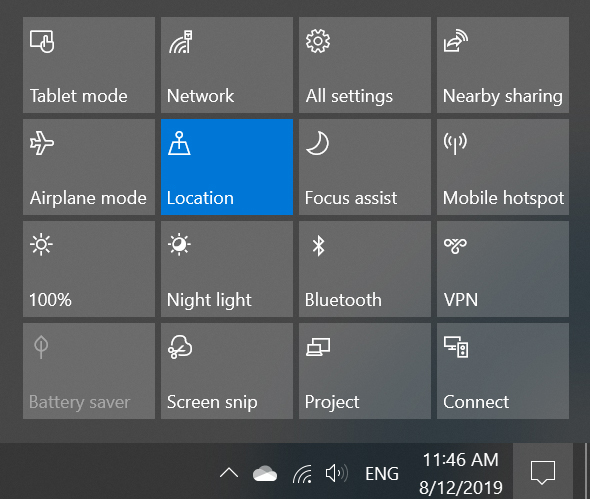
If the indicator is not lit on, please check Windows Control center to enable Wifi function
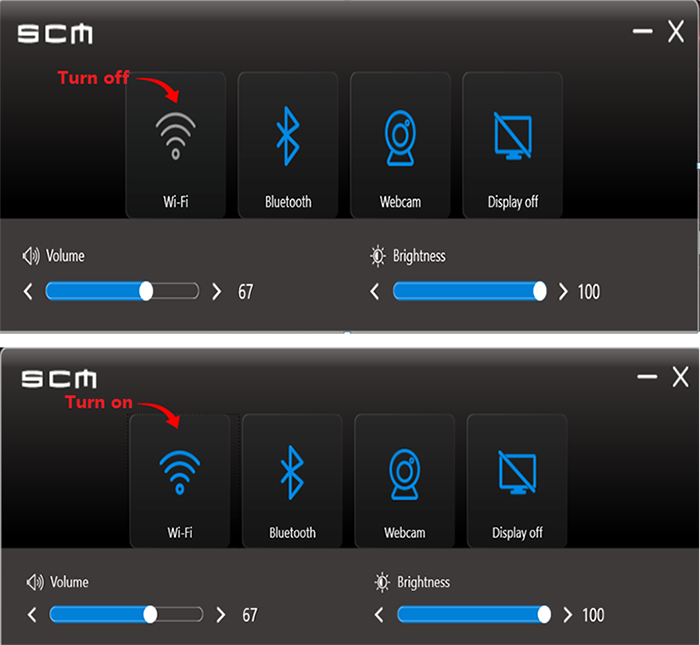
Alternatively, the device’s Wi-Fi may be powered by using the “SCM” application. (If the wireless indicator appears grey on SCM, it means that the device is not powered on. Please click on this icon to power the device on.)
Download and Install latest driver from MSI official website
Reference information and related articles
Download and Install latest driver from MSI official website